This guide explains how Google Tag Gateway (GTG) works with Google Consent Mode on websites that use CookieYes. It covers how to check whether your Google tags are served through GTG and how to make sure consent defaults load correctly, so you can resolve the Default consent set too late error if it appears.
What is Google Tag Gateway?
Google Tag Gateway (GTG) for advertisers lets you serve Google tags, such as Google Analytics, Google Ads, and Google Tag Manager, from your own domain instead of Google's. Requests are routed through your own infrastructure, which Google states can help improve measurement reliability.
You can set up GTG in one of two ways:
| Setup | Who places the tag on the page | Can you control script order? |
|---|
| Automatic (one-click CDN setup) | Your CDN provider, such as Cloudflare, adds the Google tag to every page. | Usually not. The CDN determines where the tag is placed. |
| Manual | You add the GTG script to your pages yourself. | Yes. You decide where the script is placed in your HTML. |
For more information, see Google’s documentation:
How GTG affects Google Consent Mode
Google Consent Mode depends on one key requirement: the consent default command must load before any Google tag fires. On websites that use CookieYes, the CookieYes script sets this default.
With the automatic (one-click CDN) setup, your CDN injects the Google tag into the page ahead of your own scripts. This often prevents you from controlling the load order of scripts on your site, so the Google tag may fire before CookieYes sets the consent default, even if your CookieYes configuration is correct. When this happens, the first request reaches Google without a consent signal. Tag Assistant, the CookieYes Check GCM status tool, and the CookieYes diagnostics report then show the Default consent set too late error.
With the manual setup, you control the script order. Place the CookieYes script before the GTG script to make sure the consent default is set first.
Start with the general checks
The Default consent set too late error is more often caused by script order than by GTG, so we recommend checking the common causes first. These include:
- The Consent Initialization - All Pages trigger in Google Tag Manager (GTM).
- The order of the custom consent script, the Google tag, and the CookieYes script on websites where scripts are added manually.
If the error persists after these checks, continue with the steps below.
Before making any changes, confirm whether your Google tags are enrolled in Google Tag Gateway. The reliable way to check is in the Google product where your tag is managed, because the Google tag gateway page shows the enrollment status for each of your domains directly.
Check in Google Tag Manager, Google Analytics or Google Ads (recommended)
Open the Google tag gateway page in whichever product you use to manage your Google tag:
| Where your tag is managed | Where to look |
|---|
| Google Tag Manager | In your container, go to Admin and select Google tag gateway. |
| Google Analytics (GA4) | Go to Admin > Data streams, open your web data stream, click Configure tag settings, then go to Admin and select Google tag gateway. |
| Google Ads | Click the Tools icon > Data manager, find Google tag and click Manage, then go to Admin and select Google tag gateway. |
On the Google tag gateway page, check the status shown next to your domain:
- Active or First-party: GTG is active for this domain and is serving your tags. Go to Fix the error.
- Pending: GTG is enabled, but Google has not yet received diagnostic data. Treat the domain as enrolled and go to Fix the error.
- Not started or Paused: GTG is not serving your tags, so it is not the cause of the error. Return to the troubleshooting guide and work through the remaining script-order fixes, or contact the GCM support centre.
If the Google tag gateway page shows no domains at all, GTG has never been set up for this tag.
Optional: confirm with Tag Assistant
If you want a second confirmation from the browser side:
- Open Tag Assistant, enter your website URL and connect. (New to Tag Assistant with CookieYes? See Check proper implementation of GCM for how to start a session.)
- Browse your site so that a page view fires.
- In the Summary panel, open Output > Hits Sent.
- Check whether the hits are sent. If they go to your own domain followed by your measurement path and
/g/collect (for example https://example.com/metrics/g/collect),tags are served through GTG. If they go to https://www.google-analytics.com/g/collector another Google domain, they are not.
Note: The measurement path (such as /metrics or /data) is chosen during GTG setup and differs between websites. Use this check only to confirm what the Google tag gateway page already shows; if the two disagree, trust the Google tag gateway page.
For Google's description of the setup and and status screens, see the Google Tag Gateway setup guide.
Fix the error
If your tags are served through GTG, use one of the following options to fix the error.
Option A: Use Advanced Consent Mode with Data Transmission Controls and Global Consent Defaults (recommended)
Google recommends Advanced Consent Mode (also called U+C) as the mechanism for tags served through GTG, because it is compatible with manual GTG and does not require the consent signal to load before the tag fires. While consent is unknown, tags load and send cookieless pings. Full measurement begins once the visitor gives consent.
To learn more about how the two modes differ, see Basic vs Advanced Consent Mode.
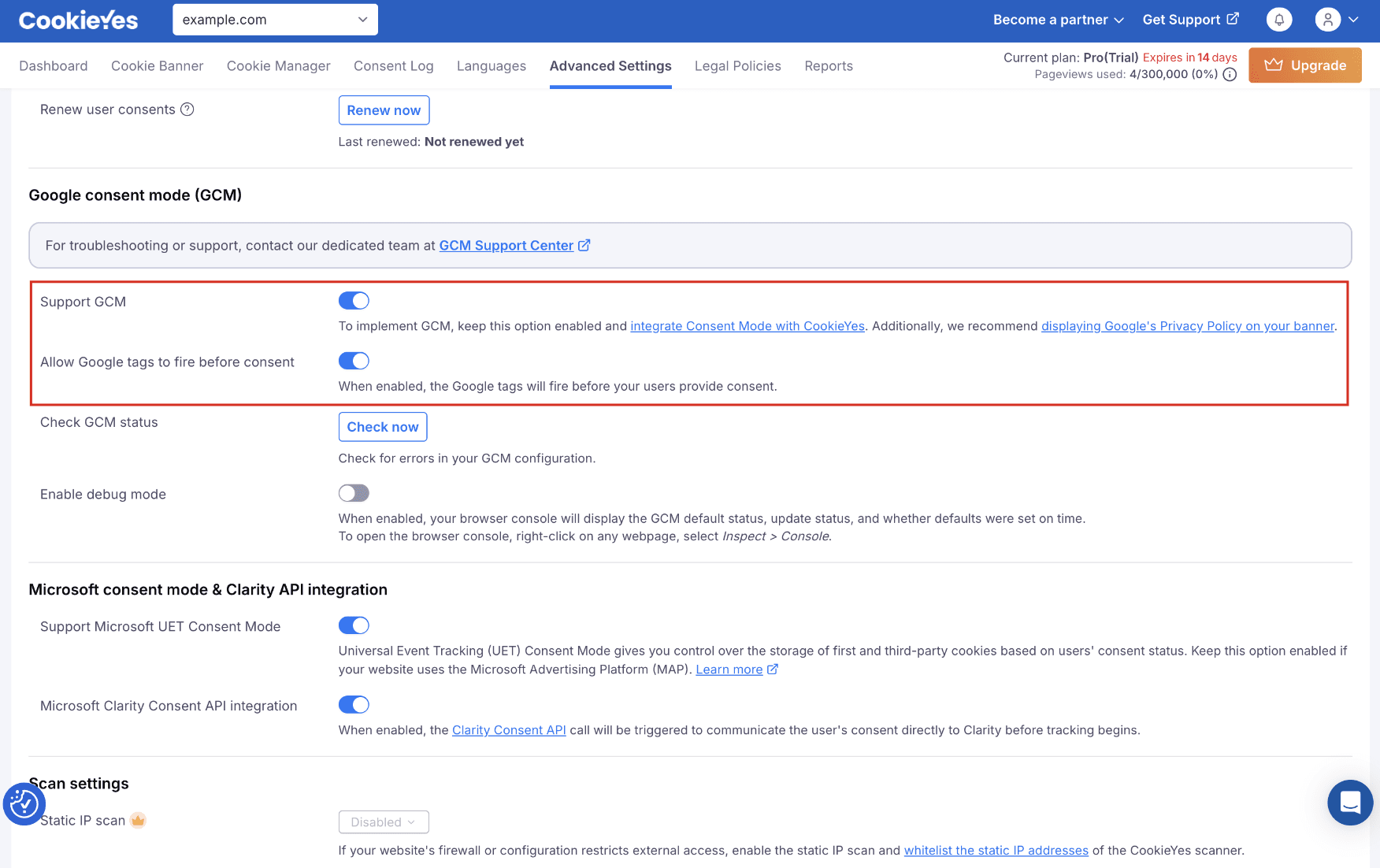
- In CookieYes, go to Advanced Settings > Google consent mode (GCM) and make sure Support GCM is turned on.
- Turn on Allow Google tags to fire before consent. This switches CookieYes to Advanced Consent Mode.
- In Google Tag Manager, go to Admin > Consent Settings and enable Data Transmission Controls.
- Set your Global Consent Defaults in your Google implementation, based on your compliance requirements:
- If you use GTM, set them in Consent Settings.
- If you use gtag.js directly, add gtag('consent', 'default', ...) commands to your website code.
You can set different defaults for different regions. For visitors in the EEA and UK, the following defaults are commonly used: analytics_storage: denied, ad_storage: denied, ad_user_data: denied and ad_personalization: denied
Note: security_storage is usually set to granted because it supports security-related functions.
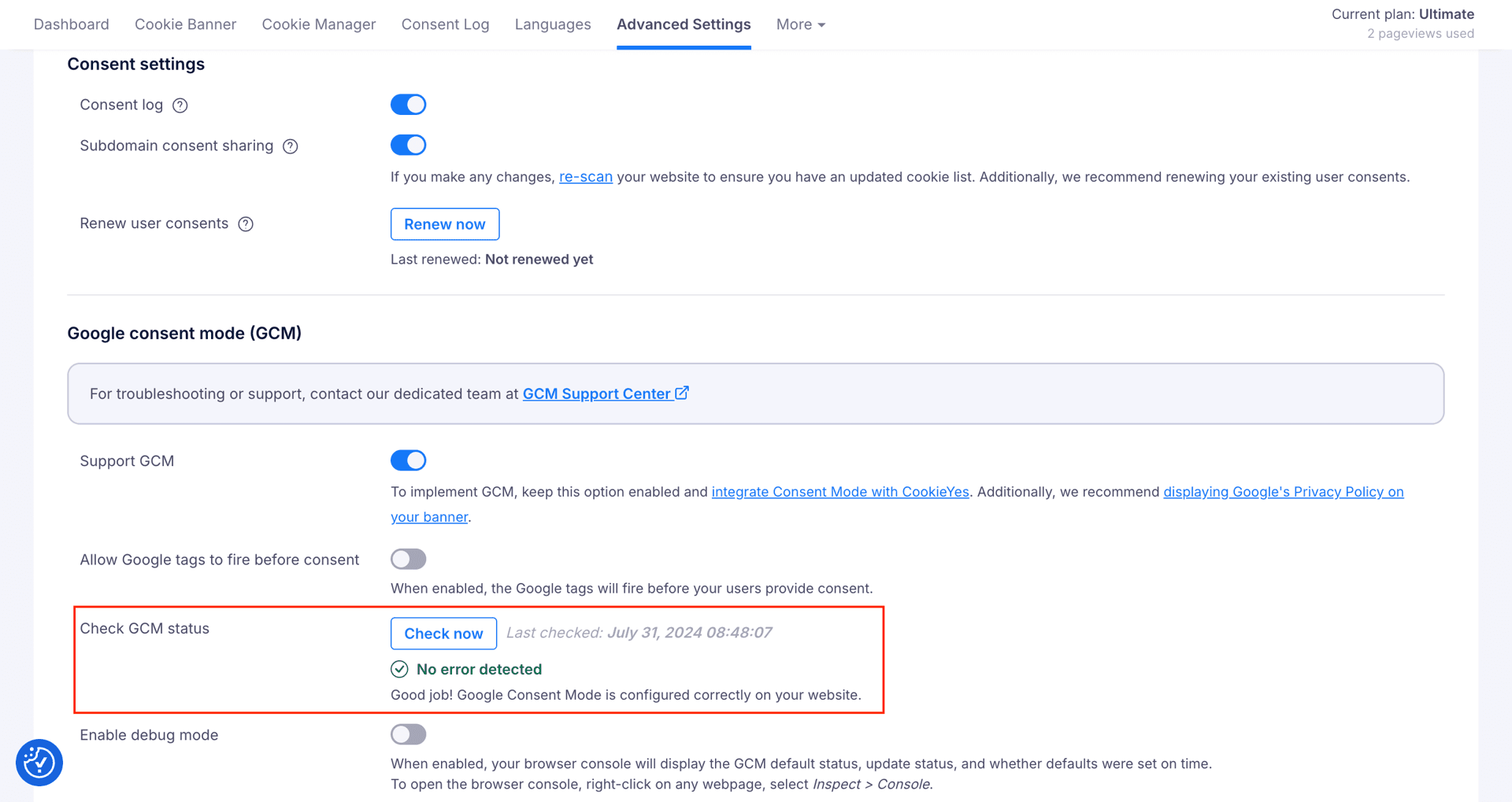
- In CookieYes, go to Advanced Settings and click Check GCM status to confirm the error is resolved.
If you load Google tags separately, for example a gtag.js snippet alongside a GTM container, or separate GA4 and Google Ads tags, move them into a single GTM container and deploy that container through GTG. GTM's built-in consent controls then hold each tag until CookieYes sets consent.
- Move each standalone Google tag into your GTM container.
- Make sure the CookieYes CMP template tag is the only tag that fires on the Consent Initialization - All Pages trigger.
- Deploy the GTM container through GTG. For steps, see Google's setup guide.
- In CookieYes, go to Advanced Settings and click Check GCM status to confirm the error is resolved.
Note: If the error changes to Default consent not set after you move your tags, check your trigger and default settings. For steps, see Default consent not set in the troubleshooting guide.
Option C: Switch to the manual GTG setup
If you need full control over when scripts load, switch from the automatic (one-click CDN) setup to the manual GTG setup.
- Turn off the automatic tag injection in your CDN, then set up GTG manually. For steps, see Google's setup guide.
- In your website's HTML, place the CookieYes script before the GTG script. This makes sure the consent default is set before any Google tag fires. For the correct script order, see Fix general script order issues in the troubleshooting guide.
- In CookieYes, go to Advanced Settings and click Check GCM status to confirm the error is resolved.
Confirm the fix
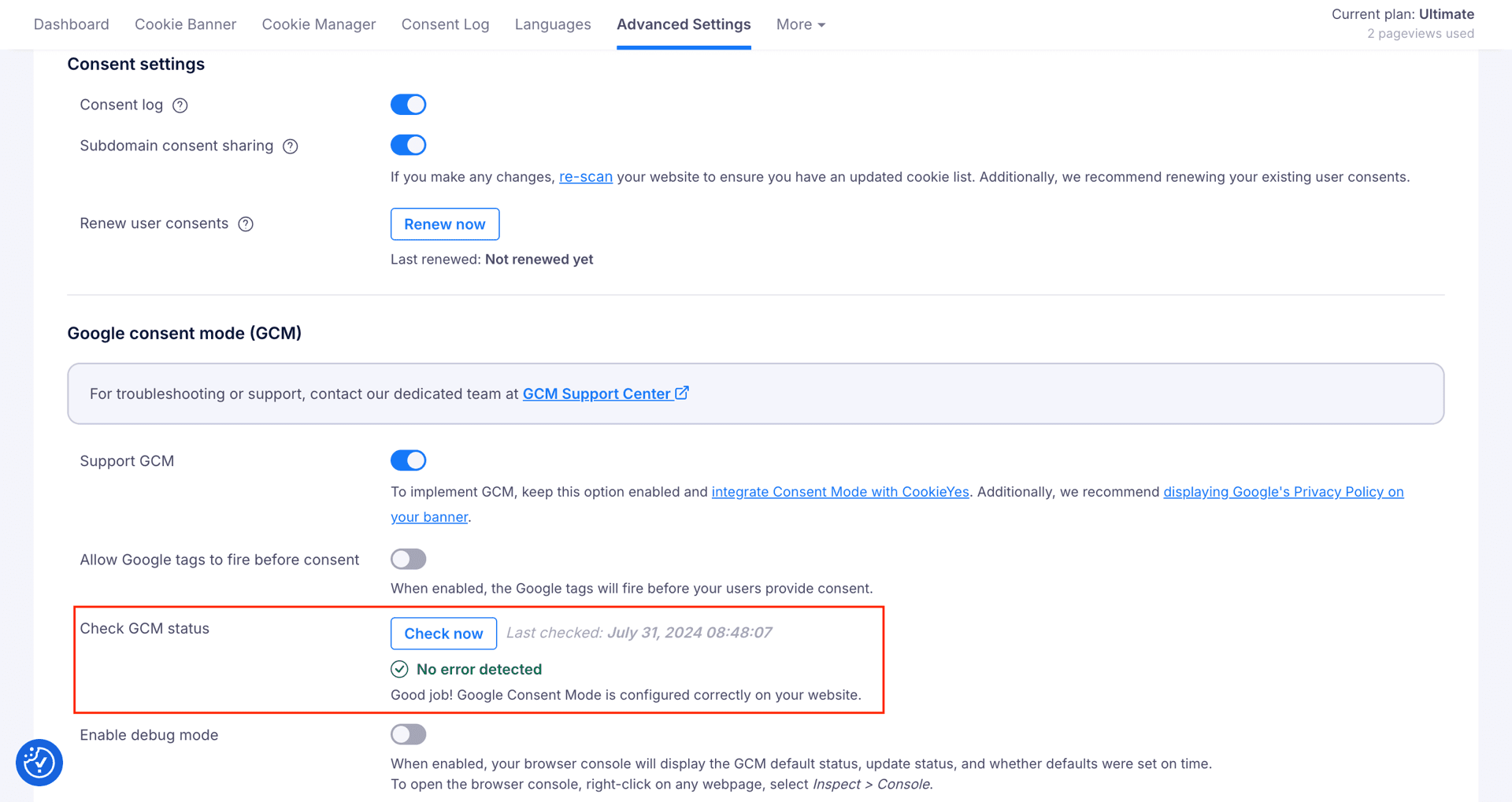
In CookieYes, go to Advanced Settings and click Check GCM status to make sure the error no longer appears.
If you receive the monthly CookieYes diagnostics report, the Default consent set too late error should no longer appear after the next scan.
If the error still appears after trying Options A, B, or C, it is likely caused by something other than GTG. Review the Google Consent Mode troubleshooting guide from the beginning, or raise a ticket with the GCM support centre. Our team responds to technical GCM queries within one business day.