Google Consent Mode Troubleshooting with CookieYes
Last updated on September 15, 2026
This guide aims to provide solutions to common errors that may arise during the Google Consent Mode integration process on your website.
Note
This guide is for users who have implemented Google Consent Mode on their website. For instructions on setting up GCM, refer this document.
Before diving into specific errors, check if your Google Consent Mode is configured correctly:
- Log in to your CookieYes account.
- Go to Dashboard > Advanced Settings.
- Scroll to the Google Consent Mode (GCM) section.
- Click the Check now button against Check GCM status to run a configuration check.
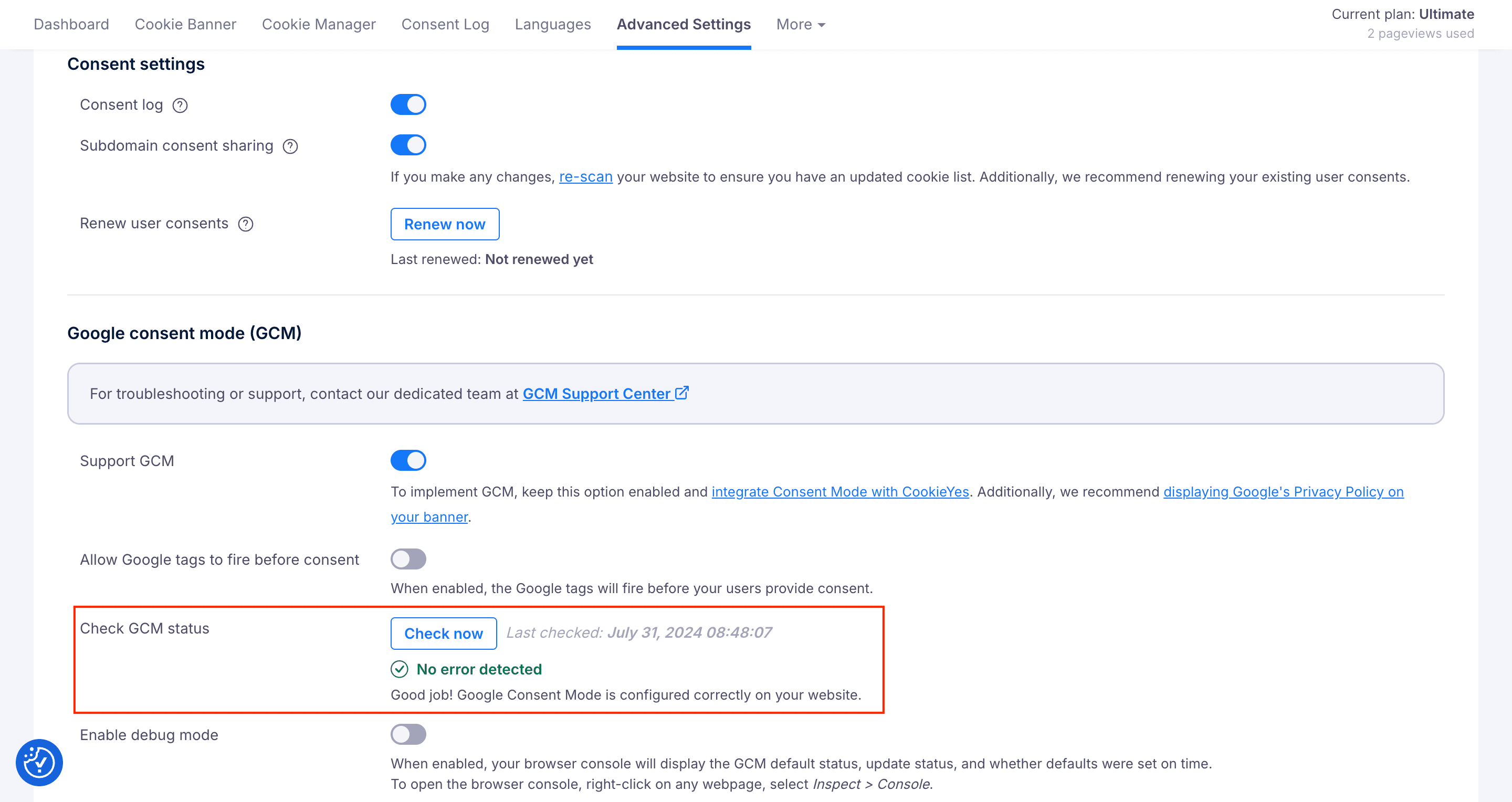
If you encounter any error after running this check, select from the following common errors to see troubleshooting instructions:
The consent tab appears empty if Google Consent Mode is not implemented on your website or if no consent data is collected.
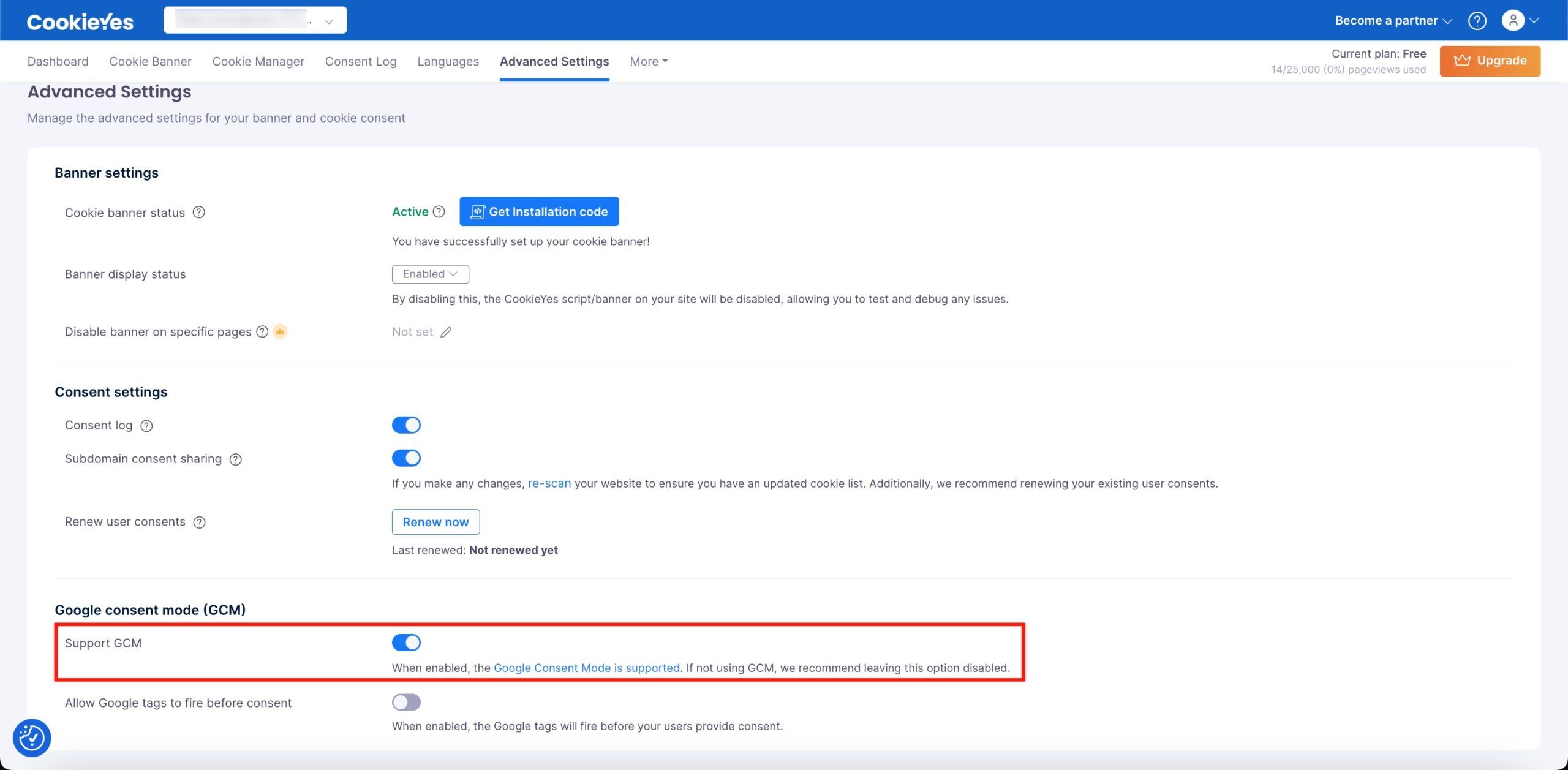
- Ensure Support GCM is enabled from the Advanced Settings page in CookieYes.
- Unblock Google tags by enabling Allow Google tags to fire before consent.
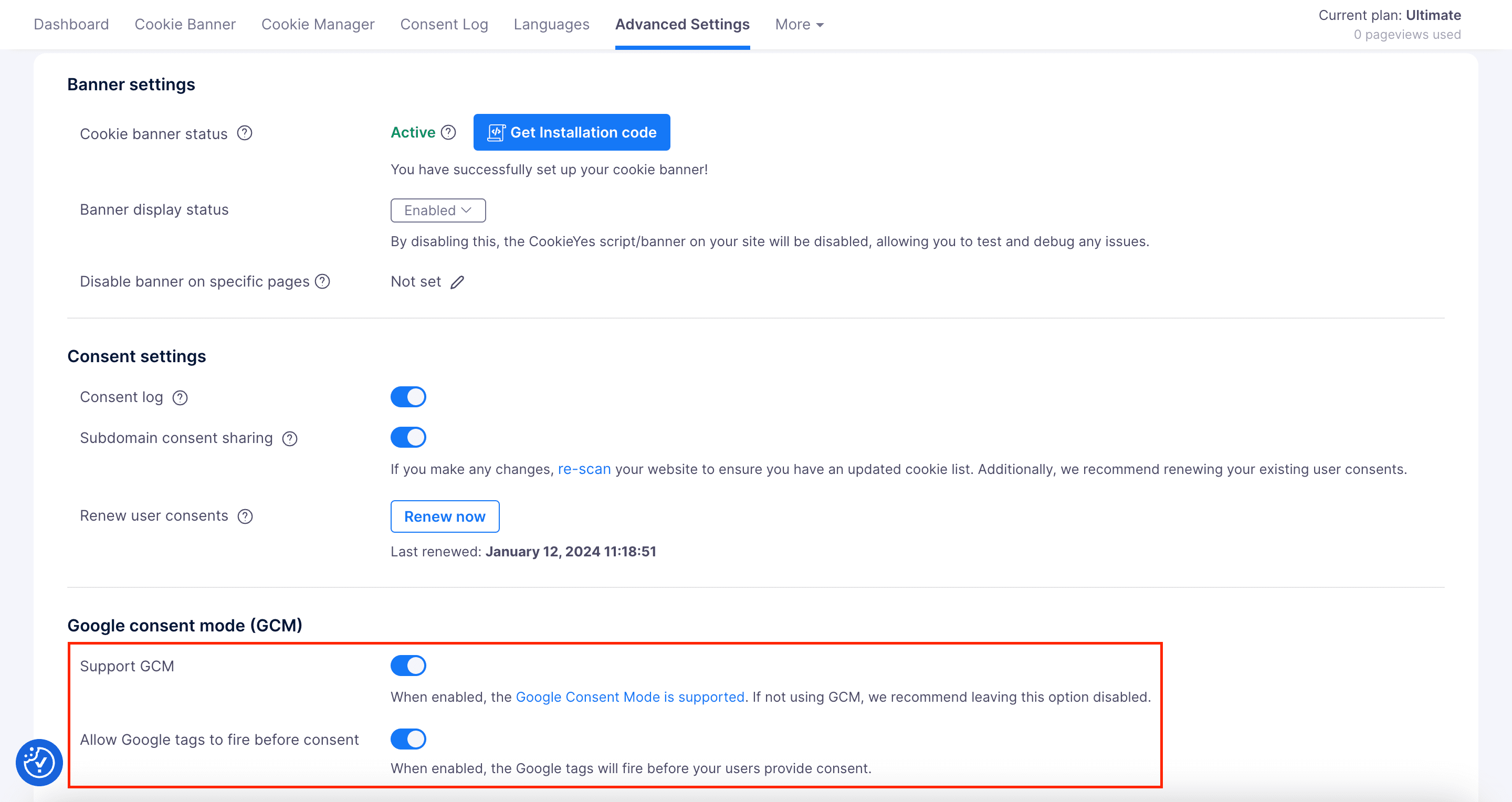
For further reference, checkout Google’s documentation on unblocking Google tags.
- Verify that Google Consent Mode is working correctly.
You can do this using the Tag Assistant debug console. Refer to this guide for instructions.
This error occurs when the default consent state has not been defined or properly configured during the setup of the CookieYes CMP Tag in GTM. The issue can also occur if you used the Custom Script method to implement GCM but either missed adding the custom script or included a script with missing elements.
If you’ve implemented Google Consent Mode using the CookieYes CMP template:
1. Update the CookieYes CMP tag. To do so,
- In the Google Tag Manager workspace, click Templates in the left sidebar and locate the CookieYes CMP template.
- Click on the Update icon.
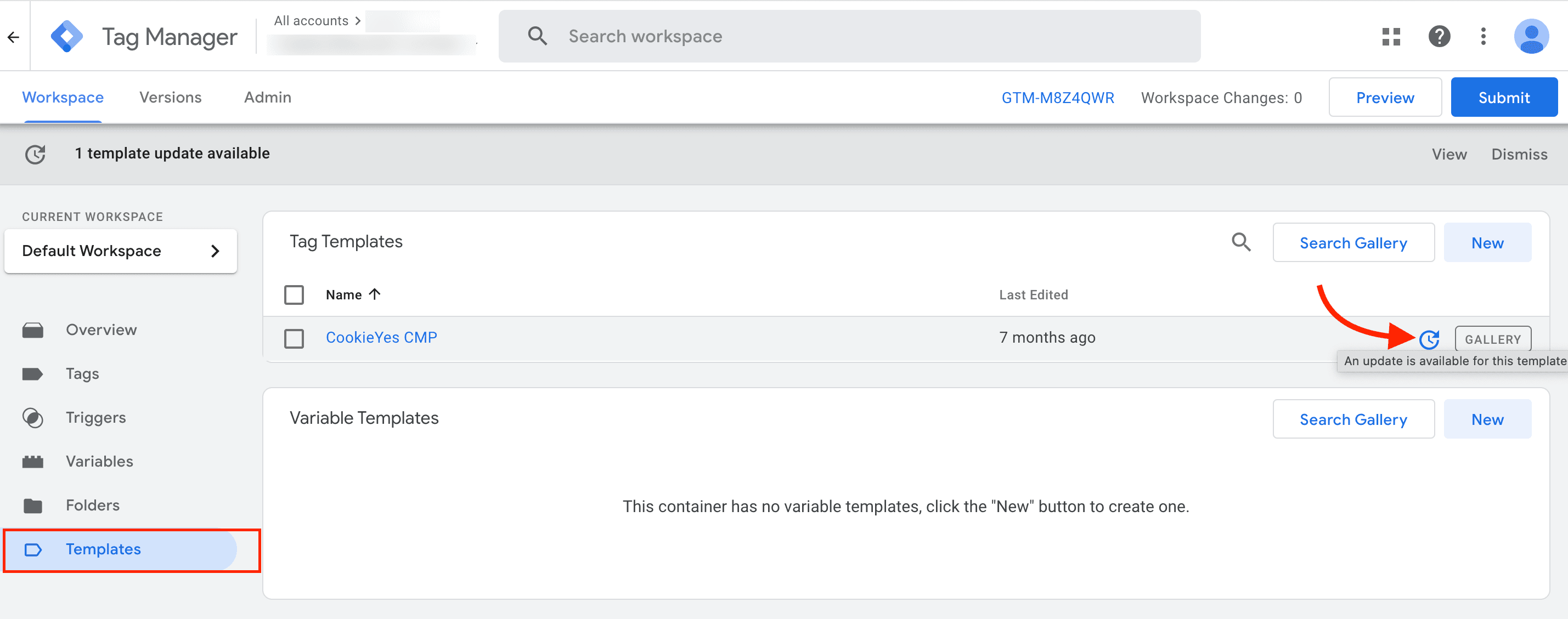
2. Ensure proper setup of default consent settings by following these steps:
- From the Tag Manager workspace, select Tags from the left sidebar. Next, click on the CookieYes CMP tag and then click the edit icon.
- Click Add Setting.
- Select Enabled/Disabled from the drop down for each cookie category based on your requirements.
- Set the Region by entering the region’s ISO-standardised (ISO 3166-2) codes for the specific regions you intend to Geo-target with your banner. If you prefer not to Geo-target your banner to specific regions around the globe, enter All in the Regions field. Refer to the ISO 3166-2 standard for the appropriate region codes.
- Click Add.
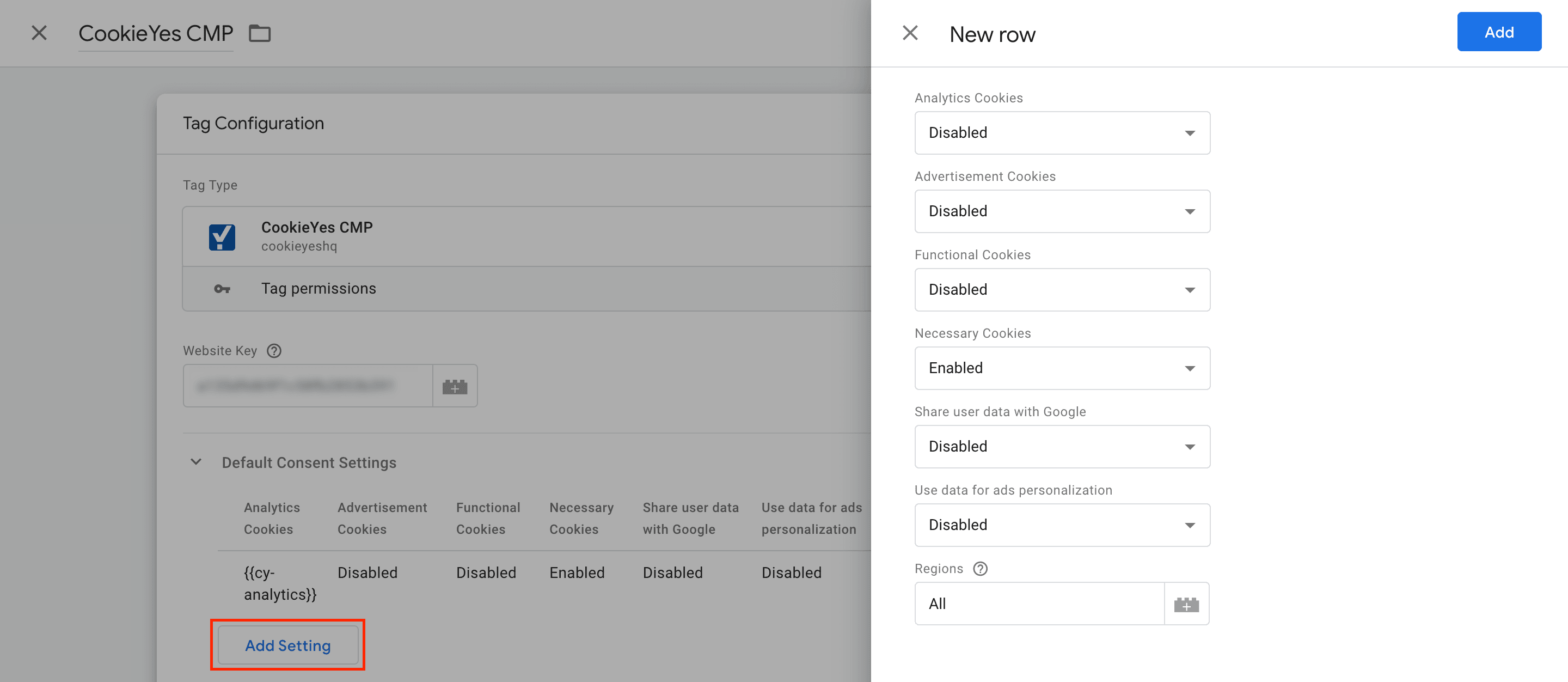
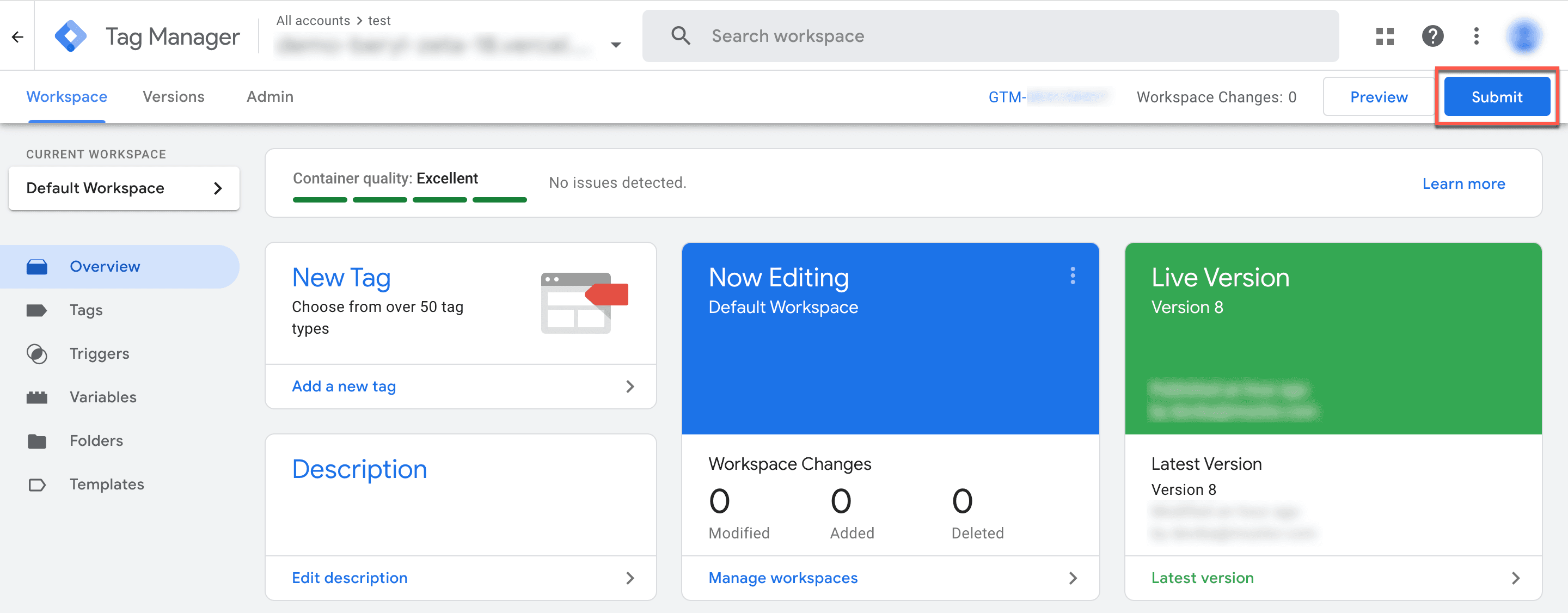
- Submit and Publish the changes to your google tag manager container.
If you used Custom Script method to implement GCM, update script to the latest version (Consent Mode v2).
This error occurs when the consent preferences of users are not properly updated or recorded.
1. Make sure you have enabled Support GCM from the CookieYes Dashboard.
2. Update CookieYes CMP tag.
3. Ensure the CookieYes CMP tag is fired first, before any other tags on the website.
4. Make sure you submit and publish the changes to your Google Tag Manager container with every change you make.
5. If you’ve used the Custom Script method to implement GCM, update the script to the latest version (Consent Mode v2).
This error occurs when (i) other tags are read/fired before the default consent is set, or (ii) Google Tag Gateway (GTG) is active on your site, causing tags to load before the consent banner initialises.
Tag Assistant reports the error:

Fix general script order issues
1. Ensure that the trigger, Consent Initialization – All pages is set only for the CookieYes CMP Tag, i.e. CookieYes CMP tag is fired first, before any other tags.
2. Verify that all directly loaded tags are fired only after GTM is completely loaded. To verify,
- Open Tag Assistant debug console.
- In the Summary, select the Tags tab.
- Click a tag to check if it fired according to the consent settings.
3. If you used Custom Script method to implement GCM, check the order of the script is as follows:
- Custom Consent Mode script
- gtag / GTM script
- CookieYes script
4. Ensure you do not place other scripts above the Custom Consent Mode script.
Is Google Tag Gateway (GTG) causing this error?
If you have completed all the steps above and the error persists, Google Tag Gateway (GTG) may be the cause. When GTG is set up using the automatic one-click CDN method, Google tags may load before the consent banner initialises. This can trigger the error even if the CookieYes setup is correct.
To learn more about GTG and how it affects consent, refer to Google Tag Gateway for Advertisers.
Step 1: Check if GTG is active on your site
Before making any changes, confirm whether the flagged tag is enrolled in GTG. To check, follow the instructions in Google Tag Manager Help: Check if a tag is enrolled in GTG.
You can also verify this quickly using Tag Assistant:
- Go to Tag Assistant and start a debug session on your website.
- Click any Page View event in the Summary panel.
- Check the URL shown under Hit Details.
- If the URL shows your own domain followed by a custom path and /g/collect – for example, example.com/metrics/g/collect or example.com/data/g/collect – GTG is active.
- If the URL shows www.google-analytics.com/g/collect, GTG is not active.
Note: The path before /g/collect (such as /metrics or /data) is a custom path chosen during GTG setup and may be different for every website. The key thing to look for is your own domain appearing in the URL – not a specific path name.
Step 2: Resolve the error
If GTG is confirmed as active, you have three options to fix the late consent error. Option A is recommended by Google for all GTG-enrolled tags.
Option A – Enable Advanced Consent Mode (Recommended)
Google recommends Advanced Consent Mode (also referred to as U+C) for GTG-enrolled tags. Unlike Basic Consent Mode, it does not require the consent signal to arrive before the tag fires, which makes it the right solution when GTG's automatic setup is in place and script load order cannot be controlled.
- From the Advanced Settings page in CookieYes, go to Google consent mode (GCM).
- Make sure Support GCM is toggled ON.
- Toggle ON the option Allow Google tags to fire before consent.
- In Google Tag Manager, go to Admin > Consent Settings and enable Data Transmission Controls.
- Configure your Global Consent Defaults based on your compliance requirements. This must be configured directly in your Google implementation, either in Google Tag Manager (Consent Settings) if you use GTM, or using gtag consent default commands in your website code if you use gtag.js directly.
Region-specific defaults are also supported if needed. For EEA traffic, the commonly recommended defaults are:
- analytics_storage - Denied
- ad_storage - Denied
- ad_user_data - Denied
- ad_personalization - Denied
Note: security_storage is typically kept enabled/granted, as it is used for security-related functionality.
6. Go back to Advanced Settings in CookieYes and click Check GCM status to confirm the error is resolved.
Option B – Migrate all tags into a GTM container and deploy GTM via GTG
If you are running multiple individual Google tags (such as separate GA4 and Google Ads tags), move them all into a single GTM container and deploy GTG at the container level. GTM has built-in consent controls that will hold all tags until consent is received from the user.
Option C – Switch to manual GTG setup
If you need full control over when scripts load, switch from the automatic one-click CDN setup to a manual GTG setup. This lets you place the CookieYes script before the GTG script in your HTML, ensuring consent is initialised before any Google tag fires.
Refer to this troubleshooting guide by Google for additional help. For further assistance, our dedicated GCM support team are here to assist you.