Welcome to CookieYes! This guide will walk you through how you can install a cookie banner on your Wix website. A cookie banner will help your website stay compliant with privacy laws like the GDPR and ePrivacy Directive.
Video tutorial: Implement cookie consent on Wix website
You can also follow the step-by-step instructions given below to easily implement a cookie banner on your Wix website.
Steps to add a Wix cookie banner
There are two ways to install the CookieYes code on your Wix platform. You can follow any of the methods.
Method 1: Install CookieYes from the Wix App Market
Installing the official CookieYes Wix cookie banner app is the most seamless way to integrate CookieYes with your Wix website. This method provides a hassle-free setup, automatic updates and direct access to your CookieYes Dashboard within the Wix Editor. It’s the recommended approach for Wix users looking for a simplified and fully integrated cookie consent solution. Follow the steps below to install CookieYes from the Wix App Market.
Step 1. Log In and Open the Site Editor
Log In to your Wix account and open the website editor for the specific site where you want to add CookieYes.
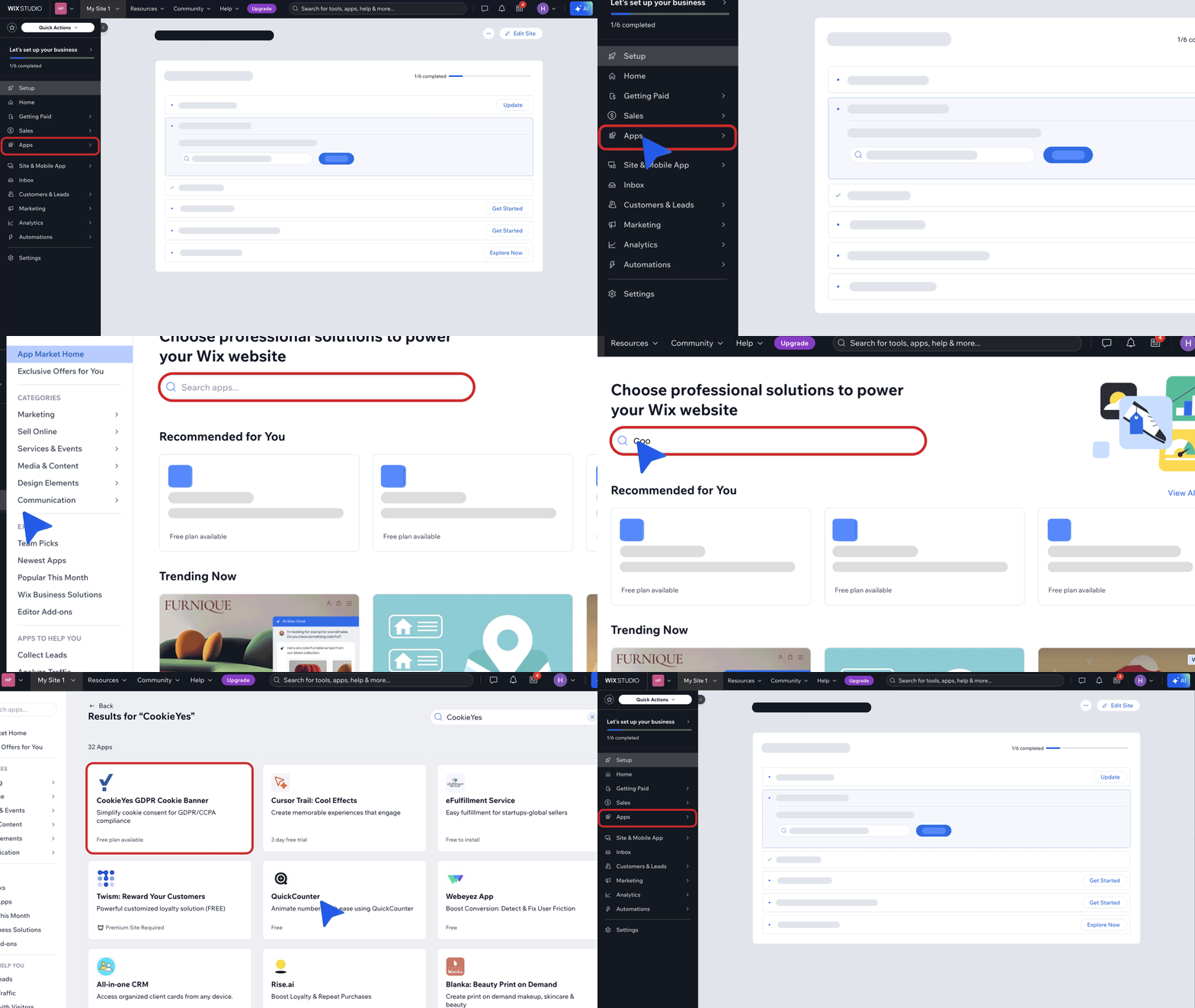
Step 2. Access the Wix App Market and Find CookieYes
In the site editor, navigate to Apps > App Market from the left sidebar. In the search bar at the top of the App Market, search for CookieYes and select it from the results.
Step 3. Add CookieYes
Click the Add to Site button to add the CookieYes app to your Wix site.
For existing users with a Wix site already registered in CookieYes, you will be automatically redirected to the CookieYes dashboard within your site’s editor.
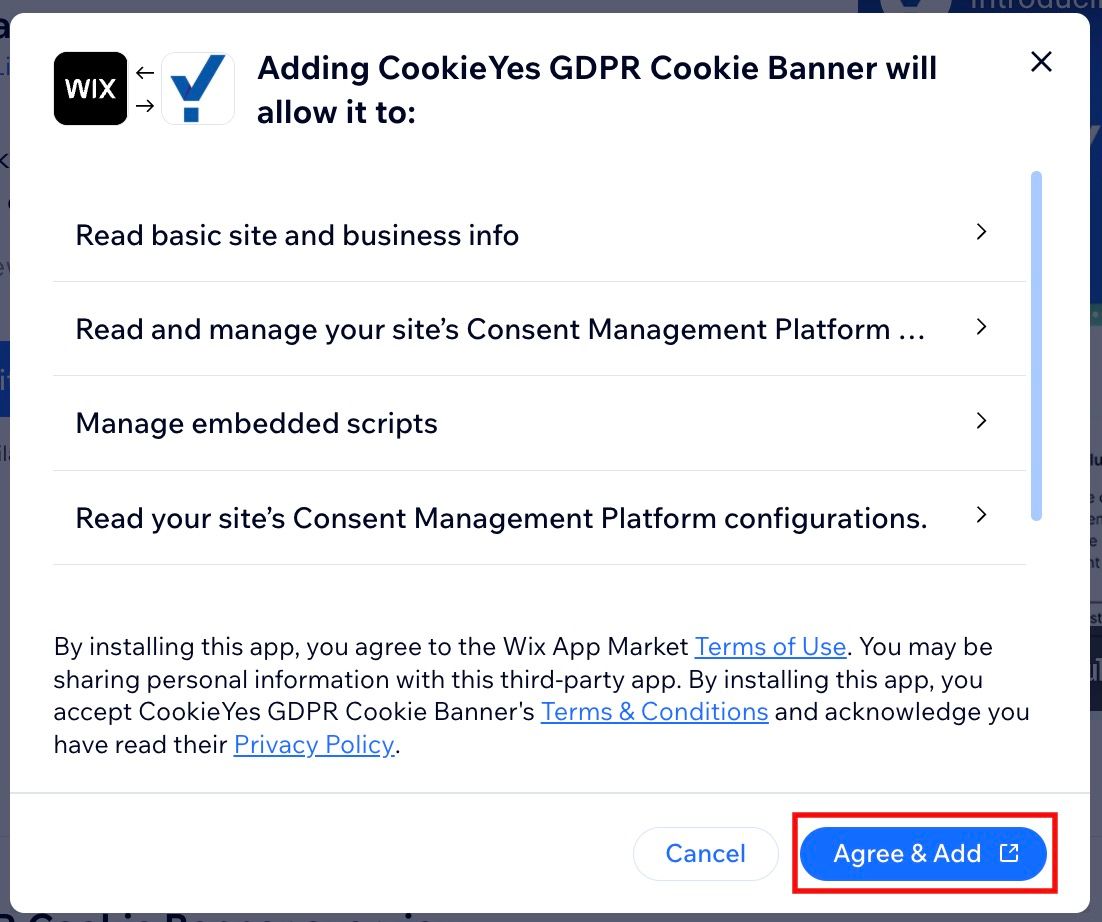
Step 4. Review App Permissions
A modal will appear outlining the permissions CookieYes requires to function correctly. Click Agree & Add to proceed.
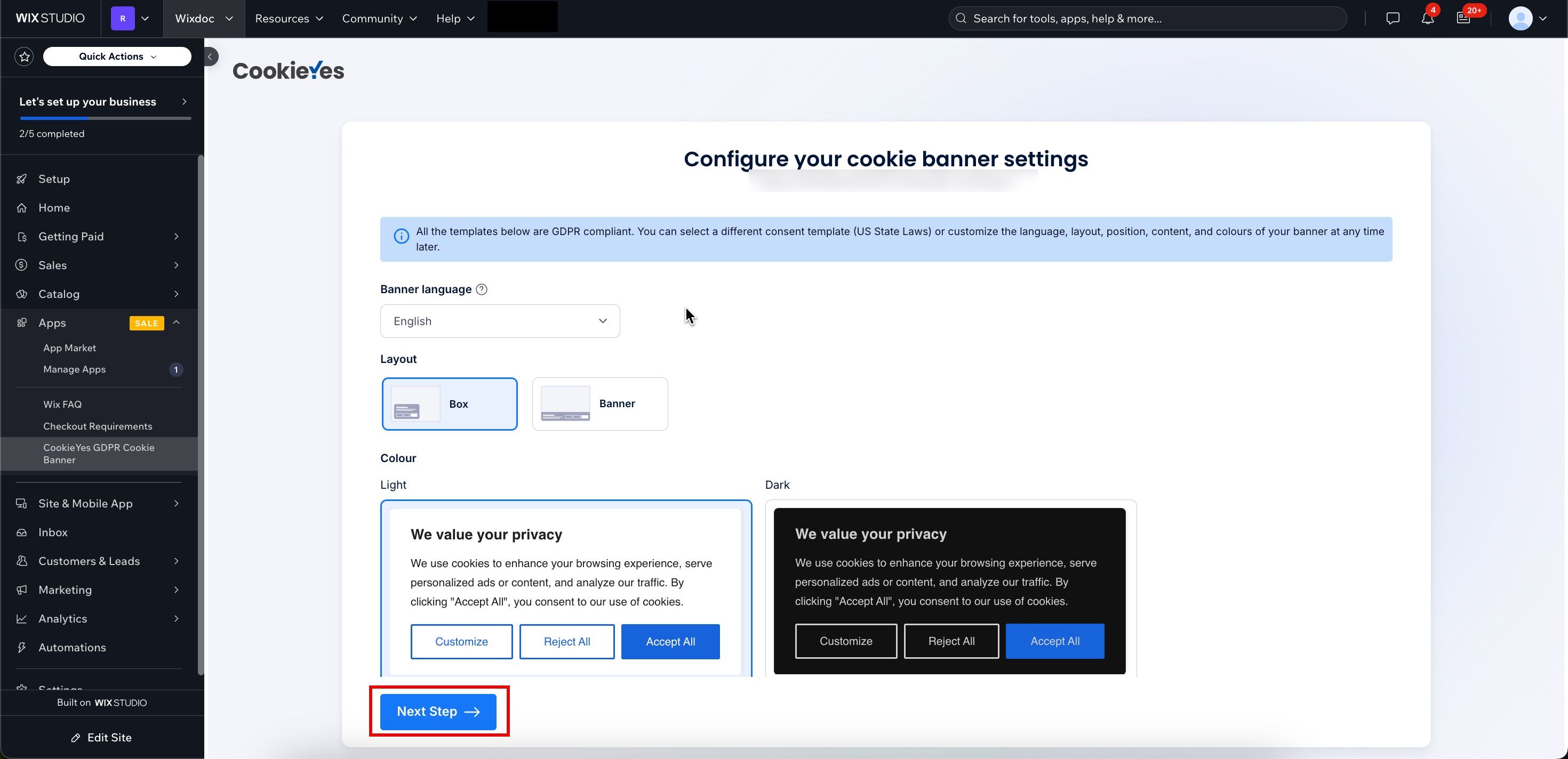
Step 5. Configure your banner settings
Choose the Banner Language, Layout and Colour. Click the Next Step button.
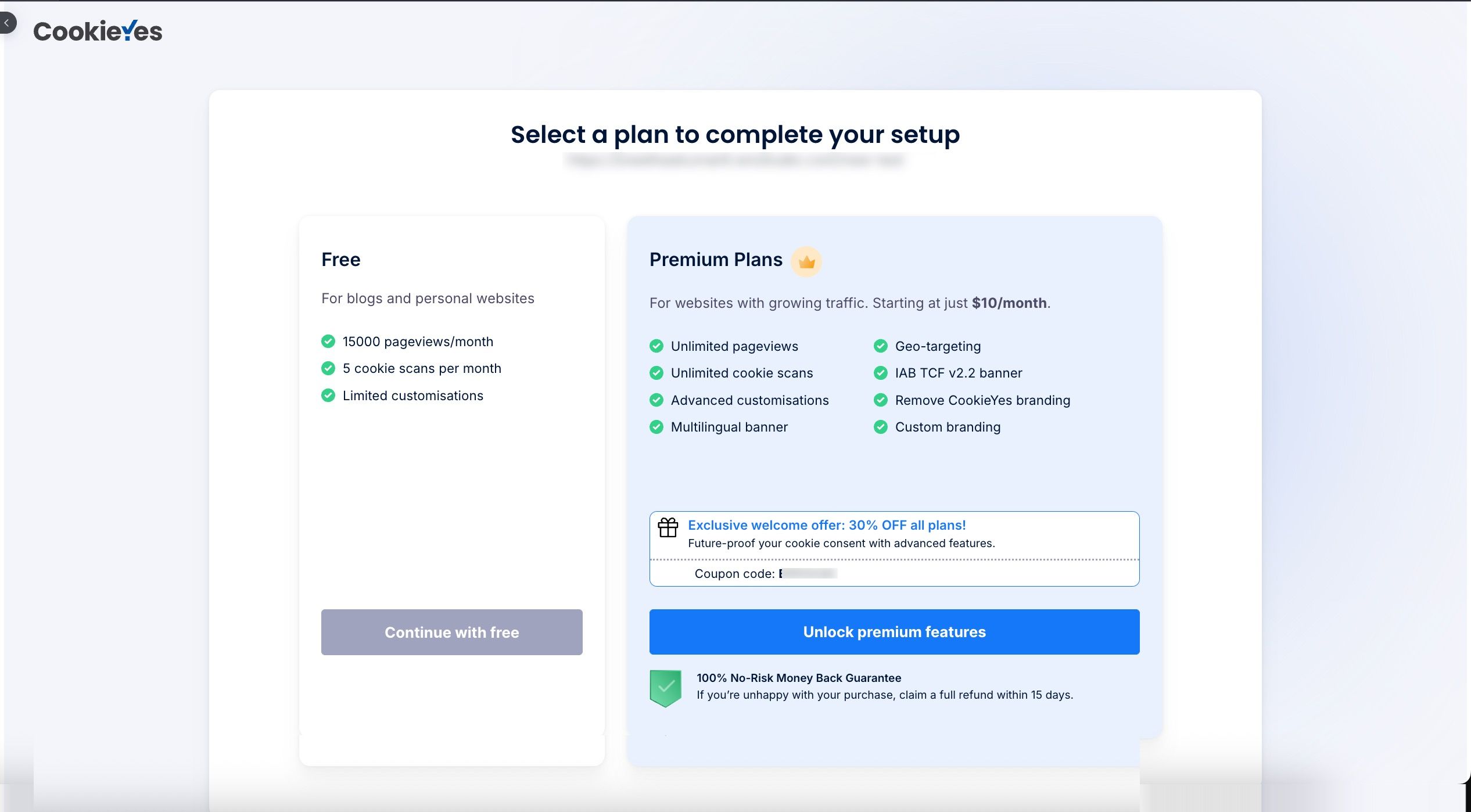
Step 6. Choose a Plan (Free or Premium Plans)
Free Plan: To proceed with the free plan, click the Continue with free button. The CookieYes dashboard will now appear in your site’s editor, allowing you to customise the cookie banner, set up compliance options, and manage cookie settings.
You can include only one website in your CookieYes account when using the free plan.
Premium Plans: To proceed with a Premium plan, follow the steps below:
- Click Unlock premium features.
- On the payment page, choose your plan.
- Select your billing cycle and click on Continue to Checkout.
- Enter the Card & Invoice details, then click Submit Purchase.
The cookie consent banner will be live on your Wix website! You can explore more options and features from the CookieYes Dashboard.
Method 2: Installing via Custom Code
Before you begin, make sure you’ve completed the initial setup on your CookieYes account to ensure a smooth installation process:
In case you have already signed up on CookieYes, without taking any action on the initial setup screens, head to the CookieYes Dashboard.
- To customise the cookie banner, select the Cookie Banner from the top navigation panel.
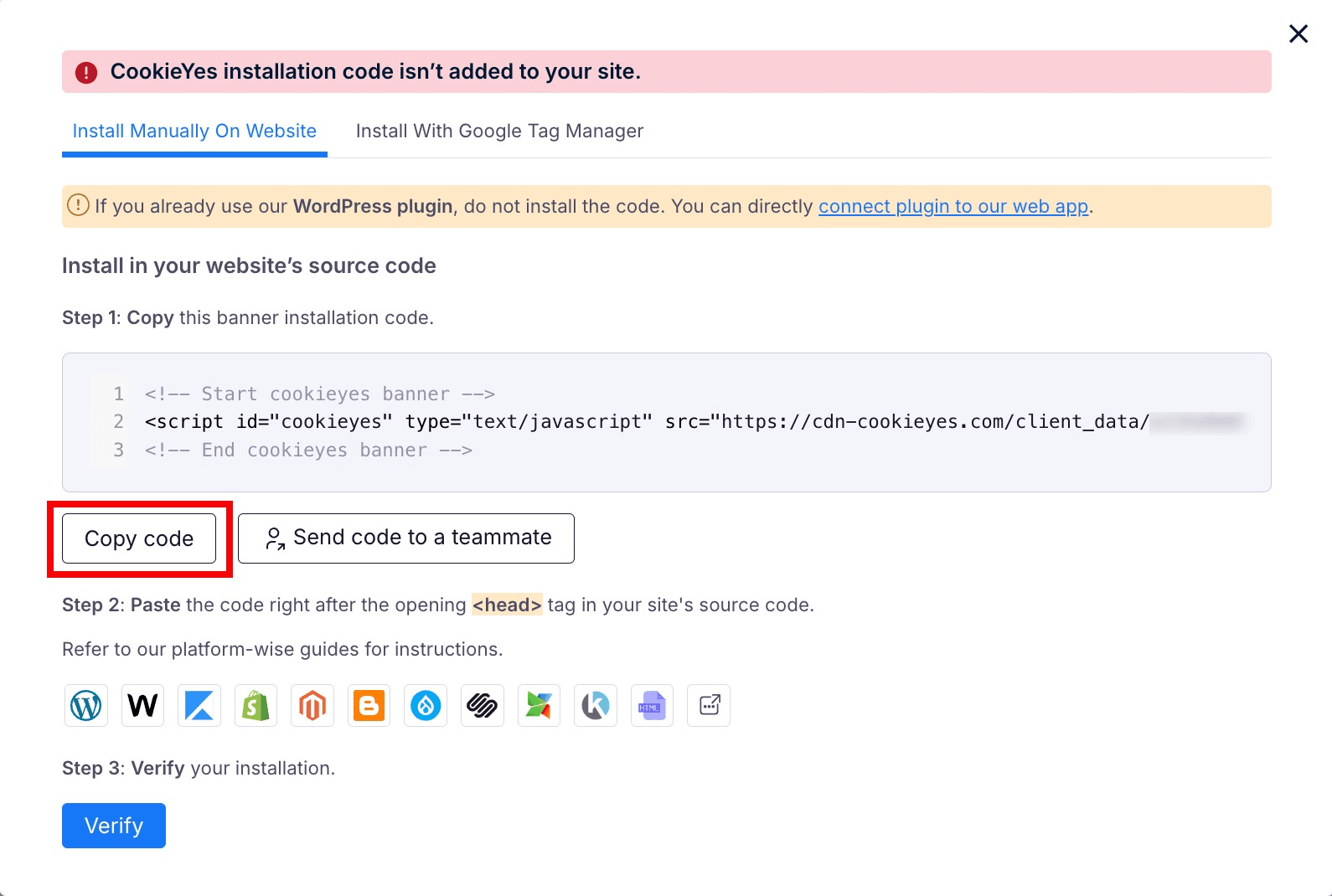
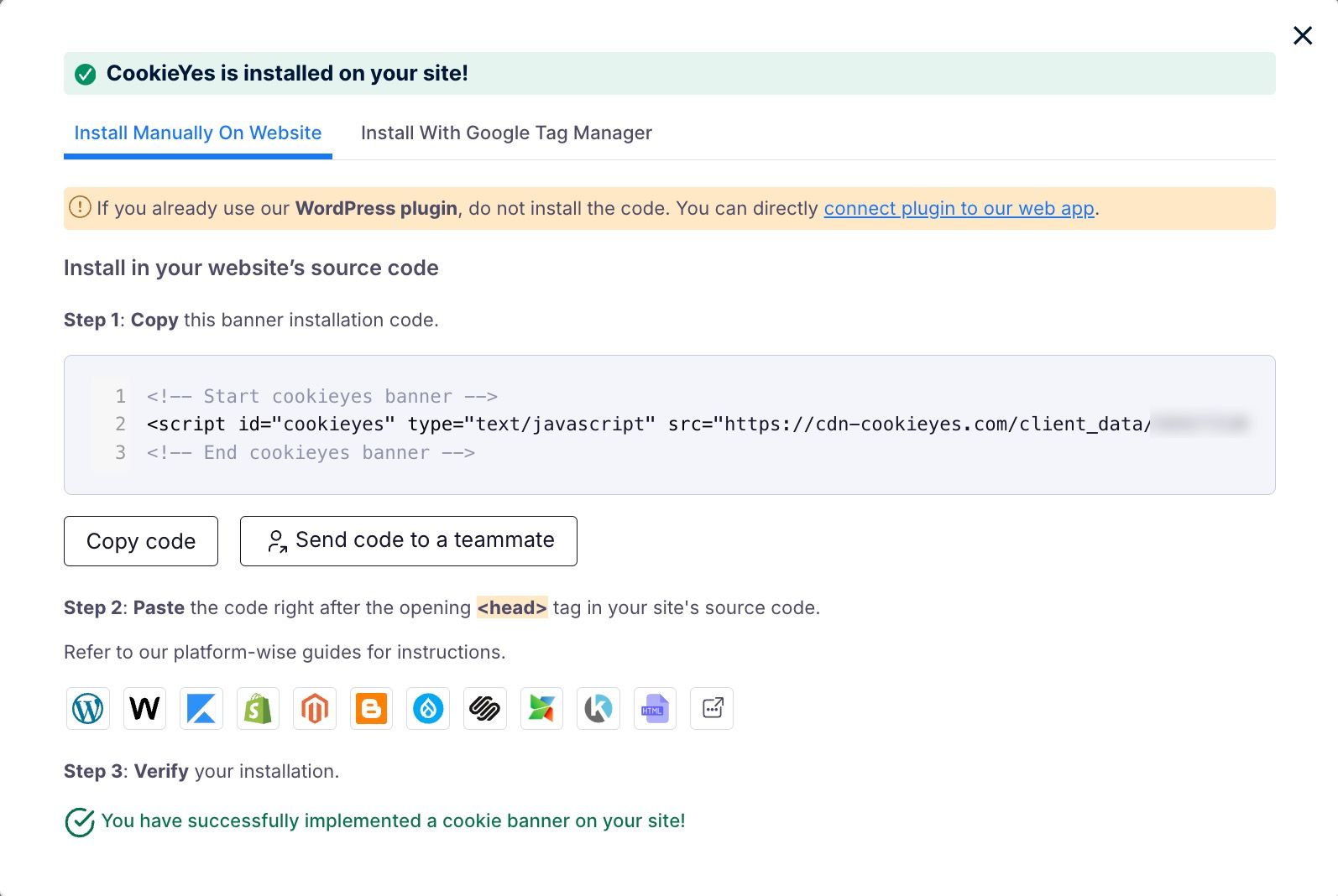
- To get the banner installation code, head to Site Settings and click on the Get Installation Code button on the right side of the URL.
- Now click on Copy code button to get the CookieYes installation code.
You can share the code with a developer or your team by clicking on Send code to a teammate button. Enter the email address and then click on Send email. The recipient will get the code and instructions via email.
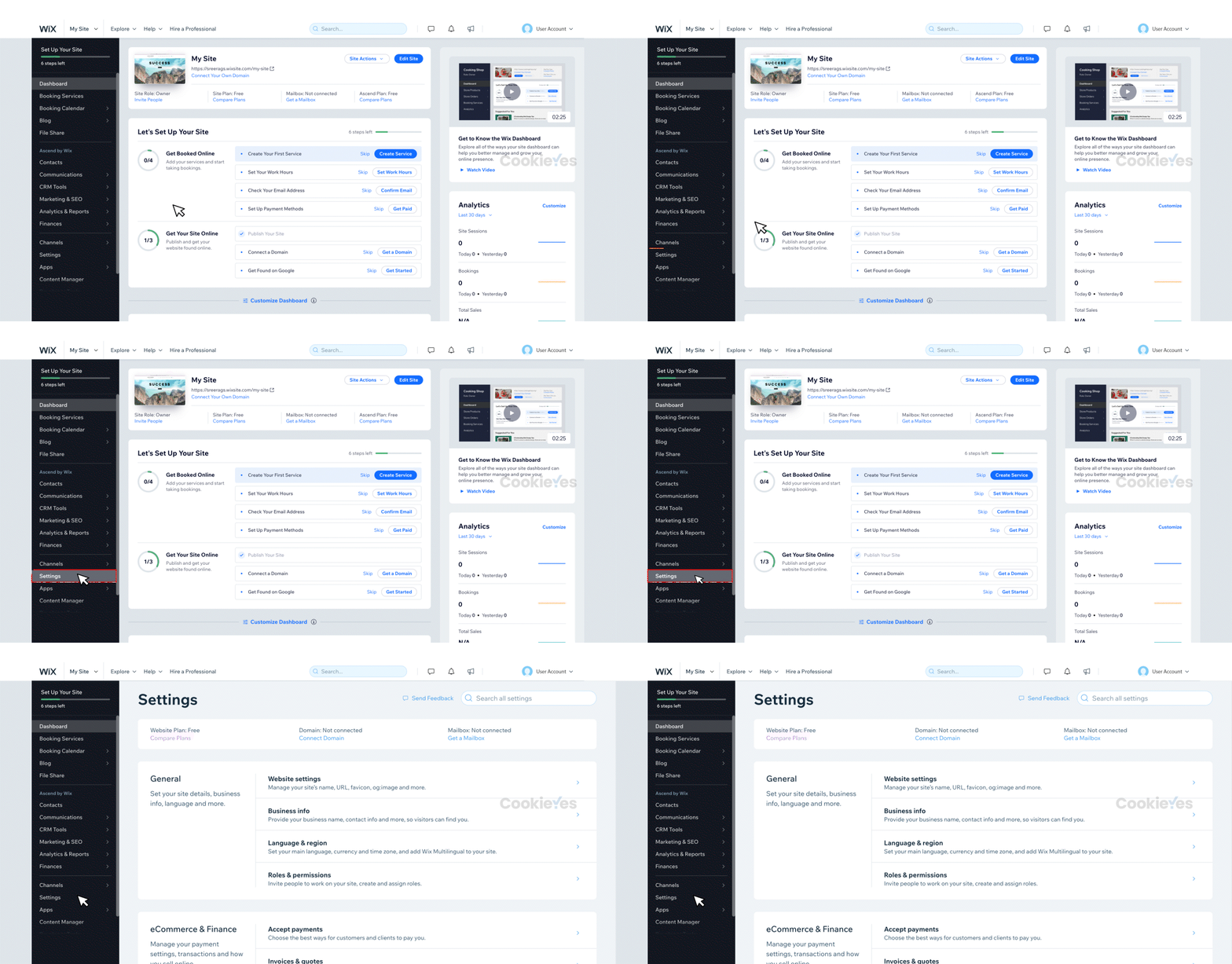
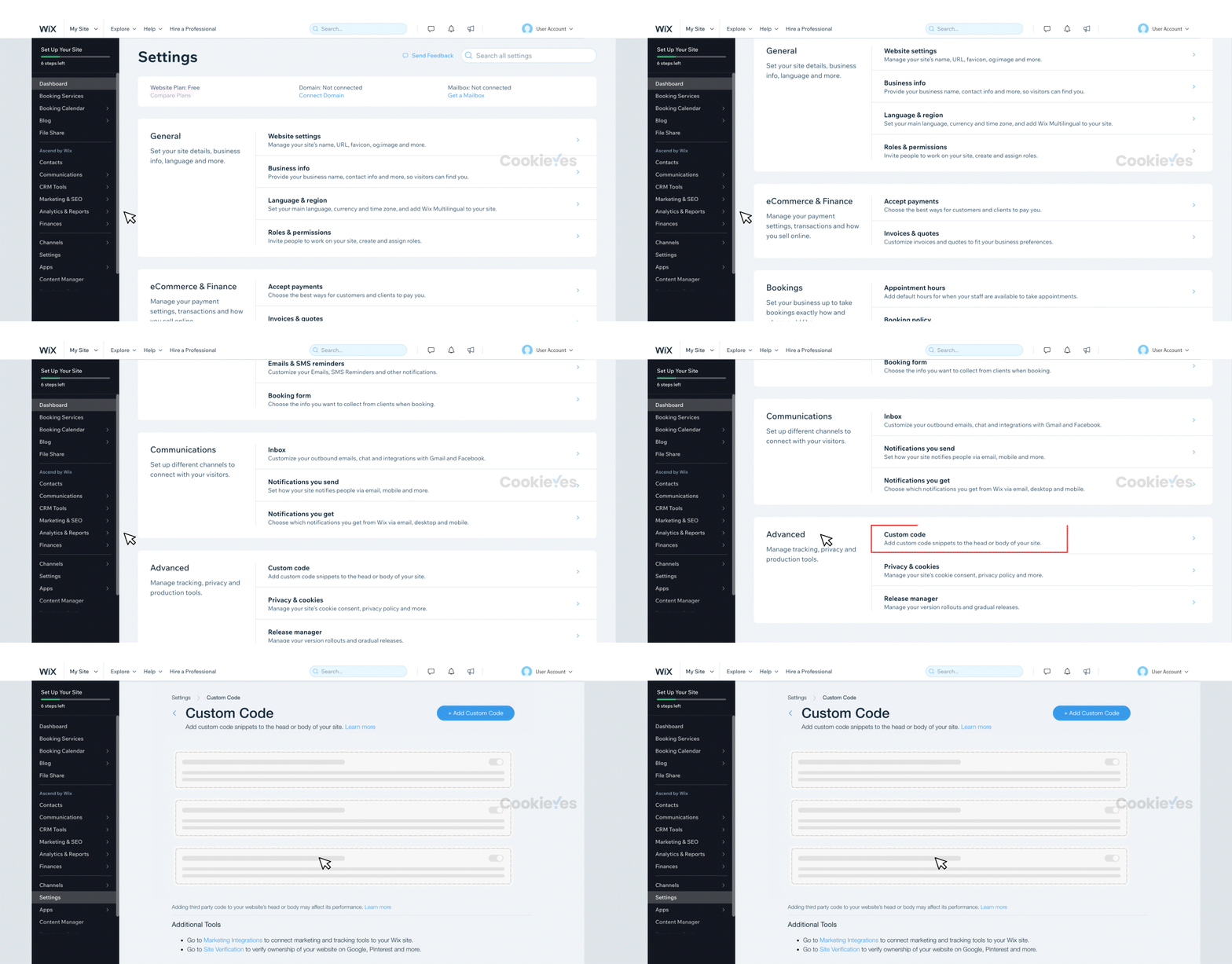
Step 1. Head to your Wix Dashboard and select Settings in the left sidebar.
Step 2. Scroll down and under the Advanced section, click on Custom Code.
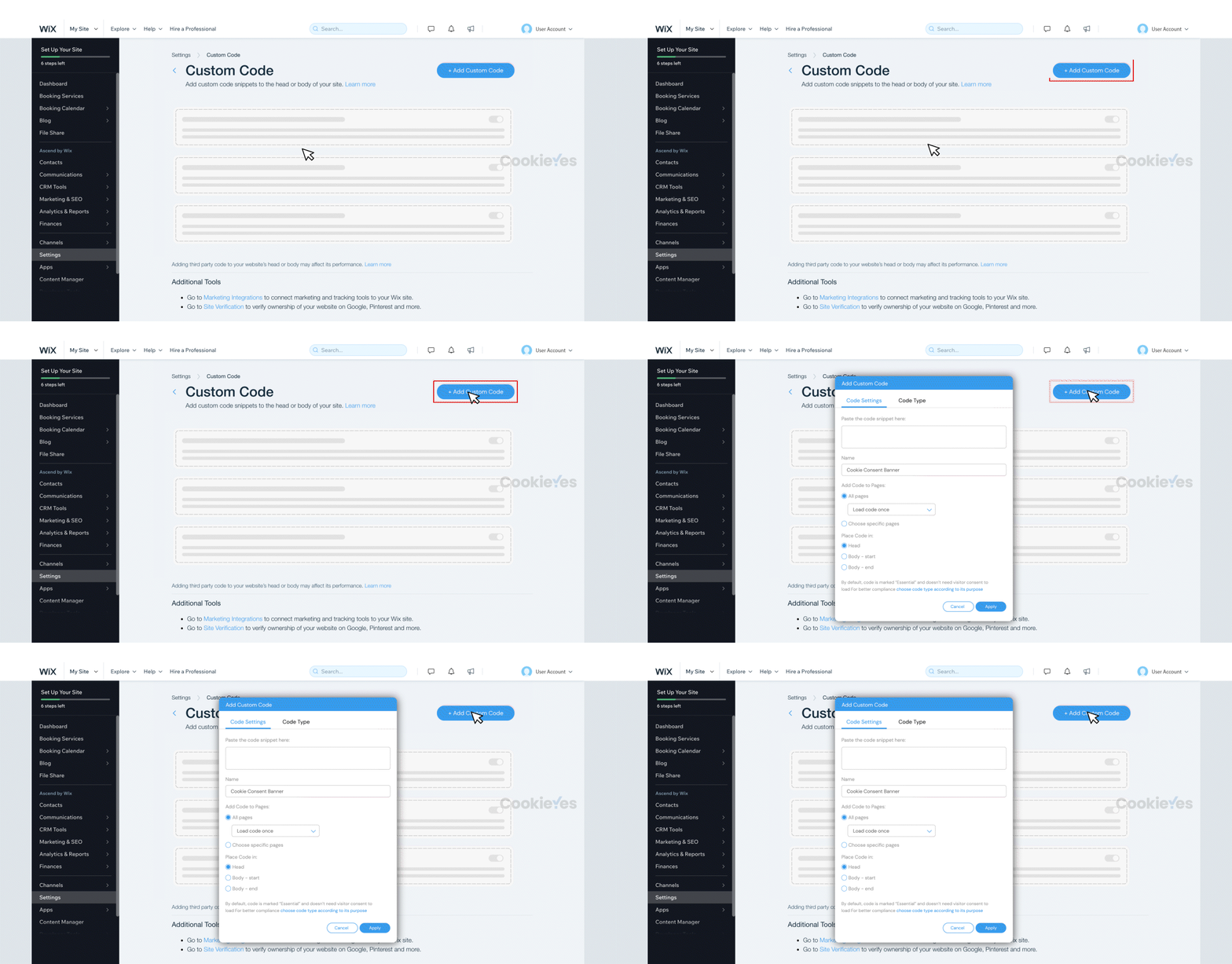
Step 3. Click + Add Custom Code on the top right corner.
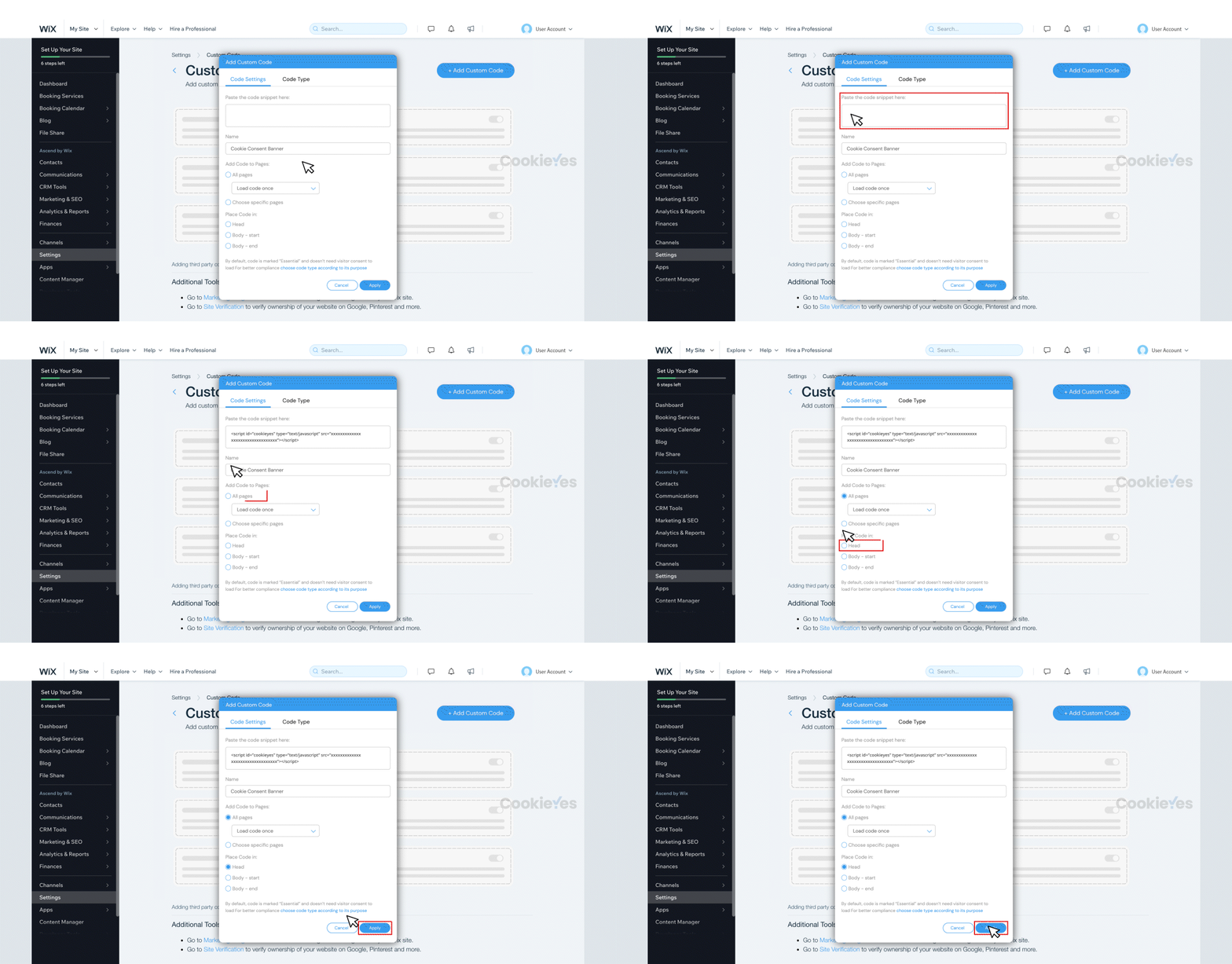
Step 4. Paste the CookieYes installation code in the box. Enable All pages and Head, then click Apply.
Note
Paste the following script above the CookieYes script in the box:
<script src="https://cdn-cookieyes.com/common/wix.js"></script>
This script translates CookieYes consent events into the format Wix expects, ensuring Wix’s tracking honours the visitor’s consent preferences.
Step 5. Head back to the setup screen and click on the Verify button. You will see a success message that your banner is active.
The cookie consent banner will be live on your Wix website! Now, you can complete your website scanning from the CookieYes Dashboard and explore further customisations and features.
Conclusion
CookieYes offers two methods for installing a cookie consent banner on your Wix website: using the Wix App Market and manual script installation. Both methods enable compliance with global privacy regulations and allow access to core CookieYes features such as banner customisation, cookie scanning and consent management.
However, we strongly recommend using the official CookieYes app from the Wix App Market, which provides seamless integration with the Wix site editor, automatic updates and a more robust and native experience designed specifically for Wix websites.
Still have questions or facing issues? Contact technical support