How to Add Cookie Banner on Framer Website
Welcome to CookieYes! This guide will walk you through the installation of CookieYes cookie consent banner on your Framer website. A cookie consent banner will help your website stay compliant with privacy laws like the GDPR and ePrivacy Directive.
- To begin with, sign up on CookieYes for free
- Then, complete the steps to customise your cookie banner
In case you have already signed up on CookieYes, follow the steps given below:
- Log in to your CookieYes web application.
- Head to Advanced Settings and click on the Get Installation Code button on the right side of the URL. (You can access this option from the CookieYes “Dashboard” through the Cookie banner status widget also.)
- Click on the Copy code button to get the CookieYes installation code.
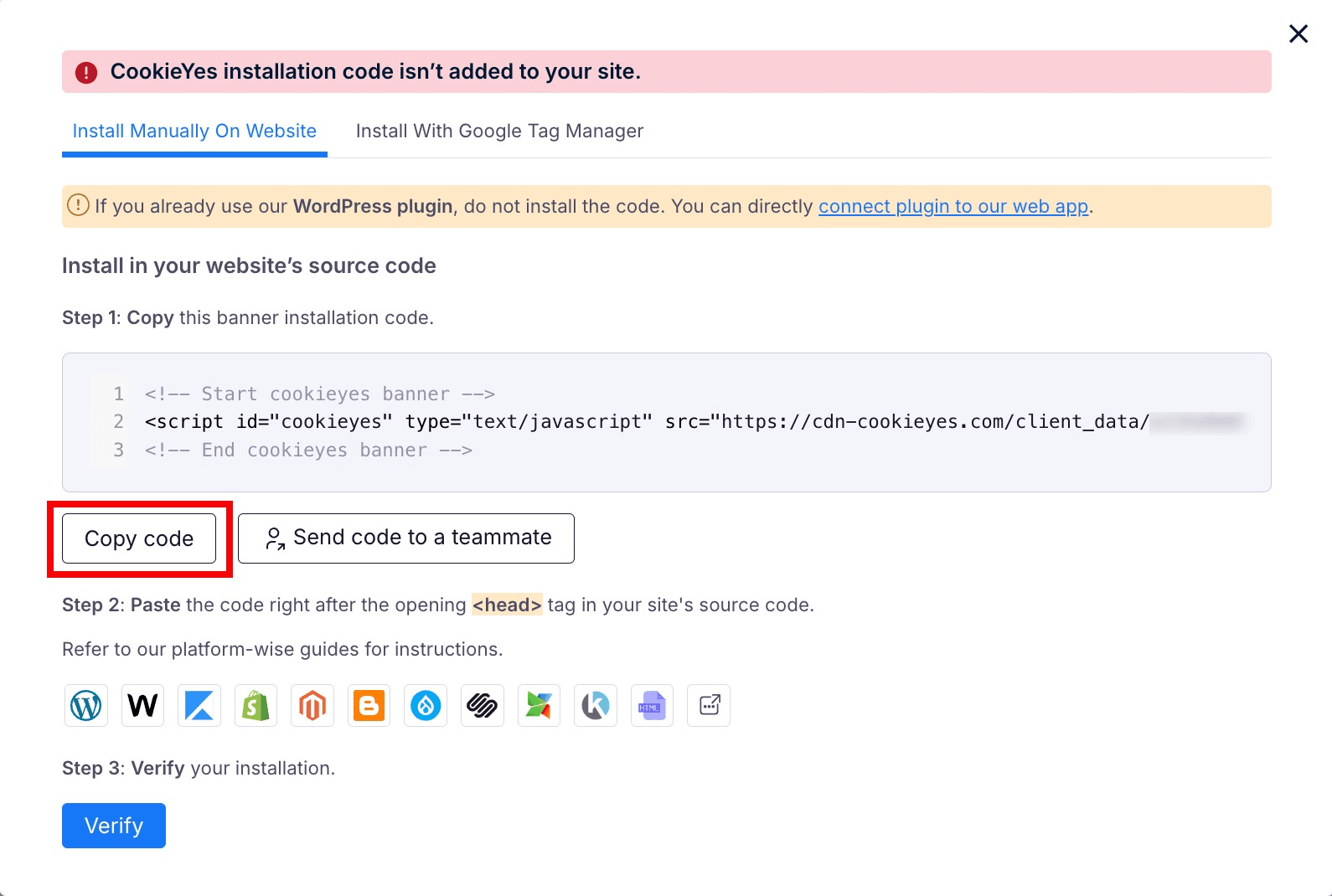
You can share the code with a developer or your team by clicking the Send code to a teammate button. Enter the email address and then click on Send email. The recipient will get the code and instructions via email.
Steps to add a cookie consent banner on Framer
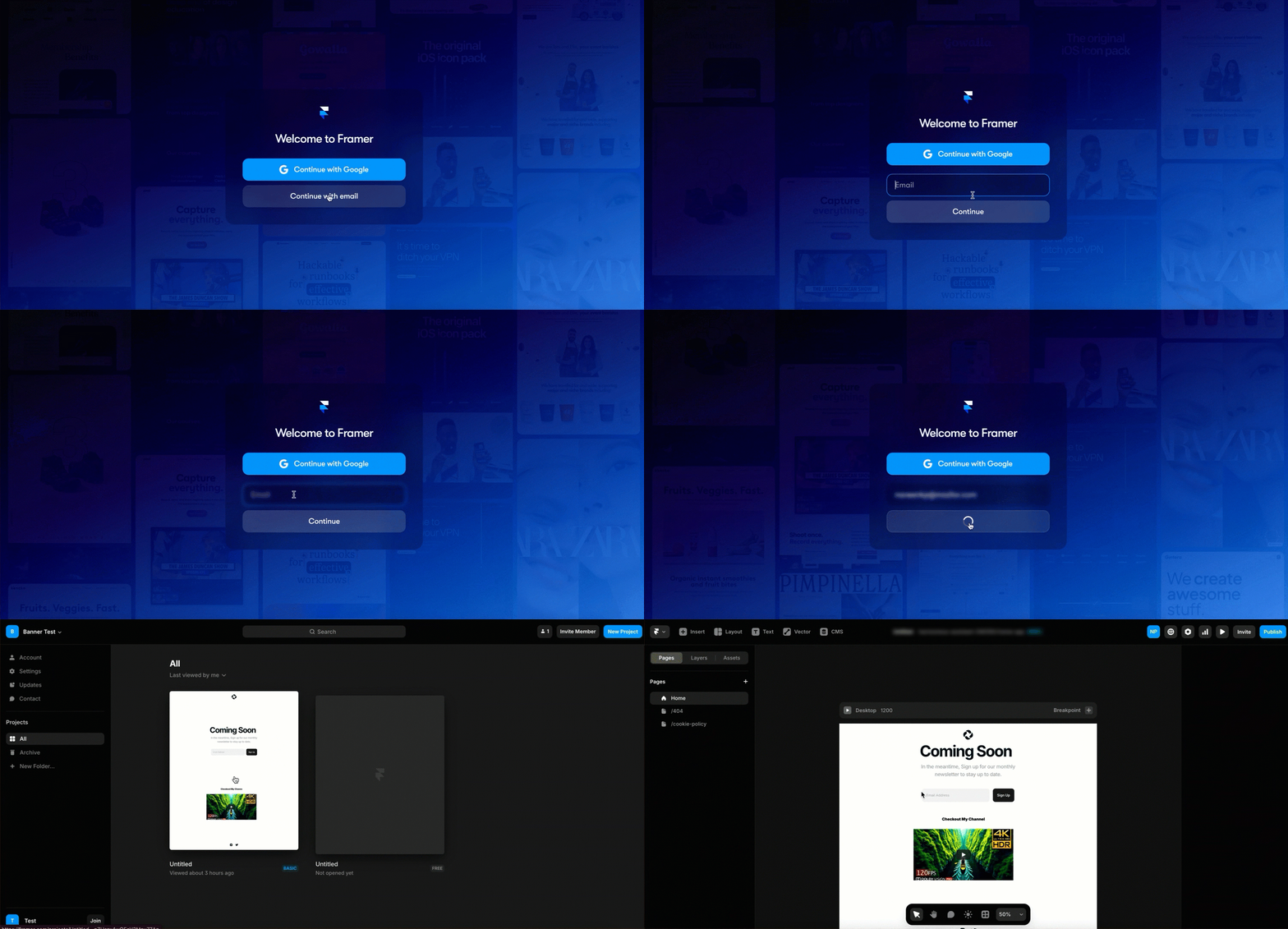
Step 2: Click on the Settings icon in the top-right corner and scroll down to the Custom Code section.
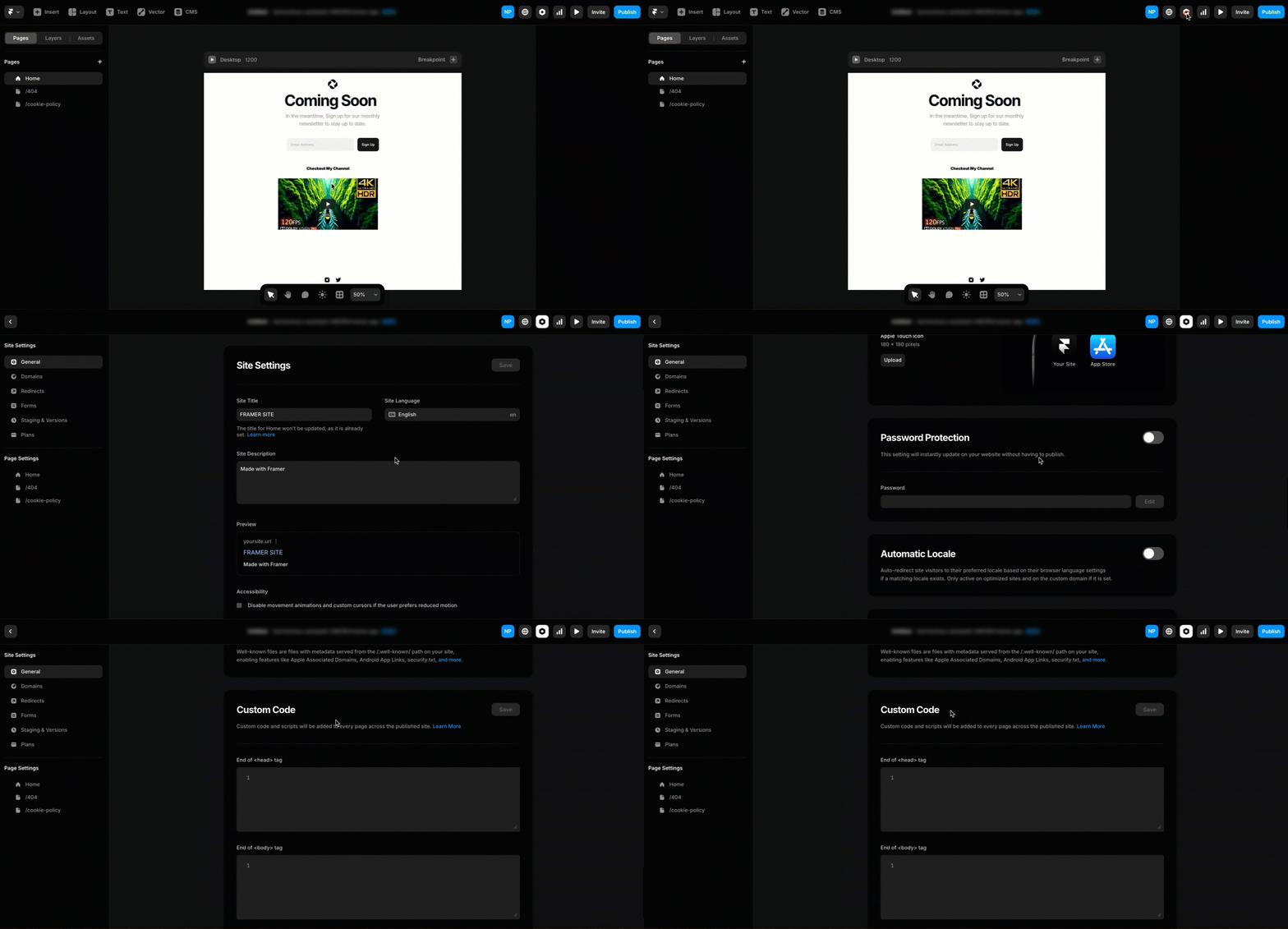
Step 3: Paste the CookieYes code under the Start of <head> tag section and click Save to confirm your changes.
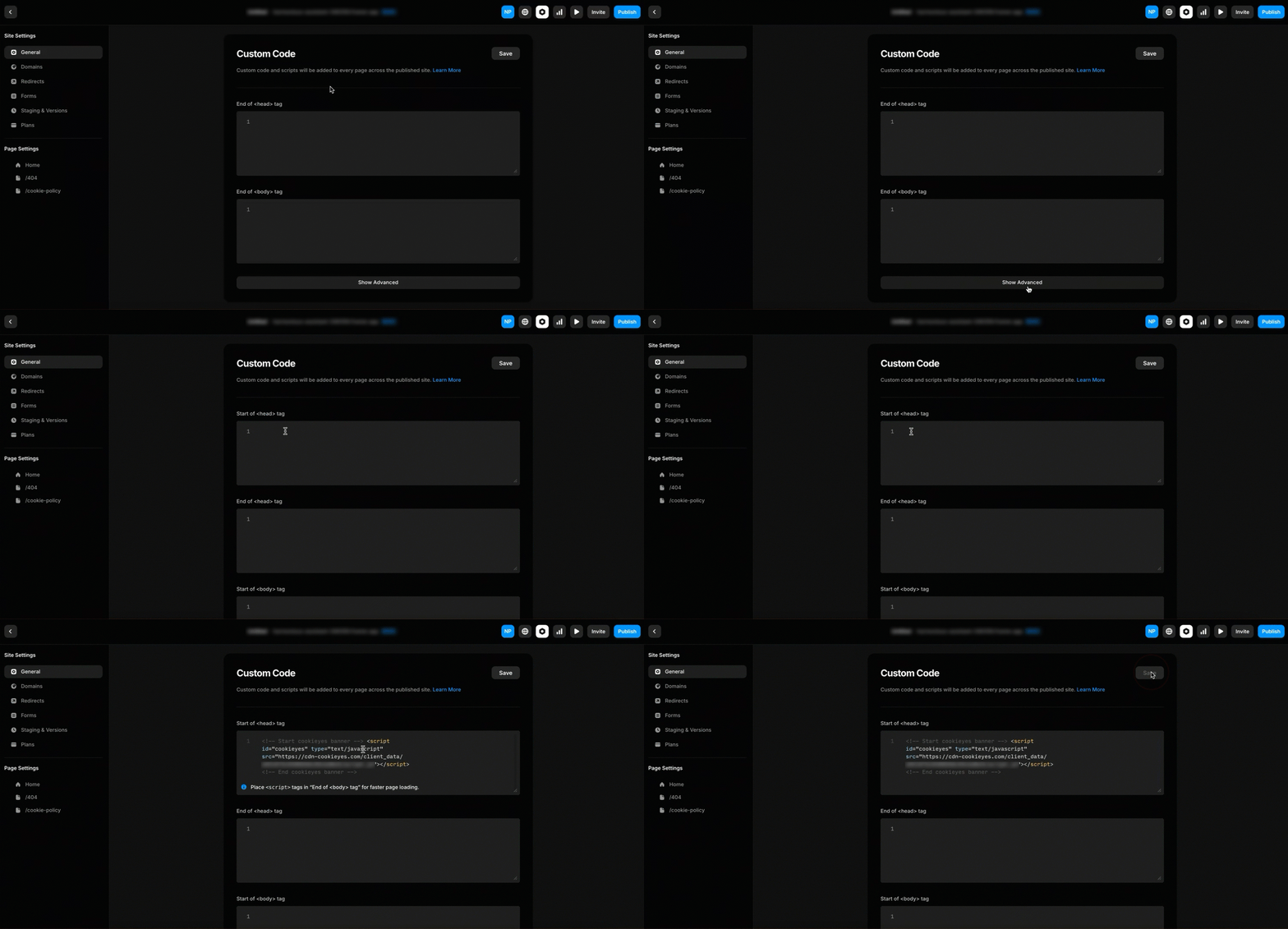
If you are unable to view the Start of <head> tag section, click on the Show Advanced button at the bottom of the page to enable it.
Step 4: Click on Publish at the top-right corner of your screen and hit the Update button.
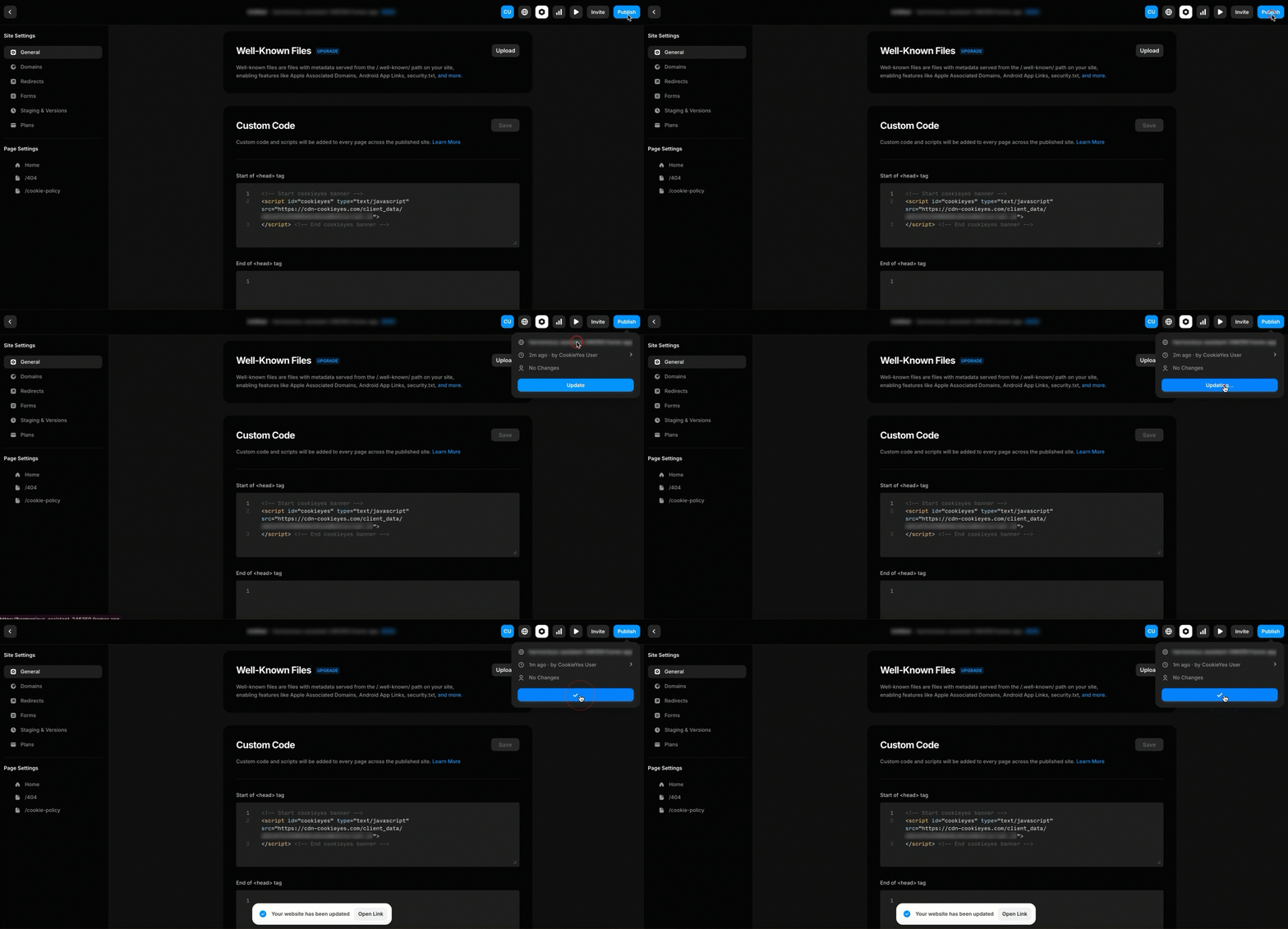
The ability to add custom codes is available only on Framer’s paid plans.
Step 5: Return to the CookieYes setup screen and click the Verify button. You will see a success message that your banner is active.
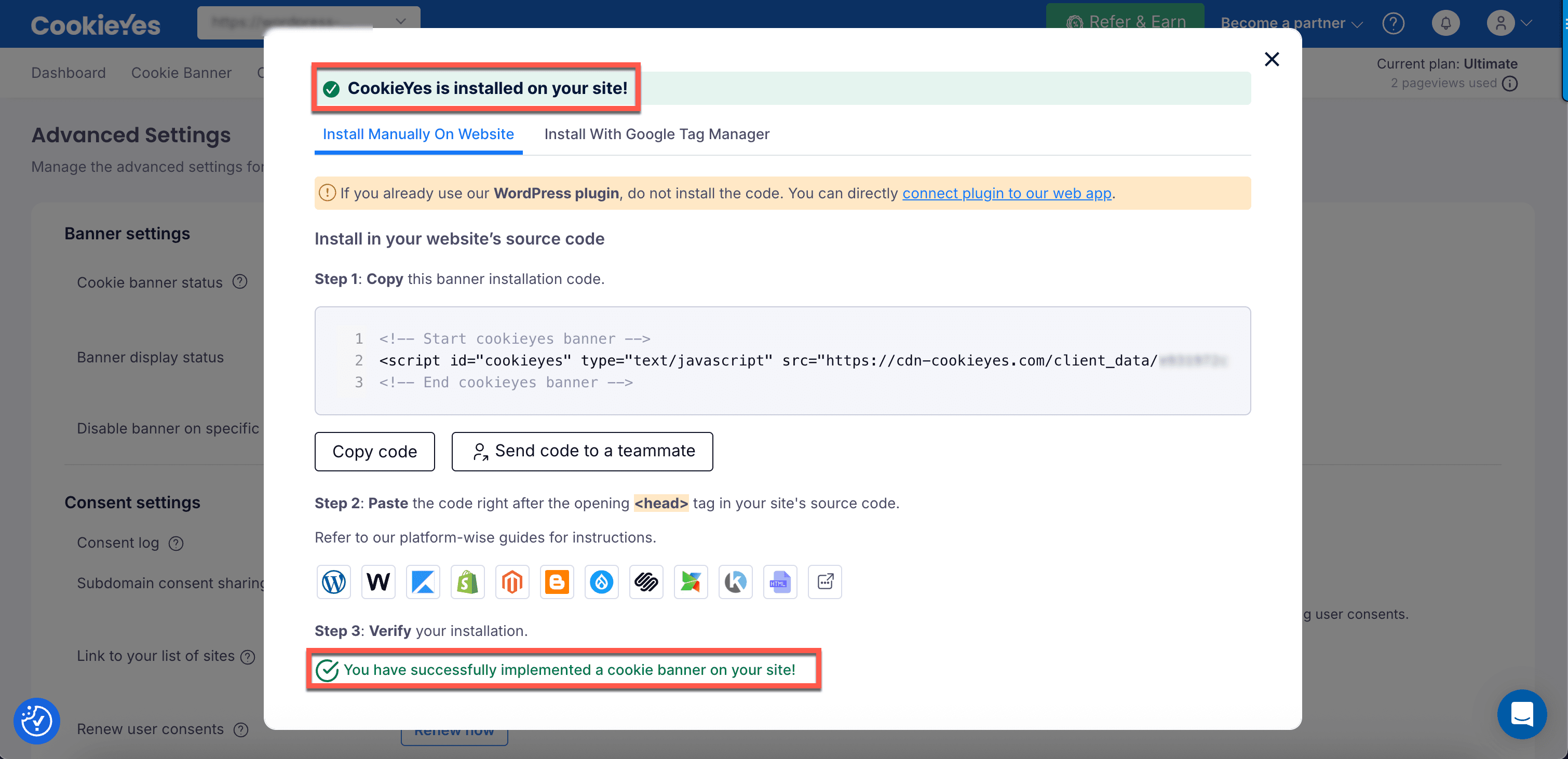
The cookie consent banner is now active on your Framer website!
You will receive a verification email shortly, and your first website scan will be initiated automatically. The scan results will show a list of all the cookies used on your site.
Still have questions or facing issues? Contact technical support