The CookieYes MCP server is now live, and it is listed in Claude's connector directory. Search for CookieYes, connect your account, and you can manage your cookie consent setup in plain language instead of logging in to a dashboard. Ask whether a banner is live, run a cookie scan, restyle a banner, or check which regulations a site is covered for, and Claude does it in your CookieYes account. It works in Claude, Claude Desktop, and Claude Code, and it is available on every plan, including the free one.
Key takeaways
- CookieYes is listed in Claude's connector directory. Search for CookieYes and connect, with no server URL to paste.
- It gives Claude ten tools: seven read-only, and three that change your setup and ask for approval first.
- Access uses OAuth 2.1 with PKCE. CookieYes supports both CIMD, the current specification's recommended default, and Dynamic Client Registration, which most servers built to earlier revisions support.
- Claude sees banner configuration and scan metadata only. Personal data, consent logs, cookie values, and policy text are never exposed.
- The same MCP server works with other clients, including ChatGPT, Cursor, and VS Code.
- It is available on every plan, including the free plan, and currently operates in English only.
What is Claude MCP server?
The Model Context Protocol (MCP) is an open standard that lets an AI assistant talk to an external service, such as Claude, through a shared set of tools. The CookieYes MCP server is our hosted implementation of it, and "connector" is Claude's name for an MCP server it has added.
So the two terms describe the same thing from different angles. In Claude you add the CookieYes connector from the directory. Under the bonnet, Claude is talking to the our MCP server, which relays your requests to your account.
Nothing new, and no second product. It is your existing CookieYes account, reachable from where you are already working.
Why we built Claude MCP server for CookieYes
Consent management is checked far more often than it is changed.
Someone ships a new landing page and wants to know the banner still fires. A developer needs the install snippet for a staging site. An agency running twelve client sites wants to know which one is missing a banner. A marketer wants last month's scan results before a campaign goes live.
None of those are hard questions. All of them currently cost a login, a domain switch, and a hunt through settings. It turns each one into a sentence.
What you can ask Claude to do
The CookieYes MCP server gives Claude ten tools across five kinds of work.
Monitor. Check whether a banner is live and correctly installed, verify its configuration, and pull a list of banners across all your domains.
Implement. Retrieve and validate the JavaScript embed code for any domain, ready to hand to a developer or drop into a new build.
Customise. Update banner colours and theme, and change layout, position, and preference centre style, to match a site's design.
Scan. Trigger a cookie scan, see which cookies and third-party scripts were detected, and review results by category.
Manage. List every domain in your account and scope any action to a specific one.
Here is the full set, with the kind of thing you would actually type into Claude.
| Category | Tool | Type | What you might ask Claude |
|---|---|---|---|
| Domains and setup | list_domains | Read | "Show all my sites." |
| get_website_details | Read | "Show me the details for example.com." | |
| get_embed_code | Read | "Give me the installation code for my site." | |
| Banner management | list_banners | Read | "Which banners are active on my site?" |
| get_banner_status | Read | "Is my banner live?" | |
| update_banner_colours | Write | "Set the accept button to navy blue." | |
| update_banner_layout | Write | "Move my banner to the bottom right." | |
| Compliance and scanning | get_scan_results | Read | "What cookies are on my site?" |
| get_compliance_status | Read | "What regulations am I covered for?" | |
| trigger_cookie_scan | Write | "Scan my website for cookies." |
Seven of the ten are read-only. The three that change something ask for your approval before they run.
Five things this makes faster
- Catching a missing banner. Ask which of your sites have an inactive banner and Claude returns the list, rather than you clicking through each domain. If one is missing, ask for the install code in the same breath.
- Scanning before a launch. Trigger a scan on the domain you are about to push live, then come back and ask what it found. New third-party scripts show up as new cookies.
- Restyling without a design ticket. Ask for a dark theme, or move the banner to the bottom left. Claude confirms, then the change applies to the live site immediately.
- Confirming coverage. Ask whether a site is set up for GDPR or CCPA and you get its consent template, geo-targeting settings, and installation status. This is a configuration check, not legal advice, and Claude says so.
- Working across a portfolio. Anyone running multiple properties can ask one question and get an answer spanning every domain in the account.
How to connect it
In Claude and Claude Desktop
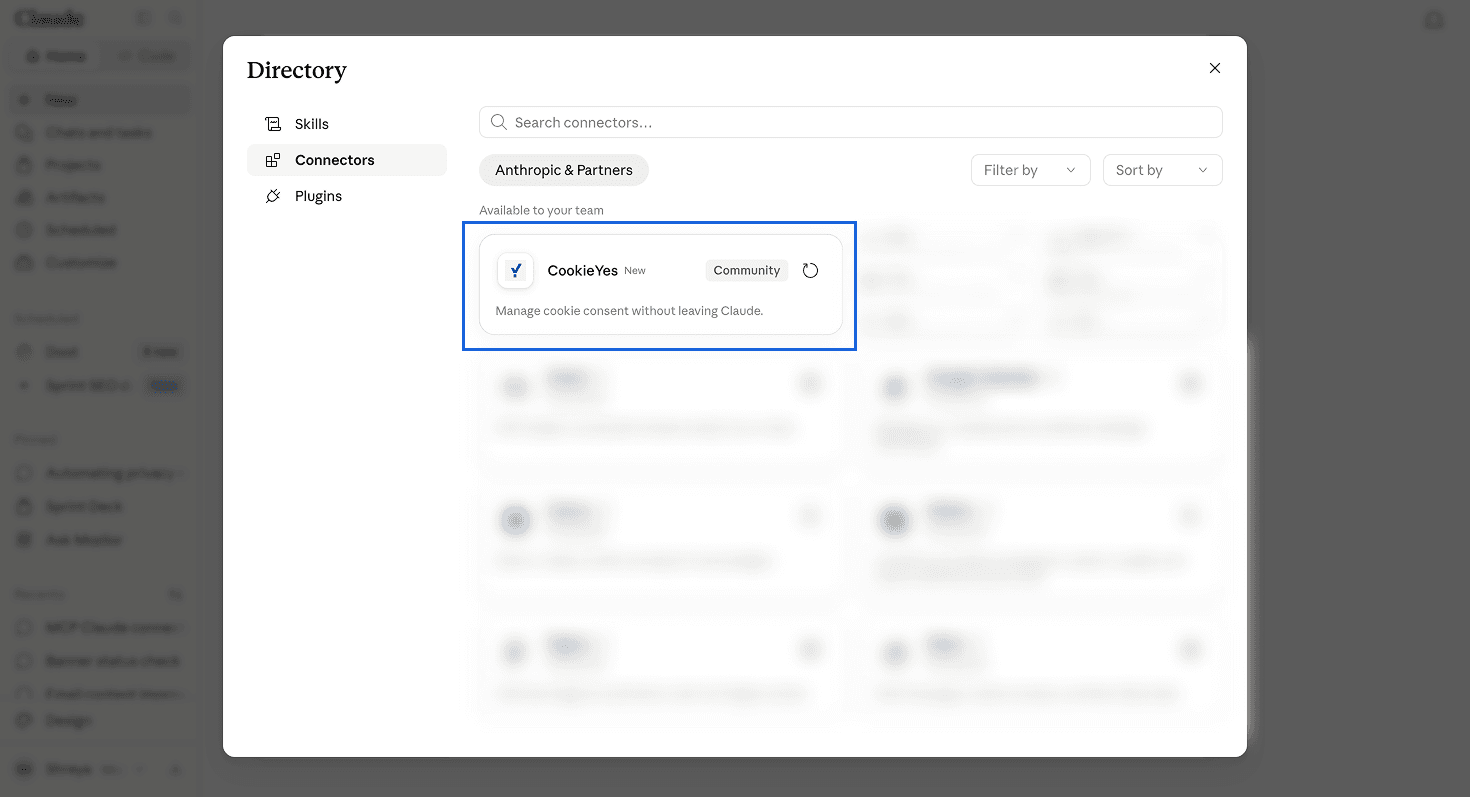
There is no server URL to paste. CookieYes is in the connector directory, so you just search for it.
- Open Connectors. Either click the Customize icon in the left sidebar and select Connectors, or go to your profile menu in the top left, then Settings > Connectors.
- Open the directory from the top-right corner. This is labelled + Add in the desktop app and Browse in the browser app.
- Search for CookieYes and select it. It is listed as a community connector.
- Click Connect.
In Claude Code
Run claude mcp add --transport http cookieyes https://app.cookieyes.com/mcp, approve the command if prompted, then run claude mcp login cookieyes to start the sign-in.
Either route takes you to the same CookieYes authorisation screen. Log in, review the permissions, and click Allow. Once you see that your account is connected, go back to Claude and start asking.
Two things to check first. Your account owner needs to have switched on Enable OAuth-based access under profile menu > MCP access, and you will need a CookieYes account, free or paid.
Setting Claude MCP server up for the first time?
Check out our setup guide for detailed instruction for Claude, ChatGPT, Cursor, VS Code, and other clients.
Read the setup guideHow access and permissions work
Our Claude MCP server uses OAuth 2.1 with PKCE. When you connect, CookieYes issues Claude a scoped access token that it uses for every tool call. Your password is never shared.
We built for the current version of the MCP authorisation specification, so the server supports both ways a client can identify itself. Client ID Metadata Documents, which the November 2025 specification makes the recommended default, use a URL as the client ID and need no registration step at all. Dynamic Client Registration, which the specification keeps as a fallback, is what most servers built against earlier revisions support.
Supporting both matters in practice. A client that has moved to CIMD connects natively rather than dropping to a fallback path, and a client still using dynamic registration connects exactly as before. Either way there is no pre-registration and no manual credential entry.
Access is controlled at the account level:
- The account owner turns MCP access on. Until they do, Claude cannot connect.
- Any user can check the status. An MCP enabled badge appears under Organisations & Sites when it is on.
- You can revoke access from either side, by clicking Disconnect in the CookieYes Connectors list, or by removing the connector in Claude's own settings.
What Claude can and cannot see
The MCP is deliberately narrow. It reads configuration, not people.
Claude can access: domain-level configuration and banner status, your banner settings including layout, position, colours, and compliance template, and cookie scan metadata such as pages scanned and the number of cookies and scripts found.
Claude cannot access: personal data, individual consent records, or visitor data. Cookie values, session data, and user identifiers, where only metadata is ever returned. Your cookie policy text, banner headings, or any legal copy. Billing information, credentials, and team member details.
Our standing advice: keep Claude's tool approval prompts switched on, read write calls before allowing them, and only connect services you trust.
It also works beyond Claude
Claude is where the connector is easiest to add, because CookieYes is listed in the directory and you never touch a server URL. The same MCP server works with any MCP-compatible client, though.
That includes ChatGPT, Cursor, VS Code, Windsurf, Zed, Codex, GitHub Copilot CLI, and opencode. Those clients connect using the endpoint https://app.cookieyes.com/mcp, and the CookieYes MCP Server documentation carries setup steps for each.
Availability
The CookieYes MCP server is available now on all account types, including the free plan. No paid subscription is required. Some tools carry plan-based limits, for example the number of cookie scans you can trigger per domain each month, which increases on paid plans.
It currently operates in English only.
Connect CookieYes with CookieYes
Add the CookieYes connector to Claude, or start a free CookieYes account if you do not have one yet.
Get for free- Free 14-day trial
- Cancel anytime
Frequently asked questions
What is the CookieYes MCP server?
The CookieYes MCP server is a hosted service that lets Claude and other AI assistants securely access your CookieYes account through the Model Context Protocol. It exposes ten tools, so you can check banner status, run cookie scans, update banner styling, and review compliance configuration by asking, without opening the dashboard.
Is the CookieYes connector the same as the CookieYes MCP server?
Yes, seen from two sides. The CookieYes MCP server is the hosted service. "Connector" is Claude's own name for how it adds an MCP server, so in Claude you add the CookieYes connector and it talks to that same server.
How do I add CookieYes to Claude?
In Claude or Claude Desktop, open Connectors, either from the Customize icon in the left sidebar or from your profile menu > Settings > Connectors. Open the directory using + Add in the desktop app or Browse in the browser app, search for CookieYes, and click Connect. There is no server URL to enter. In Claude Code, run claude mcp add --transport http cookieyes https://app.cookieyes.com/mcp, then claude mcp login cookieyes. Either way you are redirected to CookieYes to log in and approve the permissions.
Does the CookieYes MCP server work with other AI assistants?
Yes. The connector is the easiest route in Claude because CookieYes is listed in the directory, but the same MCP server works with any MCP-compatible client, including ChatGPT, Cursor, VS Code, Windsurf, Zed, and GitHub Copilot CLI. Those clients connect using the endpoint https://app.cookieyes.com/mcp.
Is the CookieYes MCP server safe to use?
Access uses OAuth 2.1 with PKCE, so your CookieYes password is never shared, and only limited configuration data is available. Personal data, consent logs, and cookie values are never exposed. Claude asks you to approve each tool call before it runs, and an account owner must explicitly enable MCP access before Claude can connect.
Does the CookieYes MCP server work on the free plan?
Yes. It is available on all CookieYes account types, including the free plan, with no paid subscription needed. Some tools have plan-based usage limits, such as the number of cookie scans you can trigger per domain per month.
Can Claude change my cookie banner?
Yes, through three write tools that update banner colours, update banner layout, and trigger a cookie scan. Claude asks for confirmation before running any of them. The other seven tools are read-only.