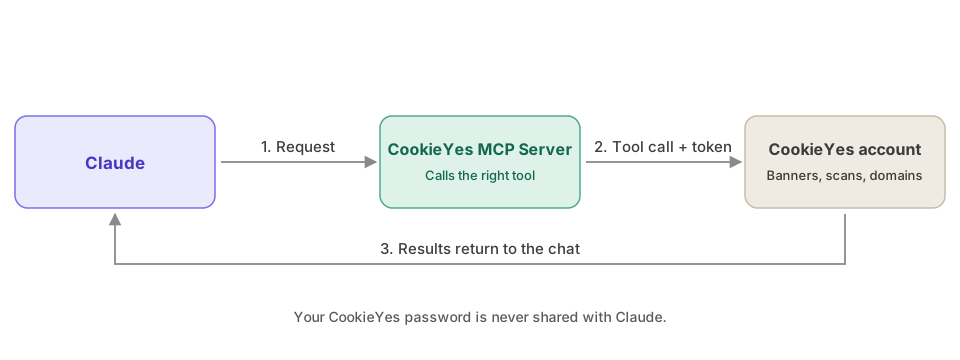
The CookieYes MCP Server connects Claude directly to your CookieYes account. Ask Claude to check banner status, fetch an embed code, update banner colours or position, run a cookie scan, or list your domains, and it acts on your account without you leaving the chat. Connection uses the Model Context Protocol (MCP), an open standard that lets AI clients call tools on an external service, with access authorised through OAuth 2.1 with PKCE.
Note
Setup for Claude Code, ChatGPT, Cursor, and other clients is covered in the MCP Server guide.
Before you begin
Make sure you have the following:
- A CookieYes account: sign up if you don't have one.
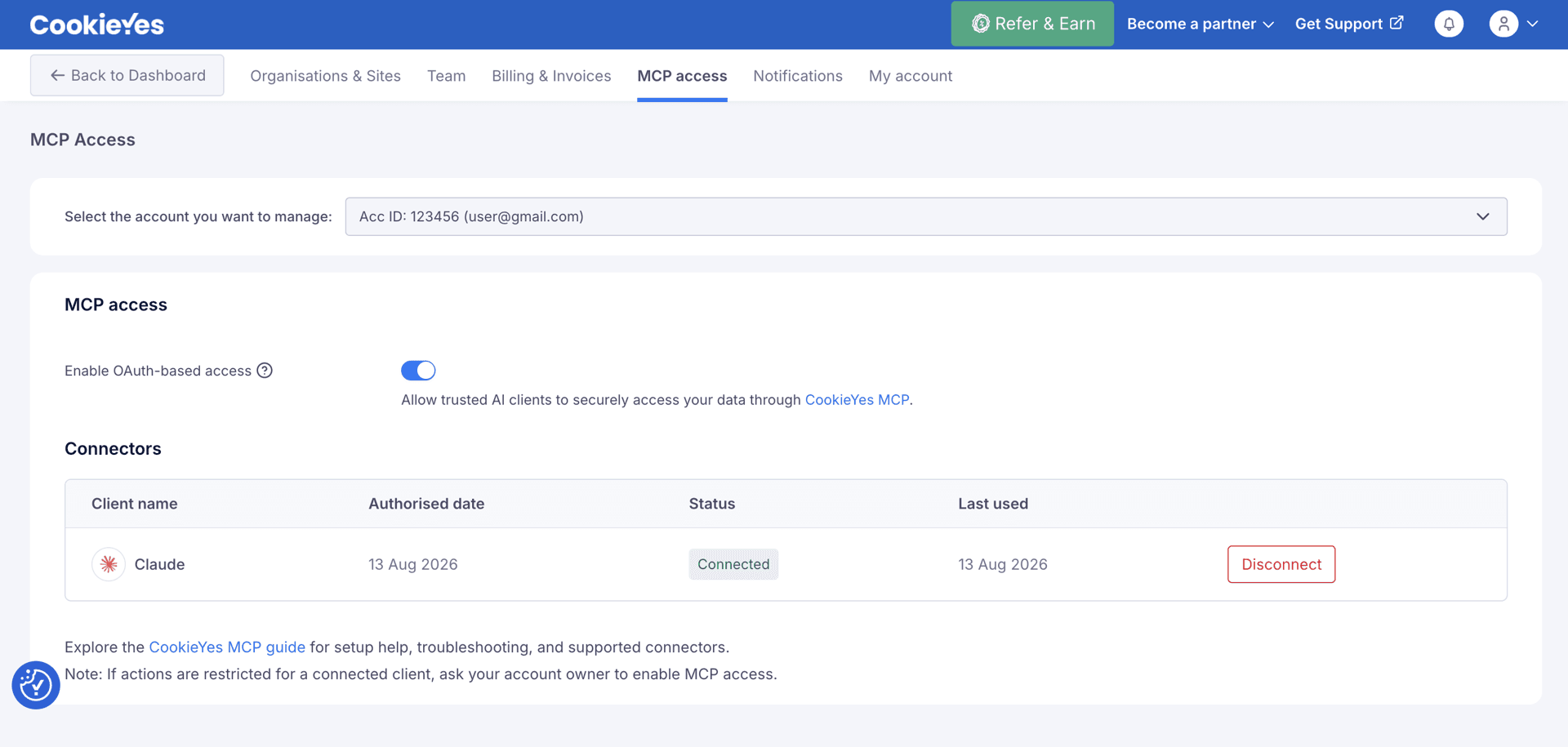
- MCP access enabled: the account owner must turn on the Enable OAuth-based access toggle under profile menu > MCP access.
Note
This works on the free Claude and CookieYes plans. No paid subscription is required.
Connect Claude or Claude Desktop
The connector you add is available in both the web app and Claude Desktop when you are signed in to the same account.
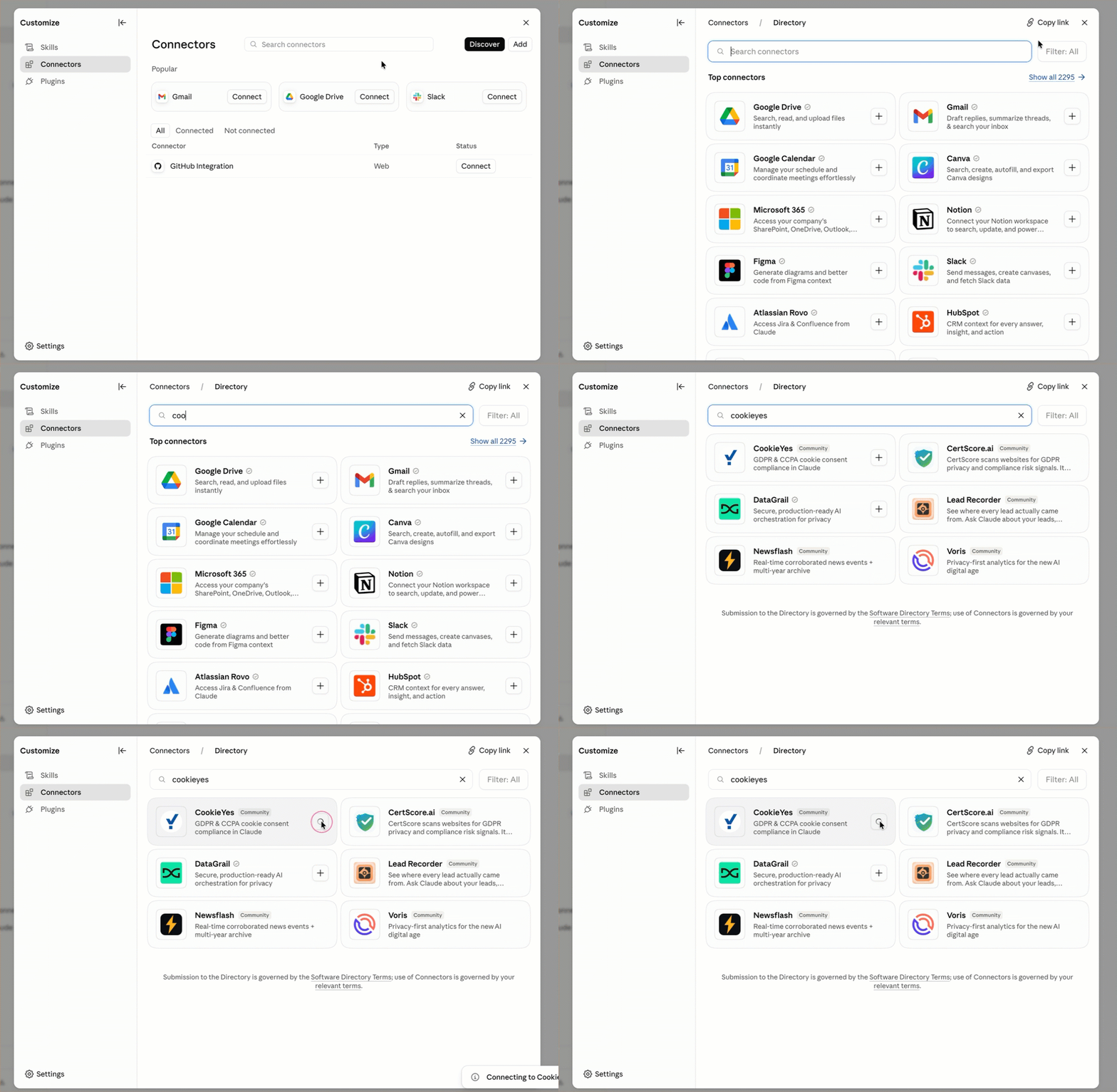
1. From the profile menu, select Settings.
2. Under Customize, select Connectors.
3. Click Browse, then search for CookieYes.
4. Select CookieYes from the results, then click Connect to Claude.
Note
If Browse is not shown on the Connectors page, click Discover, search for CookieYes, then click + next to CookieYes.
Authenticate and authorise
1. Log in to your CookieYes account.
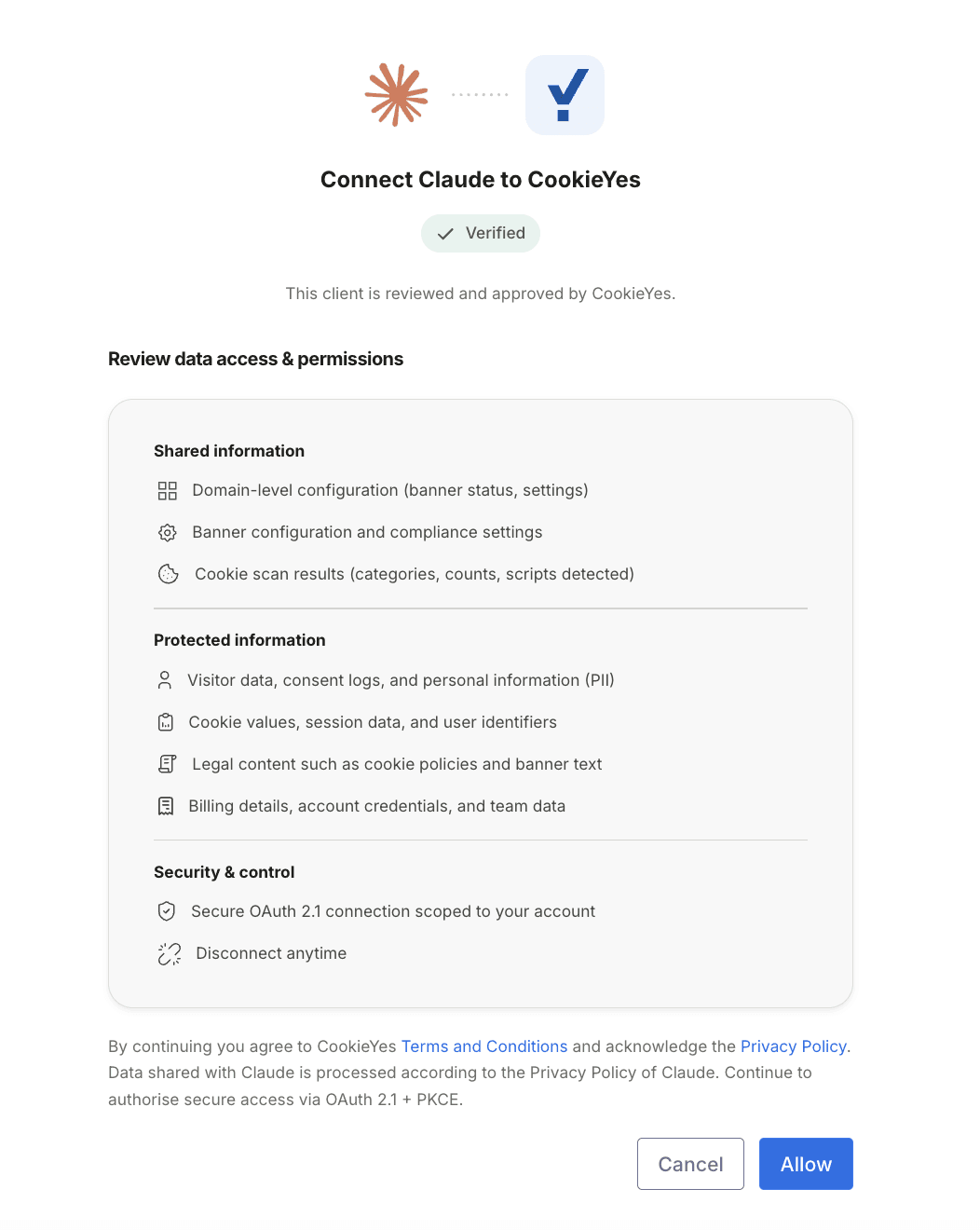
2. Review the access listed on the CookieYes authorisation screen.
3. Click Allow.
The authorisation screen shows the specific access granted to Claude. CookieYes then issues Claude a scoped access token, which it uses for all tool calls. Your CookieYes password is never shared with Claude.
Confirm the connection
After you authorise, a confirmation appears: Your CookieYes account is now connected.
Return to Claude and confirm the connection:
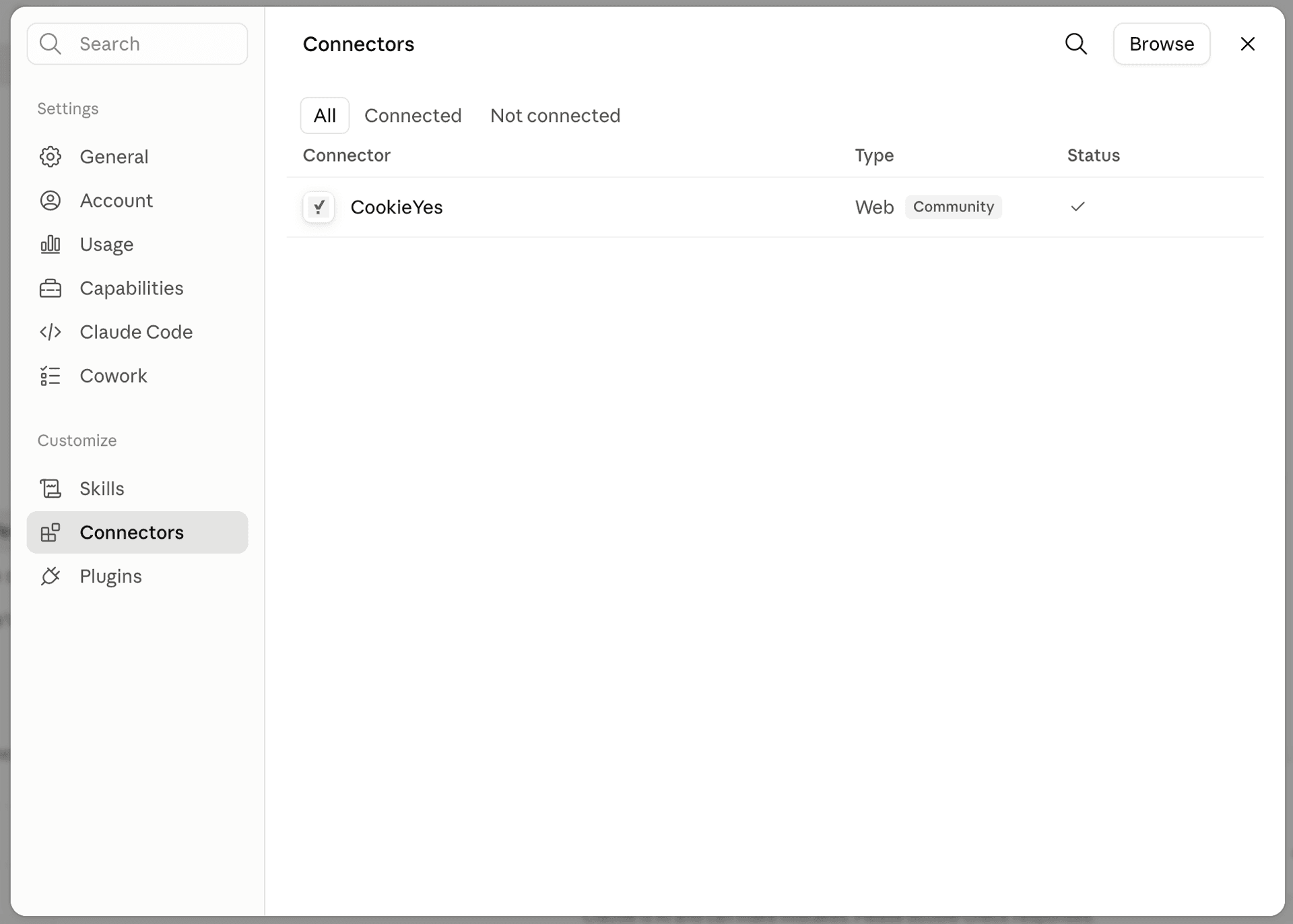
- Go to Connectors and check that CookieYes appears in the list with a tick in the Status column. Start a new chat and ask Claude to list the domains in your account.
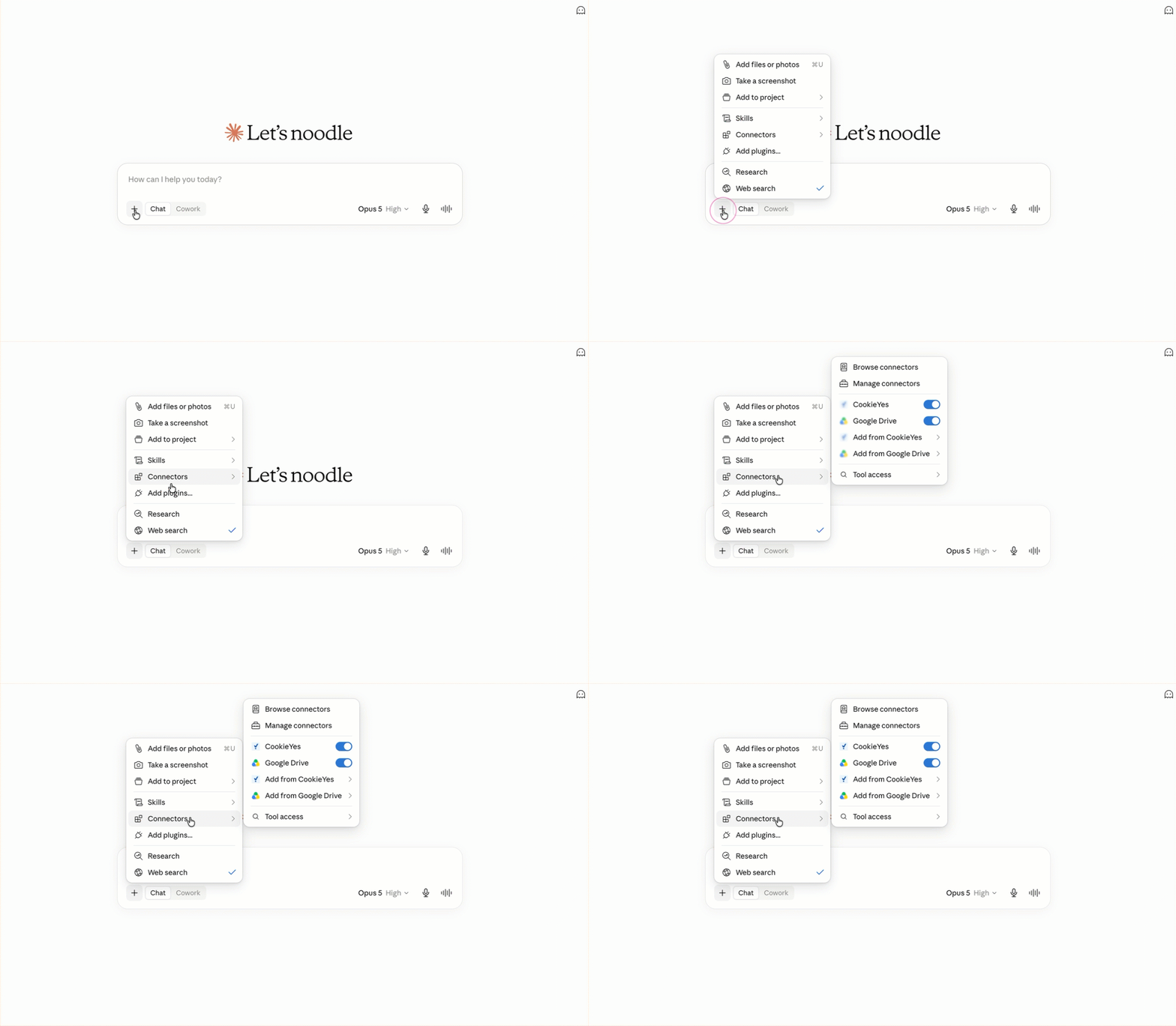
In Claude and Claude Desktop, you can also confirm from the chat window:
1. Click the + (Add) icon.
2. Select Connectors from the list.
3. Check that the toggle against CookieYes is enabled.
Check MCP access status
To check whether MCP access is enabled for your account, click the profile menu and go to Organisations & Sites. If MCP is enabled, an MCP enabled badge appears on the page.
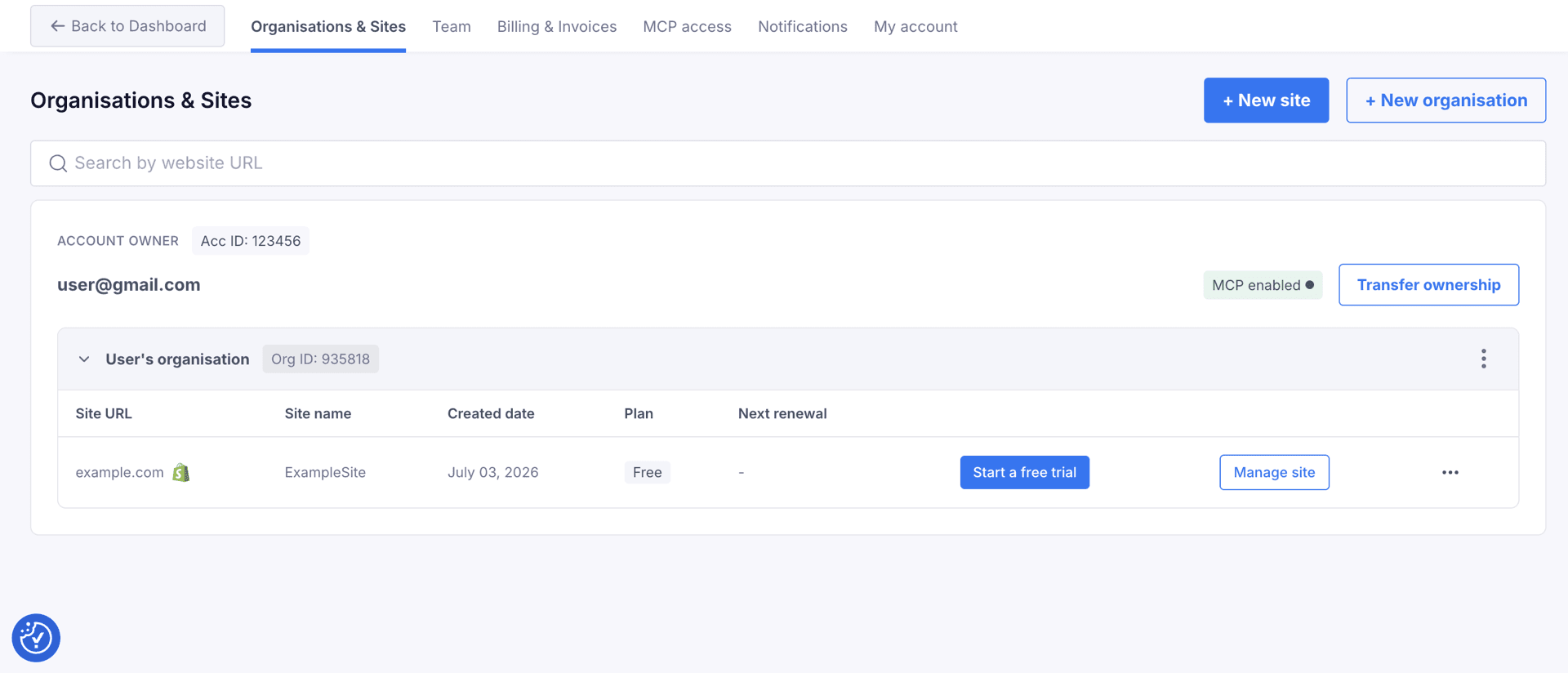
Any user can view this status, but only the account owner can change it. See Manage MCP Access.
Manage MCP access
The account owner controls MCP access for the whole account using the Enable OAuth-based access toggle under profile menu > MCP access. Turning it on allows AI clients to connect; turning it off restricts access.
Note
You can revoke Claude's access at any time, from either side of the connection. See Disconnect Claude for the steps.
What Claude can and cannot access
Access is limited to your own CookieYes account. Claude cannot reach other CookieYes accounts, and the authorisation token works only with the tools the MCP Server exposes.
What Claude can access
- Banner status and configuration settings
- Banner embed codes for your domains
- Banner appearance settings, including colours, position, and layout
- Cookie scan triggers and scan results
- The list of domains in your account
What Claude cannot access
- Personal data, consent logs, or visitor data
- Cookie values and session identifiers
- Legal content such as your cookie policy and banner copy
- Billing details, credentials, or team data
Disconnect Claude
You can revoke access from either side of the connection.
From CookieYes
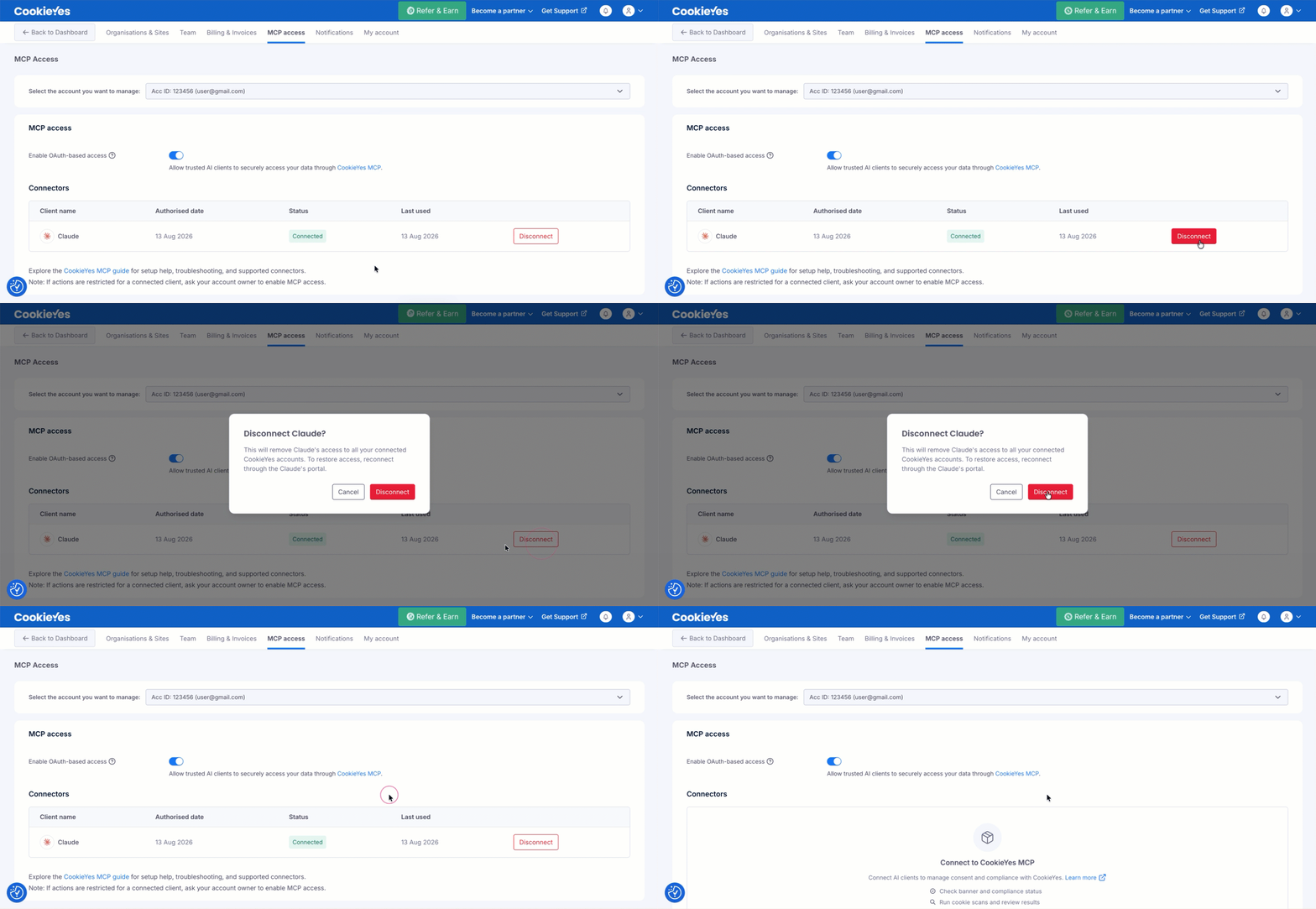
1. Open the profile menu in the top-right corner of the dashboard.
2. Go to MCP access.
3. Find Claude in the Connectors list.
4. Click Disconnect, then confirm Disconnect in the pop-up.
From Claude
Go to Connectors > CookieYes > Disconnect.
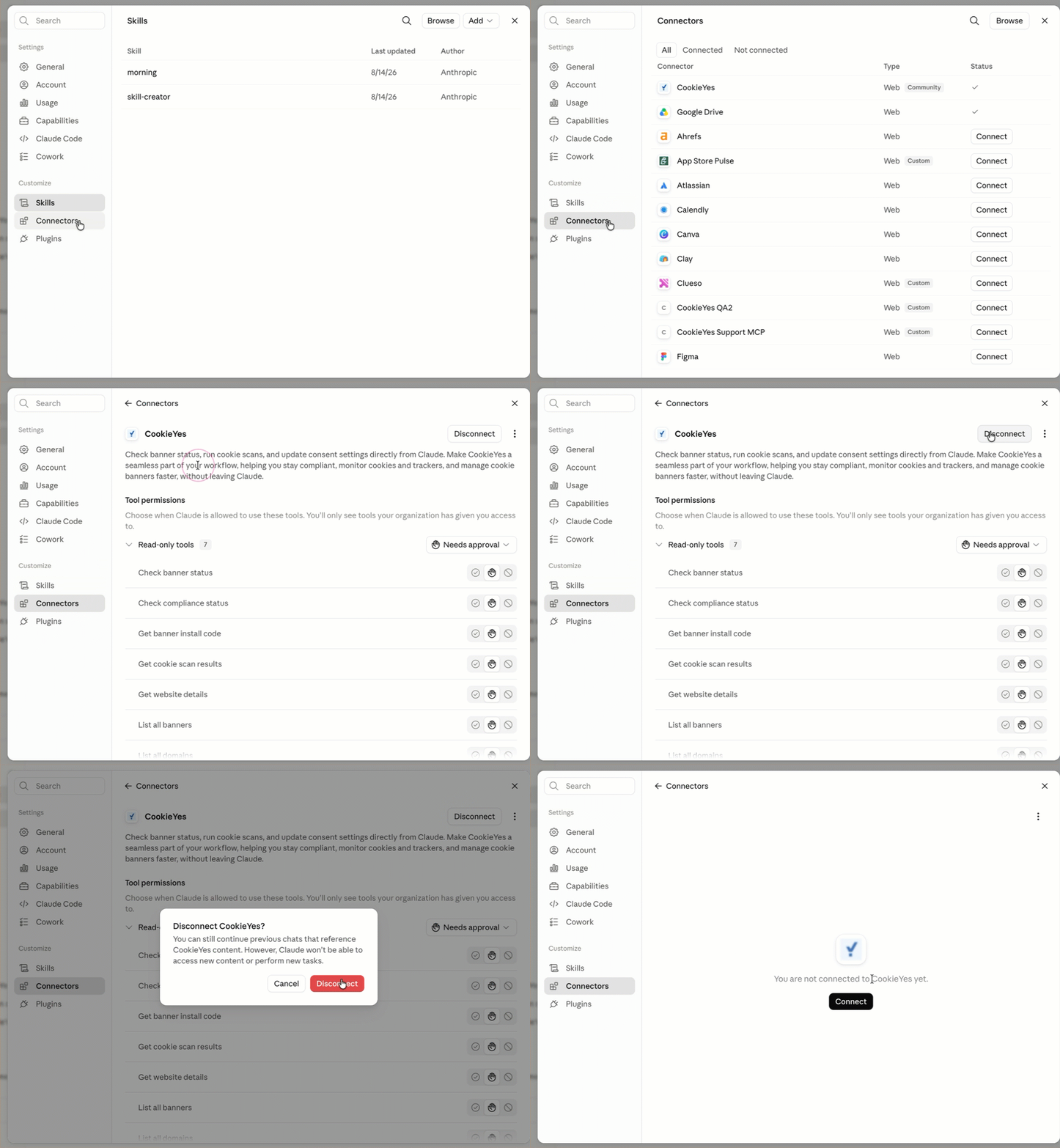
Disconnecting from CookieYes revokes the token, so Claude loses access even if the connector is still listed in Claude.
Troubleshooting
- Claude says it cannot access CookieYes, or that access is disabled
Ask the account owner to check that Enable OAuth-based access is turned on under profile menu > MCP access. - The authorisation screen does not open
Check that pop-ups are allowed for your browser, then start the connection again. If you use a work account with single sign-on, log in to CookieYes in the same browser first. - Claude drops the connection mid-conversation
Navigate to profile menu > Settings > Customize > Connectors and confirm the connector is still connected, then reconnect and start a new chat. Tokens can expire, and a client update can reset connector state. - Claude cannot see a domain you expect
Confirm the domain is added to the same CookieYes account you authorised. Claude only sees domains in the authorised account.
Frequently asked questions
- Do I need a paid CookieYes plan to connect Claude?
No. The MCP Server is available on all plans, including Free. Some tools have plan-based usage limits. - Does Claude see my visitors' consent data?
No. Consent logs, visitor data, and cookie values are never exposed to the MCP Server. - Can Claude change my banner without asking?
No. Read tools run automatically. Write tools ask for your confirmation before changing your configuration. In Claude's Connectors settings, adjust these permissions.