A privacy policy page is legally required and will also help your website stay compliant with privacy laws such as the GDPR and CCPA require websites to explain how they collect and use personal information. This guide shows you how to generate a privacy policy for your website with CookieYes.
To begin with, sign up on CookieYes and try it for free.
After you sign up, you will be directed to the installation screens. You can install the cookie banner to support GDPR compliant for your use of cookies. If you want to create a privacy policy first, then skip the installation and proceed to the app dashboard.
How to generate a privacy policy in CookieYes
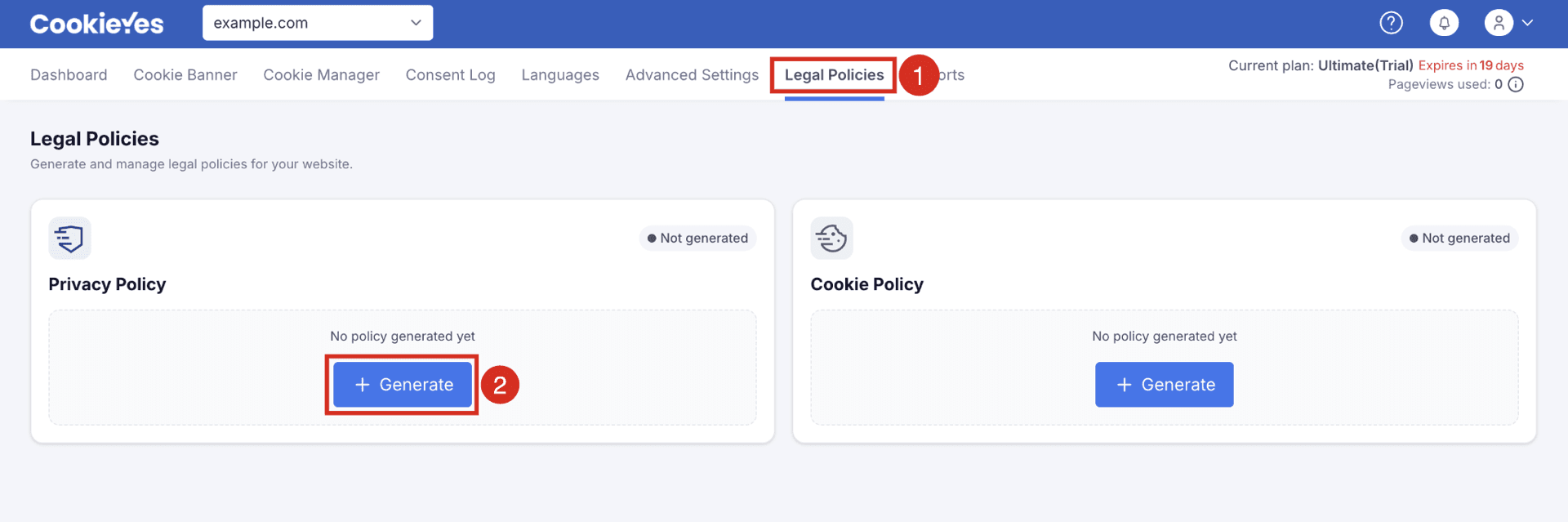
Step 1. Access the privacy policy generator
- Log in to your CookieYes account.
- From the top navigation bar, select Legal Policies.
- From the Privacy Policy section, click + Generate.
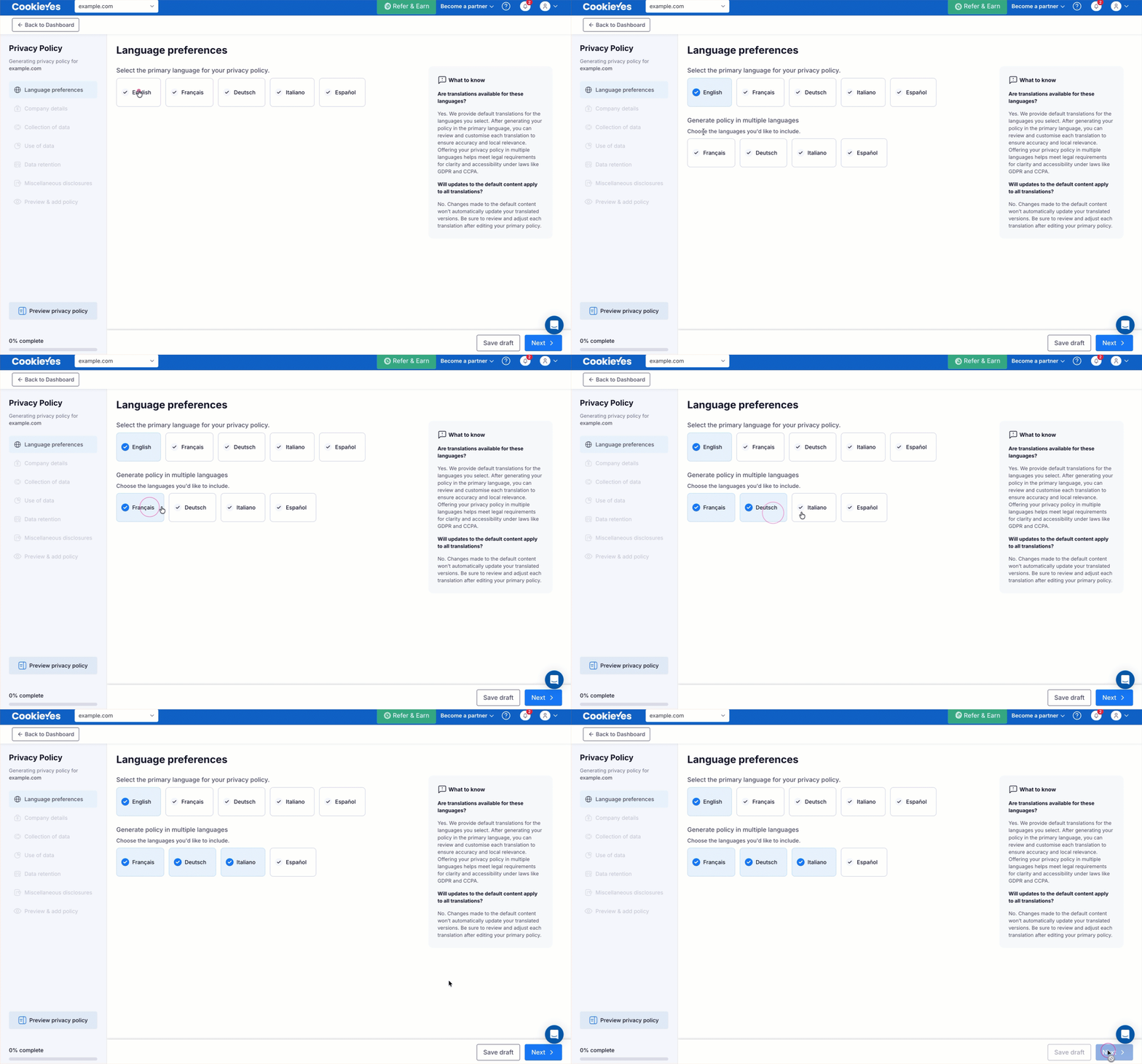
- Select the primary language
- Choose the primary language for your privacy policy.
- Generate policy in multiple languages
- Select the additional languages you want to generate the privacy policy in. This feature is available only on Basic, Pro and Ultimate plans.
- Click Save draft to save your progress or Next to continue.
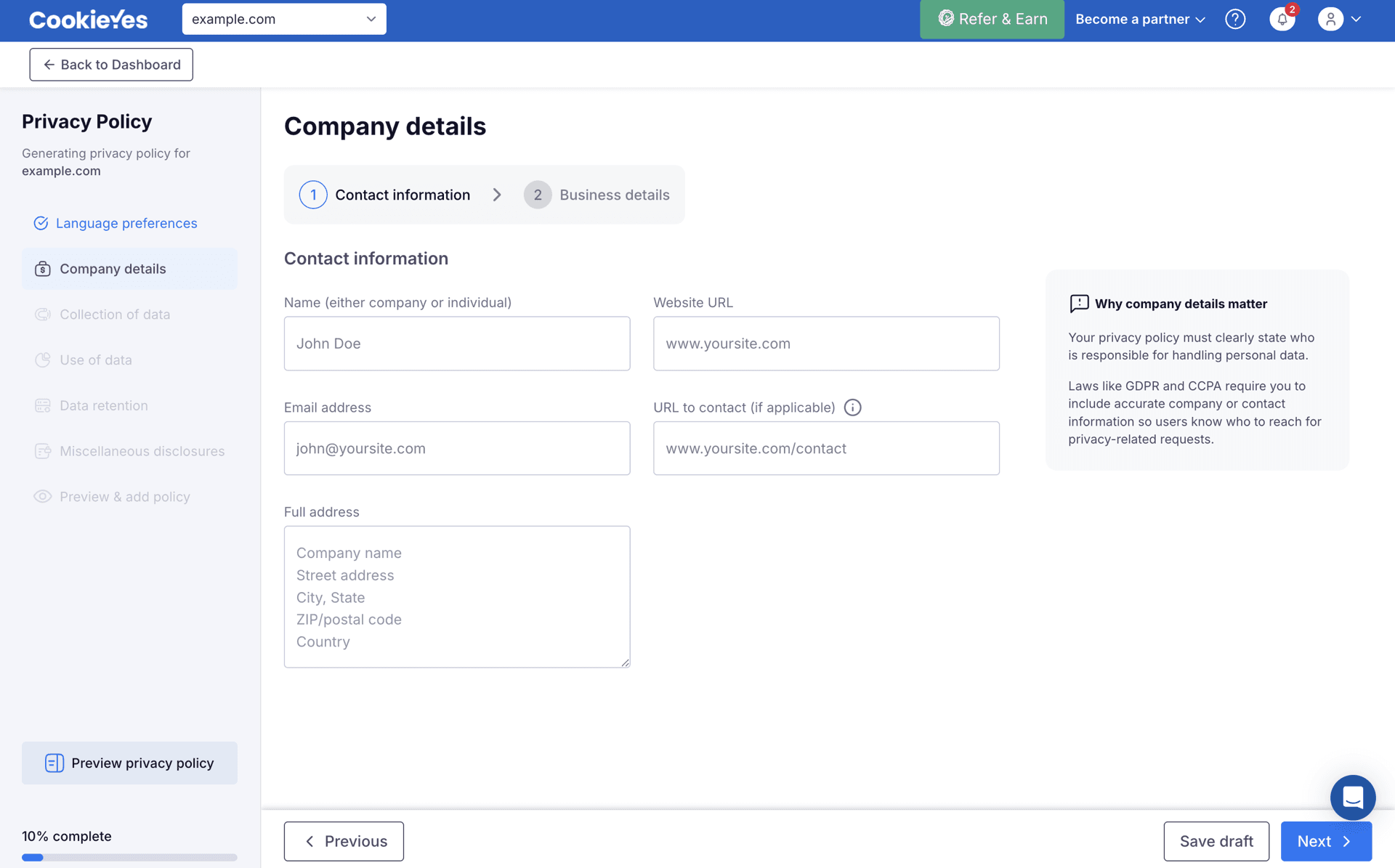
Step 3. Add company details
Company details has two sections: Contact information and Business details.
In Contact information, provide name (either company or individual), website URL, email address, contact URL (if applicable), and full address. Click Next to navigate to Business details.
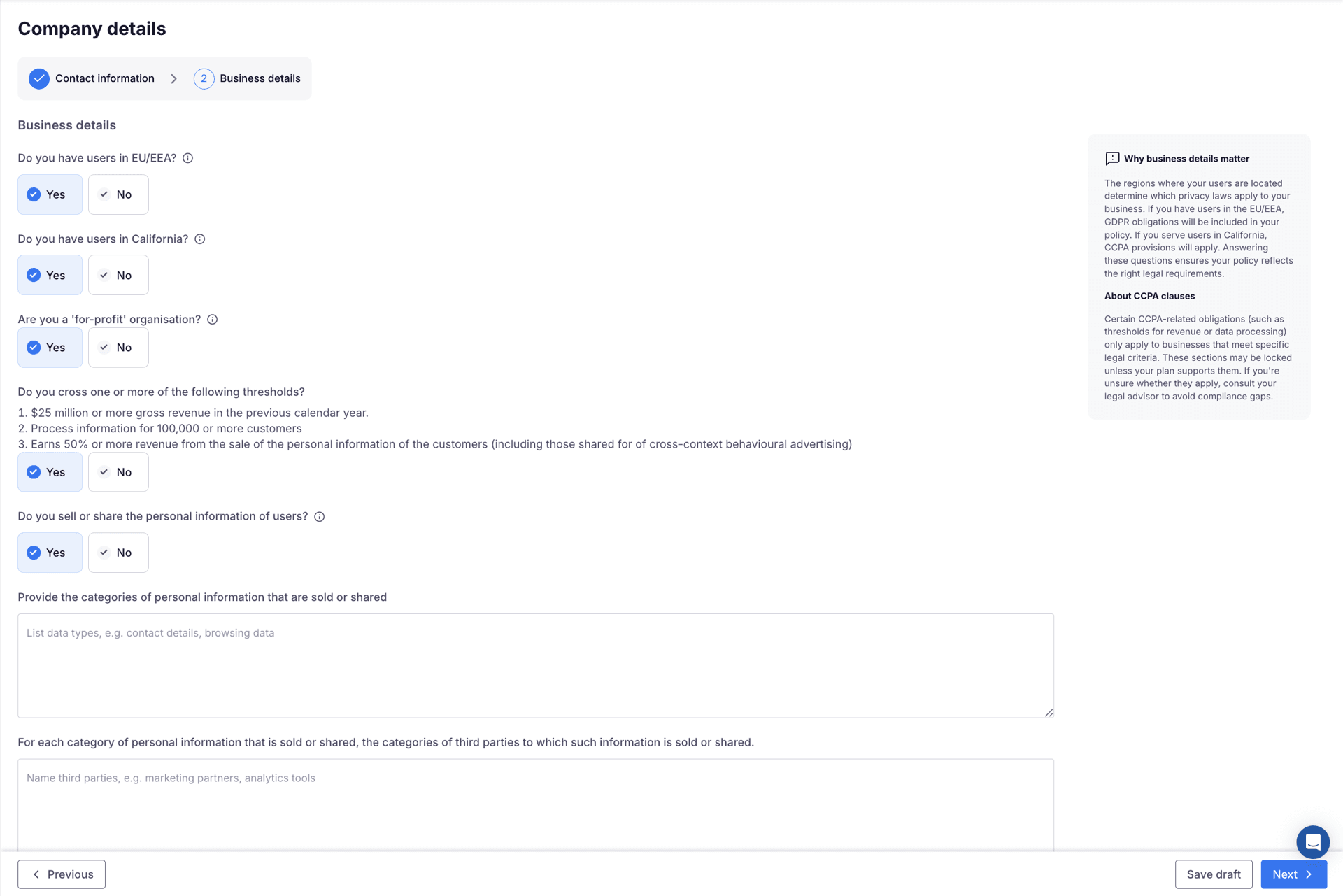
In Business details, provide the following details.
Do you have users in EU/EEA?
Select Yes or No to indicate whether your website has users in the EU or EEA. Selecting Yes includes GDPR-specific clauses in your privacy policy.
The remaining questions in this section apply only to websites with users in California. If you do not have users in California, select No for the next question and click Next.
Do you have users in California?
Select Yes or No to indicate whether your website has users in California. Selecting Yes displays follow-up questions that determine whether the CCPA/CalOPPA applies to your business.
The follow-up questions below are available only on the Basic, Pro, and Ultimate plans.
If you select No, no additional questions appear.
If you select Yes, answer the following questions:
- Are you a for-profit organisation?
- If you select No, no additional questions appear, as the CCPA applies only to for-profit businesses.
- If you select Yes, the following question appears:
- Do you cross one or more of the following thresholds? $25 million or more in annual gross revenue, data processing for 100,000 or more customers, or 50% or more of revenue from selling customers' personal information (including data shared for cross-context behavioral advertising).
- If Yes, the CCPA applies to your business. A Disclosure of data page appears later in the flow.
- If you select No, a follow-up question appears: Do you want to include CCPA-compliant clauses even if not legally required?
- If you select Yes, the Disclosure of data page is added to the flow.
- If you select No, no additional questions appear in this step.
- Do you sell or share the personal information of users?
- Selecting Yes prompts you to provide the categories of personal information that are sold or shared and, for each category, the categories of third parties to which the information is sold or shared. The Disclosure of data page is also added to the flow.
- If you select No, no further questions appear in this step.
Click Next to proceed to Step 4.
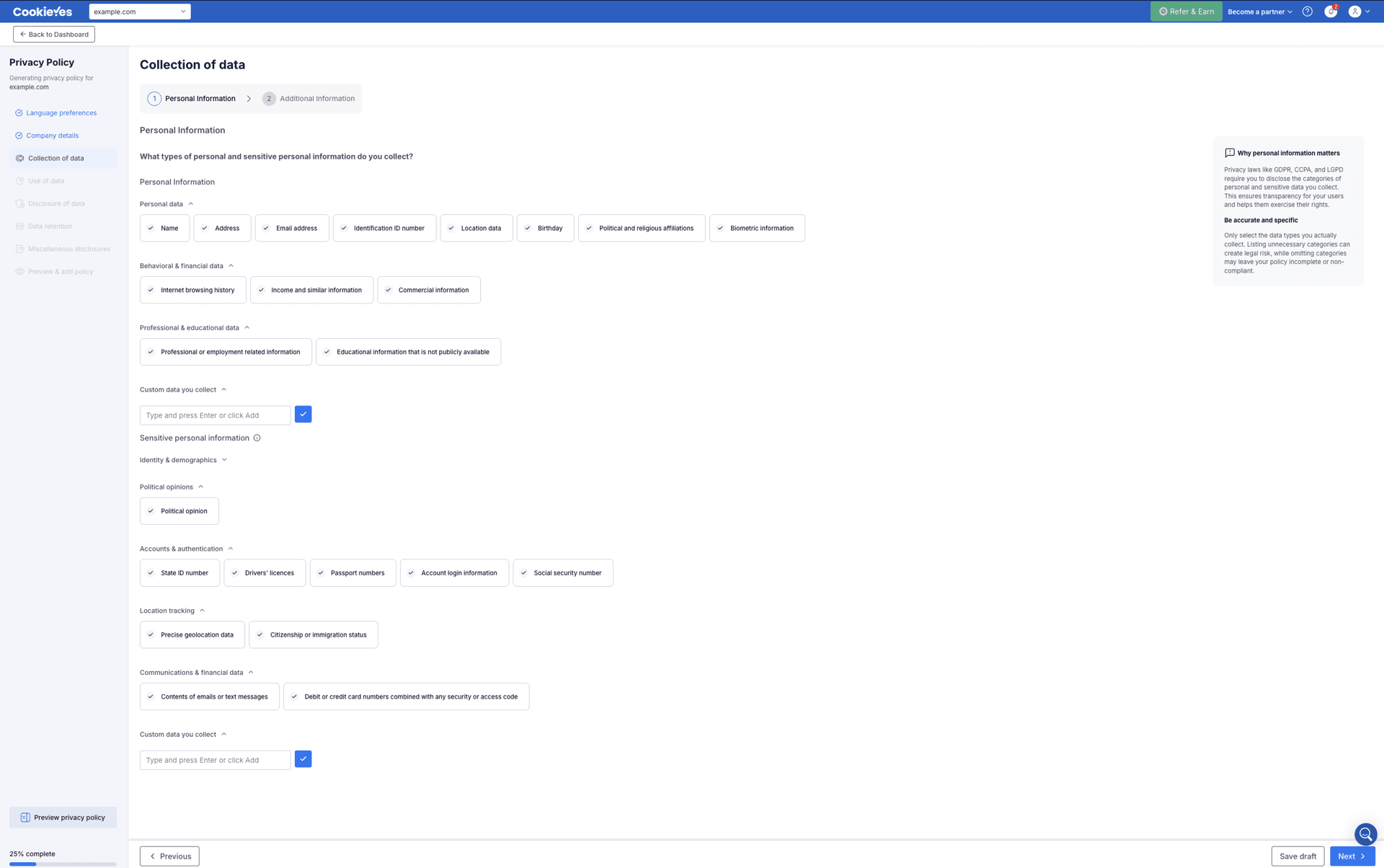
Step 4. Collection of data
Collection of data has two sections: Personal information and Additional information.
In Personal information, specify the types of personal or sensitive personal information you collect. Click Next to navigate to the Additional information section.
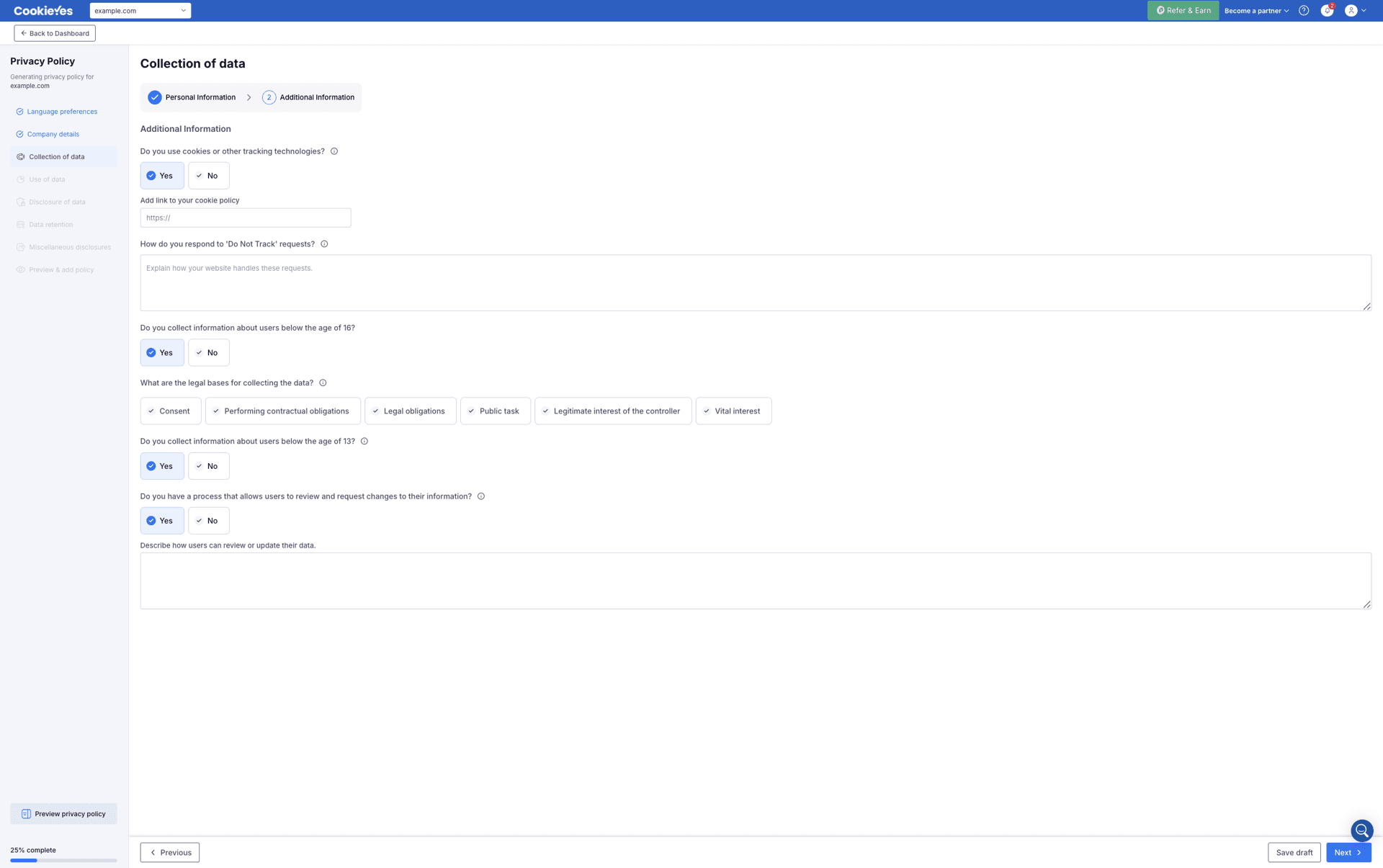
In Additional information, provide the following details:
- Specify whether you use cookies or other tracking technologies. If you select Yes, add a link to your cookie policy.
- Describe how you respond to Do Not Track requests.
- Specify whether you collect information about users below the age of 16.
- Select the legal bases for collecting the data.
- Specify whether you collect information about users below the age of 13.
- Specify whether you have a process that allows users to review and request changes to their information. If you select Yes, describe how users can review or update their data.
Click Next to proceed to Step 5.
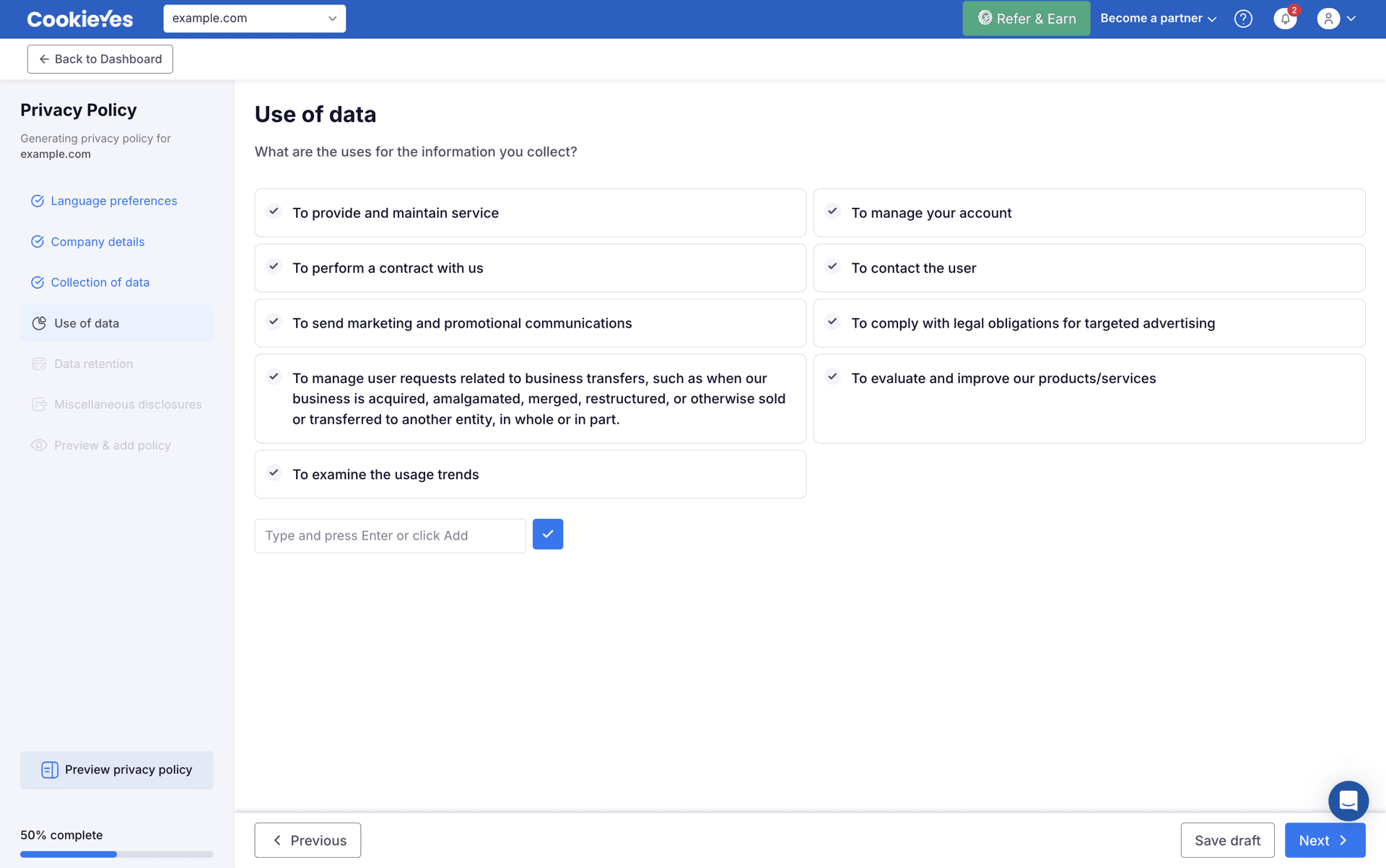
Step 5. Use of data
In Use of data, select the options that describe how the information you collect is used. Click Next to proceed to Step 6.
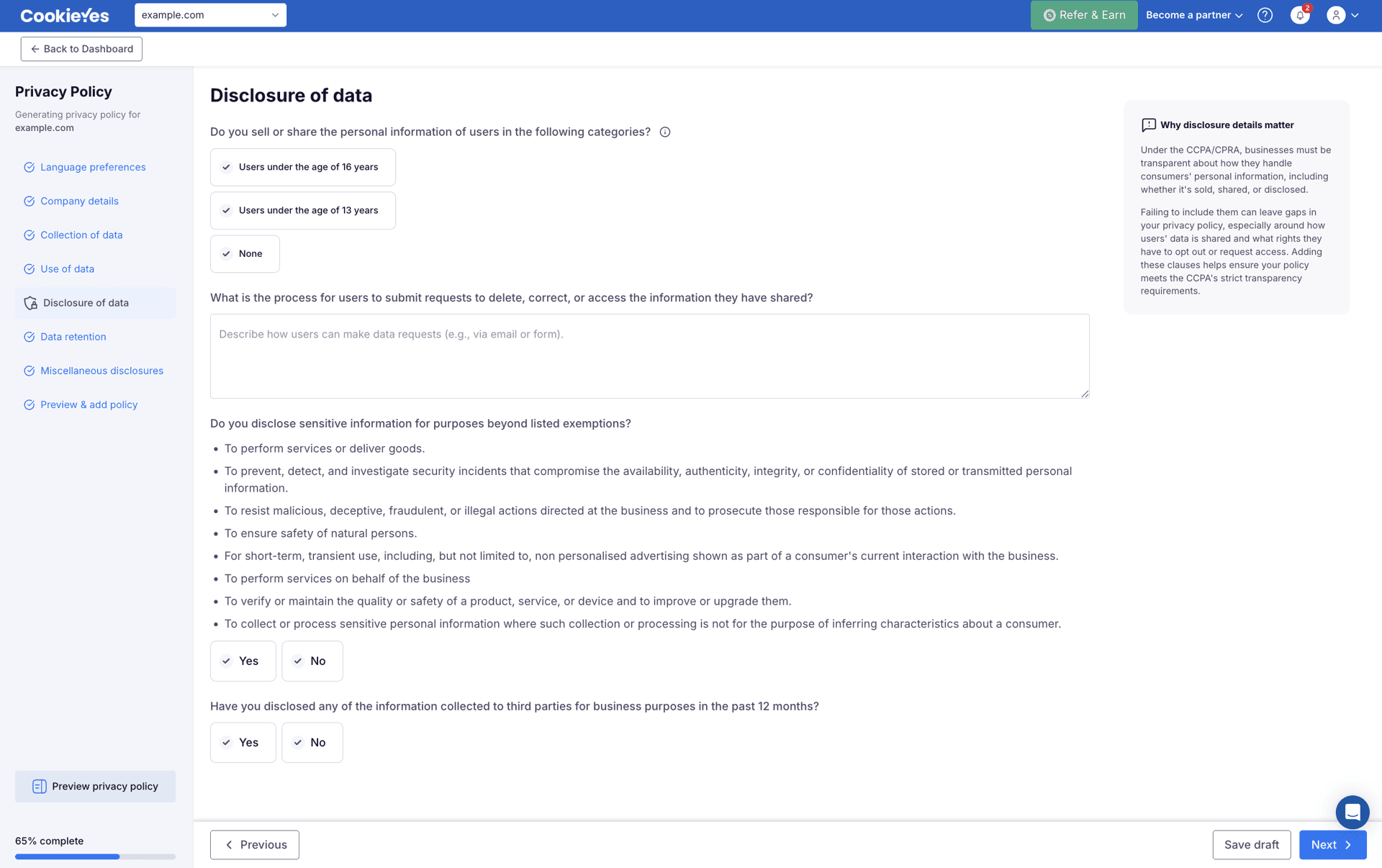
Step 6. Disclosure of data
In Disclosure of data, provide details about the categories of users whose information is sold or shared, the request process for users to delete, correct, or access their information, sensitive information disclosures, and any third-party disclosures made in the past 12 months.
Disclosure of data appears only if you selected the relevant options in the Business details section of the Company Details page, so it may not be part of every user's setup.
Step 7. Data retention
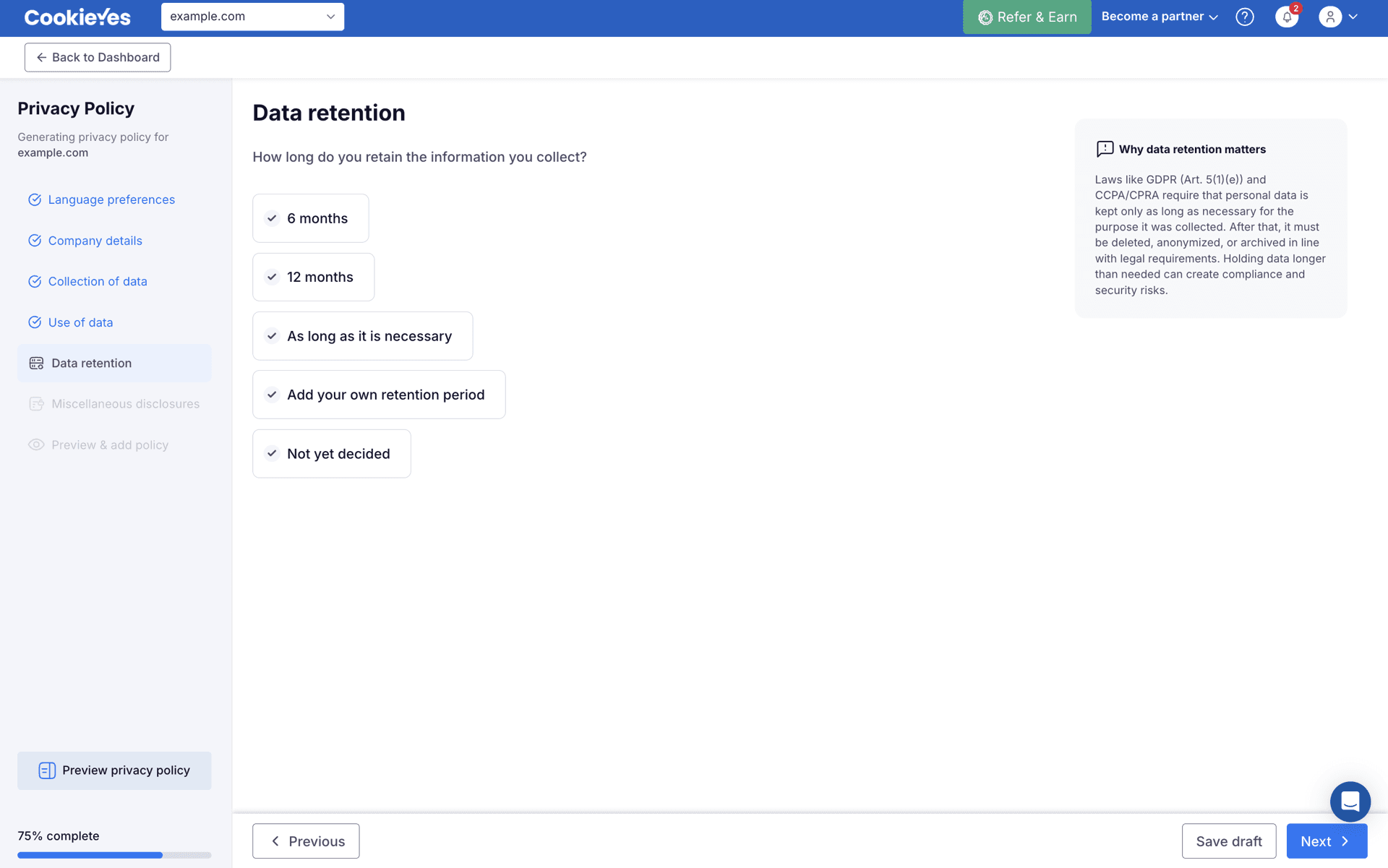
In Data retention, specify how long the information you collect is retained. Click Next to continue.
Step 8. Miscellaneous disclosures
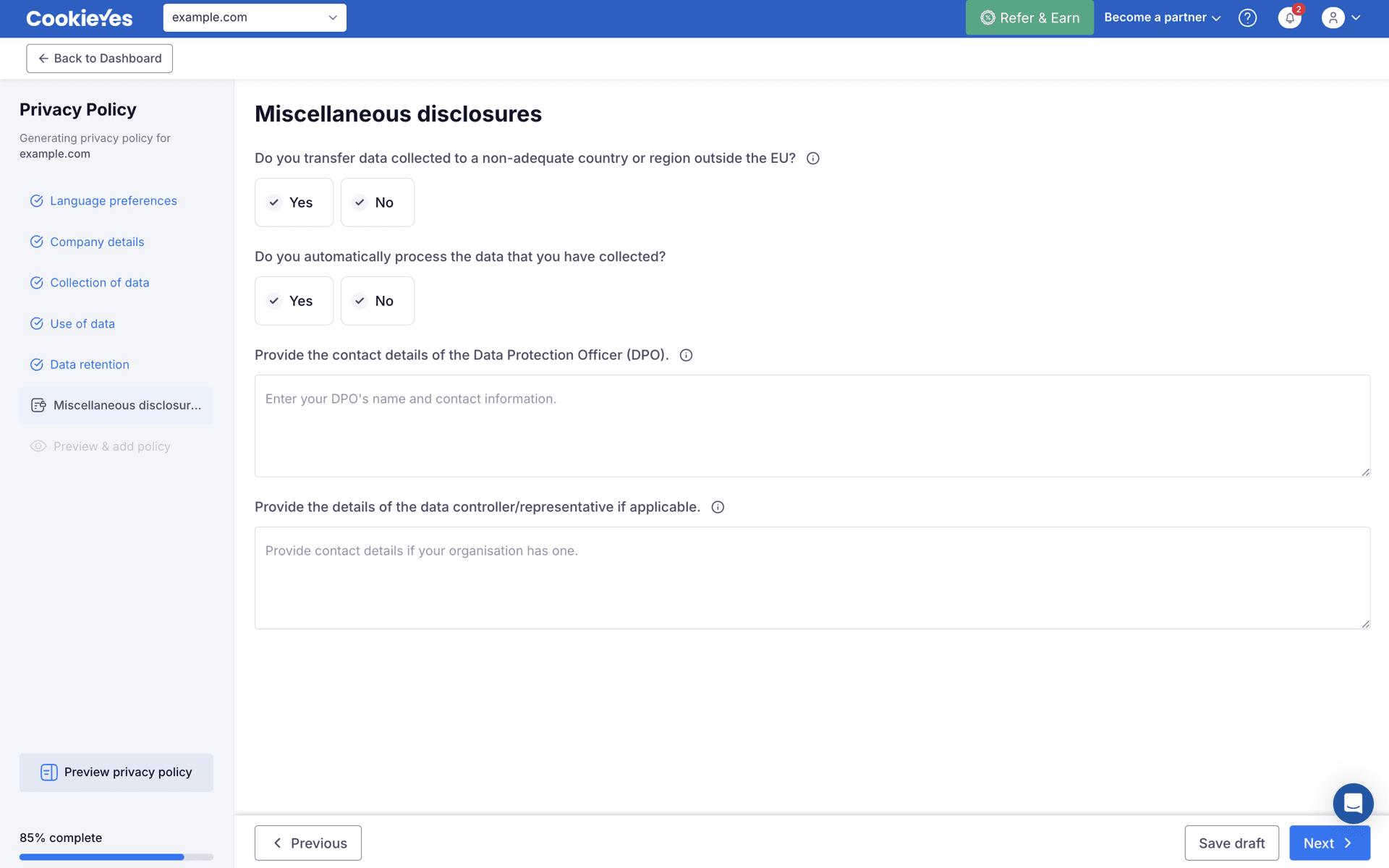
In Miscellaneous disclosures, provide details about cross-border data transfers (to non-adequate countries or regions outside the EU), automated data processing, your data protection officer's contact details, and your data controller or representative (if applicable). Click Next to continue.
Step 9. Preview and generate the privacy policy
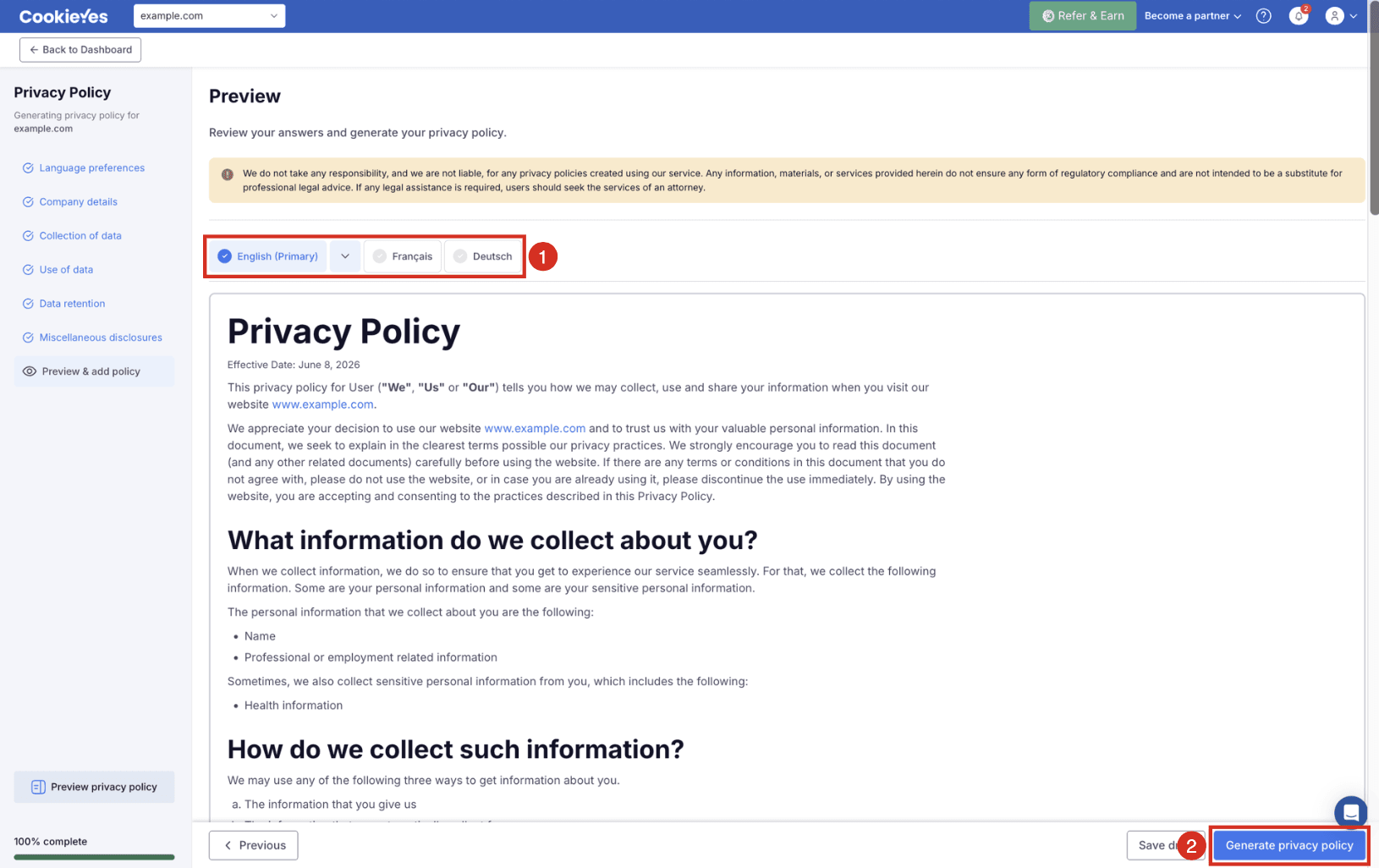
You can now preview your privacy policy in multiple languages. Click Generate privacy policy to generate the policy.
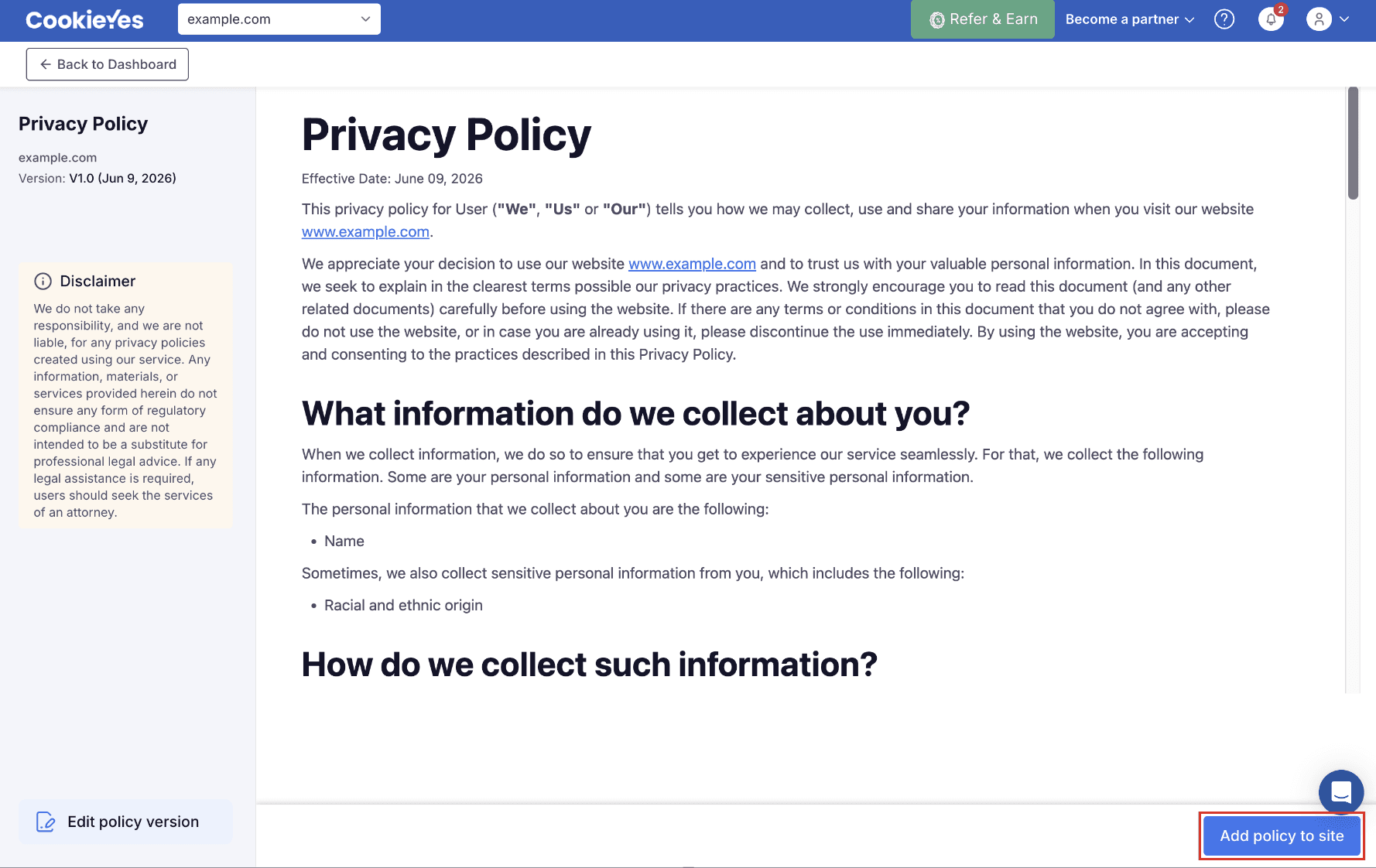
Click Add policy to site to see the methods for adding the privacy policy to your website.
Step 10. Add the privacy policy to your website
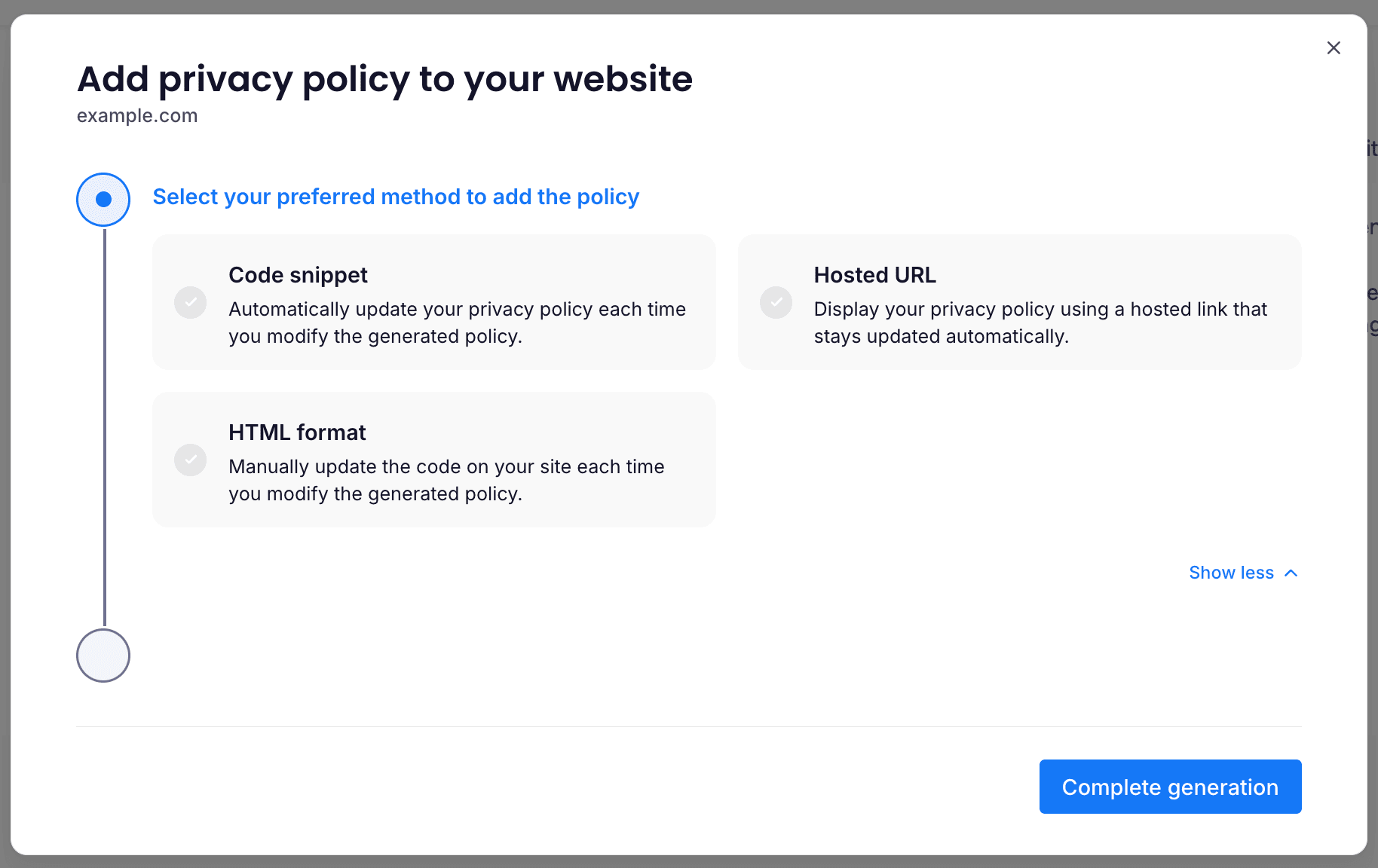
After clicking Add policy to site, a modal window will appear prompting you to choose a method to embed the policy.
You have three options. Choose the method that best suits your website setup
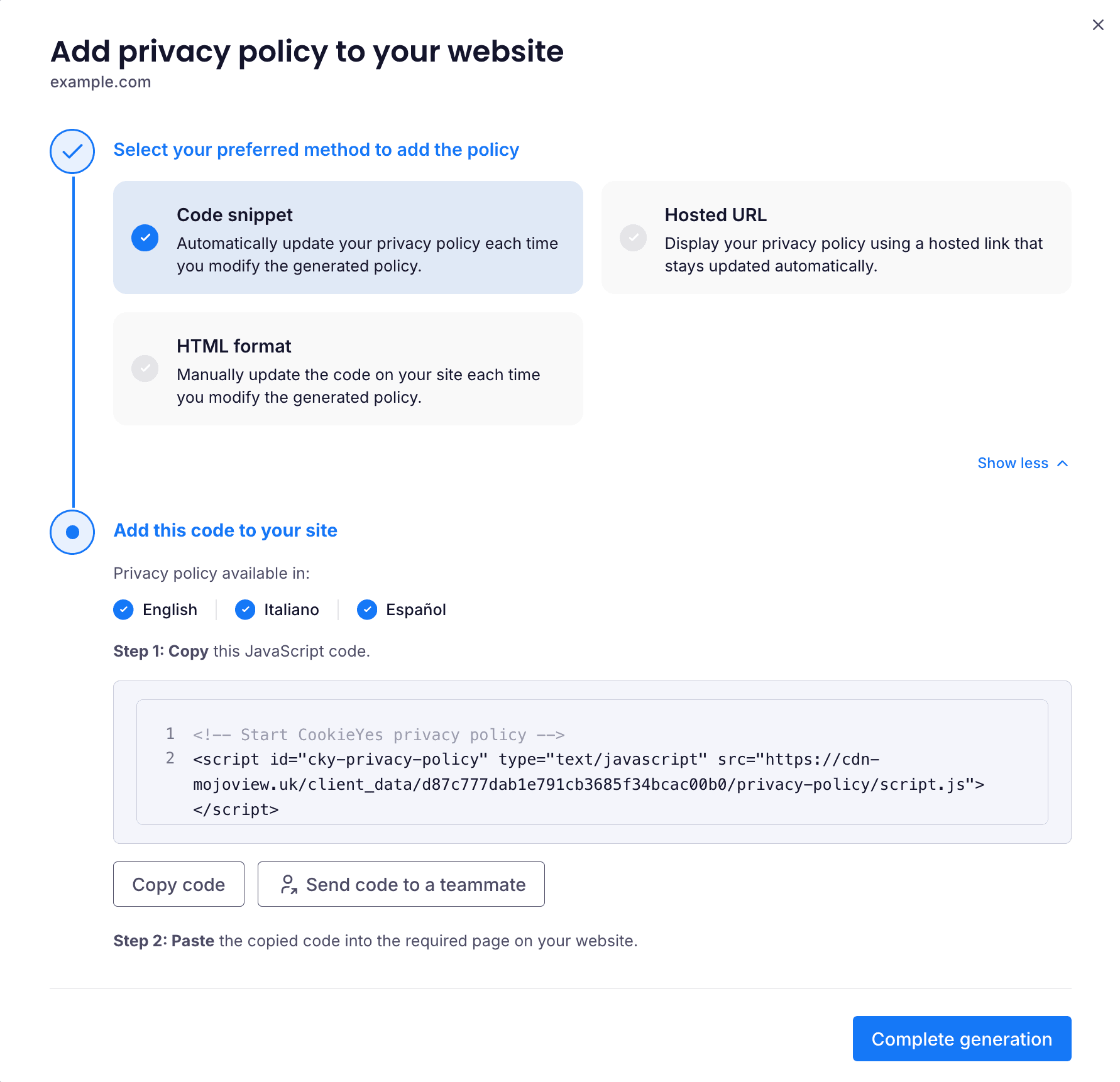
Option 1: Code snippet
Select Code snippet to keep your privacy policy updated automatically whenever you make changes in CookieYes.
Steps:
- Click Copy code to copy the JavaScript snippet provided.
- Paste the code into the required section of your website’s HTML.
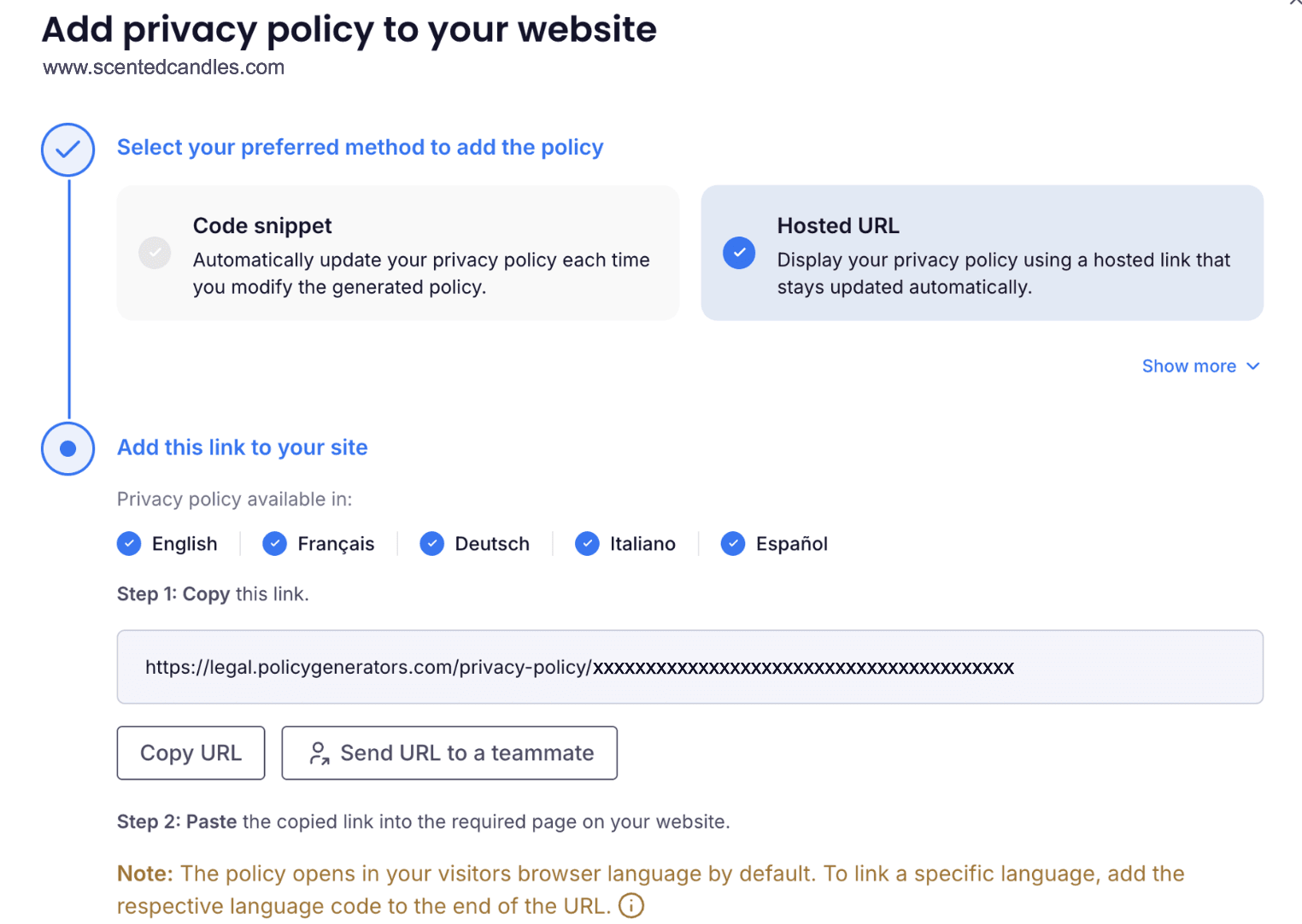
Option 2: Hosted URL
Select Hosted URL to display your privacy policy through a hosted link that updates automatically.
Steps:
- Click Copy URL.
- Paste the link on the page where you want your privacy policy to appear.
The policy displays in each visitor's browser language by default. To link to a specific language, add its language code to the end of the URL.
For example, add /fr for French:
https://legal.policygenerators.com/privacy-policy/xxxxxxxxxxxxxxxxx/fr
Tip
Click Send URL to a teammate to share the link with whoever manages your website content.
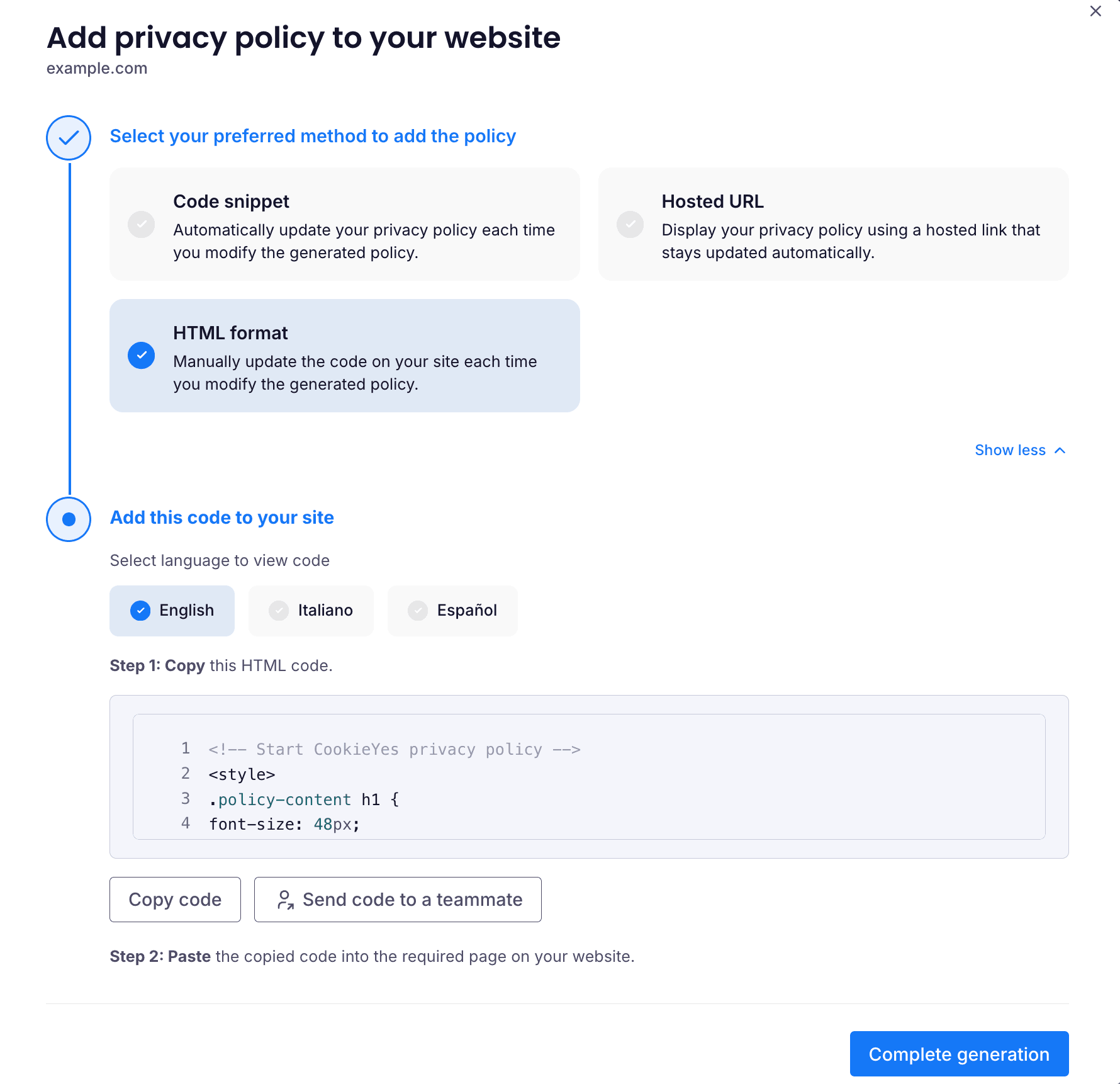
Use this option if you prefer to manually update the website every time you modify the cookie policy.
Steps:
- Select the language.
- Click Copy code to copy the generated HTML code.
- Paste it into the desired location on your site.
Use the Send code to a teammate option if someone else manages your website content.
Step 11. Complete privacy policy generation
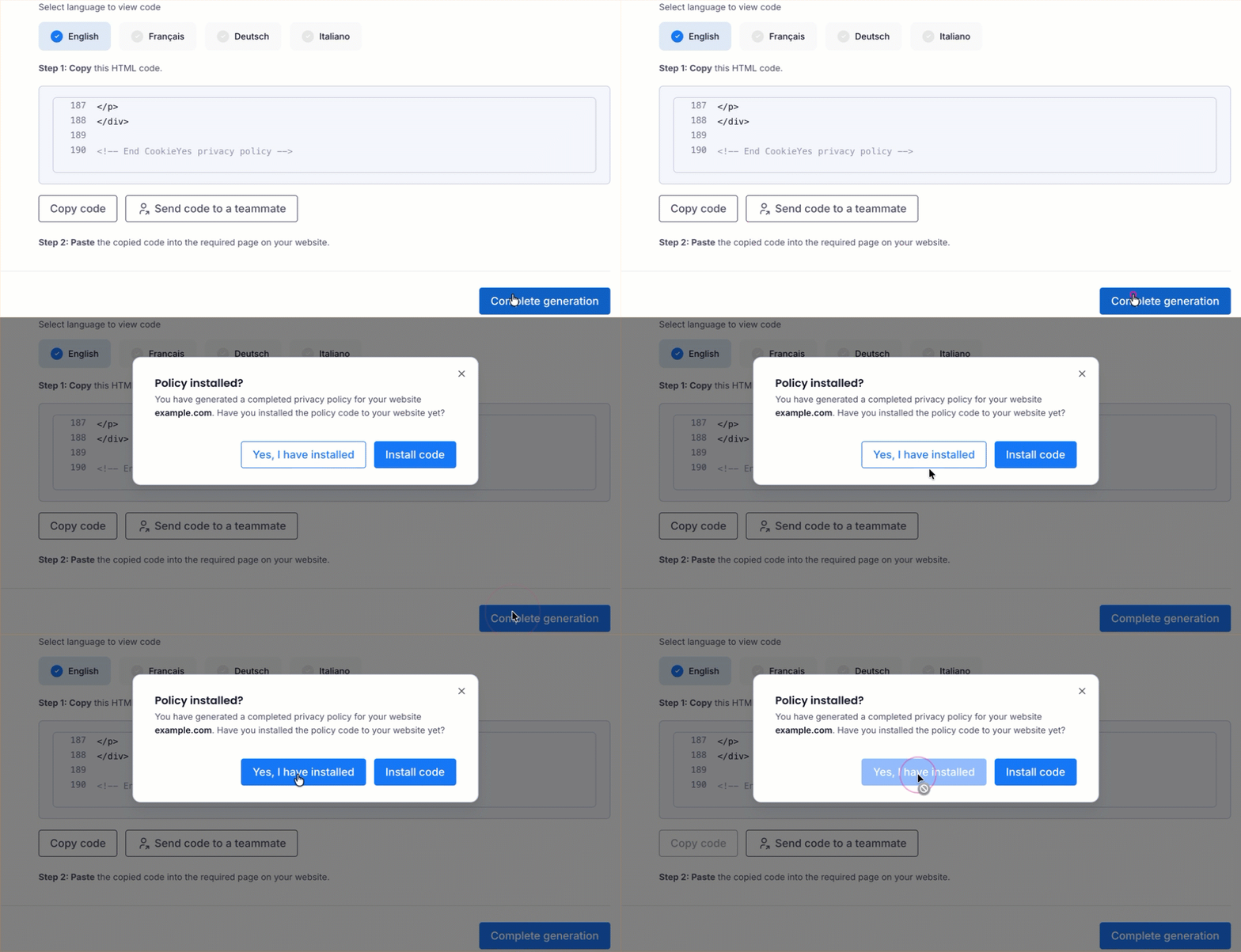
Return to CookieYes and click Complete generation. In the popup that opens, click Yes, I have installed.
Your privacy policy page is now live on your website. You can then link your privacy policy to your website footer.
Conclusion
You've generated, published and added your privacy policy to your website. Your visitors can now see how your site collects and uses their personal information, which supports your compliance with privacy laws such as the GDPR and CCPA.