Block Third-Party Cookies With Tag Manager (GTM)
Last updated on March 9, 2026
On this page
For blocking third-party cookies with google tag manager in the new version(Single Cookie) of CookiesYes refer to our guide.
Creating a custom event trigger in GTM
Step 1: Create a user-defined variable
- Sign in to your Google Tag Manager account > Click the required Container Name from your Accounts.
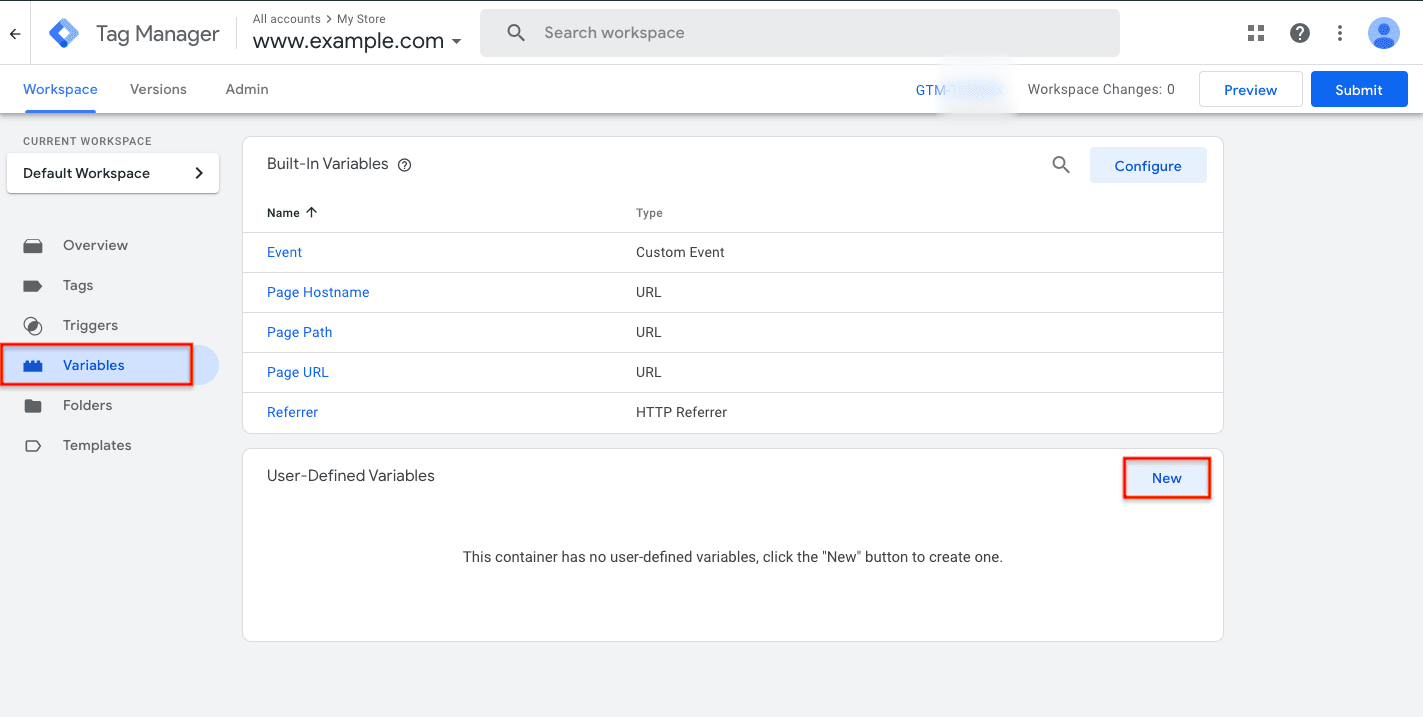
- From the left panel, select Variables > In the User-Defined Variables section, click New.
- Click Variable Configuration > Choose variable type as 1st Party Cookie from under Page Variables.
Note: 1st Party Cookie variable allows Google Tag Manager to access the first-party cookies created by your website.
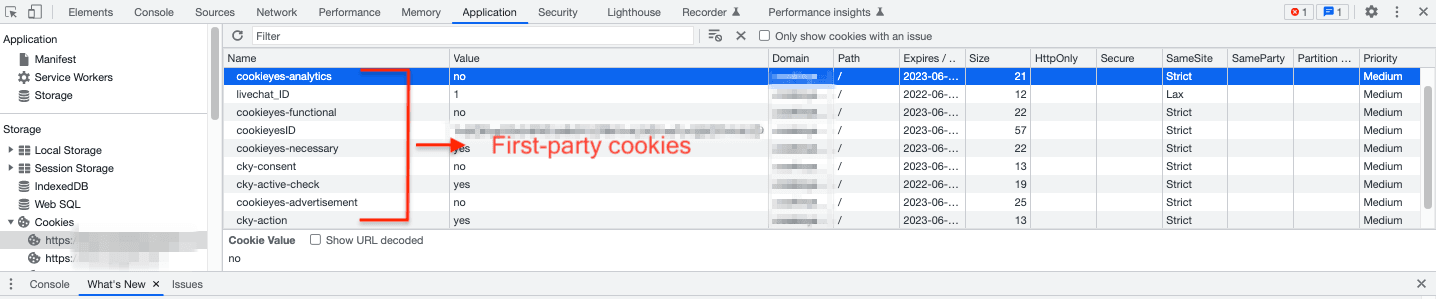
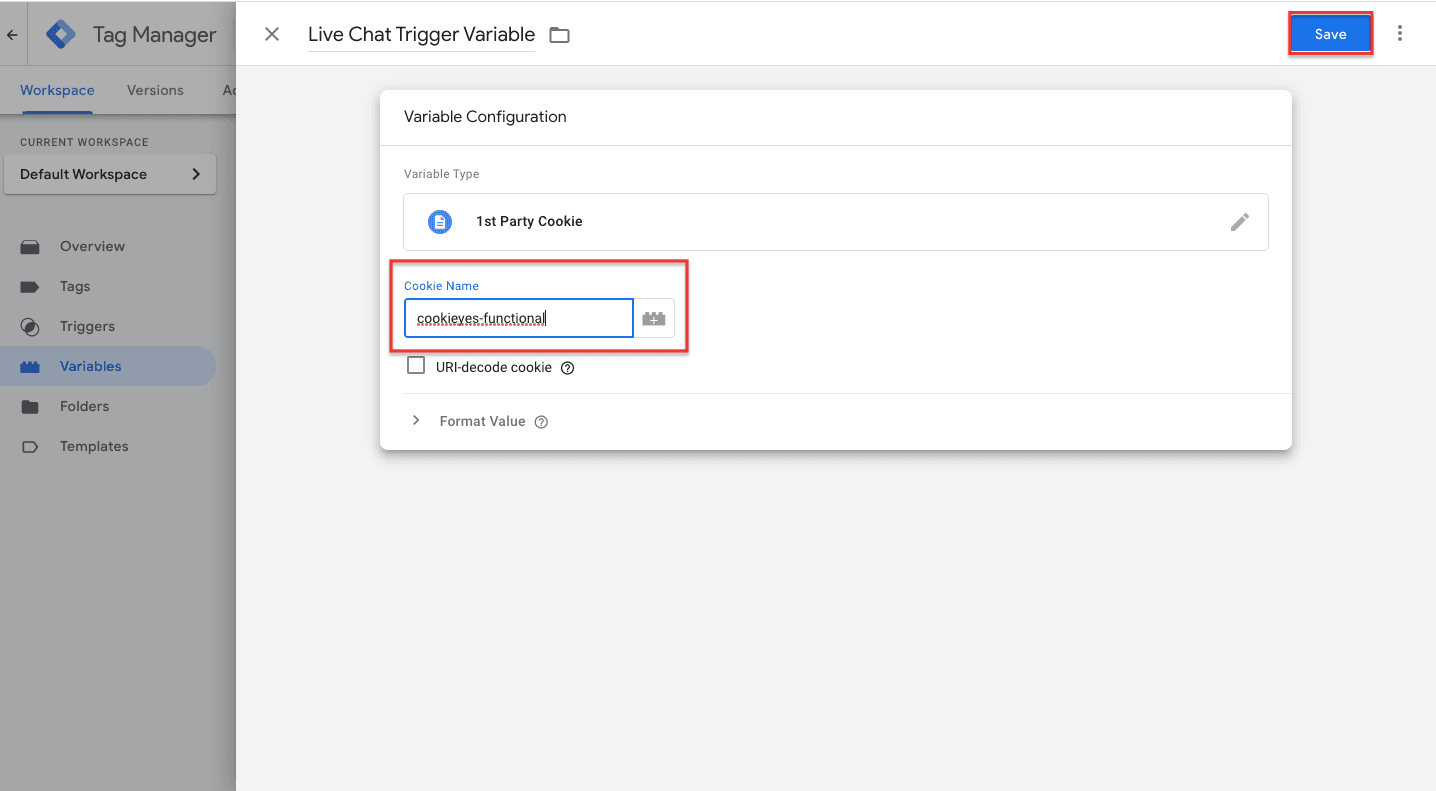
- In the Cookie Name text box, enter the name of that cookie for which you need to retrieve the value. E.g. cookieyes-functional
- Name the variable (here, we’ve named it ‘Live Chat Trigger Variable’) and click Save to save the variable.
Step 2: Create a custom event trigger
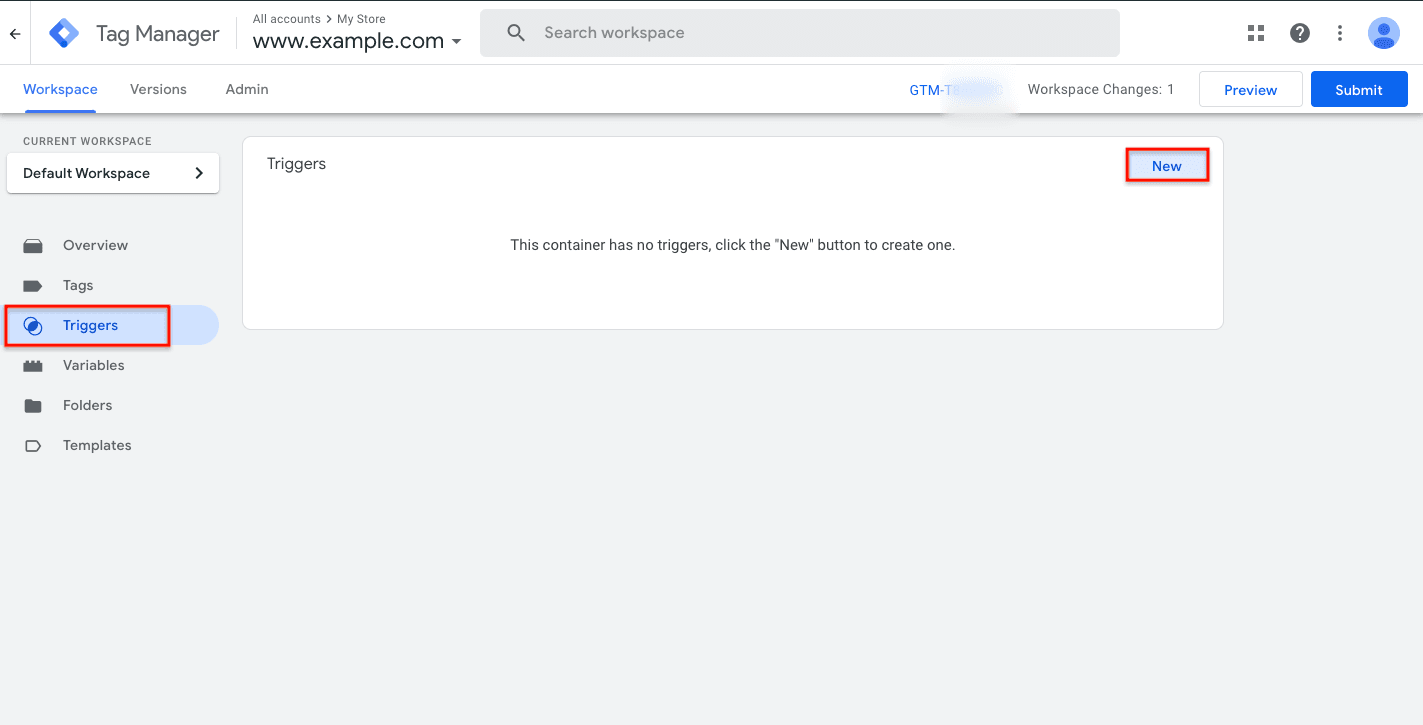
- From the left panel of your GTM account, select Triggers > In the Triggers section, click New.
- Click Trigger Configuration > Choose Custom Event as the trigger type.
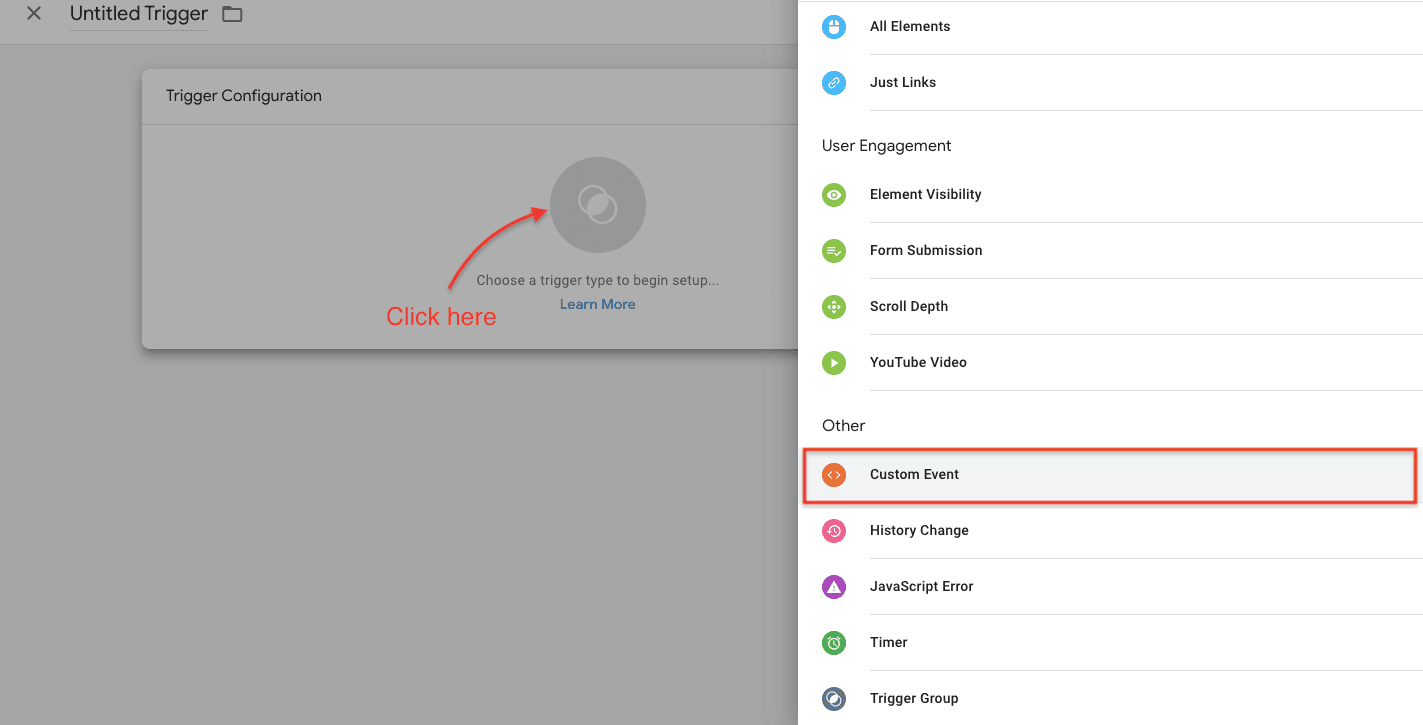
- In the Event Name text box, enter .* as shown below and check the Use regex matching option.
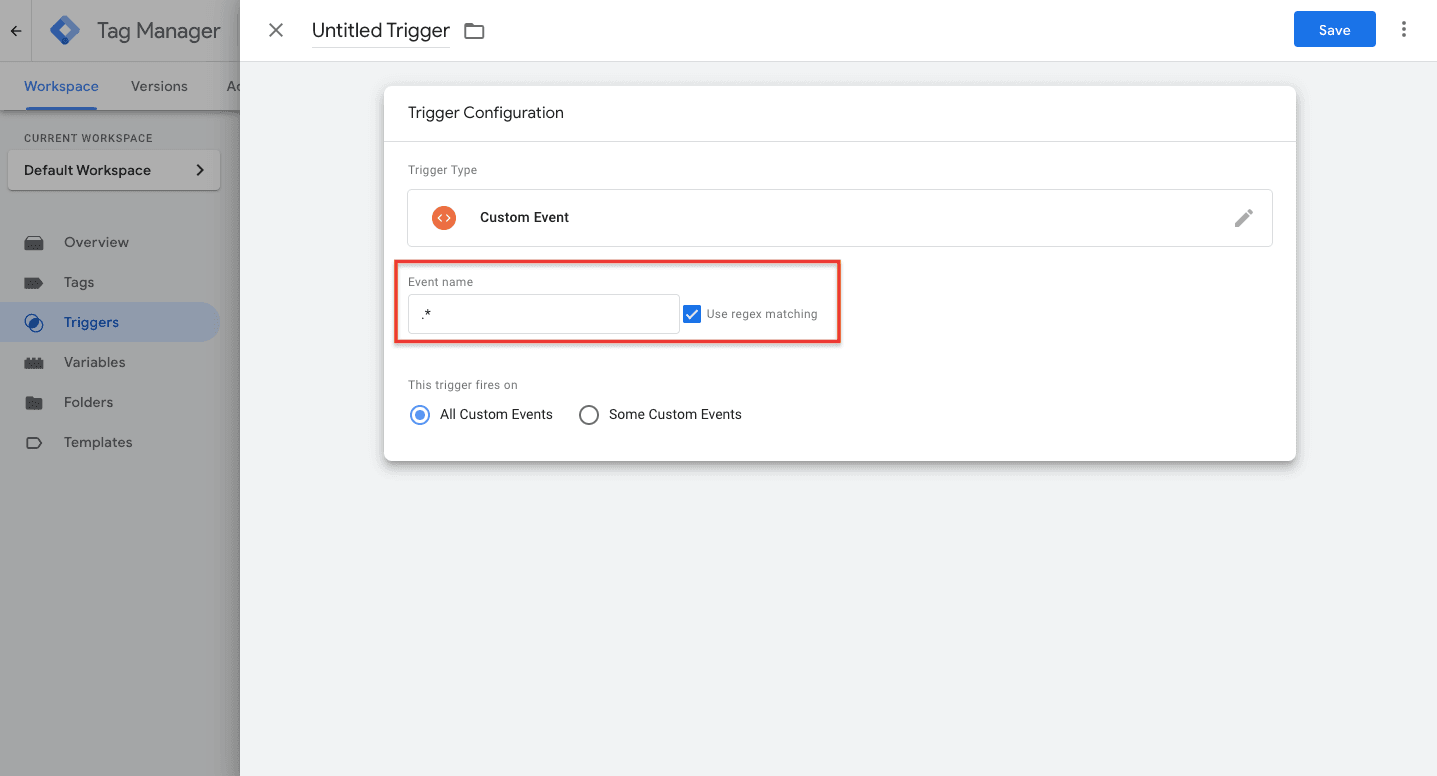
- Under This trigger fires on, choose Some Custom Events.
- Under Fire this trigger when an Event occurs and all of these conditions are true, set up a trigger condition.e.g. Live Chat Trigger Variable (i.e. the name of the user-defined variable that you have created in Step 1), equals, and yes (as shown below)
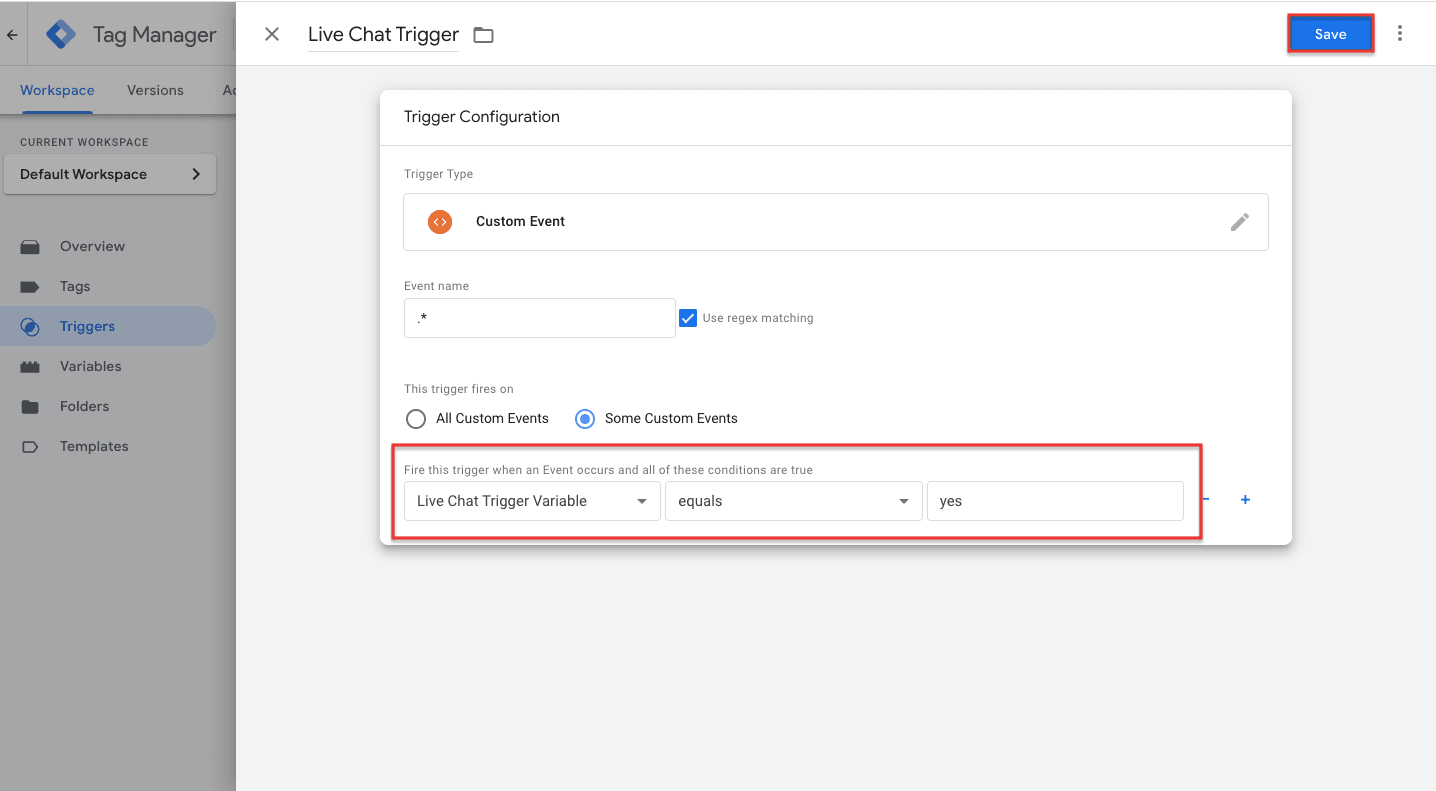
- Name the Trigger (we’ve named it ‘Live Chat Trigger’) and click Save to save the custom event trigger.
Step 3: Add the custom event trigger to the required custom HTML tag
- From the left panel of your GTM account, select Tags > Click the Tag name that needs to be fired.
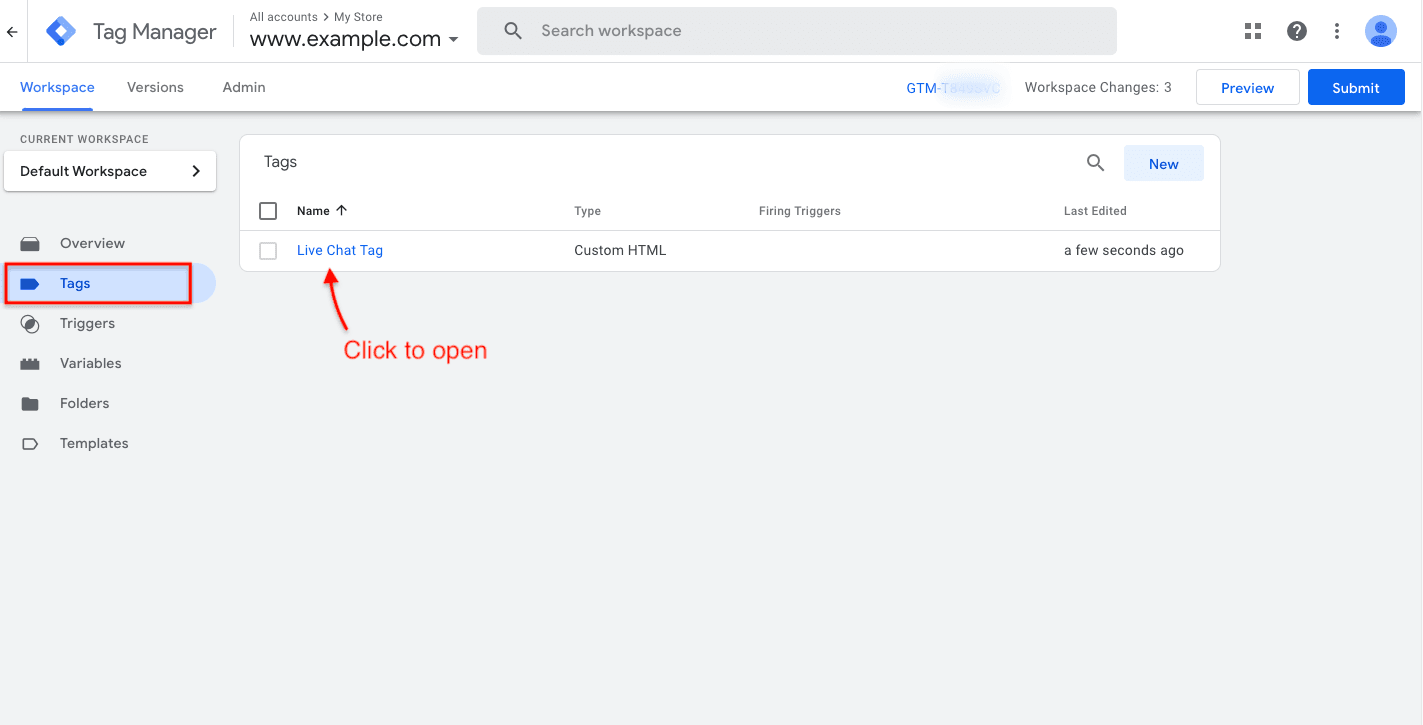
- Click Triggering.
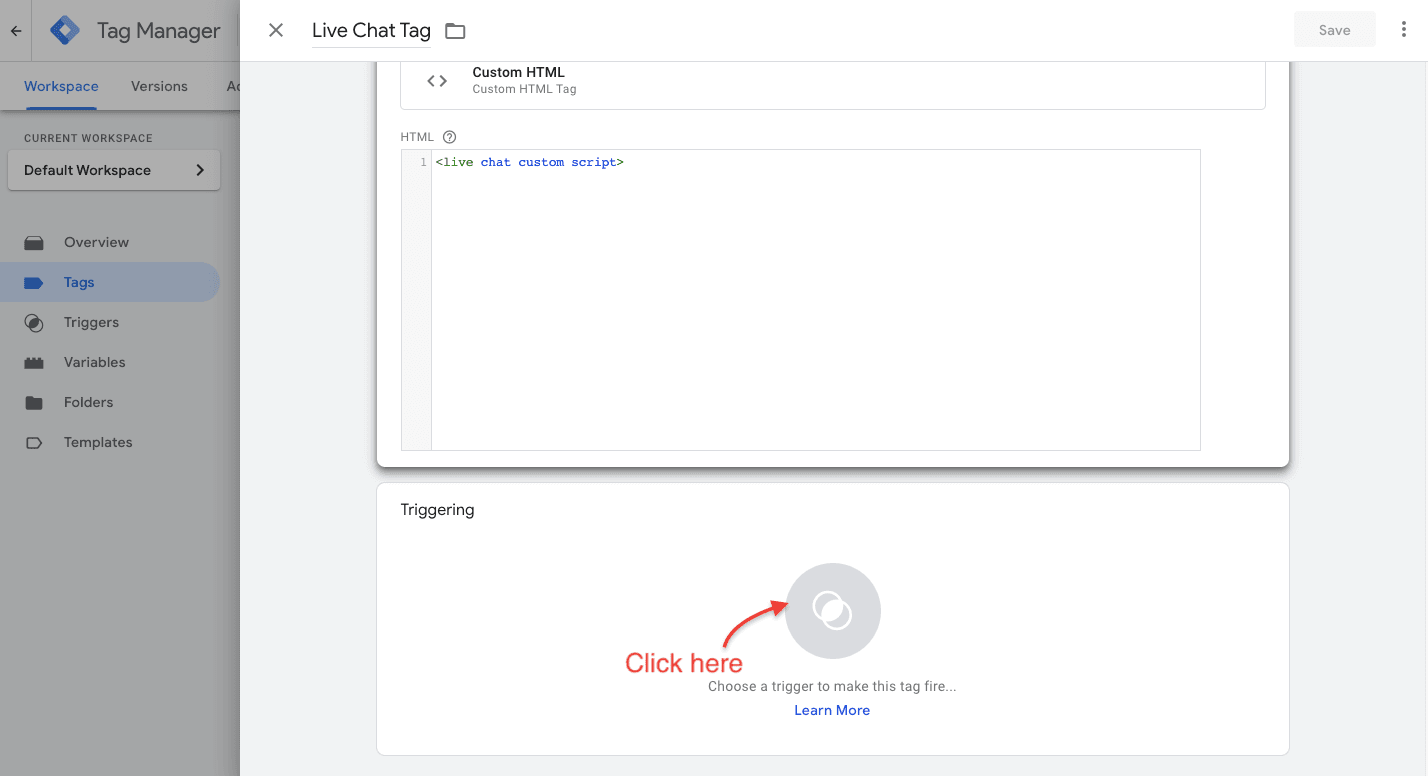
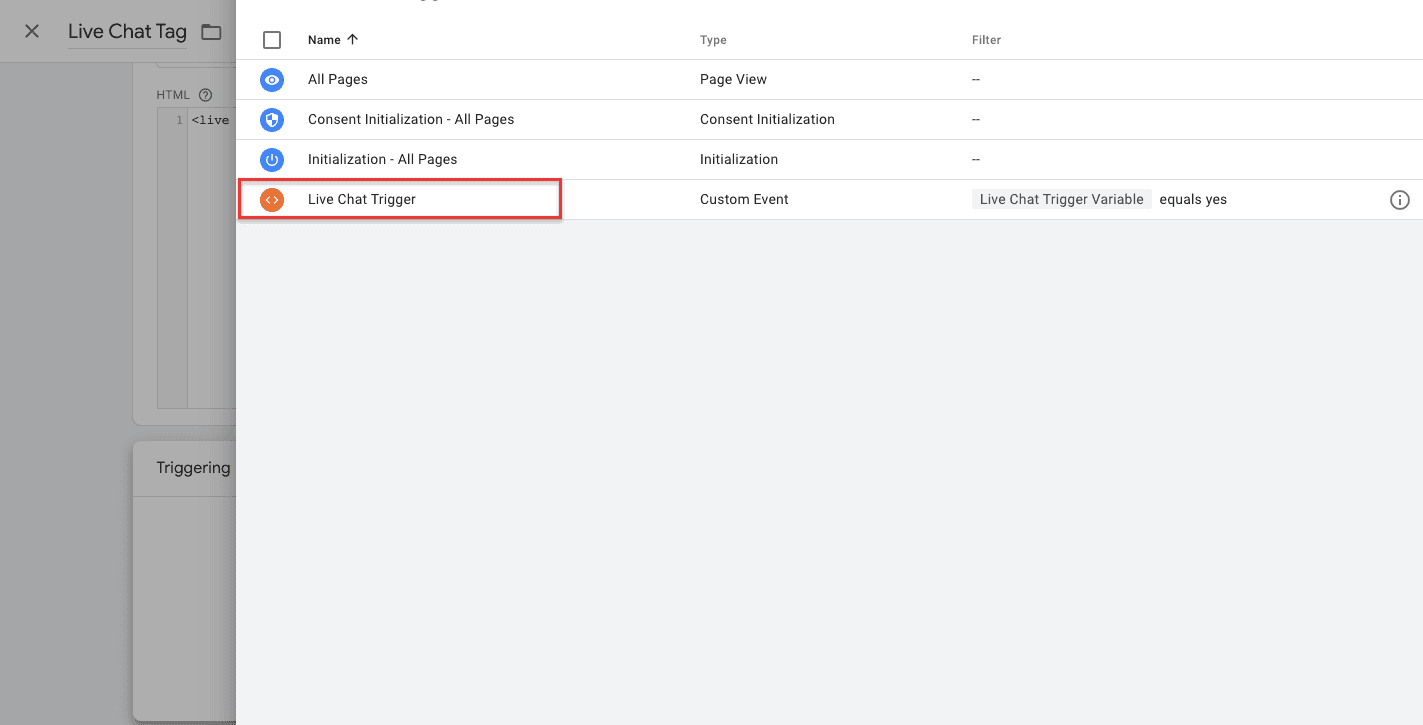
- Choose the custom event trigger that you have created in Step 2.
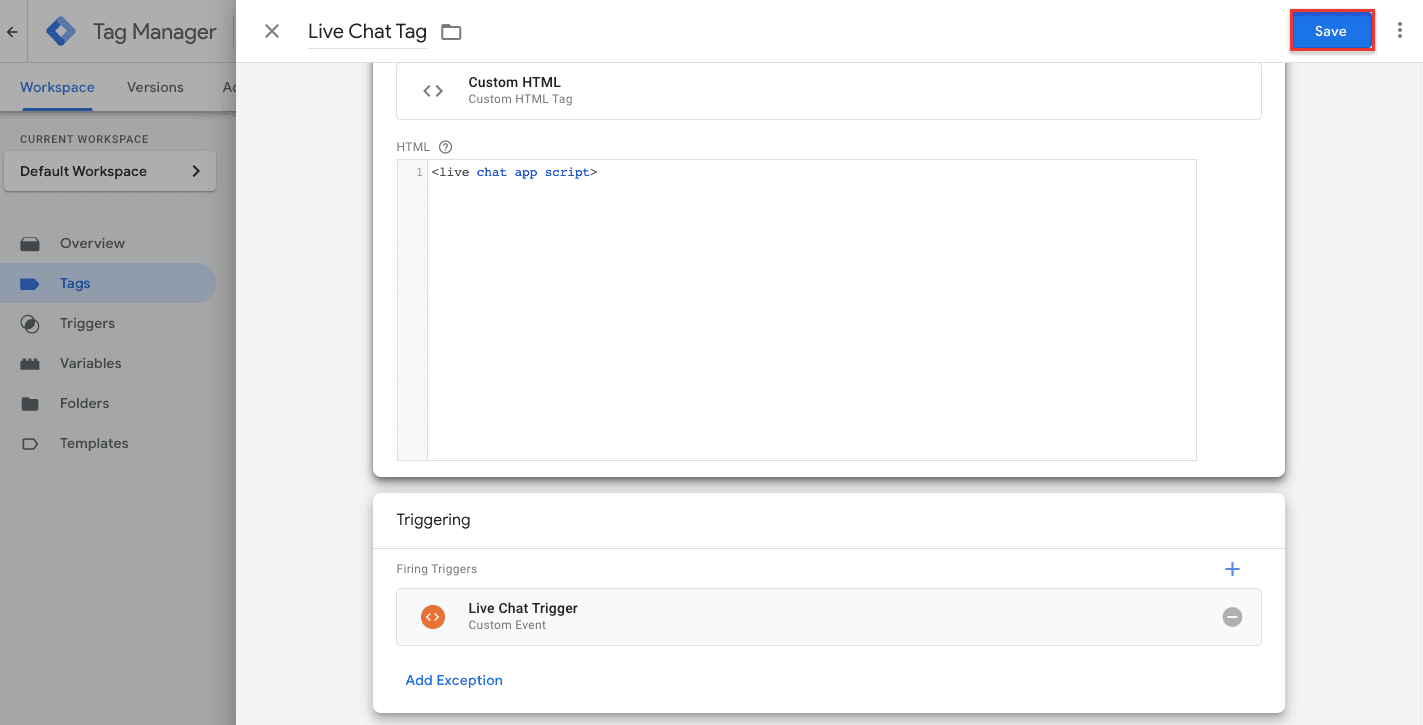
- Click Save.
Step 4: Submit changes
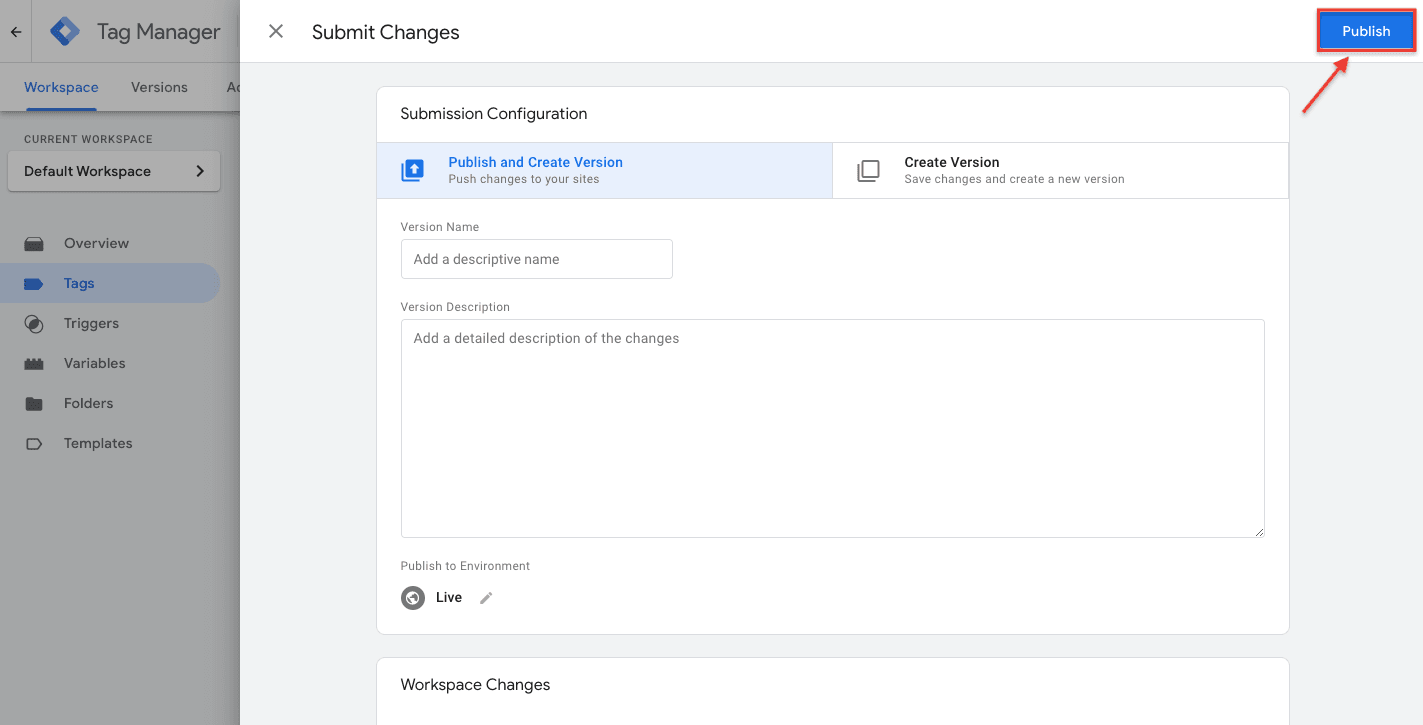
- Click the Submit button at the top right corner of your GTM account.
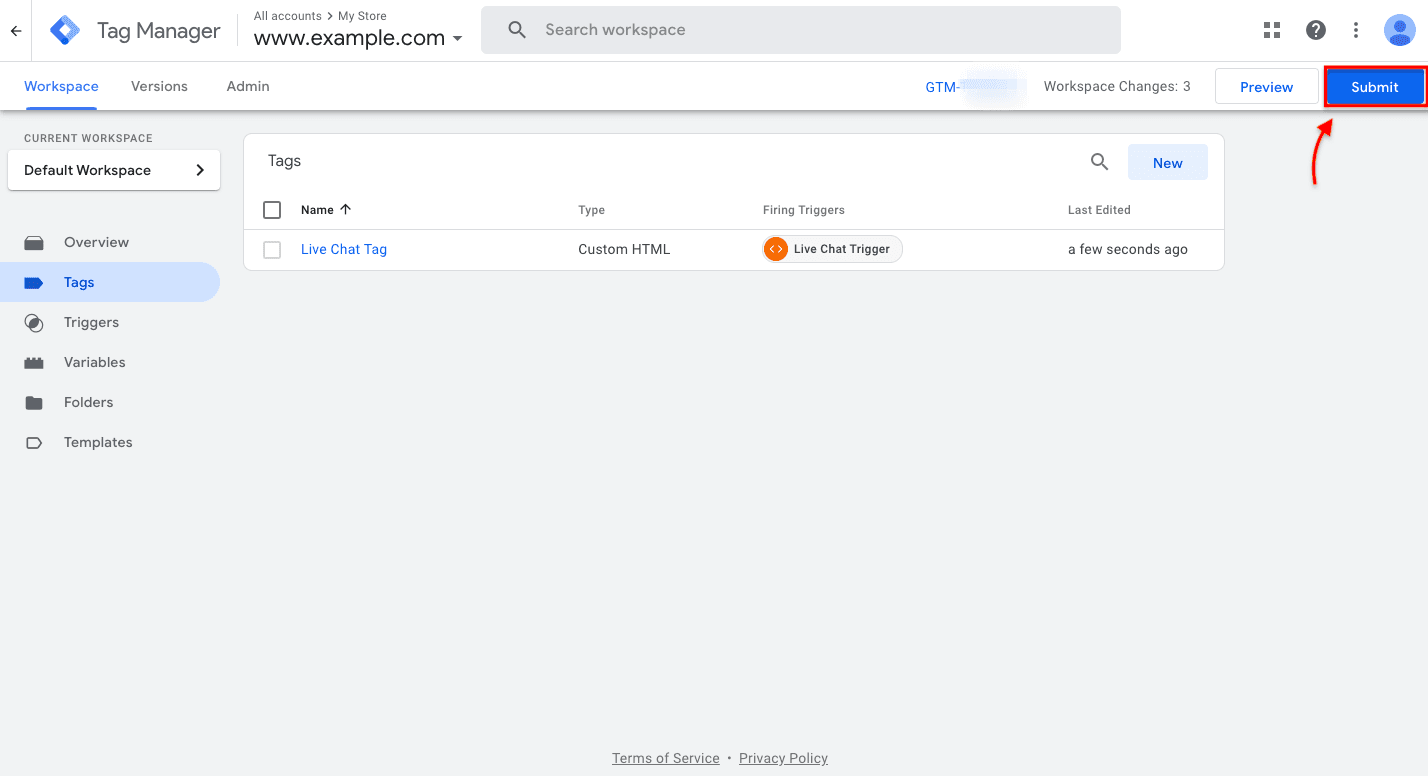
- Finally, click Publish to make this tag live on your website.
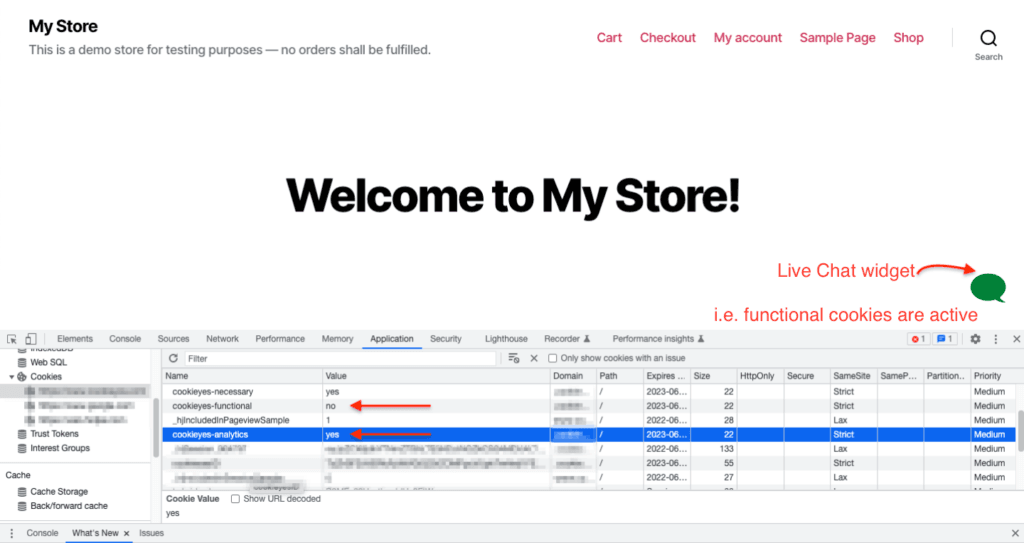
Before adding the custom event trigger in GTM
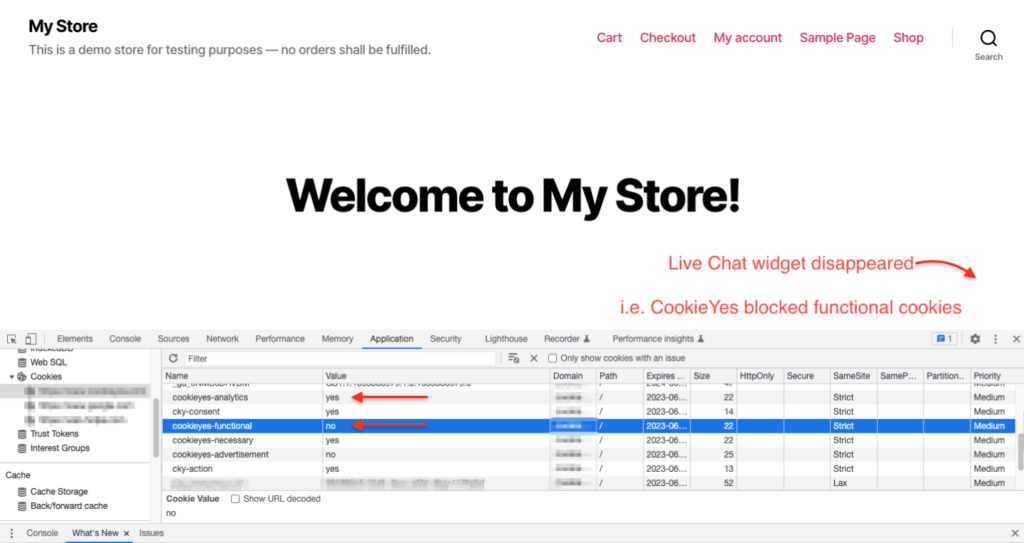
After adding the custom event trigger in GTM