Setting Up Google Consent Mode via Shopify Custom Pixel
Last updated on August 4, 2025
On this page
Overview
Prerequistes
For this integration flow, CookieYes cannot be installed through Google Tag Manager.
How Does It Work?
Implementing Google Consent Mode
Step 1:
Update the Shopify Theme Code
To allow the CookieYes script to communicate with Google Consent Mode, add the following JavaScript in your Shopify theme.liquid file:
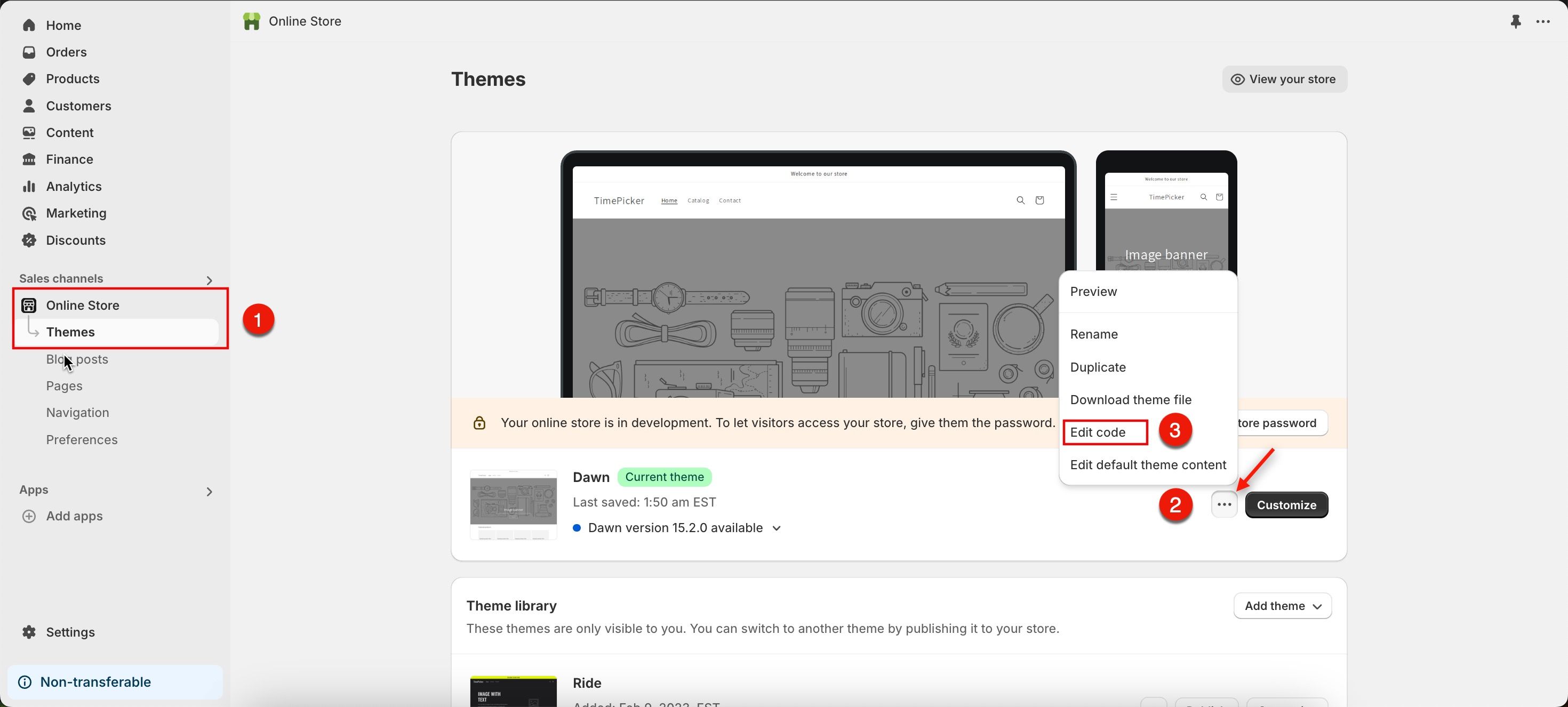
- Navigate to your Shopify admin panel.
- Go to Online Store > Themes. Now locate the three dots menu button next to your current theme and select Edit code from the dropdown.
- Under the Layout section, select </> theme.liquid.
- Insert the following script directly below the CookieYes script and click the Save button:
<script>
  (function () {
    window.dataLayer = window.dataLayer || [];
    function processQ(events) {
      const eventData = JSON.stringify(events);
      Shopify.analytics.publish('cookieyes_consent', {data: eventData});
    }
    const originalDataLayerPush = window.dataLayer.push;
    window.dataLayer.push = function(...args) {
      originalDataLayerPush.apply(this, args);
      processQ(args);
    }
  })()
</script>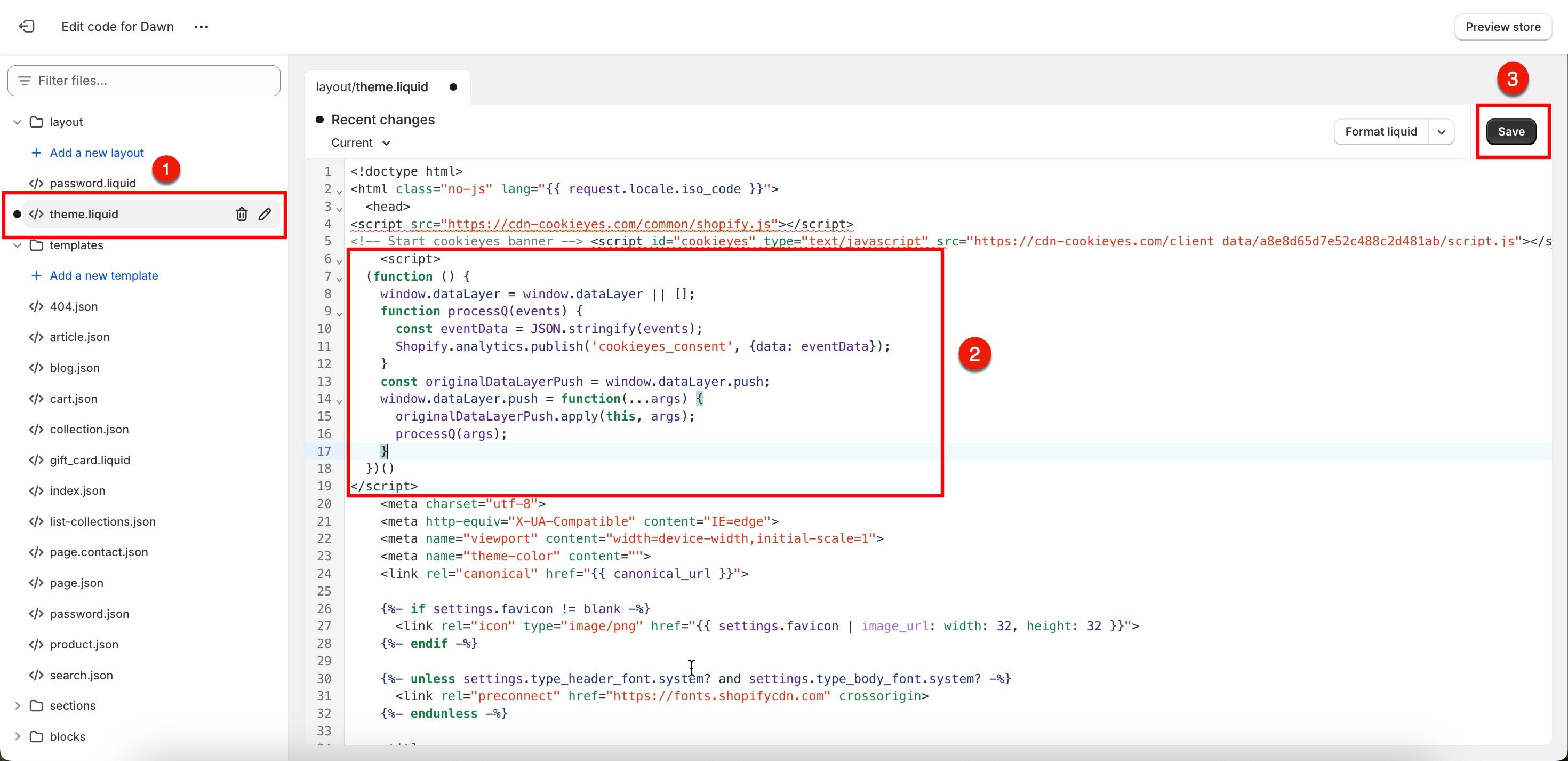
Configure Custom Pixel for Consent Management
To enable Google Consent Mode to respond to CookieYes events, add the following configuration to your Custom Pixel:
Step 2.1: Add a Custom Pixel in Shopify
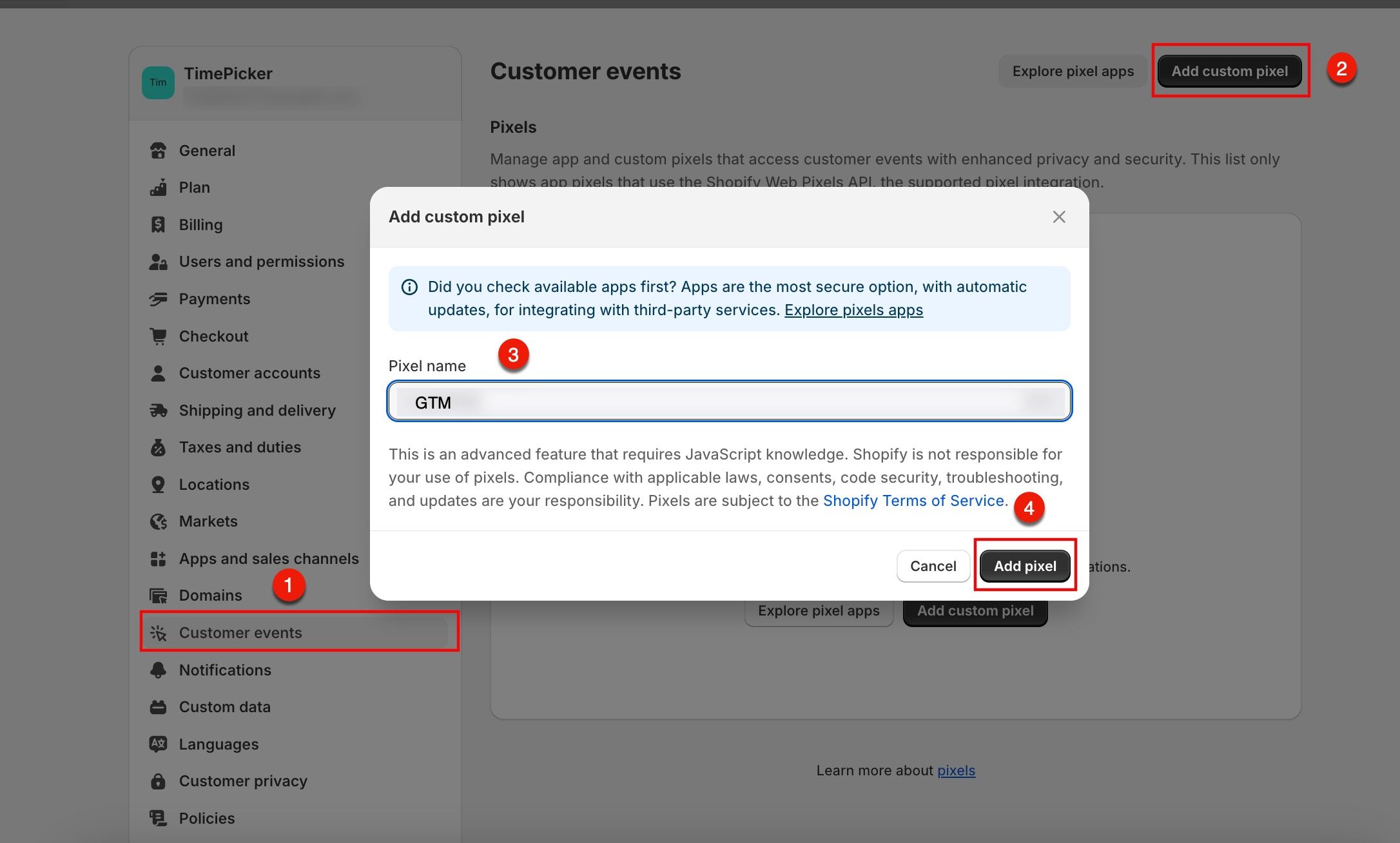
- Head back to the Shopify Admin Dashboard and click on Settings.
- Go to Customer Events and click the Add custom pixel button.
- In the modal, enter the Pixel Name and click the Add Pixel button.
Step 2.2: Insert CookieYes Custom Pixel Code
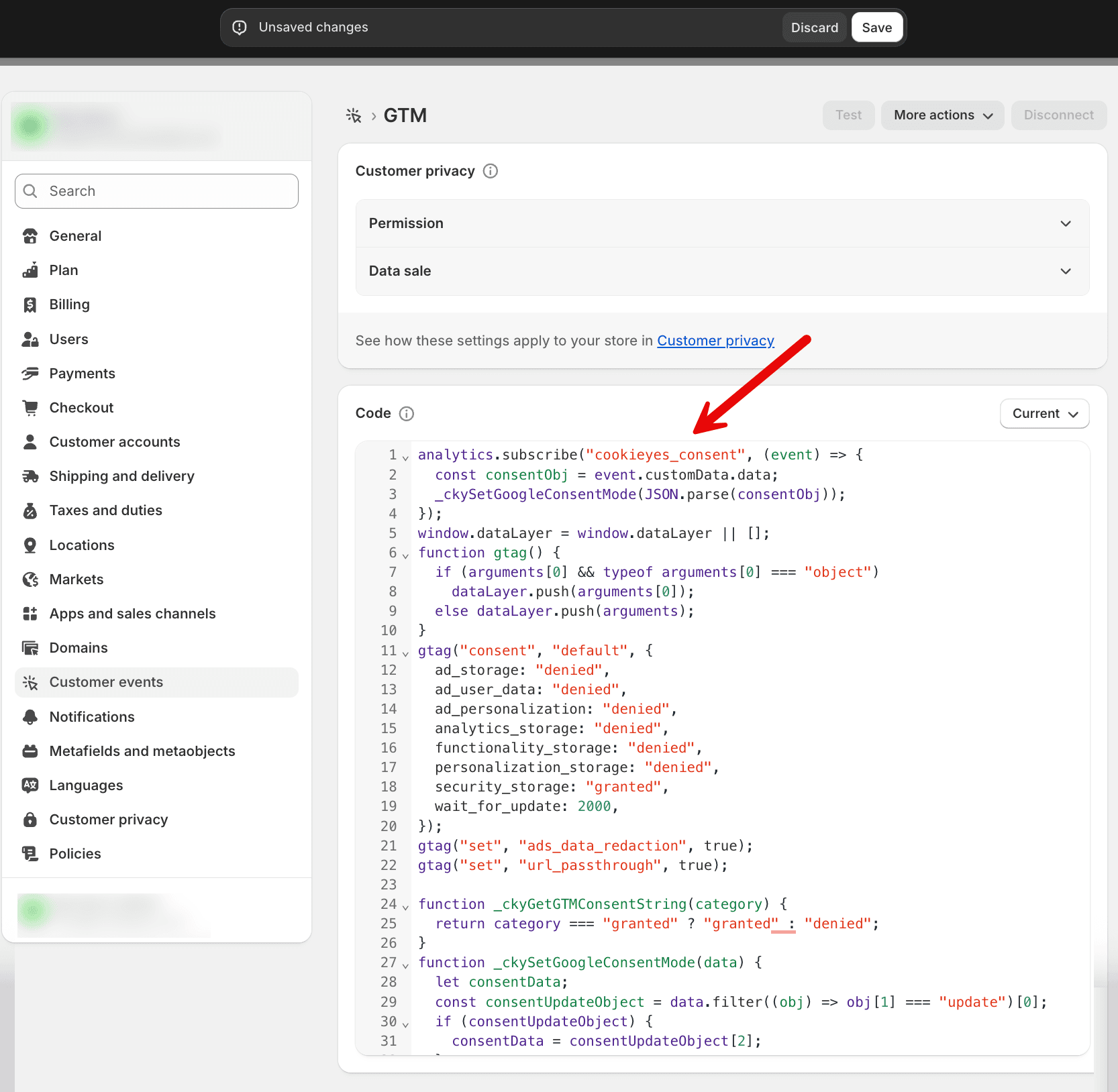
Under the Code section, add the following JavaScript(CookieYes Custom Pixel) code snippet:
analytics.subscribe("cookieyes_consent", (event) => {
  const consentObj = event.customData.data;
  _ckySetGoogleConsentMode(JSON.parse(consentObj));
});
window.dataLayer = window.dataLayer || [];
function gtag() {
  if (arguments[0] && typeof arguments[0] === "object")
    dataLayer.push(arguments[0]);
  else dataLayer.push(arguments);
}
gtag("consent", "default", {
  ad_storage: "denied",
  ad_user_data: "denied",
  ad_personalization: "denied",
  analytics_storage: "denied",
  functionality_storage: "denied",
  personalization_storage: "denied",
  security_storage: "granted",
  wait_for_update: 2000,
});
gtag("set", "ads_data_redaction", true);
gtag("set", "url_passthrough", true);

function _ckyGetGTMConsentString(category) {
  return category === "granted" ? "granted" : "denied";
}
function _ckySetGoogleConsentMode(data) {
  let consentData;
  const consentUpdateObject = data.filter((obj) => obj[1] === "update")[0];
  if (consentUpdateObject) {
    consentData = consentUpdateObject[2];
  }

  if (!window.dataLayer || !Array.isArray(window.dataLayer)) return;
  if (consentData) {
    const functionalConsent = _ckyGetGTMConsentString(
      consentData.functionality_storage
    );
    const advertisementConsent = _ckyGetGTMConsentString(
      consentData.ad_storage
    );

    const analyticsConsent = _ckyGetGTMConsentString(
      consentData.analytics_storage
    );
    gtag("consent", "update", {
      ad_storage: advertisementConsent,
      ad_user_data: advertisementConsent,
      ad_personalization: advertisementConsent,
      analytics_storage: analyticsConsent,
      functionality_storage: functionalConsent,
      personalization_storage: functionalConsent,
      security_storage: "granted",
    });
    gtag({event:"cookie_consent_update"})
  }
}
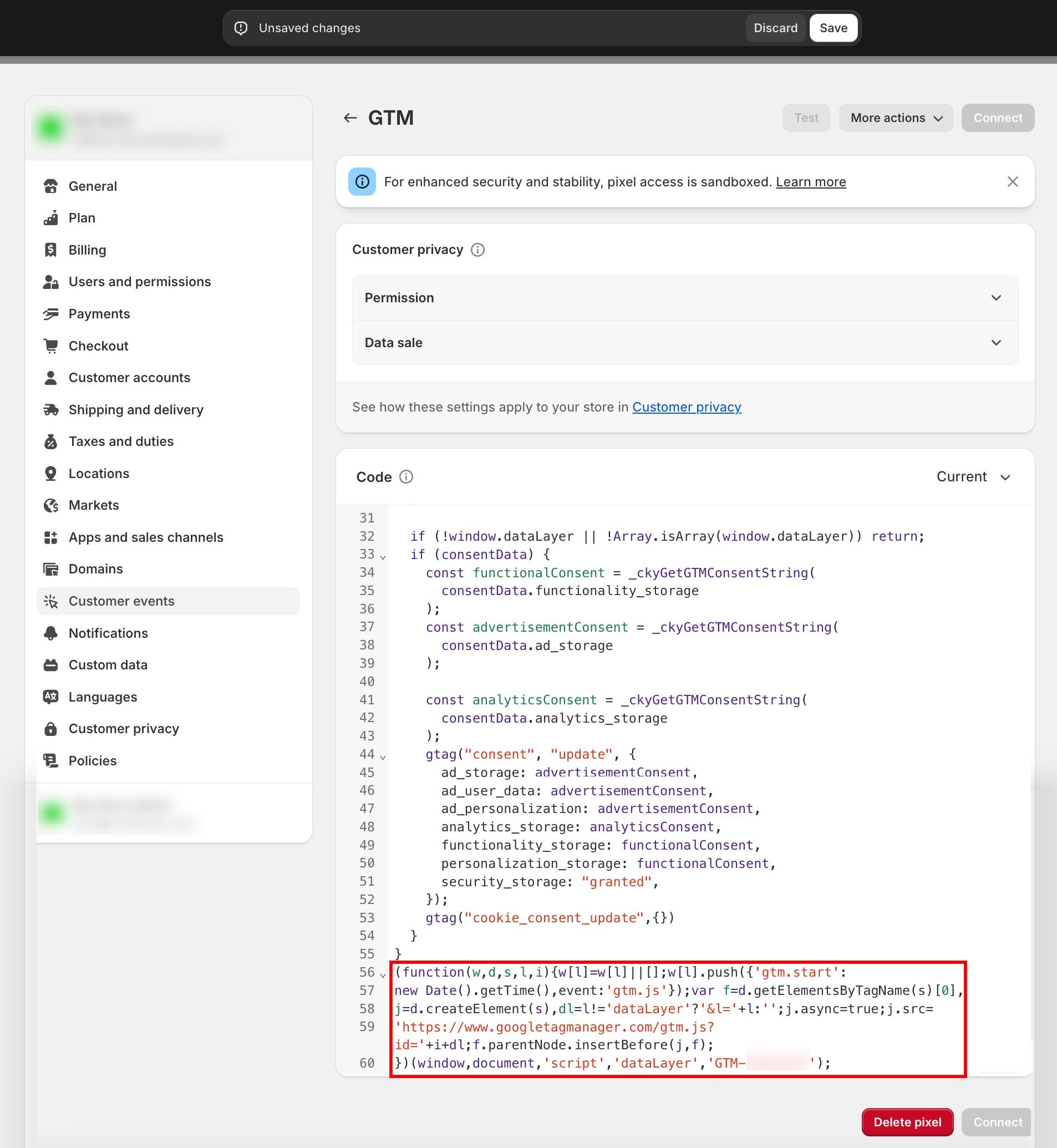
Step 2.3: Add the GTM Script at the end of CookieYes Custom Pixel
If Google Tag Manager (GTM) is already installed, place the GTM script directly at the end of CookieYes Custom Pixel.
If GTM is not installed on your website, follow the below steps:
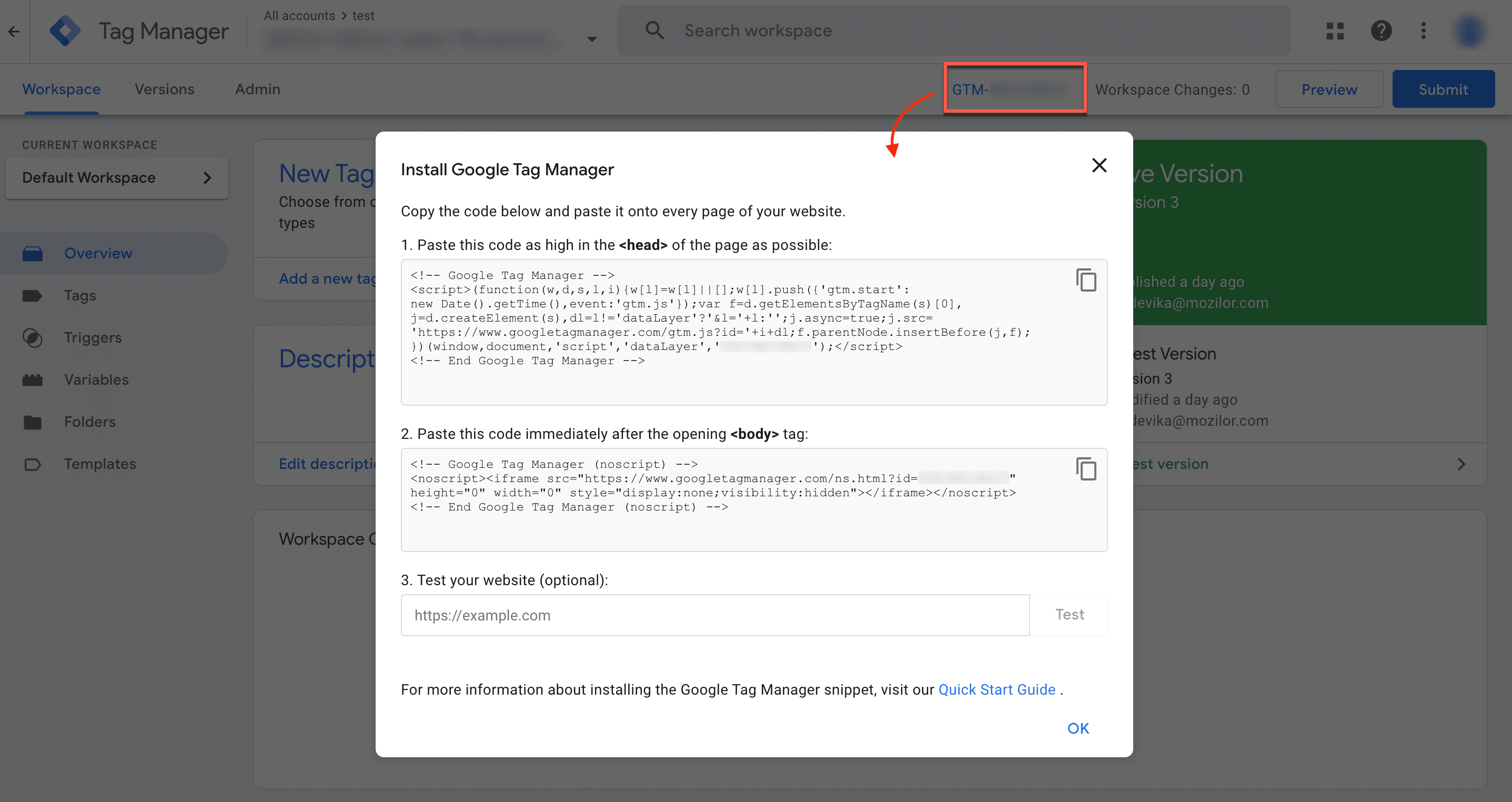
- Sign Up/ Create a Google Tag Manager Account and set up a container.
- Navigate to the Google Tag Manager Dashboard and click on the Container ID in the top navigation Panel.
- Copy the code block that belongs in the head section of a page.
- Remove the Script tags (
<script>and</script>)from the code block. - Insert the remaining code below the CookieYes Custom Pixel.
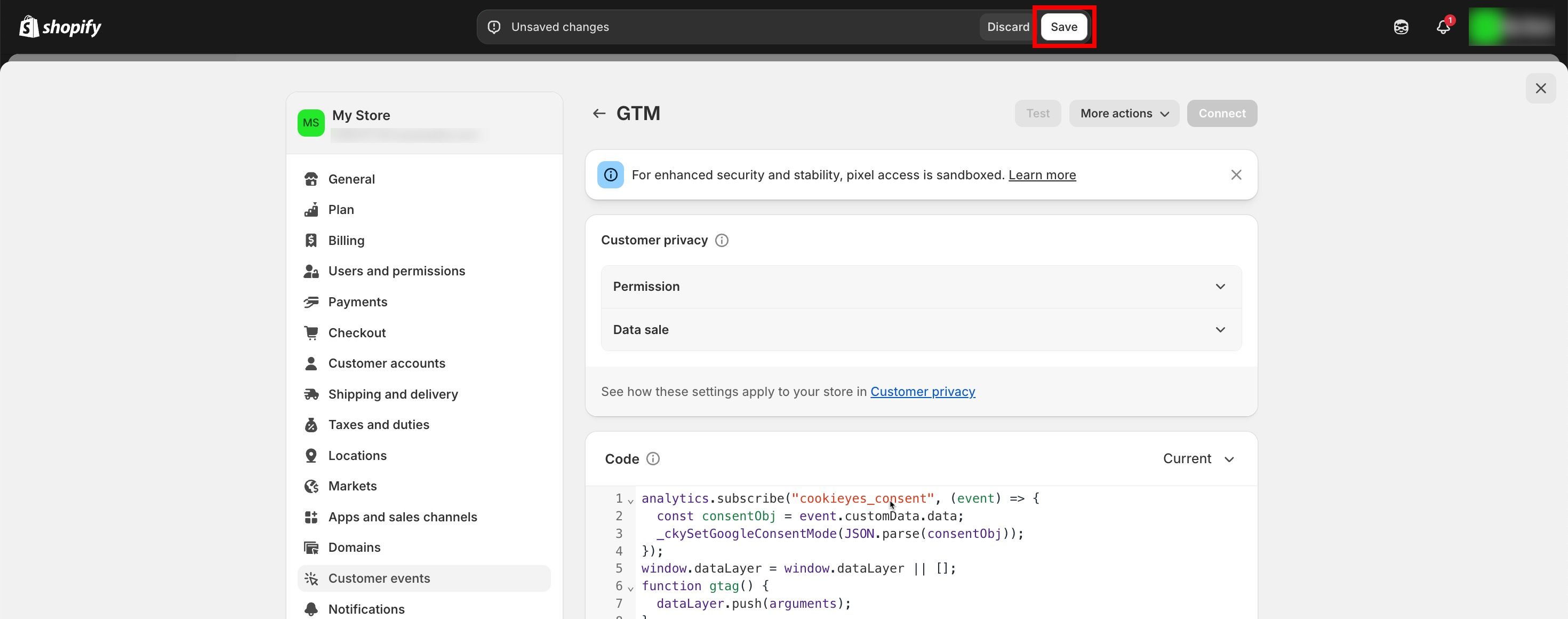
Step 2.4: Save Your Changes
Click the Save button to apply the changes.
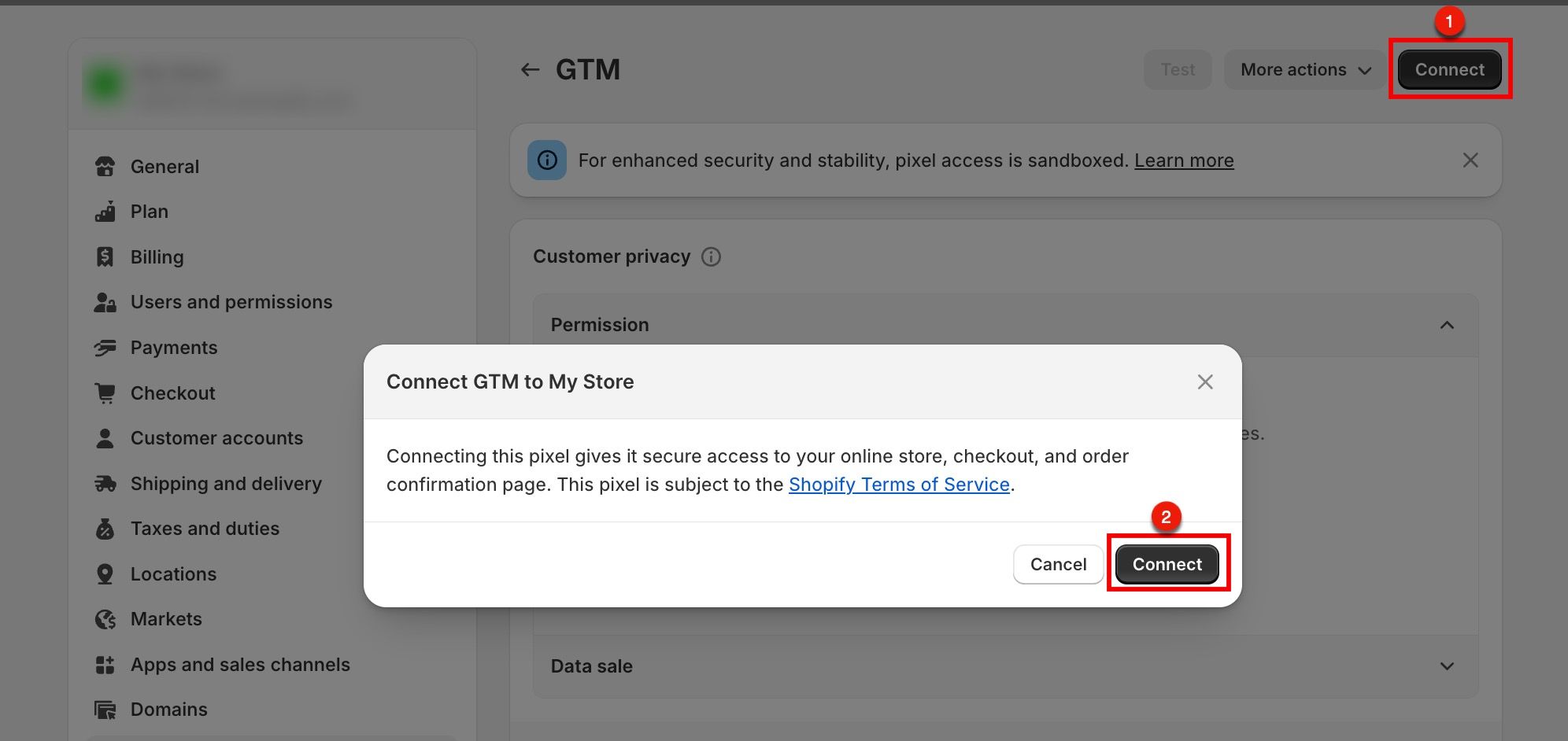
Step 2.5: Connect the Pixel to Your Store
- Click the Connect button.
- In the confirmation modal, click the Connect button again.
Configuring Consent Mode Settings
Basic Consent Mode
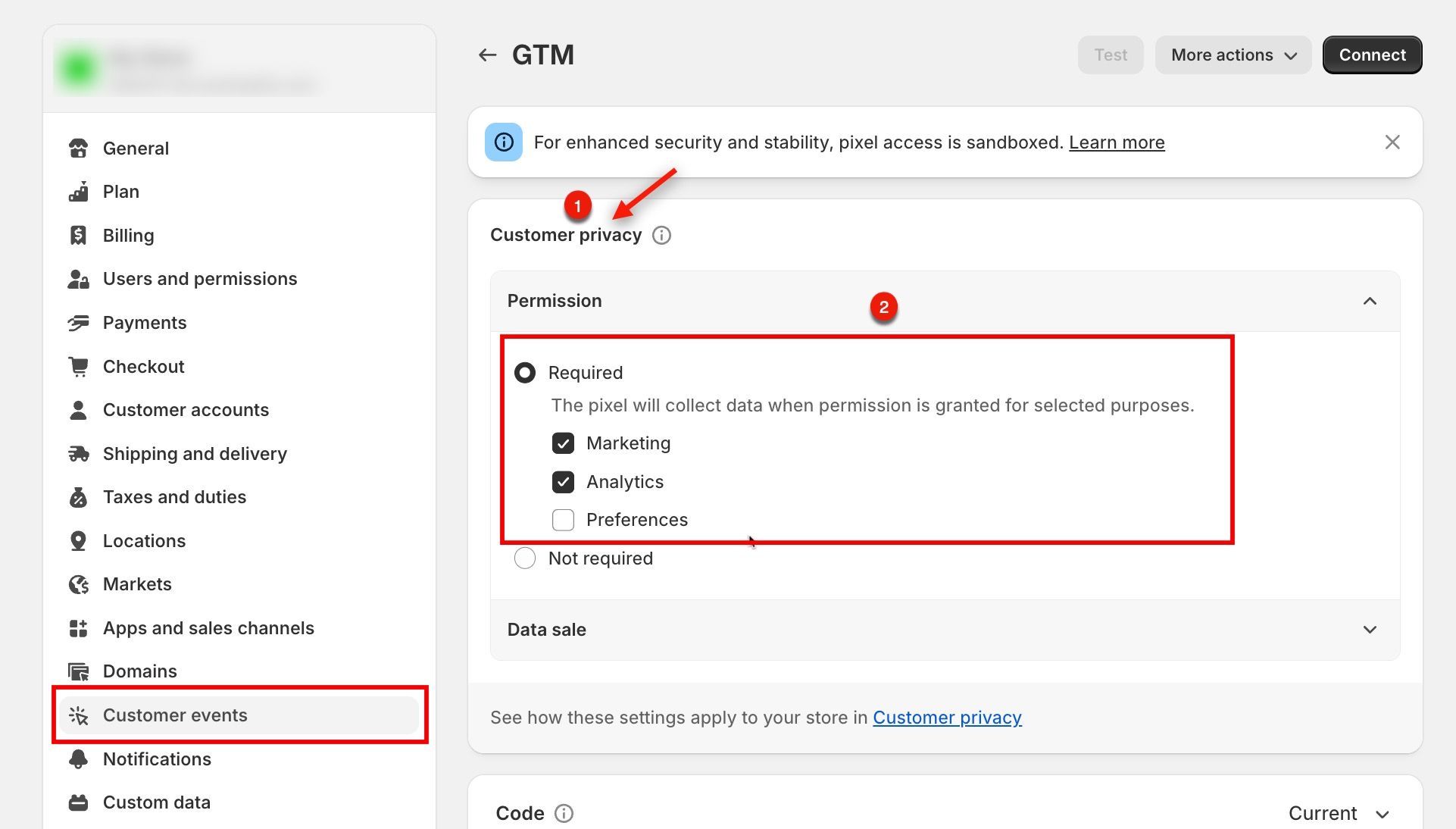
By default, Shopify enables and configures Basic Consent Mode to collect data based on user consent. To verify or modify Basic Consent Mode:
Step 1: Access Consent Settings
- Navigate to your Pixel and Locate Customer Privacy.
- Click on Permission.
Step 2: Verify Basic Settings
- Ensure the option Required is selected.
- Review the default consent categories that will collect data when users grant permission.
- Modify the consent categories if needed for your use case.
Advanced Consent Mode
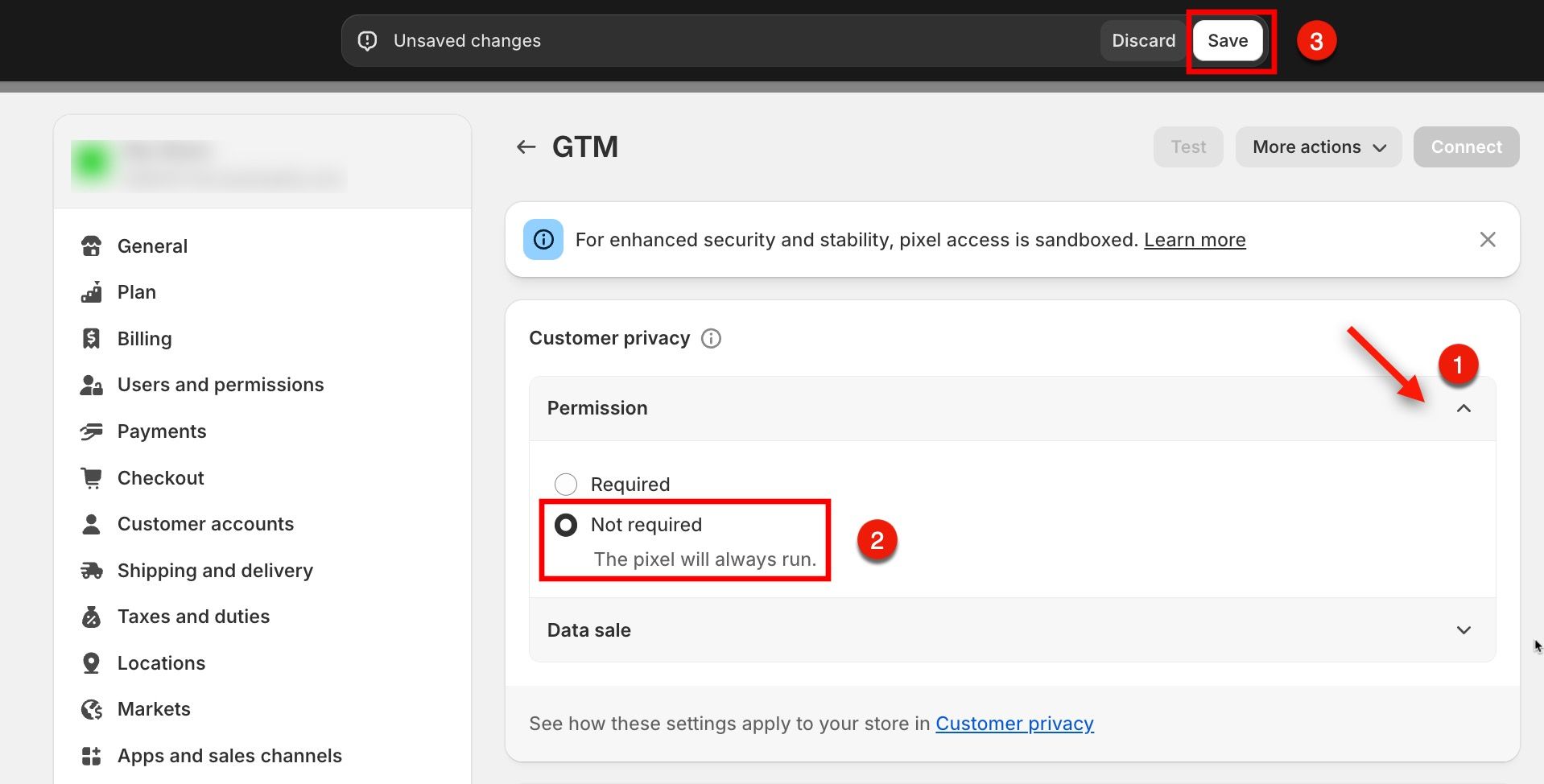
Advanced Consent Mode allows pixel execution without explicit user permission. To enable this:
Step 1: Configure Permissions
- Navigate to your Pixel and locate Customer Privacy.
- Click on Permission.
- Set the permission setting to Not required.
This configuration ensures the pixel runs without requiring explicit consent.
Step 2: Save Your Configuration
- Click the Save button at the top of the screen.
- Your Advanced Consent Mode settings are now active.