How to Enable and Configure AI Cookie Classifier in CookieYes
Last updated on September 9, 2026
On this page
The AI Cookie Classifier is available on the Basic, Pro and Ultimate plans. If you are on the Free plan, change your plan to use this feature.
Overview
Prerequisites
How to Enable AI Cookie Classifier
Step 1: Navigate to Cookie Manager

Note
If you manage multiple domains, select your website from the top dropdown and navigate to Cookie Manager.
Step 2: Enable AI Cookie Classifier
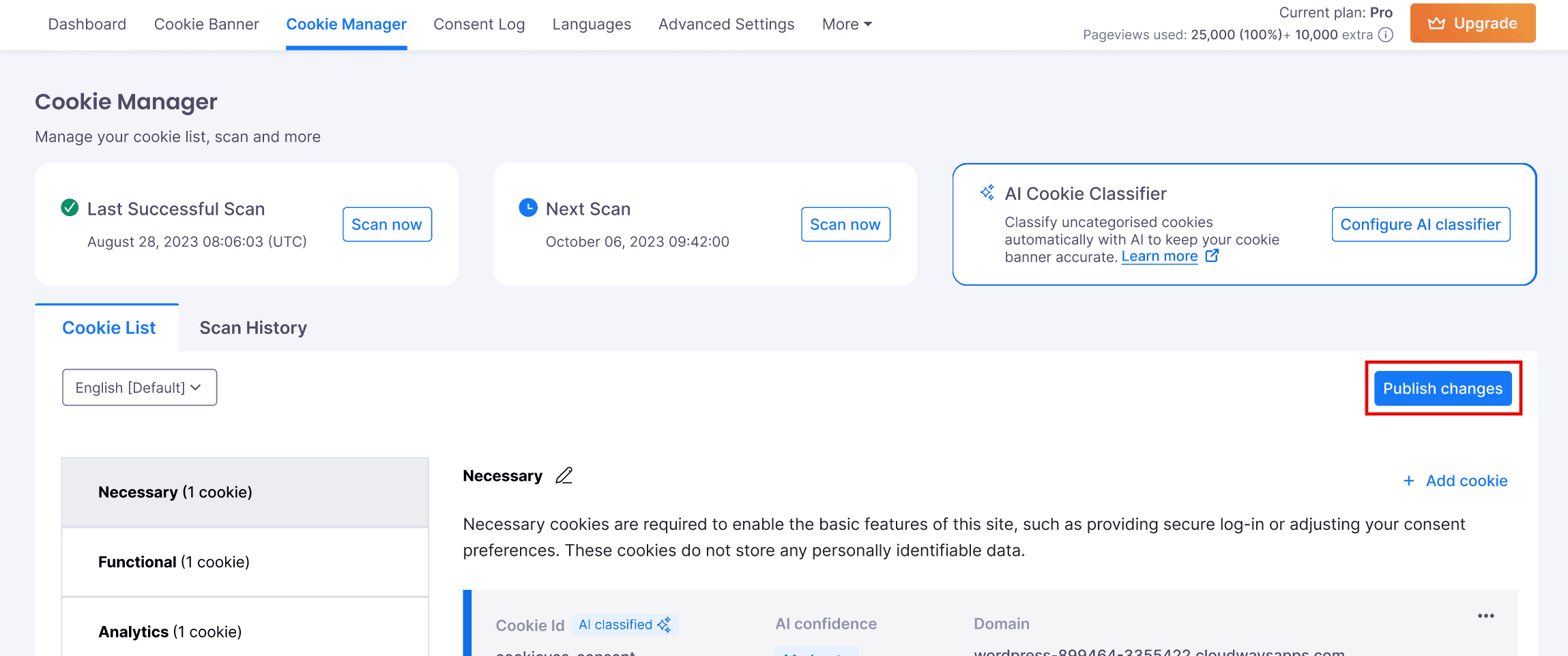
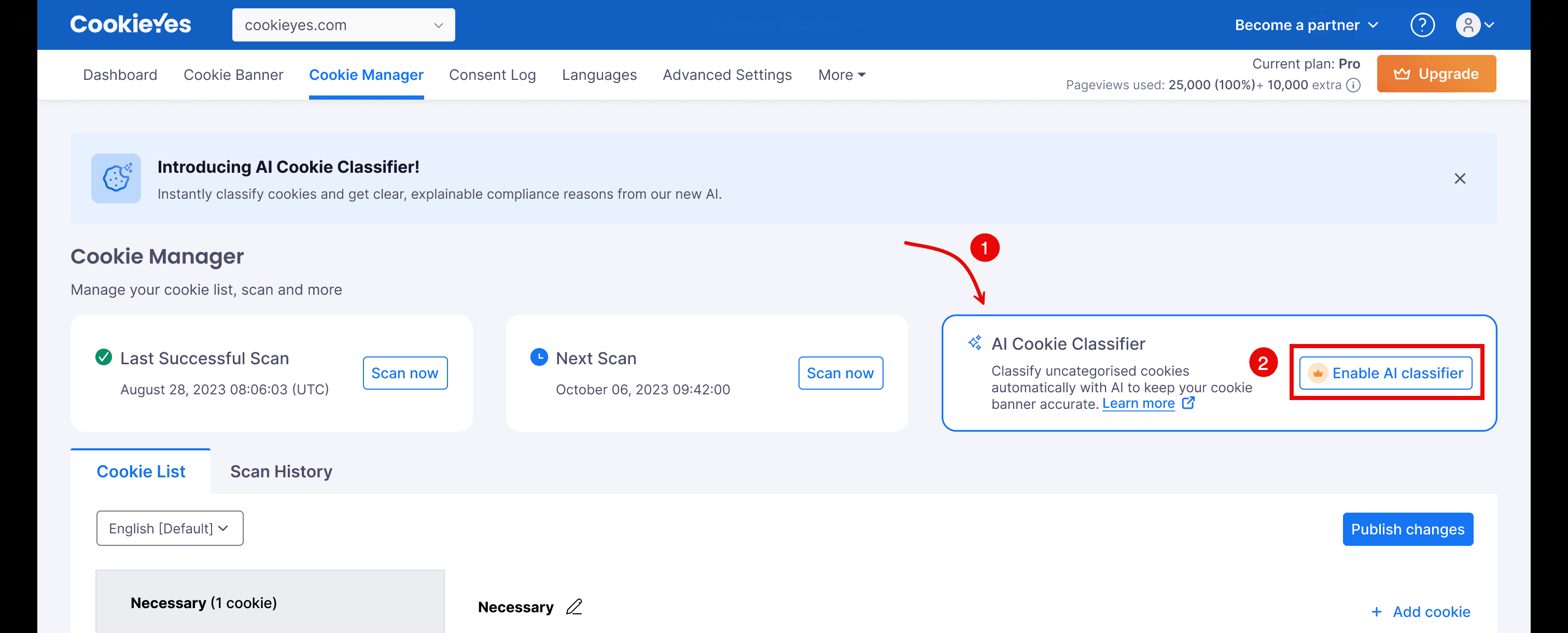
- On the Cookie Manager page, locate the AI Cookie Classifier panel on the right.
- Click Enable AI classifier.
- In the configuration modal, select one of the following publishing options:
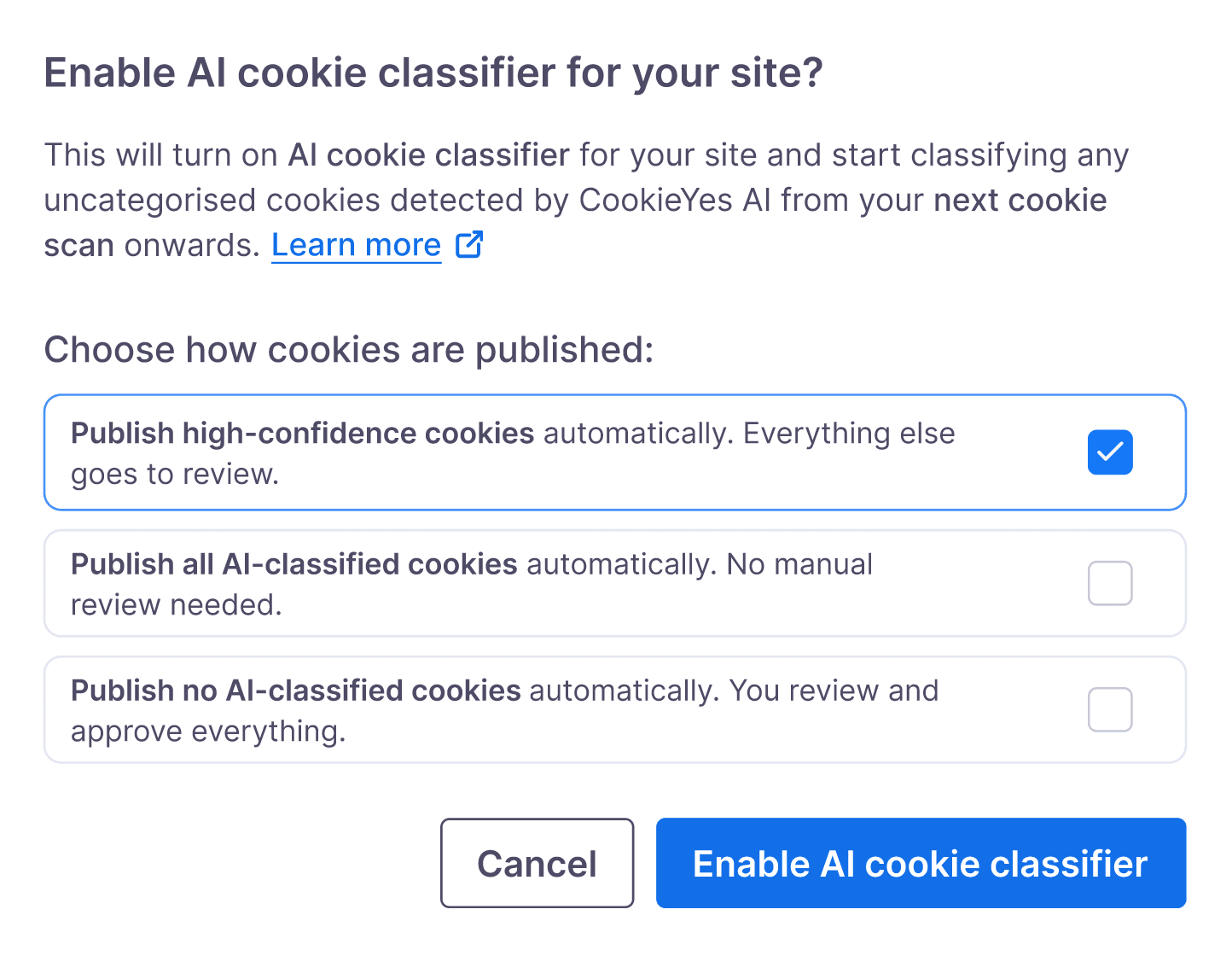 Option 1: Publish High-Confidence Cookies Automatically (Recommended)In this mode, CookieYes automatically publishes cookies when the AI classifier detects them with a high confidence level. These cookies are immediately added to the appropriate category in your cookie list. If the AI detects a cookie but the confidence level is lower, the cookie is not published automatically. Instead, it is sent to the manual review queue(Uncategorised Category), where you can review the classification and decide whether to publish it.Recommended for: Most websites that want to reduce manual work while maintaining strong oversight for compliance. Option 2: Publish All AI-Classified Cookies AutomaticallyIn this mode, all cookies classified by AI are automatically published, regardless of the confidence level. Once detected in a scan, the cookies are immediately added to the appropriate category in your cookie list. No manual review is required, which significantly reduces the time spent managing newly detected cookies. However, because cookies are published automatically, you may want to periodically review your cookie list to ensure the classifications align with your compliance requirements.Recommended for: Large or high-traffic websites where scans detect a high volume of cookies and full automation is preferred. Option 3: Publish No AI-Classified Cookies AutomaticallyWith this option, the AI Cookie Classifier still analyses and categorises detected cookies, but none of them are published automatically.All cookies are sent to the Uncategorised section, where you can review the suggested classification. These cookies remain in the Uncategorised category until the category is manually confirmed or updated. After verifying the suggested classification, the cookie can be approved, edited or assigned to the appropriate category before publishing. This ensures full control over how cookies are categorised and displayed in the cookie banner and cookie policy.Recommended for: Organisations with strict compliance workflows, internal approval processes, or teams that require manual verification of every cookie classification.
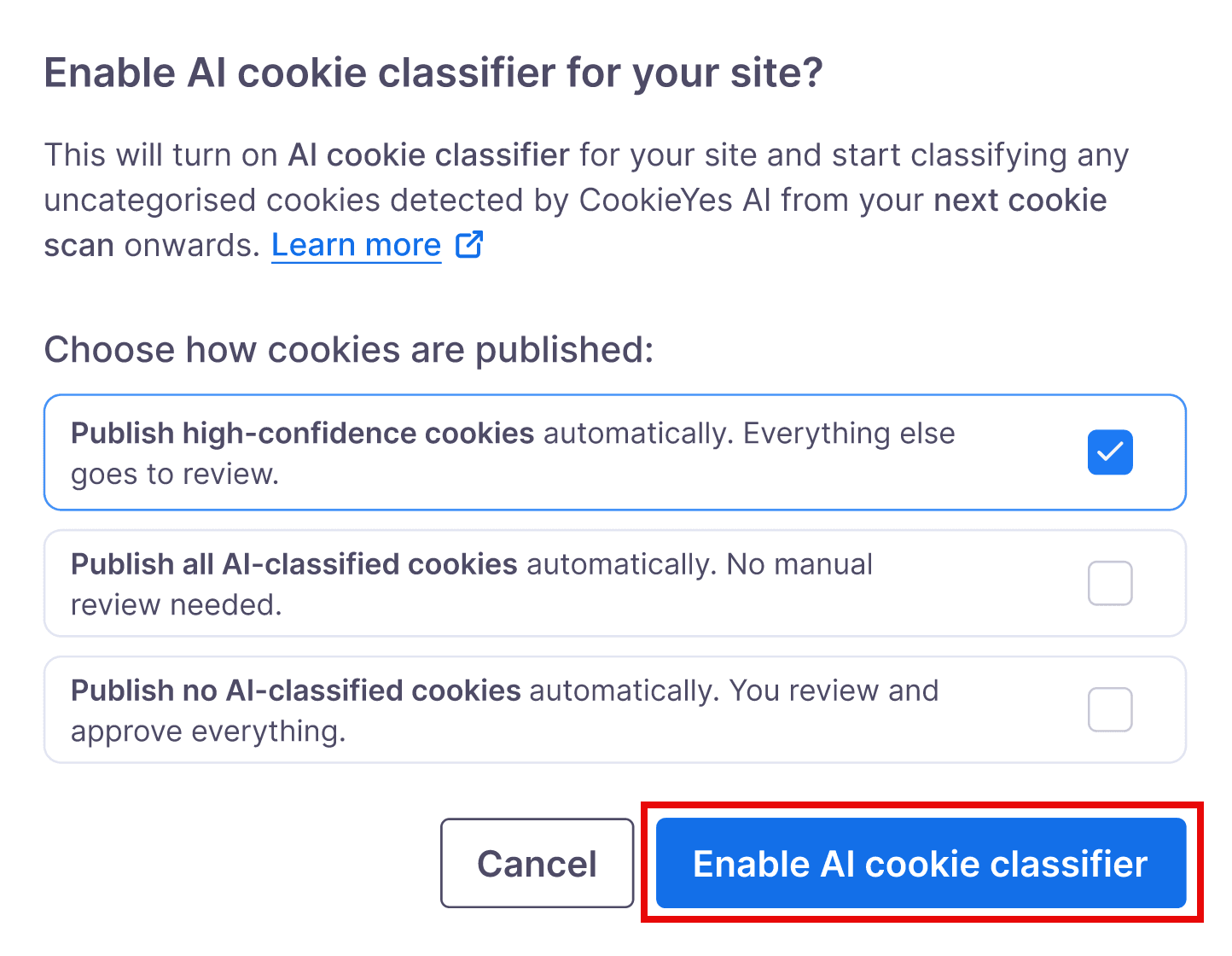
 - After selecting your preferred option, click Enable AI Cookie Classifier.
Note
After enabling the AI classifier, run a new scan to allow CookieYes to detect and classify new cookies. See How to scan your website for cookies for detailed instructions.
Configure or Modify AI Classifier Settings?
- Navigate to Cookie Manager.
- Locate the AI Cookie Classifier section.
- Click Configure AI Classifier.
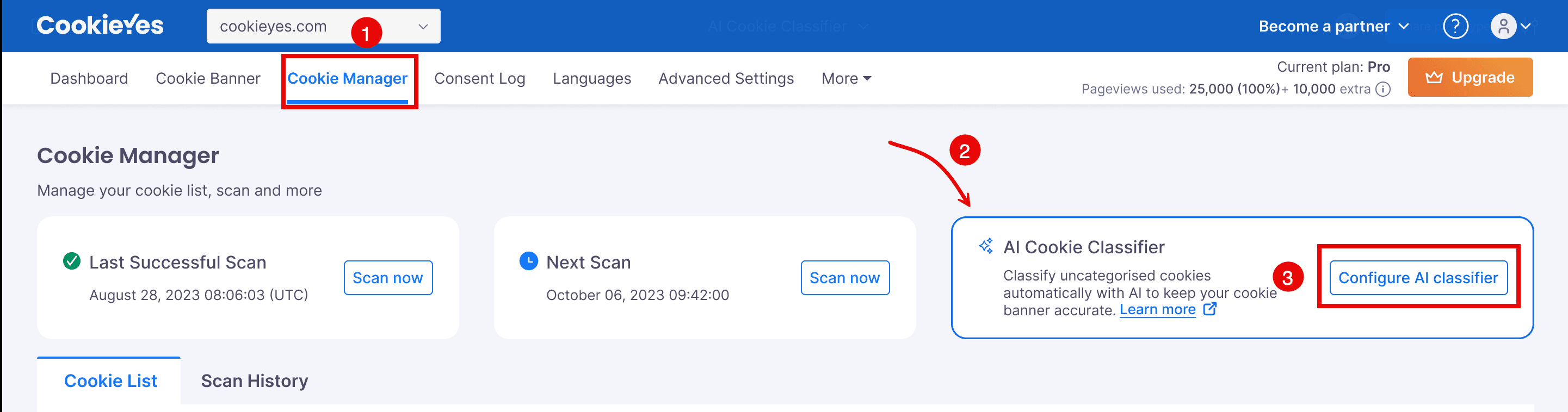
- In the configuration modal, you can update how AI-classified cookies are published or disable the AI classifier if needed.
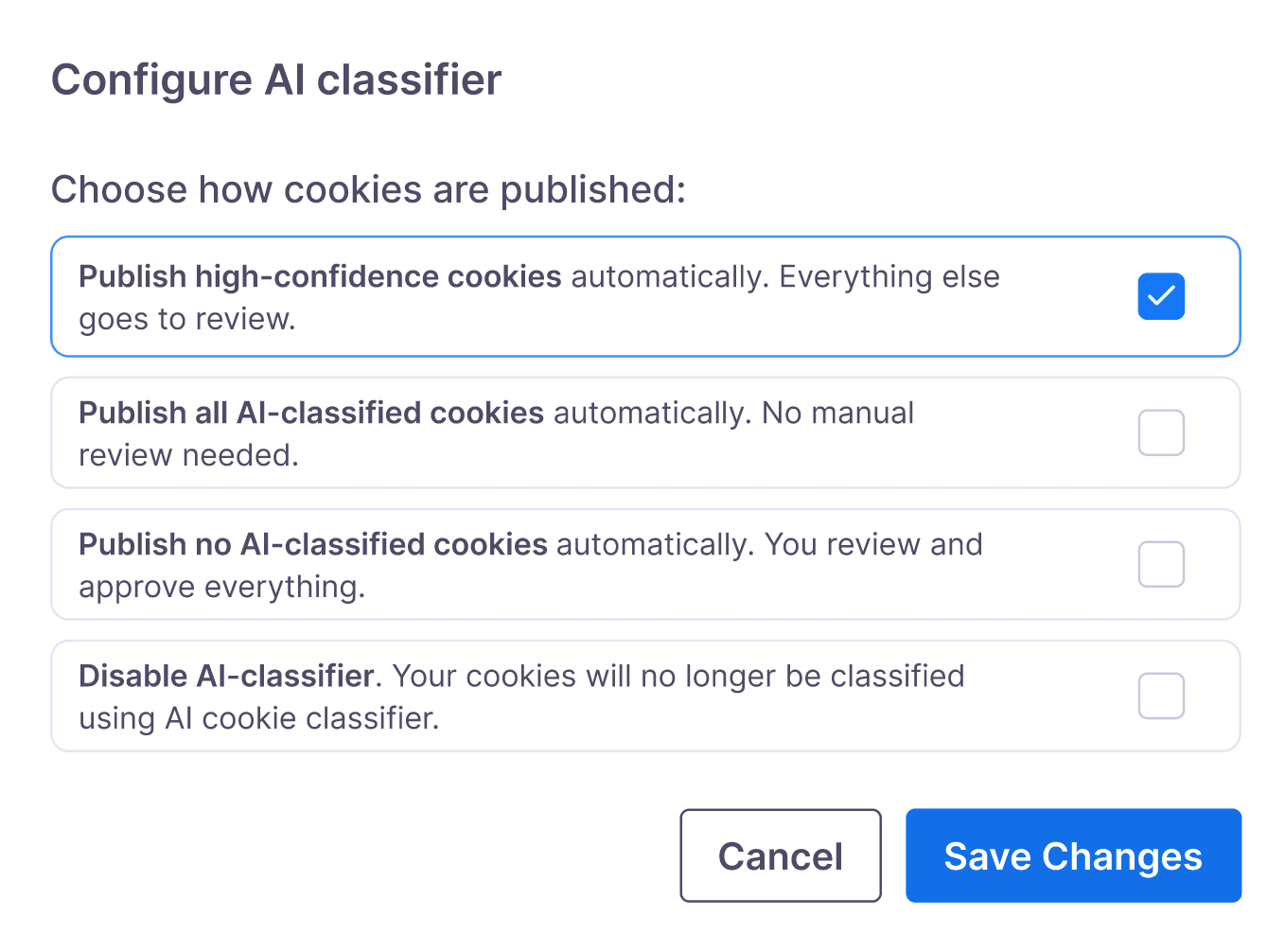
- After making changes, click Save Changes to apply the new configuration.
Note
After updating the AI classifier configuration, run a new cookie scan to apply the updated publishing behaviour to newly detected cookies. See How to scan your website for cookies for step-by-step instructions.
How to Identify AI-Classified Cookies
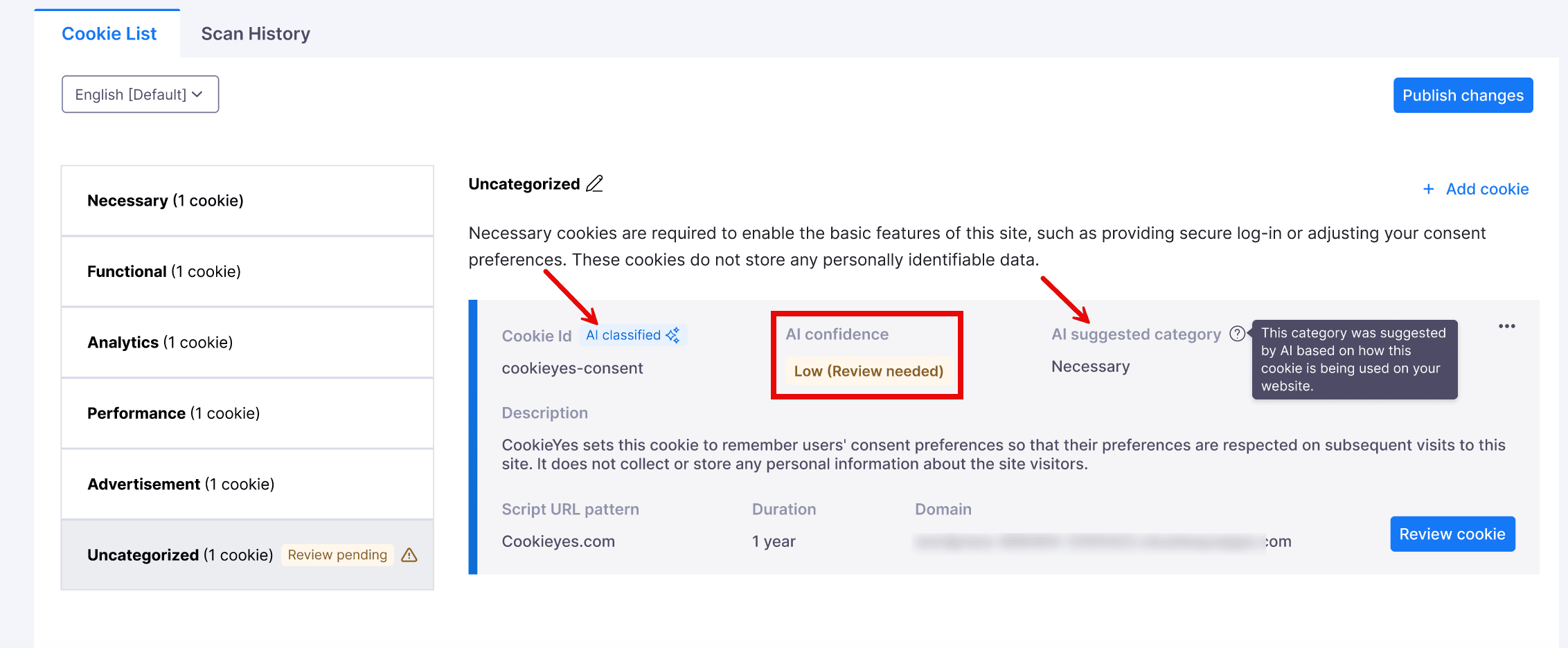
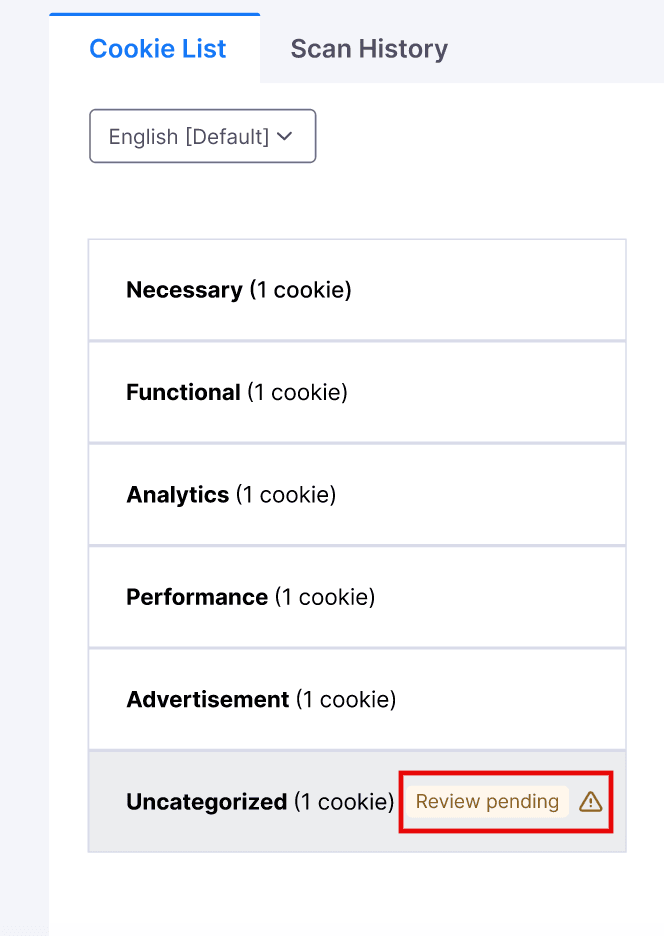
Review and Publish AI-Classified Cookies
- Go to Cookie Manager > Uncategorized category in the Cookie List.
- Locate the cookie marked with Review needed.
- Click Review cookie.
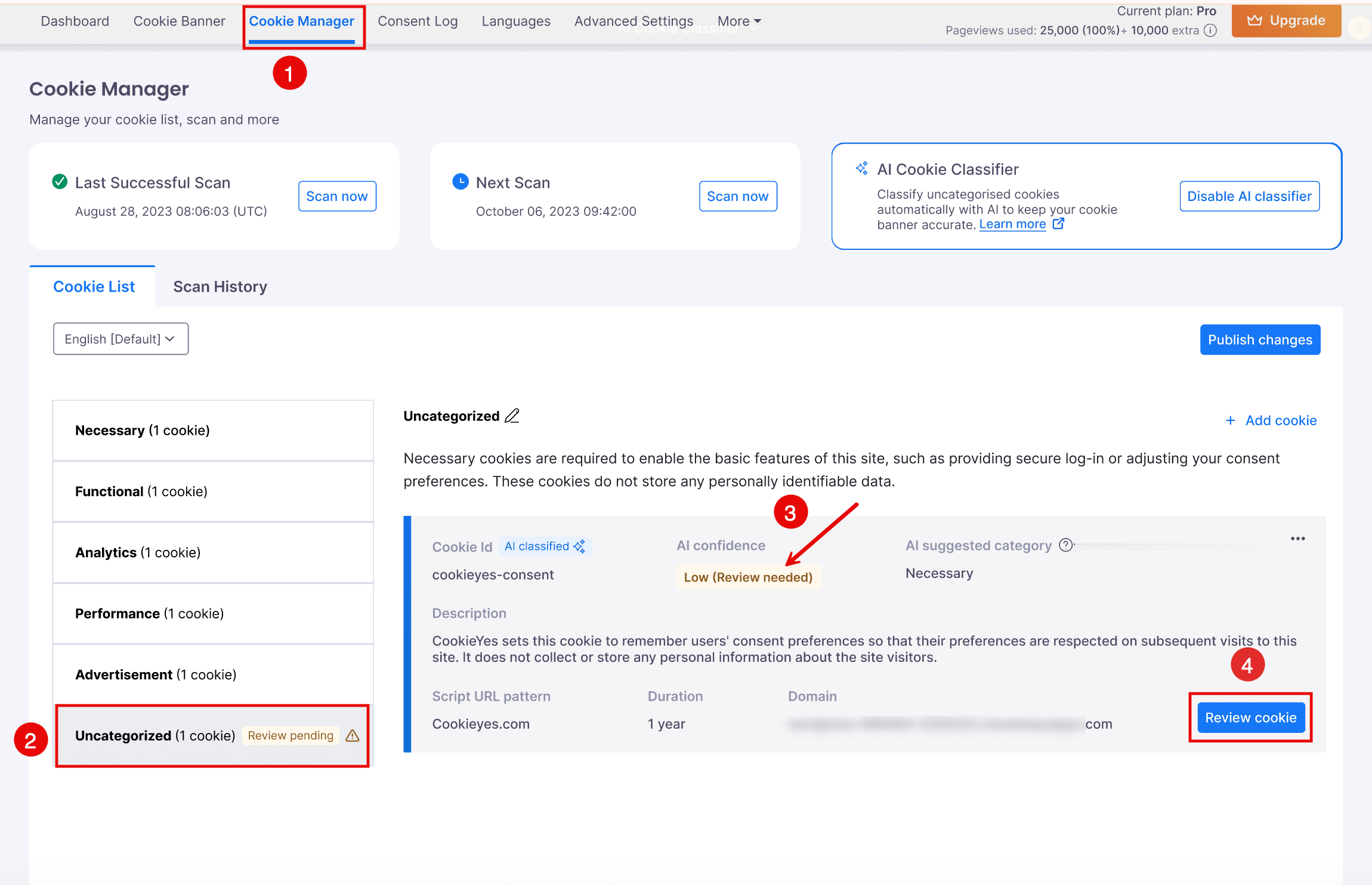
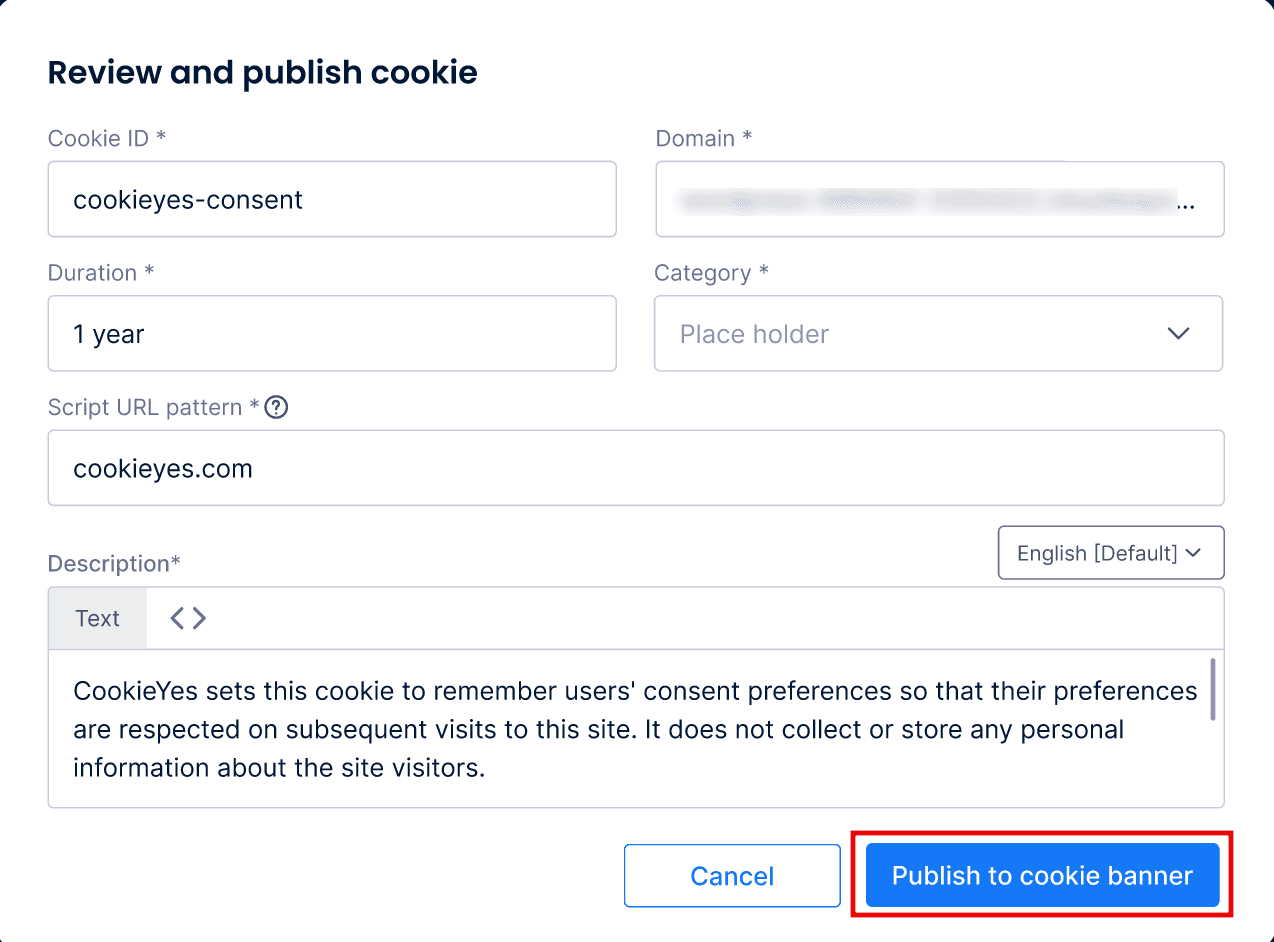
- A modal will open where you can view the full cookie details, including Cookie ID, Domain, Duration, Script URL pattern, AI suggested category and Cookie description. Verify the cookie information and if necessary, change the cookie details before publishing.
- Click Publish to cookie banner to add the cookie to the selected category.
- Click Publish changes in the Cookie Manager to apply the updates to your website.