This guide will walk you through how you can generate and add a cookie policy page on your website. A cookie policy is essential for informing website visitors about the use of cookies and ensuring compliance with privacy regulations such as GDPR, CCPA and other data protection laws. CookieYes makes it easy to generate a cookie policy tailored to your website’s cookie usage.
To begin with, sign up on CookieYes and try it for free.
Steps to Generate a Cookie Policy
Step 1: Access the cookie policy generator
- Log in to your CookieYes account.
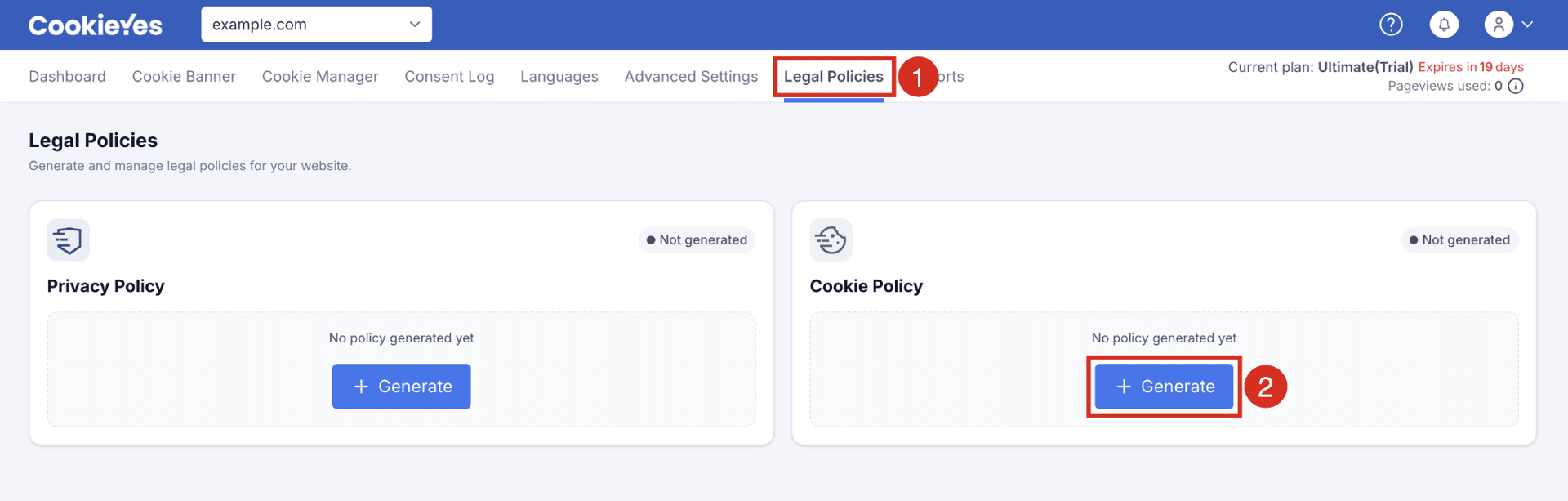
- From the top navigation bar, select Legal Policies.
- From the Cookie Policy section, click + Generate.
Step 2: Language settings
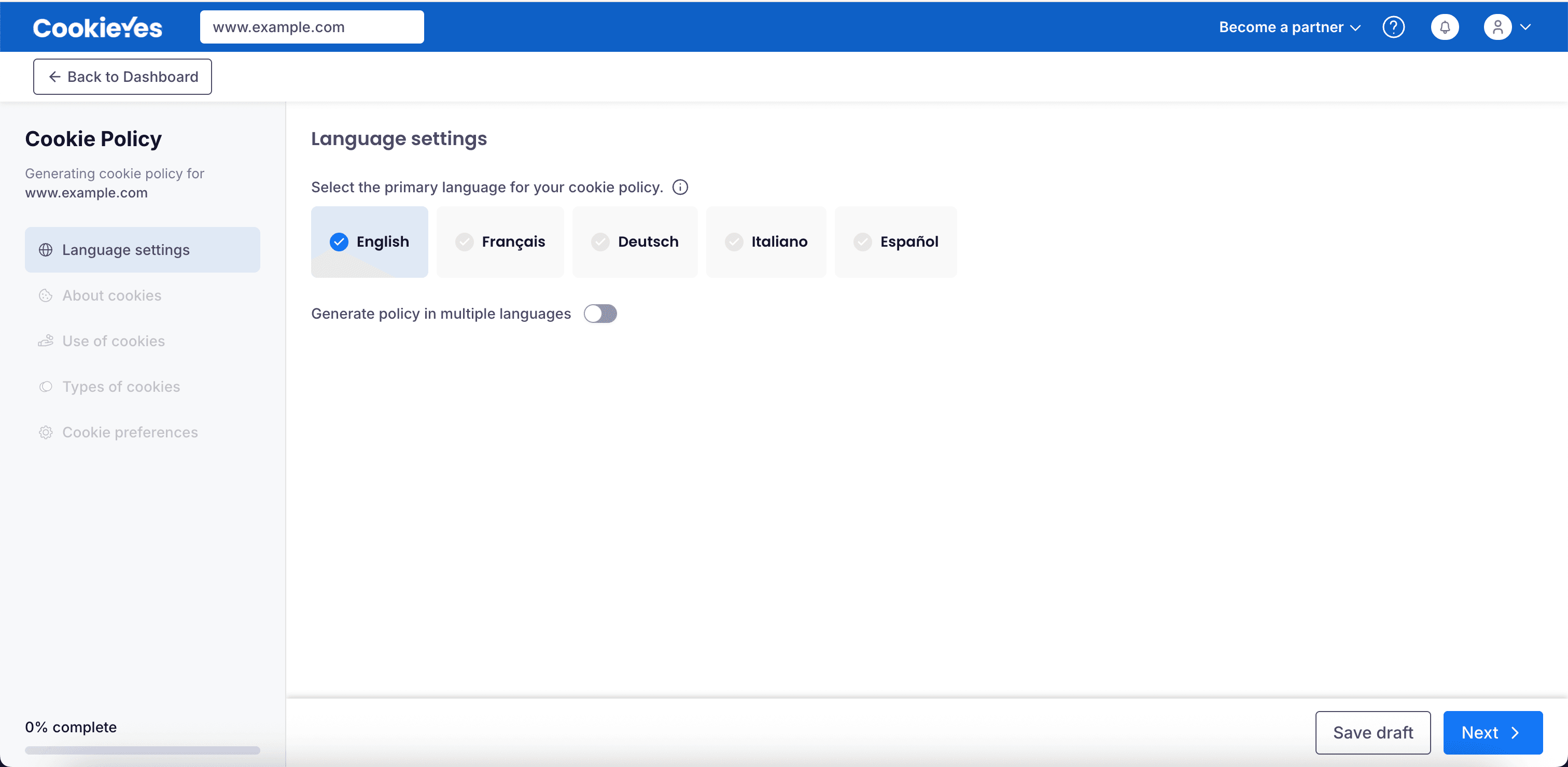
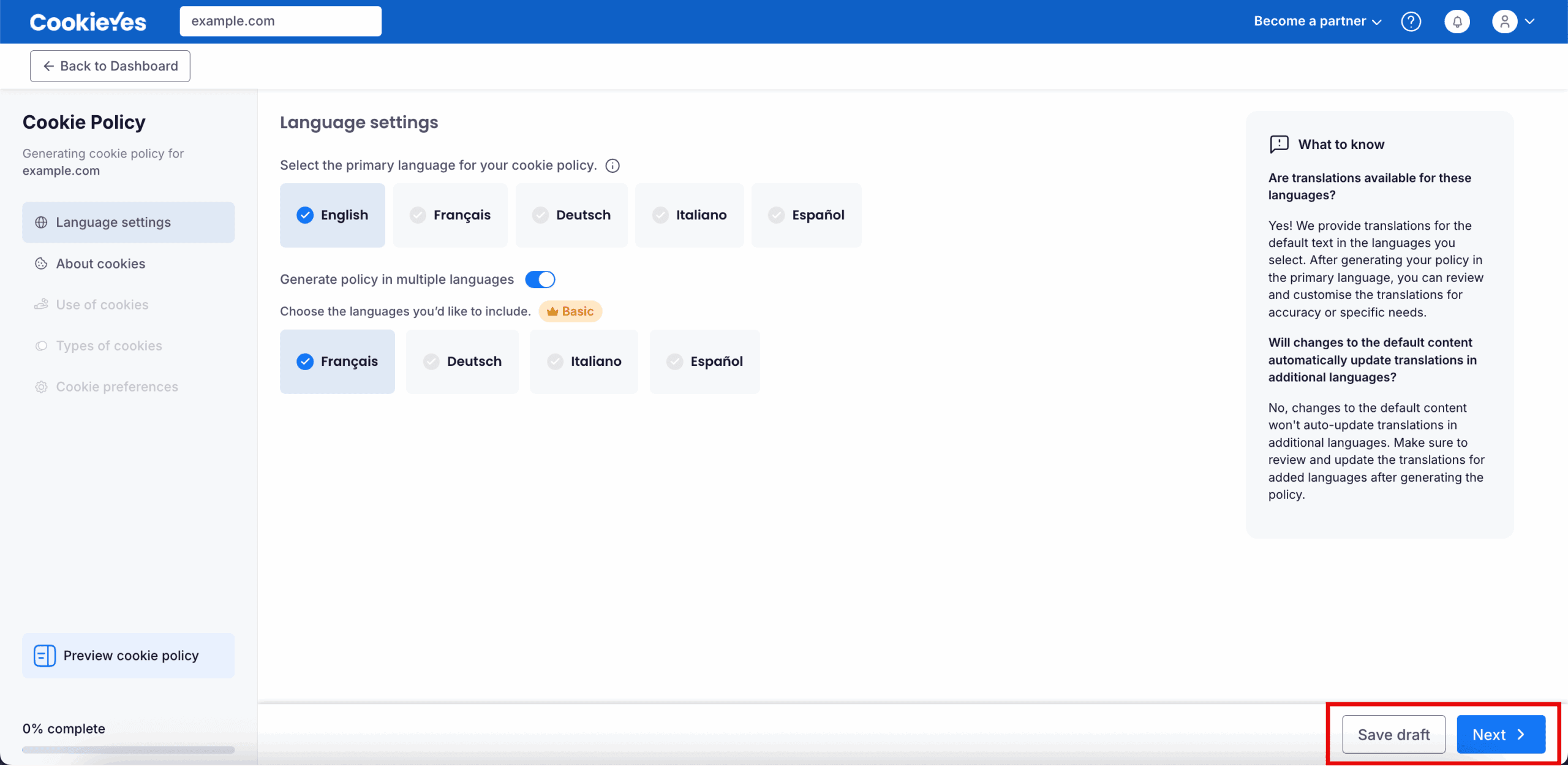
Select the Primary Language
Choose your preferred primary language for the cookie policy by clicking one of the available options. The selected language will be highlighted with a checkmark.
Select a language that matches the main content of your website for consistency and a better user experience.
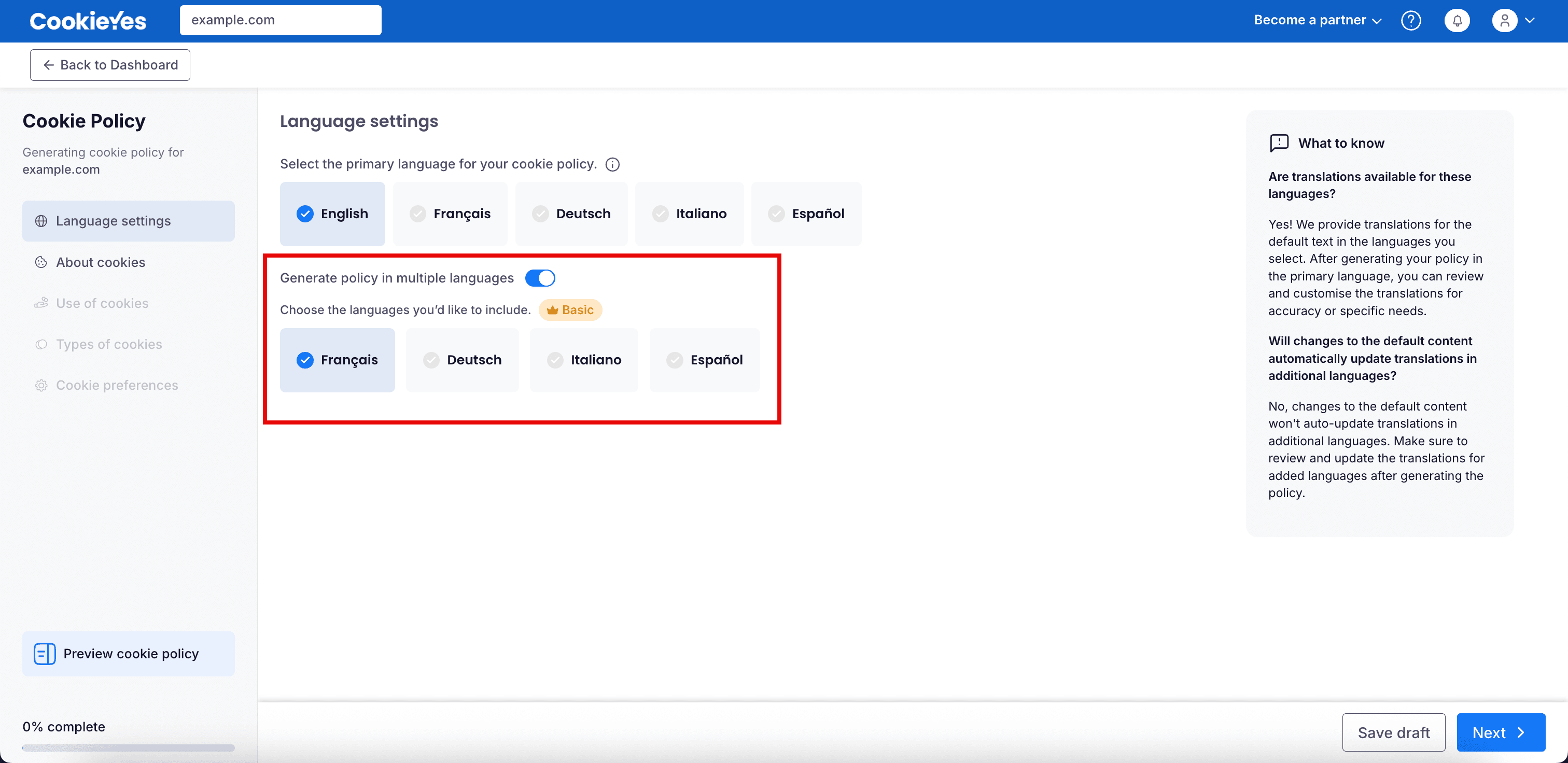
Enable multiple languages (Optional)
Toggle on the Generate policy in multiple languages option. Once enabled, additional language options will appear. Select one or more additional languages from the list.
You can select multiple languages, but you’ll need to upgrade your plan before generating the policy. This feature is available only for Basic, Pro, and Ultimate subscription plans.
Save and continue
After selecting your language preferences, click Save draft if you want to save your progress and return later or click Next to proceed to the next step: About cookies.
Step 3: About cookies
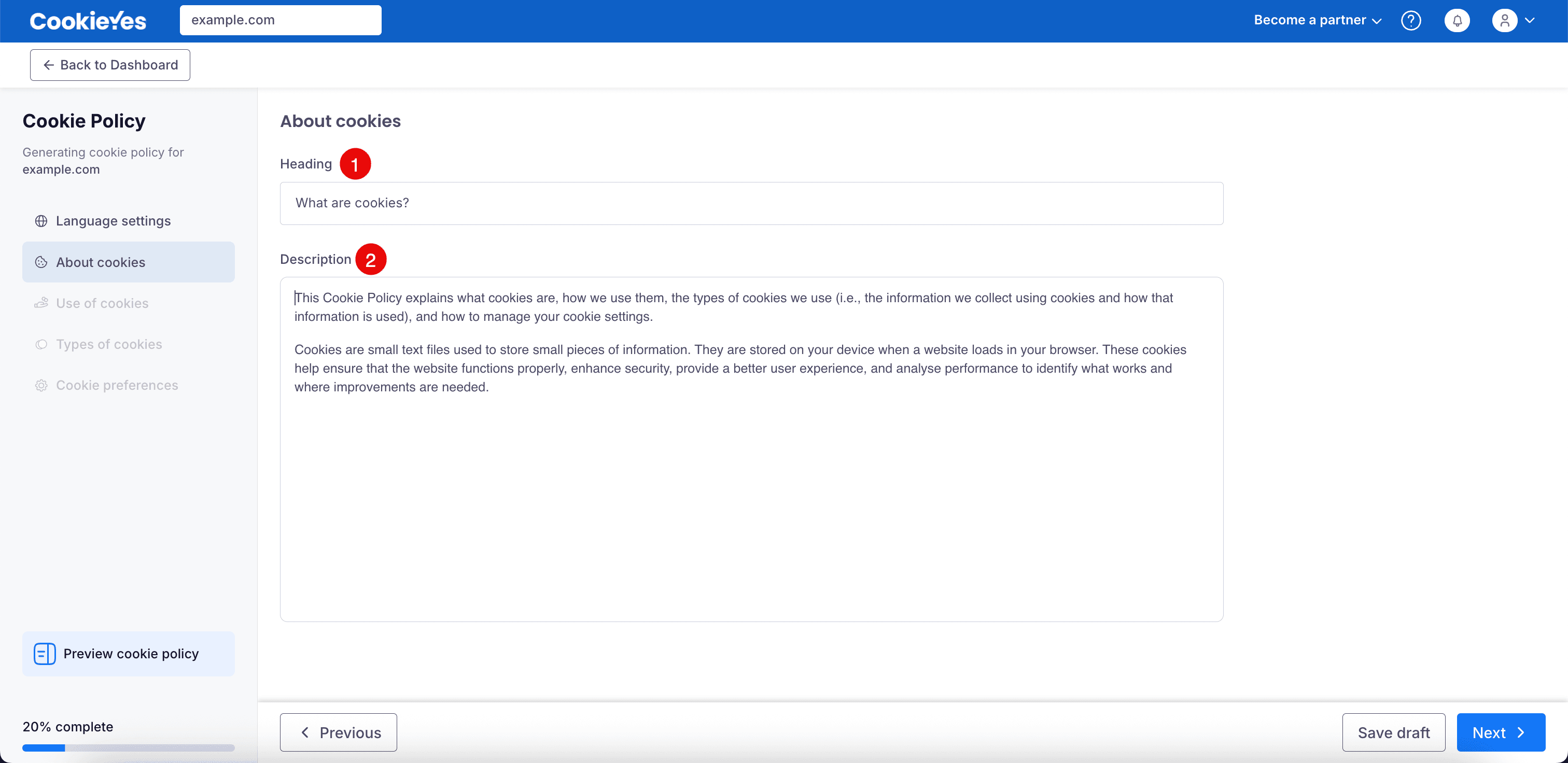
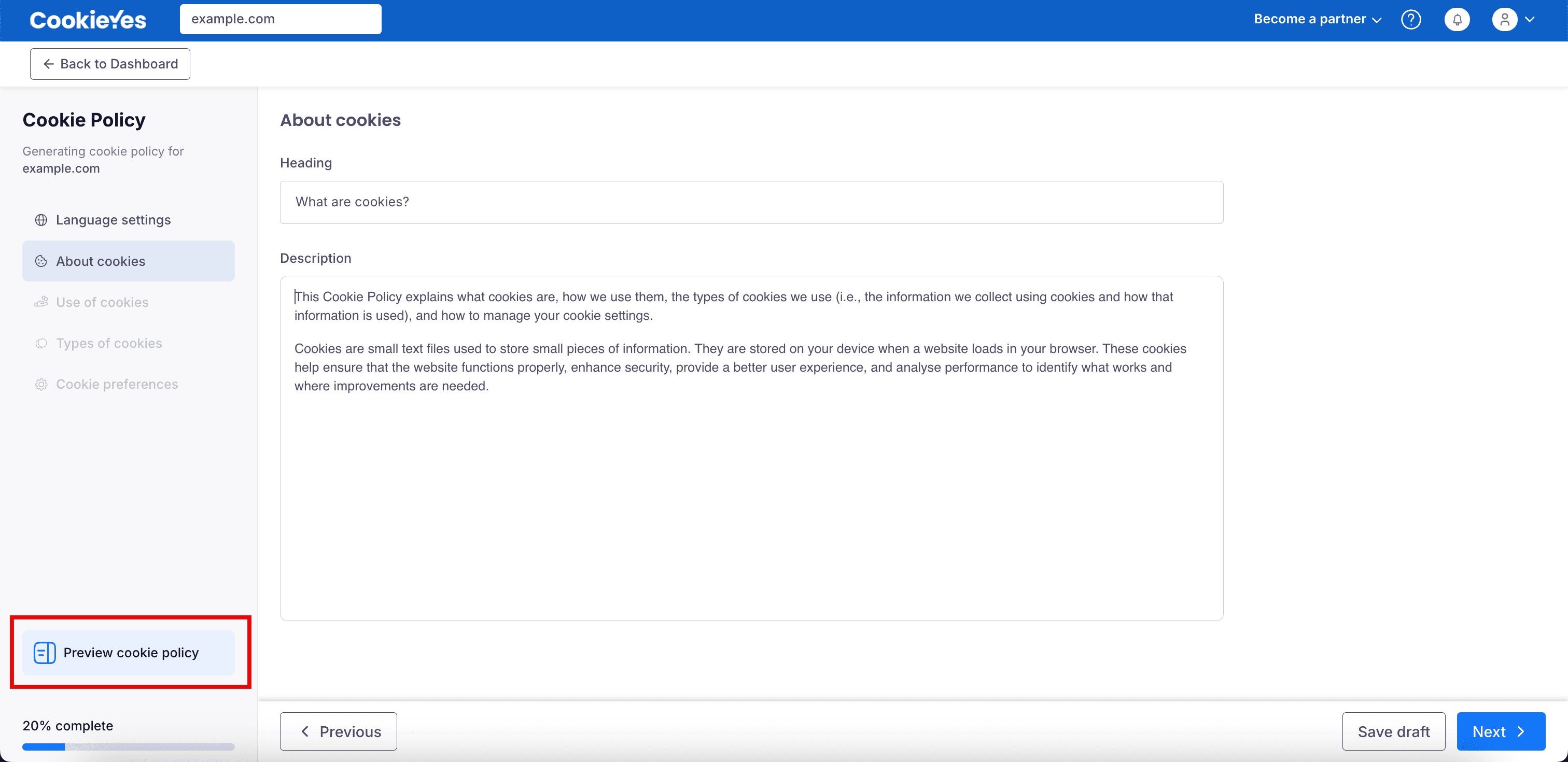
In this step, you can define the introductory section of your Cookie Policy by explaining what cookies are and why your website uses them.
Heading
Use the Heading field to specify a clear title for this section. You may keep the default text or customise it to match your website’s style and tone.
Add or edit the description
In the Description field, provide a clear explanation of cookies and their purpose. The default text covers what cookies are, why your website uses them and how they benefit users (such as improving functionality, security and performance). Edit or expand the text to ensure it matches your website’s practices.
Preview the cookie policy
Click Preview cookie policy (bottom left of the screen) to review how your content will appear to users. Use this option to confirm clarity, formatting and tone before proceeding.
Continue
Click Next to move to Use of cookies.
Step 4: Use of cookies
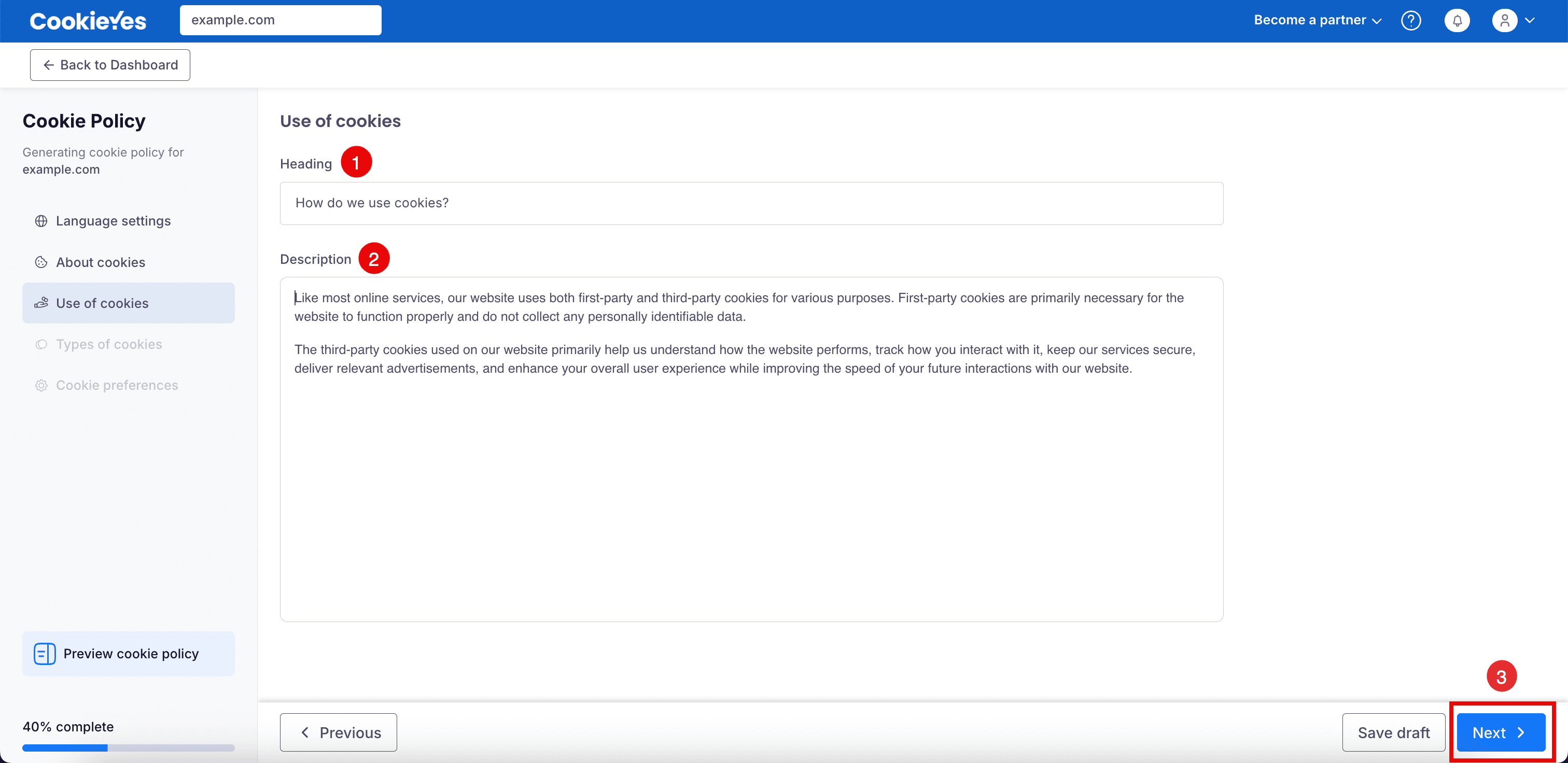
In this step, you’ll describe how your website uses cookies and explain their purpose to your users.
Heading
In the Heading field, enter a clear and user-friendly title. You can either use the default heading as is or modify it to match your site’s tone and audience.
Description
Use the Description field to explain in detail how your website uses cookies. The default text includes information on the use of first-party cookies (primarily for website functionality) and the role of third-party cookies (such as analysing site performance, tracking user interactions, enhancing security and providing relevant ads). You may update the description as needed to ensure accuracy for your website’s practices.
Save and continue
When you’re ready, click Next to proceed to the next step, Types of Cookies.
Step 5: Types of cookies
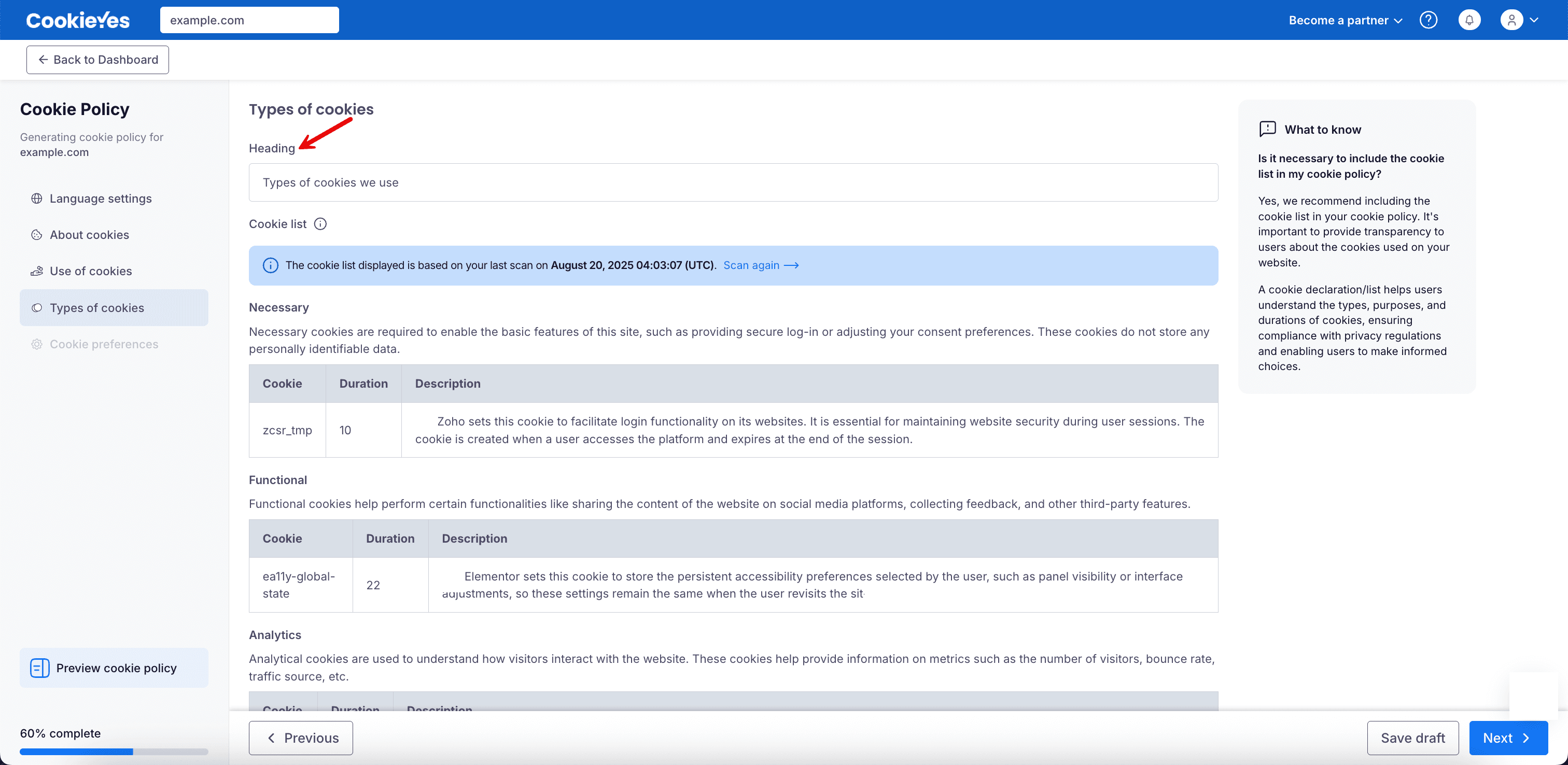
Heading
In the Heading field, you can keep the default title “Types of cookies we use” or edit it to better reflect your website’s tone and your audience’s expectations.
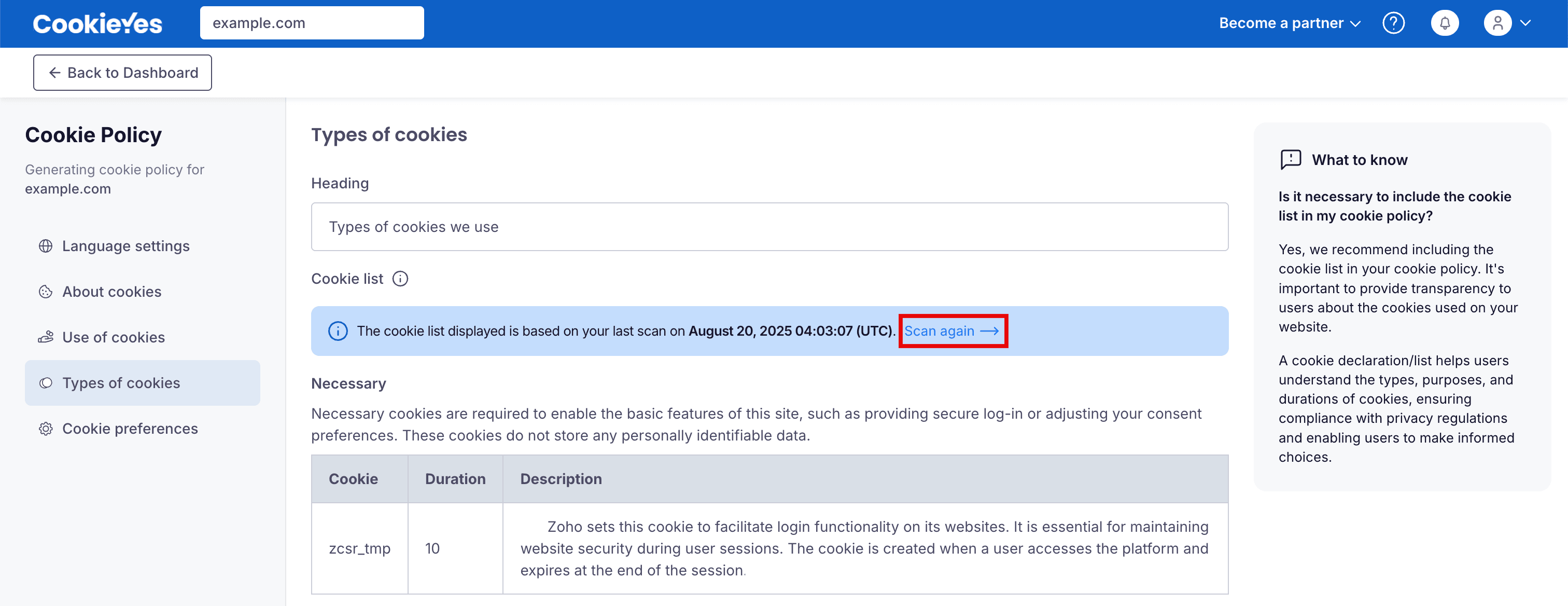
Review the cookie list
The cookie list shown here is based on your last website scan. To refresh the list, click Scan again. You’ll be redirected to the Cookie Manager, where you need to click Scan now to run a new scan.
Check cookie categories and details
The list organises cookies into categories such as:
- Necessary – cookies required for basic site functionality and security.
- Functional – cookies enabling features like content sharing or feedback collection.
- Analytics – cookies for tracking and analysing visitor interactions.
- Performance – cookies for monitoring site performance and improving user experience.
- Advertisement – cookies are used to deliver relevant ads.
Each entry includes details about the cookie’s name, duration and purpose. Confirm that the descriptions are clear and accurate.
Proceed
After reviewing the cookie list, click Next to proceed to Cookie Preferences.
Step 6: Cookie preferences
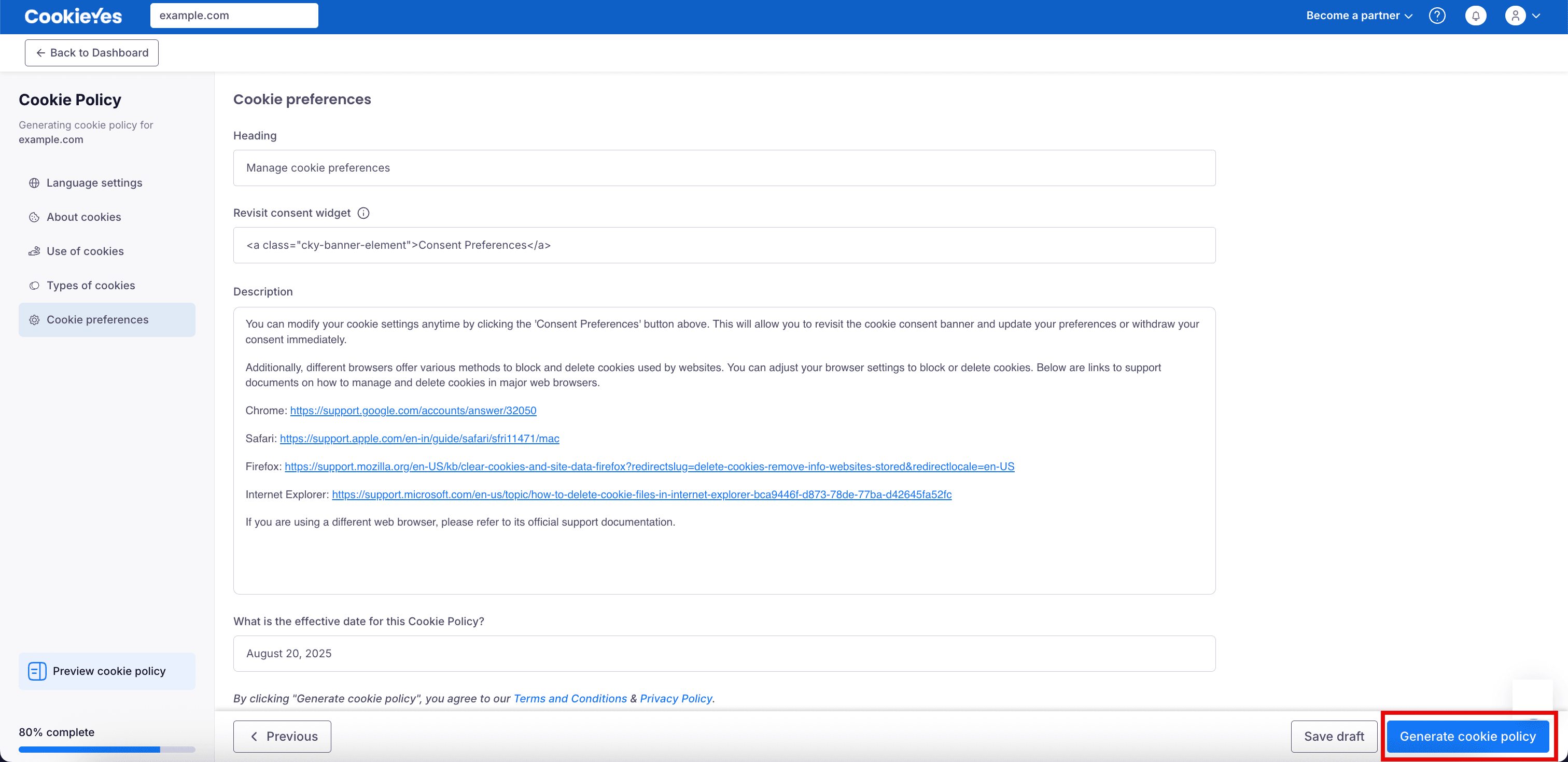
Heading
Use the Heading field to title this section. The default text is “Manage cookie preferences”, but you can update it to align with your site's tone or user expectations.
Revisit consent widget code
This section includes a pre-generated HTML snippet that enables users to reopen the consent banner after initial interaction.
Description
The Description box explains how users can manage their cookie settings. It also includes helpful links to official browser support pages for managing or deleting cookies. You can customise this description to include additional browser types, site-specific instructions or translations, depending on your audience.
Set the effective date
This is the Effective Date of your cookie policy. By default, it shows the current date, but you may change it if needed. This date indicates when your cookie policy comes into effect.
Finalise or save your policy
Click Generate cookie policy to complete the process and publish the cookie policy, or click Save draft if you want to continue editing later without publishing.
Step 7: Generate and add the cookie policy to your website
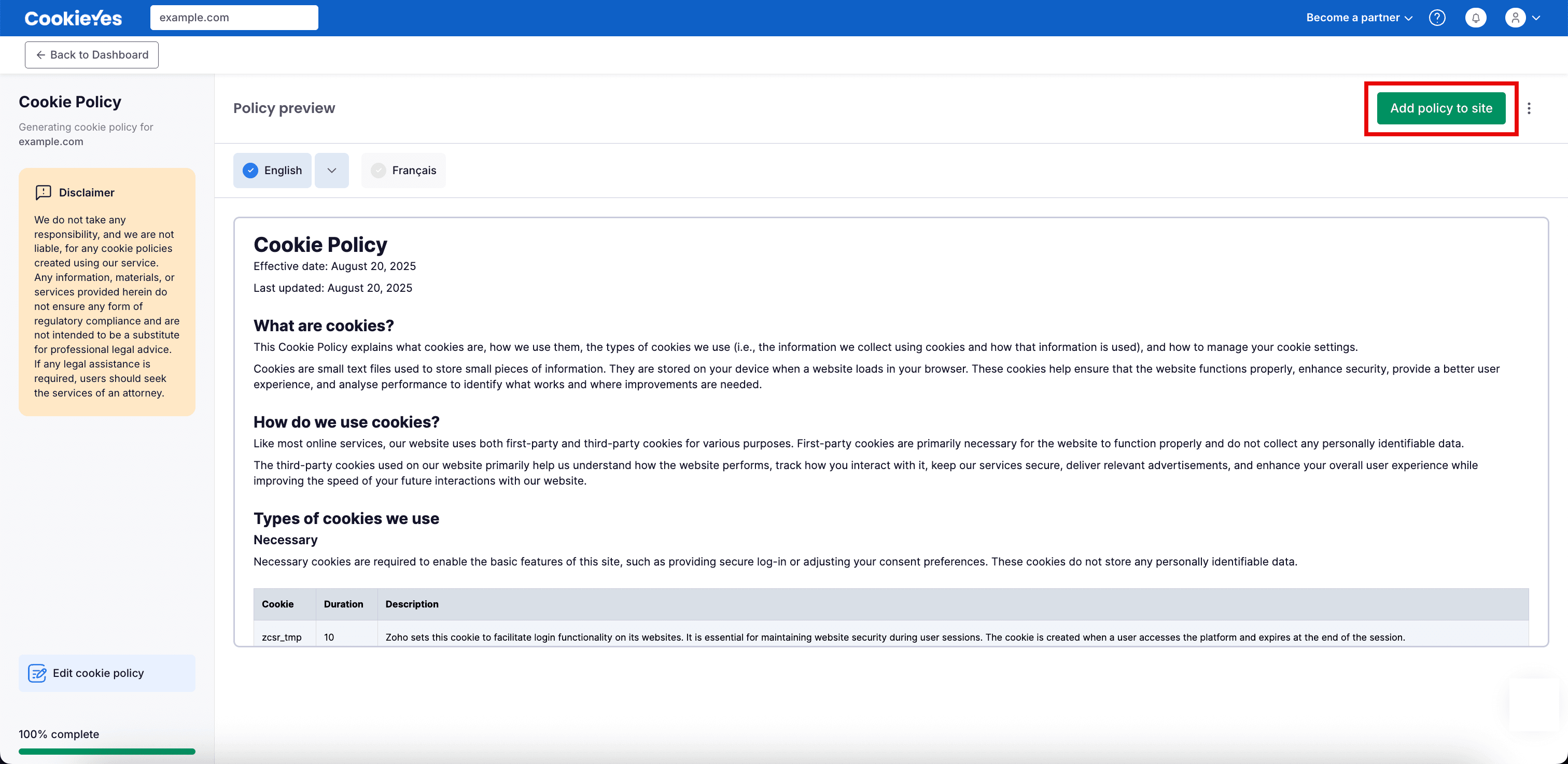
Review the generated cookie policy preview in your selected language(s). When you're ready, click Add policy to site in the top-right corner.
Add the policy to your site
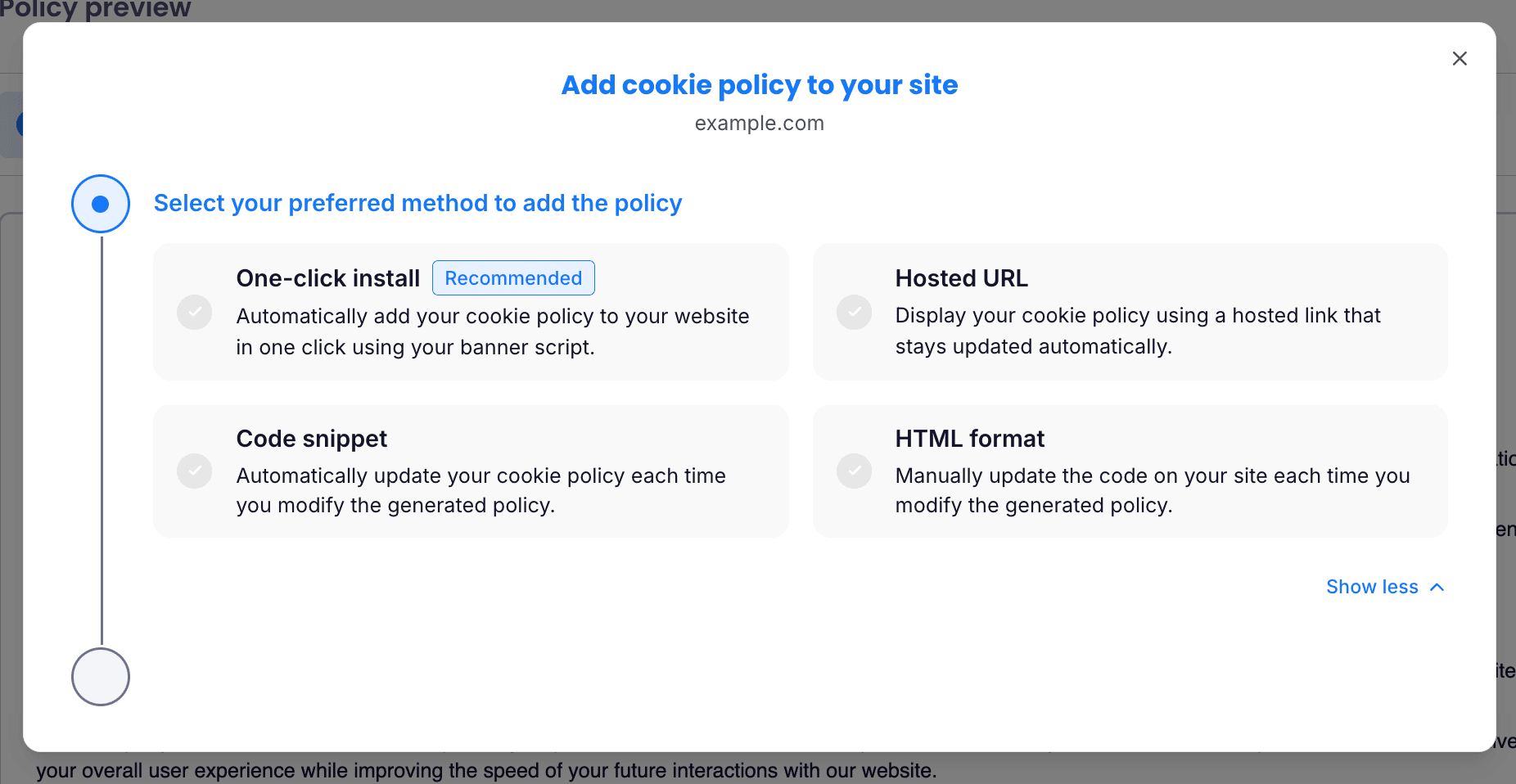
After clicking Add policy to site, a modal window will appear prompting you to choose a method to embed the policy.
You have four options. Choose the method that best suits your website setup.
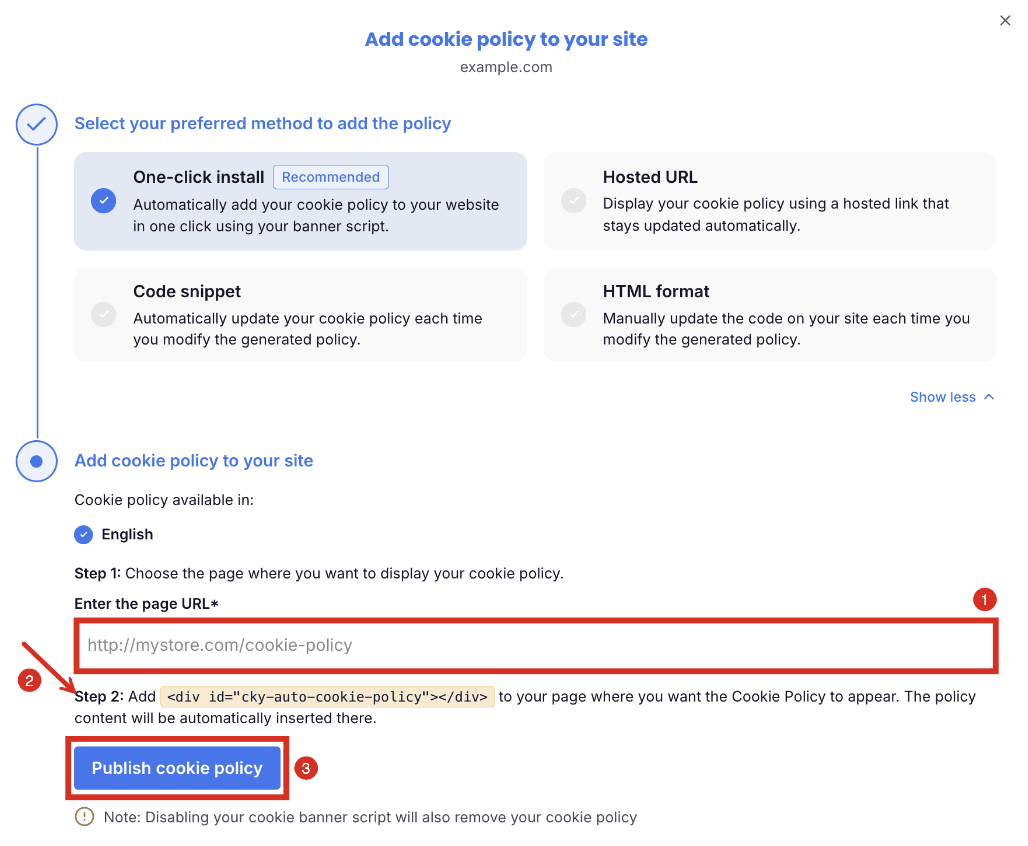
Option 1: One-click install
Add your cookie policy automatically to your website with just one click via the cookie banner script.
Steps:
- Provide the URL of the page where you want to display the cookie policy. For example, if you're using WordPress, create a page for your cookie policy, copy its URL, and paste it in the Enter the page URL field.
- Paste
<div id="cky-auto-cookie-policy"></div> into the page where you want the cookie policy to appear. - Click Publish cookie policy in the CookieYes web app. You can now preview your cookie policy to see the final result.
Your CookieYes banner must be enabled on your website for one-click install to display your cookie policy.
One-click install is available only on the Basic, Pro, and Ultimate plans.
Option 2: Hosted URL
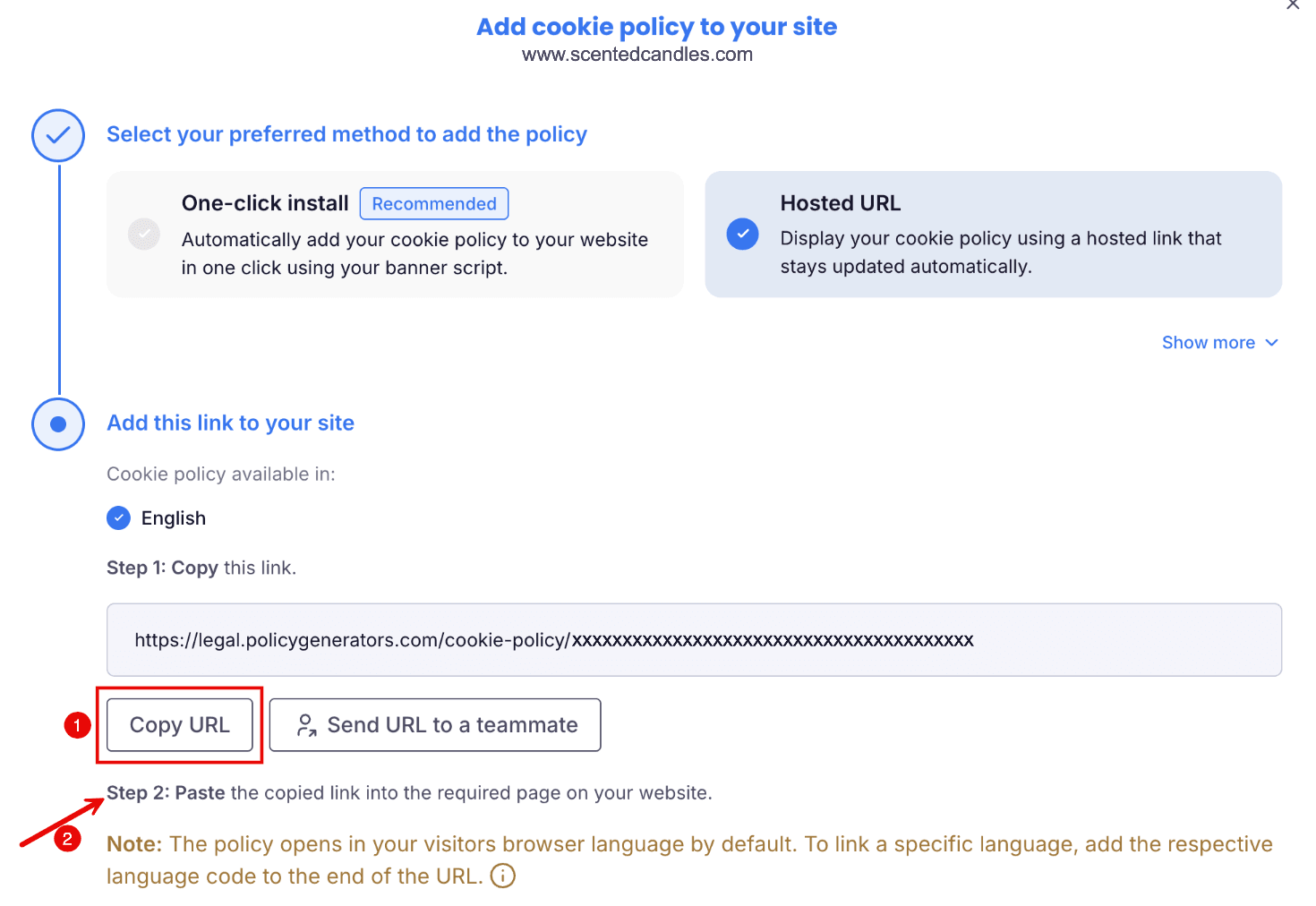
Select Hosted URL to display your cookie policy through a hosted link that updates automatically.
Steps:
- Click Copy URL.
- Paste the link on the page where you want your cookie policy to appear.
The policy displays in each visitor's browser language by default. To link to a specific language, add its language code to the end of the URL.
For example, add /fr for French:
https://legal.policygenerators.com/cookie-policy/xxxxxxxxxxxxxxxxx/fr
Tip
Click Send URL to a teammate to share the link with whoever manages your website content.
Option 3: Code snippet
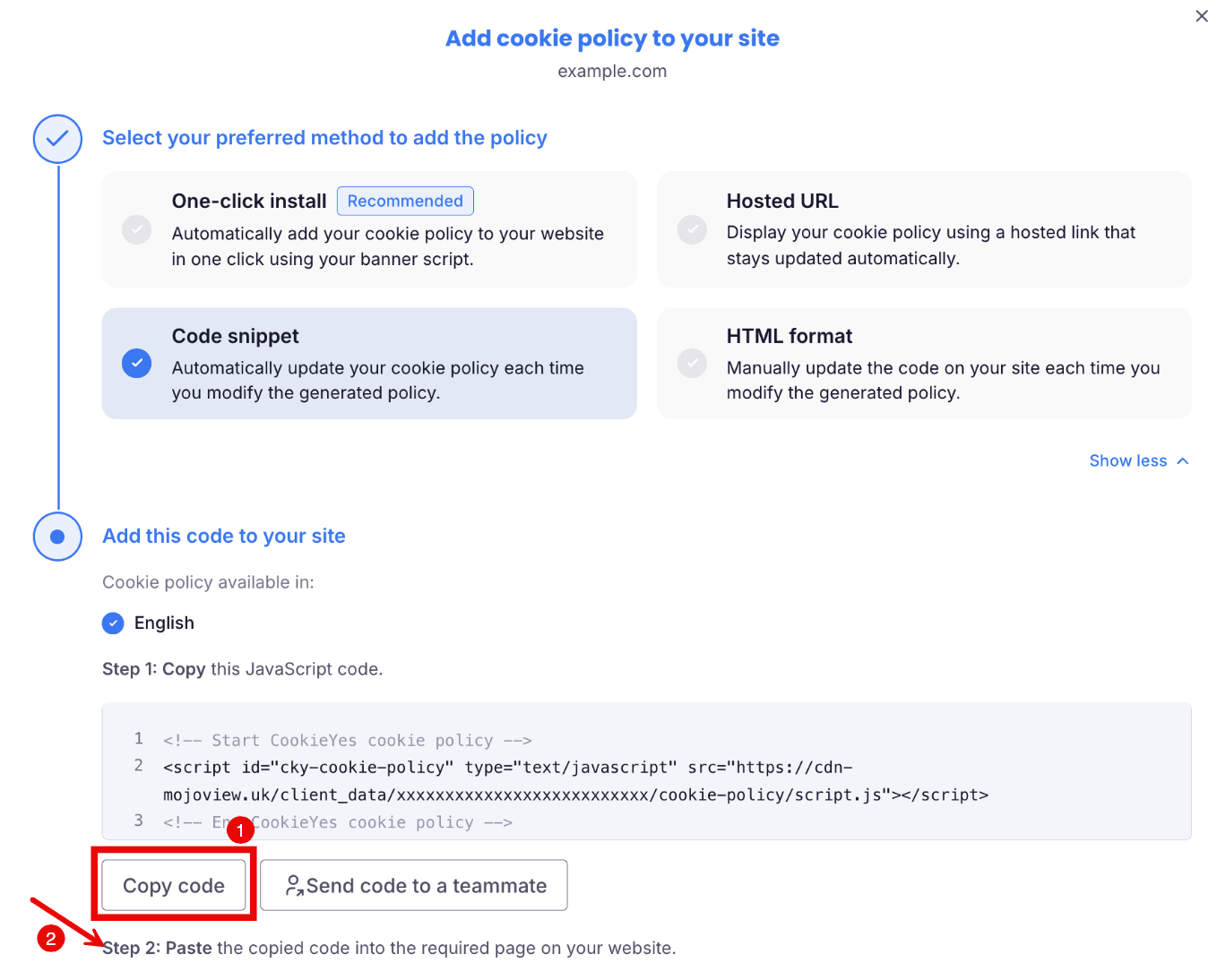
Select Code snippet to keep your cookie policy updated automatically whenever you make changes in CookieYes.
Steps:
- Click Copy code to copy the JavaScript snippet provided.
- Paste the code into the required section of your website’s HTML.
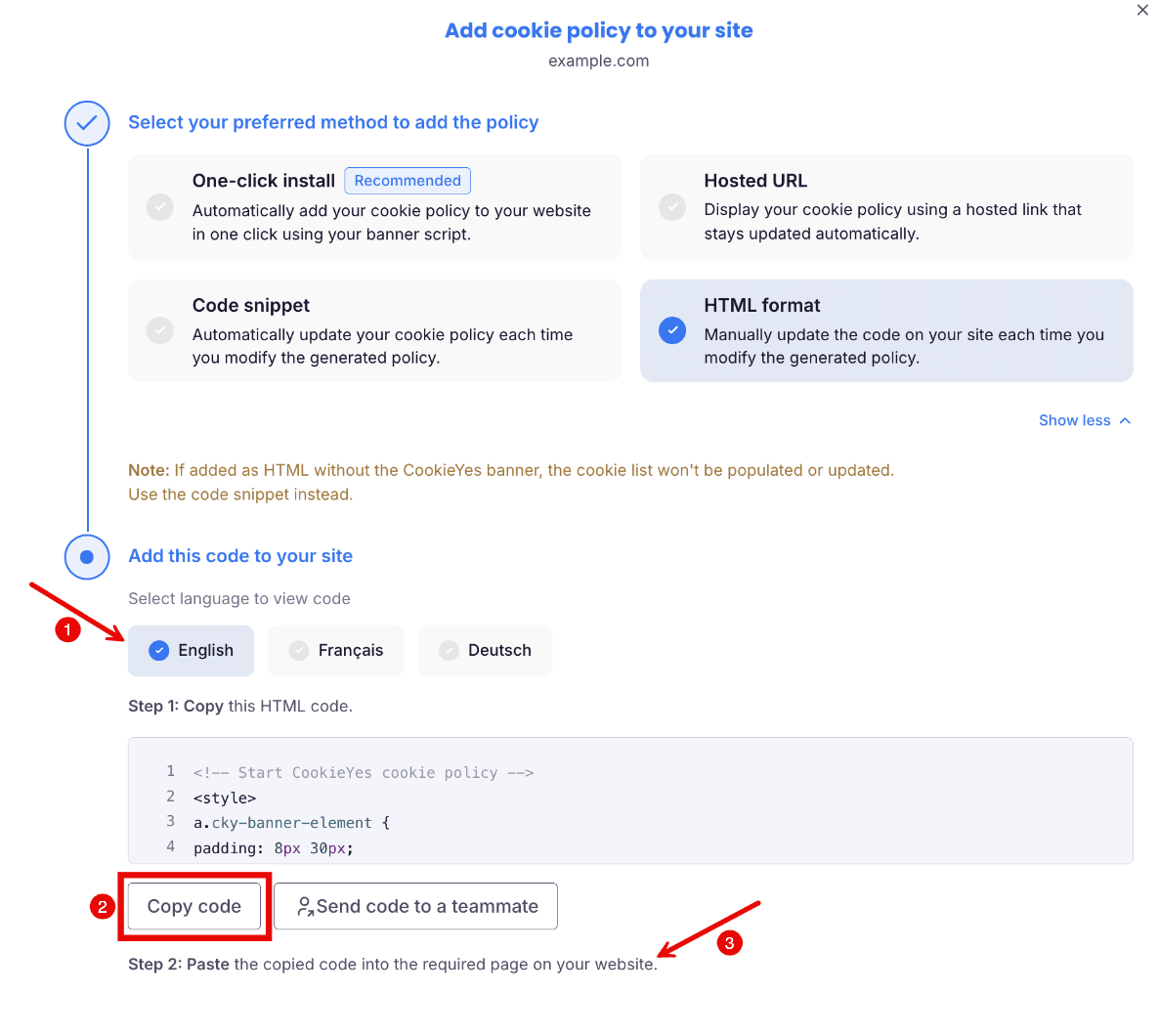
Use this option if you prefer to manually update the website every time you modify the cookie policy.
Steps:
- Select the language.
- Click the Copy code to copy the generated HTML code.
- Paste it into the desired location on your site.
Note
Use the Code snippet instead of HTML format if your website doesn't have the CookieYes banner installed, as the cookie list won't populate or update without it.
Use the Send code to a teammate option if someone else manages your website content.
Conclusion
You've generated, published and added your cookie policy to your website. Your visitors can now see how your site uses cookies, which supports your compliance with privacy laws such as the GDPR and CCPA.