Overview
When performing a cookie scan in CookieYes, some cookies may not be categorised. This can happen if the cookies are not identified in CookieYes’s database or if they are custom cookies set by the website. Categorising these cookies correctly is crucial for compliance with privacy regulations such as the GDPR and CCPA. The Cookie Manager tab will list all cookies detected on your website, along with detailed information for each one. From this tab, you can move cookies between categories, add descriptions for each cookie, edit their settings and configure automatic cookie blocking settings for services.
How to Identify Uncategorised Cookies
To identify uncategorised cookies on your website, follow these steps:
- Perform a Cookie Scan
Start a new cookie scan from the Cookie Manager to detect all currently active cookies on your website. - Review Detected Cookies
Once the scan is complete, go to the Cookie Manager tab to find the full list of detected cookies organised by category. - Check the Scan Report
The cookie scan report lists all cookies identified during the scan. Use it to review and verify the detection results. - Locate Uncategorised Cookies
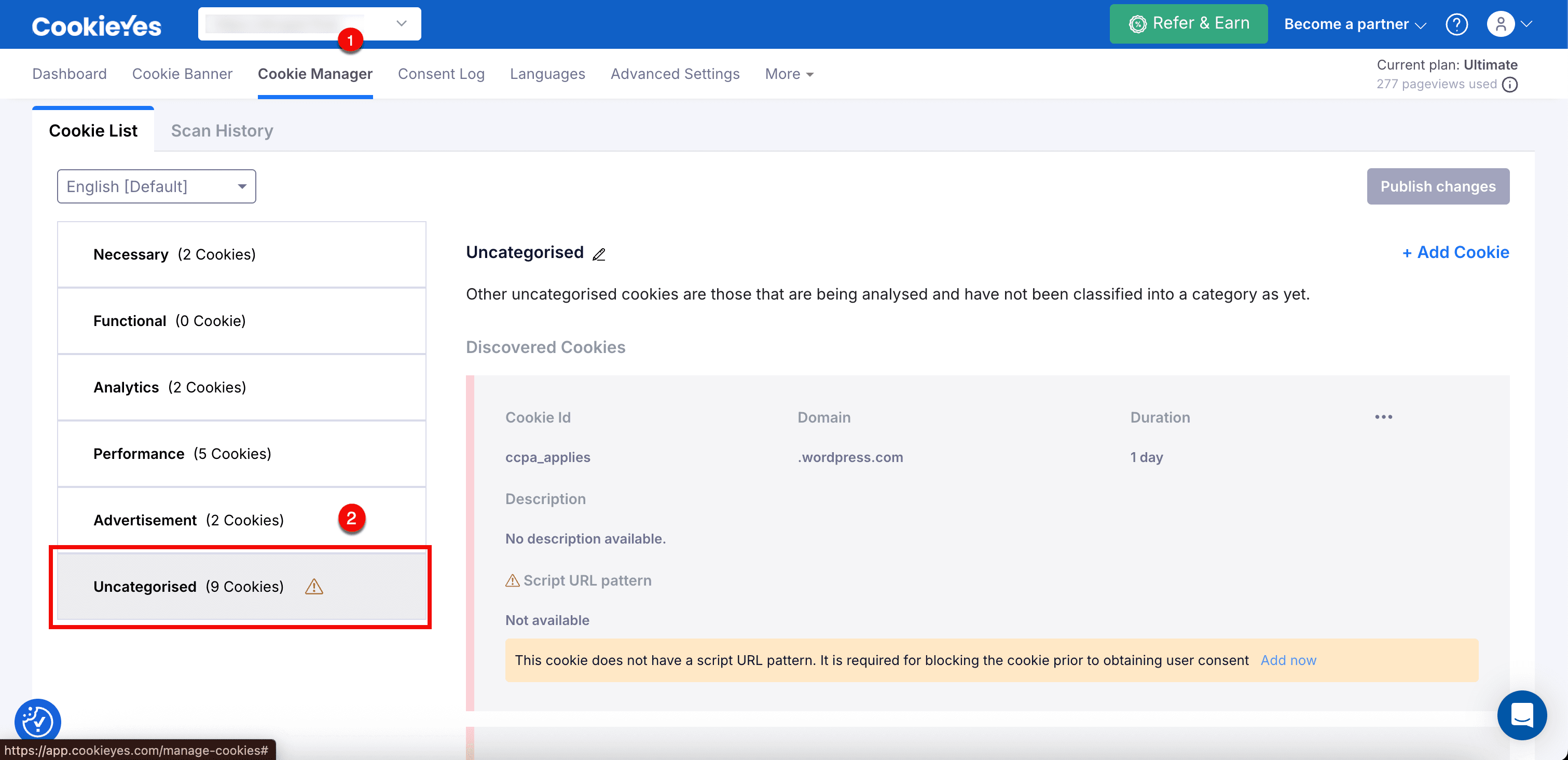
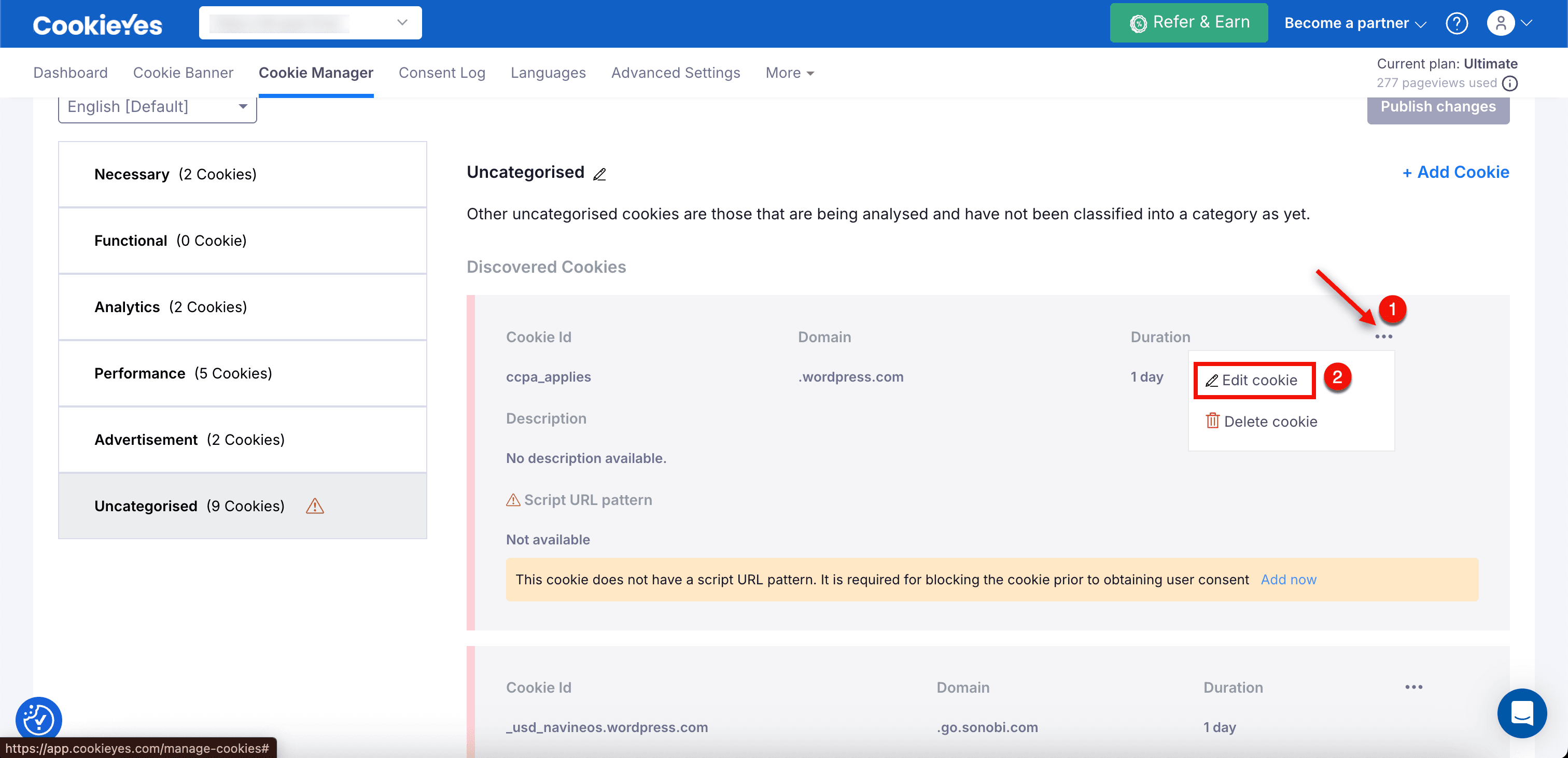
In the Cookie List, look for the cookies listed under the Uncategorised category. These cookies don’t belong to any specific category yet and may need manual classification.
Classify Uncategorised Cookies
Before categorising an uncategorised cookie, it is important to evaluate its purpose and origin. This ensures accurate classification for compliance and better user transparency.
Step 1: Understand the Cookie’s Purpose
To correctly categorise a cookie, the cookie must first have its purpose determined: what it does, why it exists and which service or script created it. The following are some methods for identifying the purpose of a cookie, enabling accurate classification.
1. Check Website Scripts and Tag Manager
Start by inspecting the website’s source code or the tag manager to identify the scripts or third-party tags responsible for setting cookies. Many cookies use naming conventions that indicate their source, which can help in identifying their function. For example, cookies such as _ga, _gid and _gat are typically set by Google Analytics; _hjid and _hjSessionUser_ are associated with Hotjar and __hstc and __hs_opt_out are set by HubSpot.
2. Refer to the Official Vendor Documentation
Most third-party service providers will have detailed documentation about the cookies their services set. This documentation usually includes the cookie name, a brief description of its function, its purpose (such as user tracking, session management or personalisation), its duration and storage method (session or persistent) and whether it requires user consent.
To find this information, go to the official website of the tool and services (e.g., Meta for Facebook Pixel, LinkedIn, HubSpot) and search for terms such as “cookies,” “tracking” or “privacy policy.”
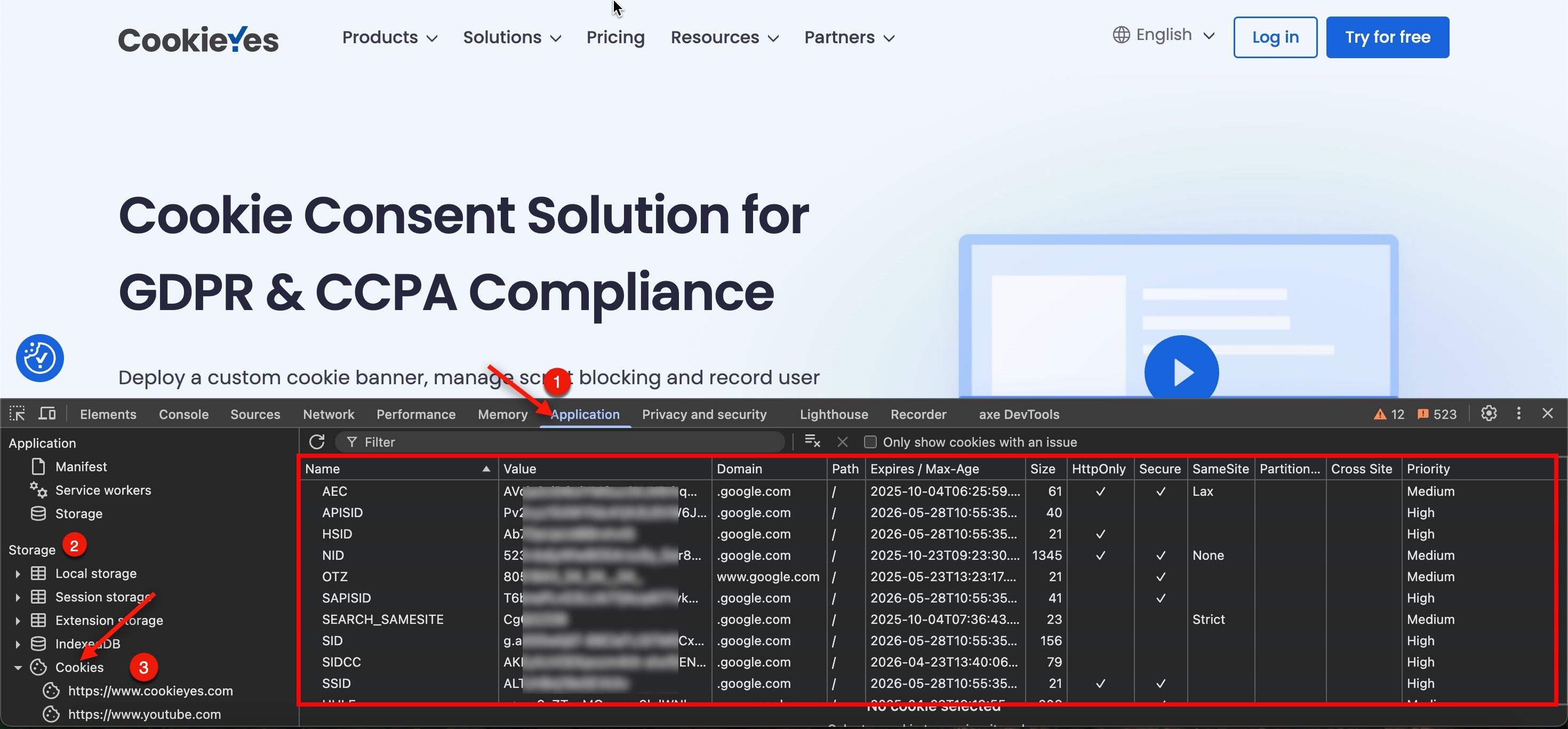
Browser DevTools can help trace cookies directly in the browser environment. To access this:
- Open your website in a Chromium-based browser or Firefox.
- Open Developer Tools (right-click → Inspect).
- Navigate to the Application tab > Storage and select Cookies.
- Choose the site domain to view all cookies associated with the current session.
The panel will show critical cookie attributes, including the cookie name, value, domain, path, expiration time and flags such as Secure and HTTP-Only. Reviewing this data can help determine if a cookie is implemented for managing sessions, user preferences, behavioural tracking or other functions. Combined with insights from vendor documentation such as cookie purpose, duration and consent requirements, this approach ensures precision for direct cookie categorisation outputs.
4. Search Online Cookie Databases
Use public cookie databases and scan tools to find more information about the unknown cookies. These resources offer useful information on commonly used cookies, including the service or script that originated them, their functional purpose, and a recommended category. This approach is particularly helpful for classifying third-party cookies. If a cookie does not appear in these resources, it is most likely a custom cookie created by internal scripts or services. In this case, you may need to investigate further with the development team.
5. Consult the Development or Marketing Teams
If the cookie seems to be custom and is not recognised by public cookie databases or developer documentation, consult the developers or product owners who implemented the relevant functionality. They can provide information on the cookie’s origin and its purpose, especially if it was added as a custom feature or integration. Reviewing internal documentation, code comments, or technical specifications can also help clarify its behaviour. It is crucial to determine whether the cookie is necessary for the website’s functionality.
Step 2: Assign an Appropriate Category
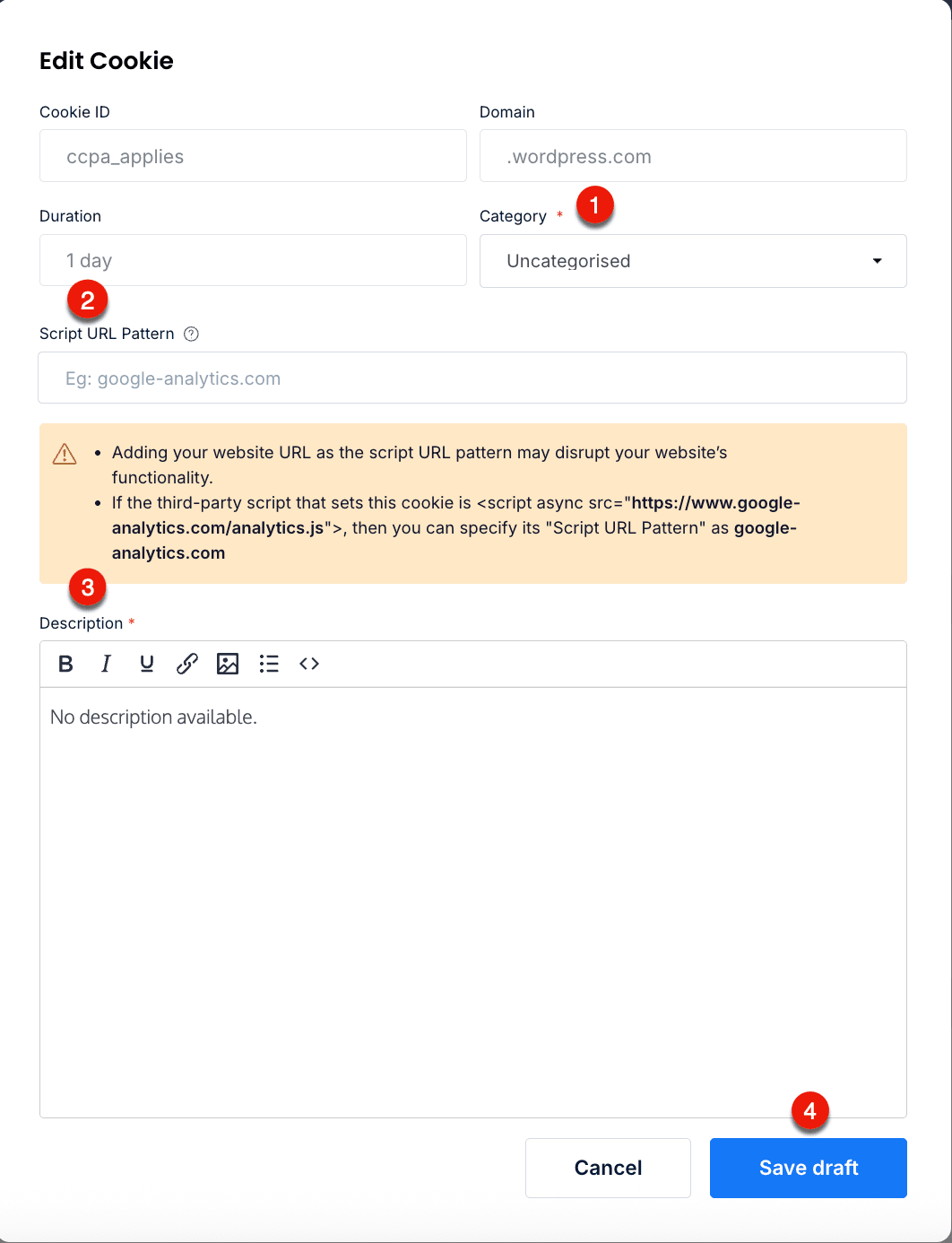
Based on its type and function, classify the cookie into one of the following categories:
- Necessary: Necessary cookies are crucial for the proper functioning of the website. They ensure basic functionalities and enhance the website’s security features, all while maintaining user anonymity.
- Advertisement: Advertisement cookies deliver relevant ads and targeted marketing campaigns to visitors. These cookies track user activities across websites, collecting information to personalise and optimise ad content.
- Analytics: Analytical cookies are used to understand how visitors interact with the website. These cookies help provide information on metrics such as the number of visitors, bounce rate, traffic source, etc.
- Functional: Functional cookies contribute to specific functionalities on the website. They facilitate actions like content sharing on social media platforms, collecting feedback, and integrating other third-party features.
- Performance: Performance cookies are utilised to comprehend and analyse the website’s key performance indicators. This analysis helps improve and deliver a superior user experience by focusing on site speed, responsiveness, and overall performance.
How to Add the Categorised Cookie
Best Practices
- Regularly Review Cookie Scans
Perform cookie scans periodically on your website to identify newly added or modified cookies. Third-party tools and services update or change the cookies they set without prior notice. Regular scans help identify newly introduced cookies promptly, remove expired or deprecated cookies, and maintain up-to-date cookie categorisation. - Consult Developers
Work closely with the development or technical team to identify unknown cookies and custom cookies during the scan. The technical team can help trace the origin of custom scripts and cookies and clarify their purpose. - Update the Privacy and Cookie Policy
Ensure that your website’s privacy and cookie policy accurately reflect the categorised cookies list in CookieYes. Accurate documentation builds transparency and helps maintain regulatory compliance. You can include a Cookie Audit Table on your website to make this easier. CookieYes provides an option to generate and embed this table, which lists all active cookies detected on your site, along with its details.
This audit table can be easily inserted into your privacy or cookie policy by copying the embed code from the CookieYes Banner – Content section and pasting it into the relevant page on your website. The audit table updates automatically whenever your cookie scan results are updated, helping you maintain ongoing compliance with minimal effort.
Conclusion
Properly categorising and adding cookies ensures transparency and compliance with privacy regulations such as GDPR and CCPA. By following the guide, website administrators can manage cookies effectively and provide users with clear information about data collection and usage. Regular monitoring and updates help maintain compliance and improve user trust.