This guide will walk you through how you can generate and add a cookie policy page on your HubSpot website. A cookie policy is a document that provides detailed disclosure about the types of cookies used on a website and their purposes. It can help your website meet transparency requirements under privacy laws such as the GDPR and the ePrivacy Directive.
Prerequisites
- A CookieYes account (if you don't have one, sign up for free).
- Admin access to your HubSpot website.
Note
After you sign up, you will be directed to the installation screens. You can install the cookie banner to support GDPR compliant for your use of cookies. To create a cookie policy first, skip the installation step and go to the app dashboard.
Generate a Cookie Policy in CookieYes
Step 1: Access the cookie policy generator
- Log in to your CookieYes account.
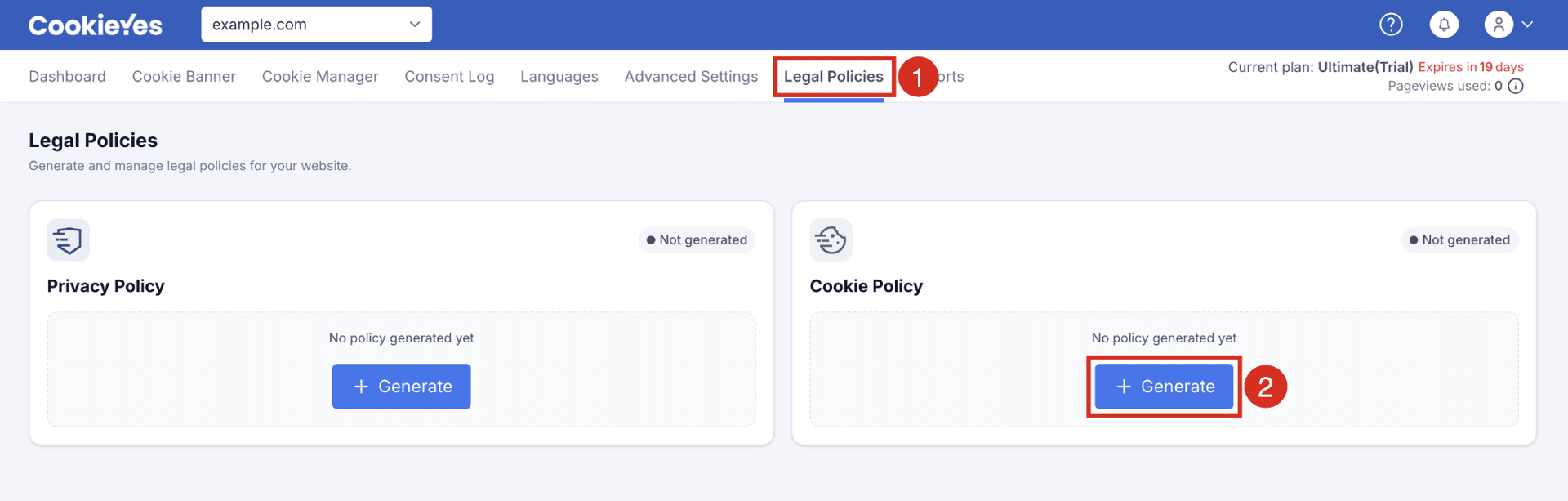
- From the top navigation bar, select Legal Policies.
- From the Cookie Policy section, click + Generate.
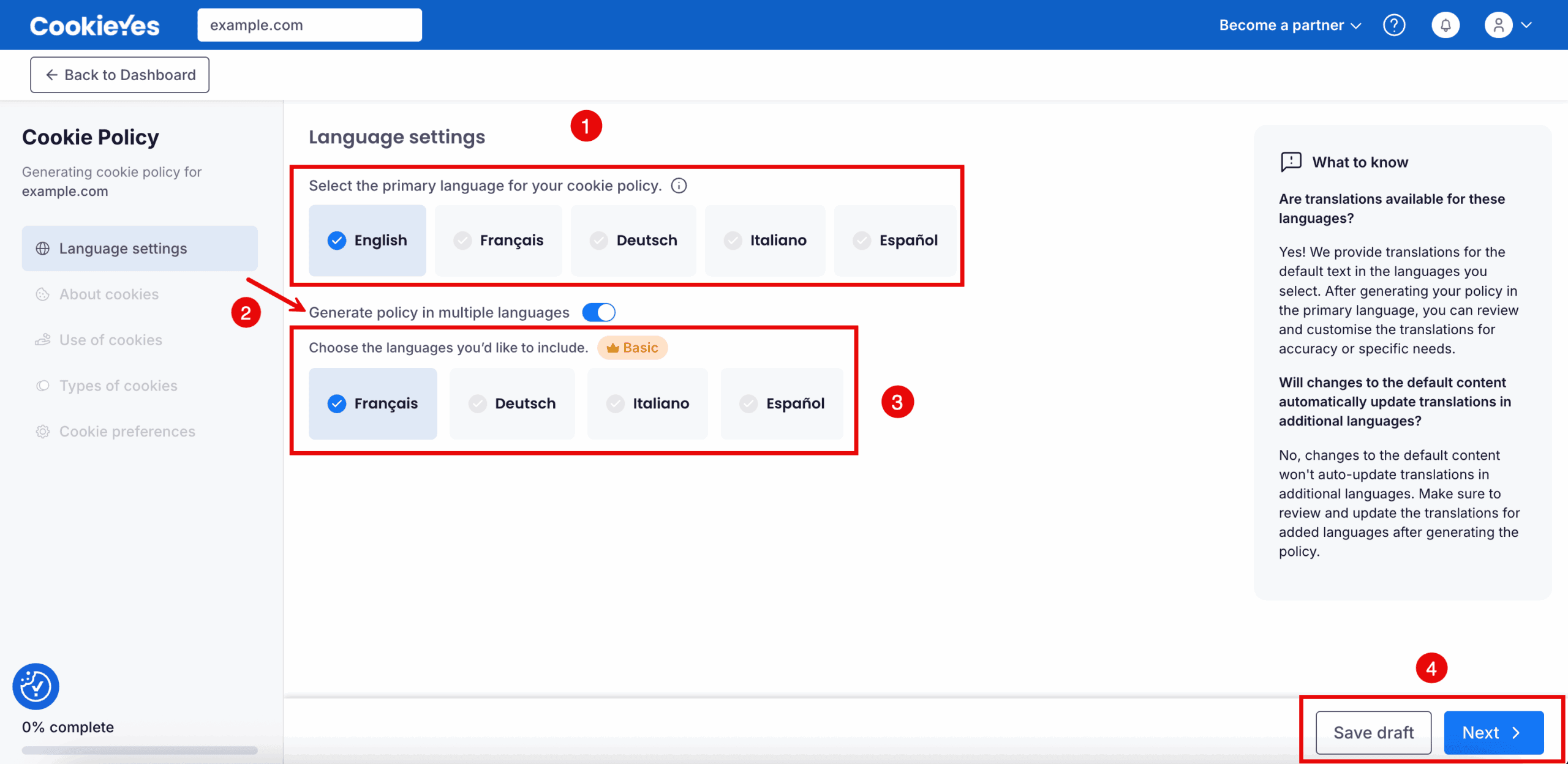
- Select your primary language. The chosen language will be highlighted with a checkmark.
- (Optional) Enable Generate policy in multiple languages to add more languages. This feature is available on Basic, Pro and Ultimate plans.
- Click Save draft to save your progress or Next to continue.
Step 3: Add about cookies details
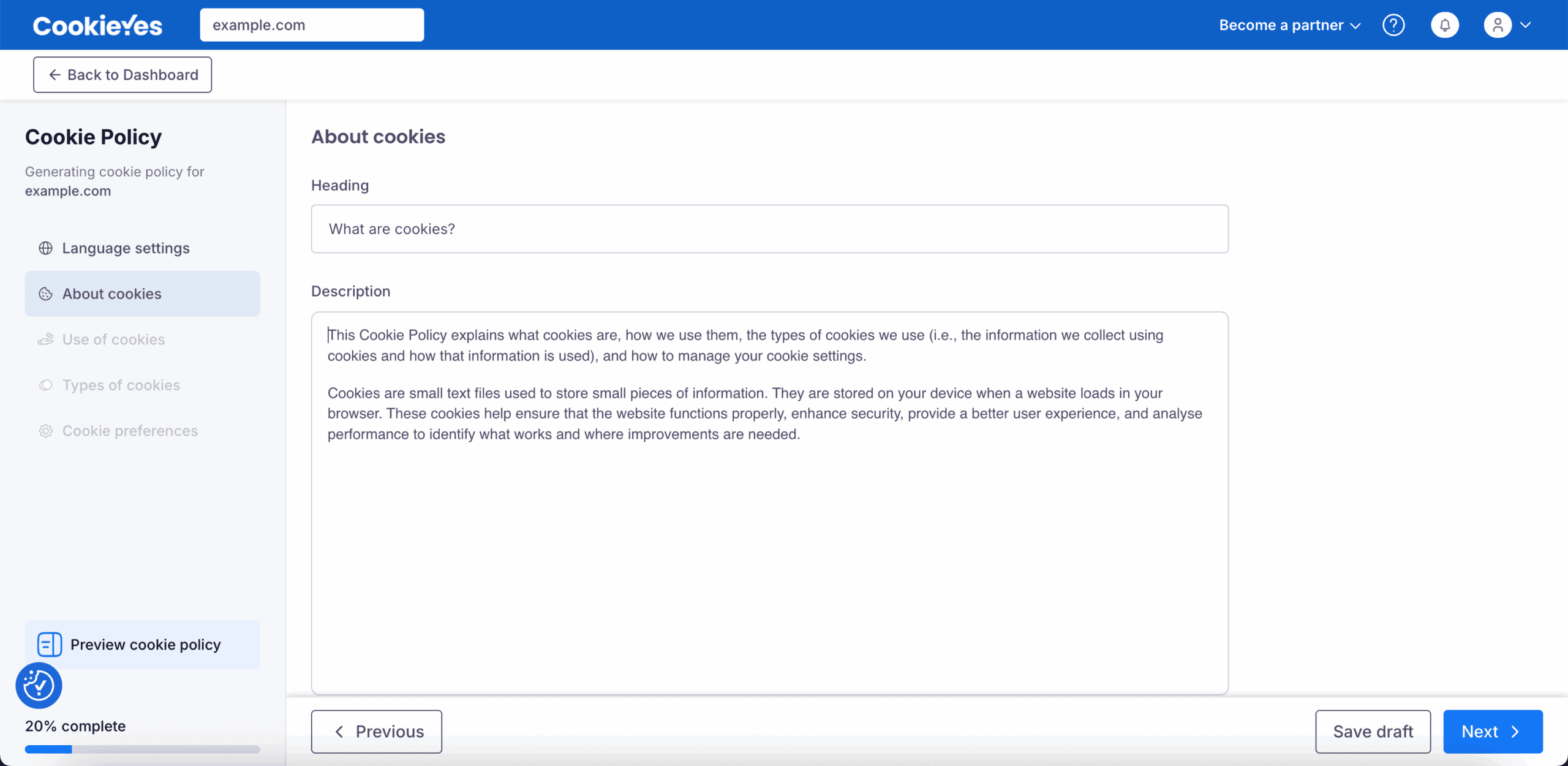
In the About cookies section, edit the heading and description to explain what cookies are and why your website uses them, either by keeping the default text or customising it to better match your website’s practises.
Step 4: Add use of cookies details
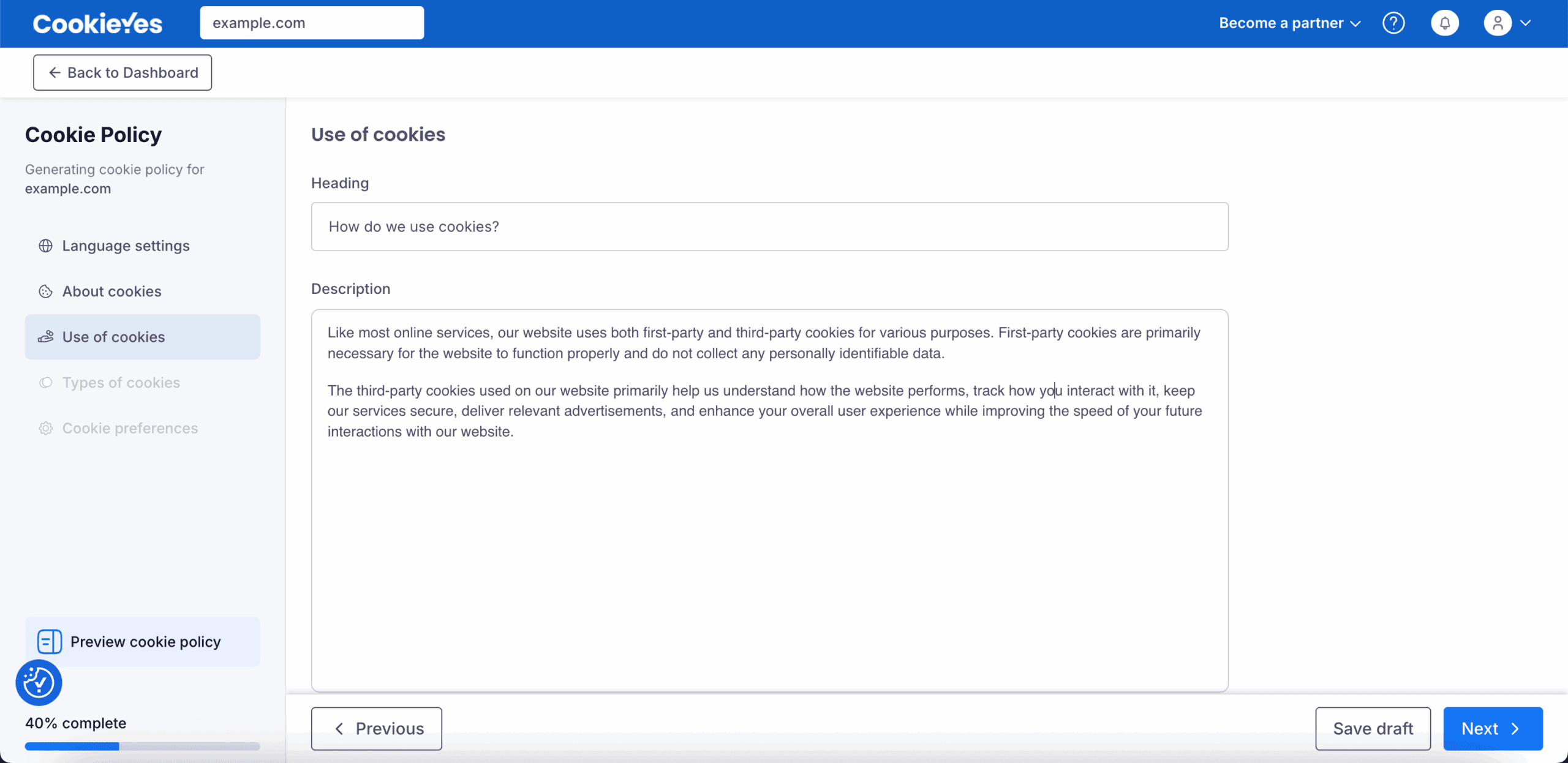
In the Use of Cookies section, describe how your store uses cookies, such as for functionality, analytics, performance, or advertising. You can keep the default text if it is suitable, or update it for accuracy. Once done, use the Preview cookie policy to review the formatting and tone before proceeding.
Step 5: Review and edit types of cookies
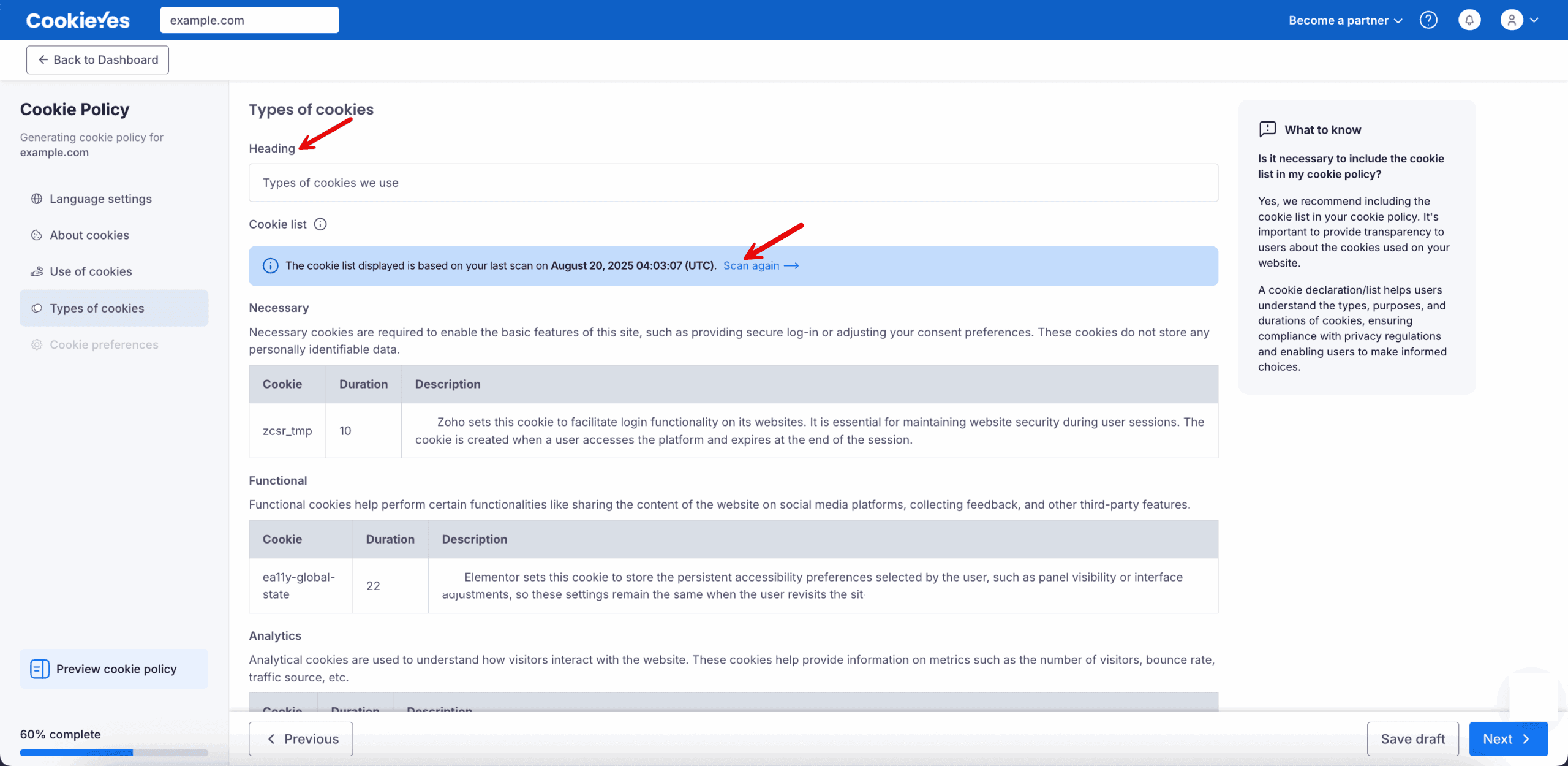
In the Types of Cookies section, you will see a list of cookies from your most recent website scan. If needed, you can refresh the list by clicking Scan again to capture any new cookies. The cookies are organised into categories such as Necessary, Functional, Analytics, Performance and Advertisement. Review each entry carefully to verify the cookie name, duration, and purpose for accuracy.
Step 6: Set cookie preferences and generate the policy
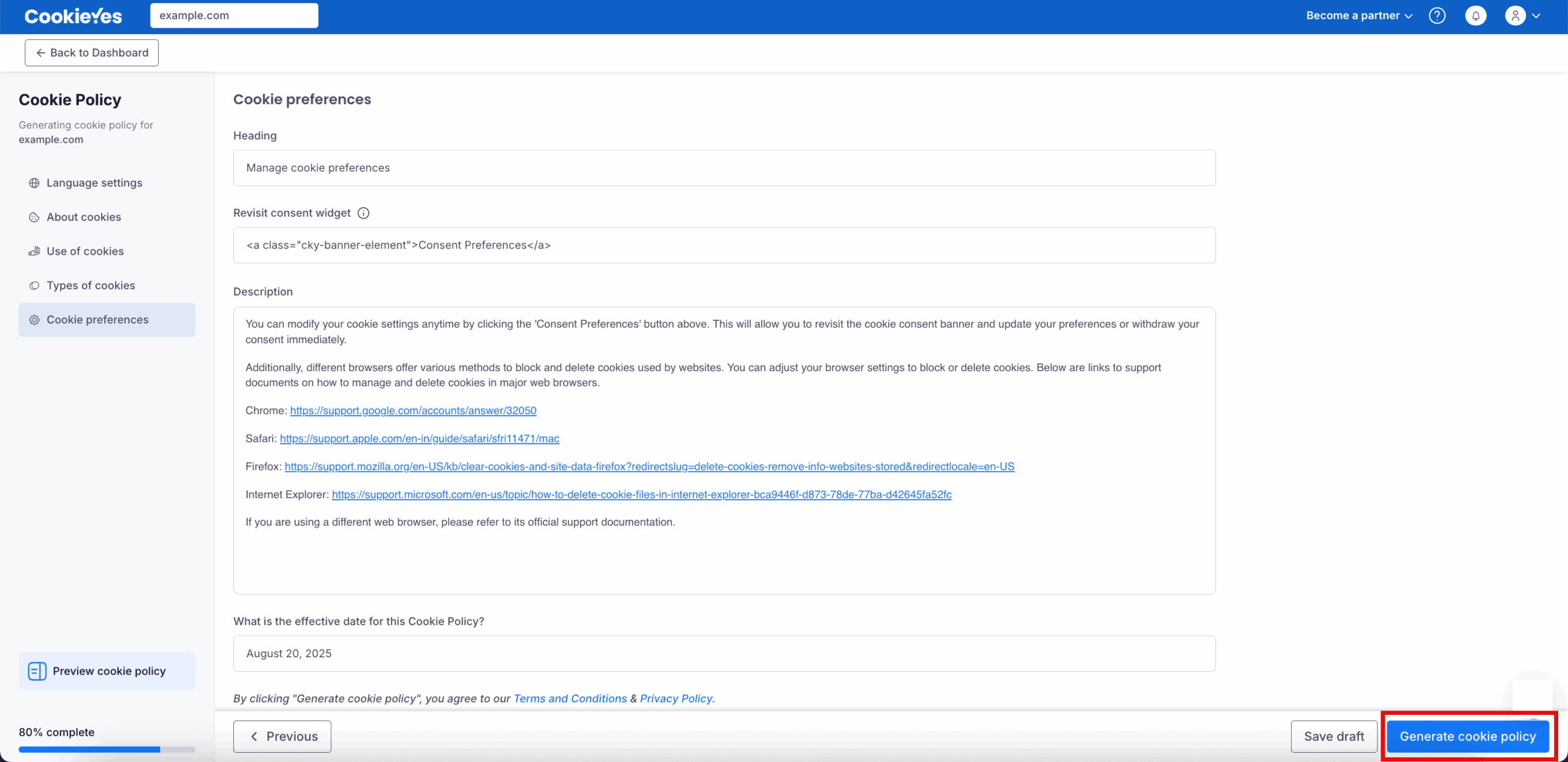
In the Cookie Preferences section, keep the default heading (Manage cookie preferences) and description, or update them with instructions specific to your users. Set the Effective Date for the cookie policy. Preview the policy to verify the details and when confirmed, click Generate cookie policy to generate the policy.
The Revisit consent widget enables your website visitors to manage their cookie preferences. You can remove the code in the field if you don’t want a widget to be displayed.
Add the Cookie Policy to HubSpot
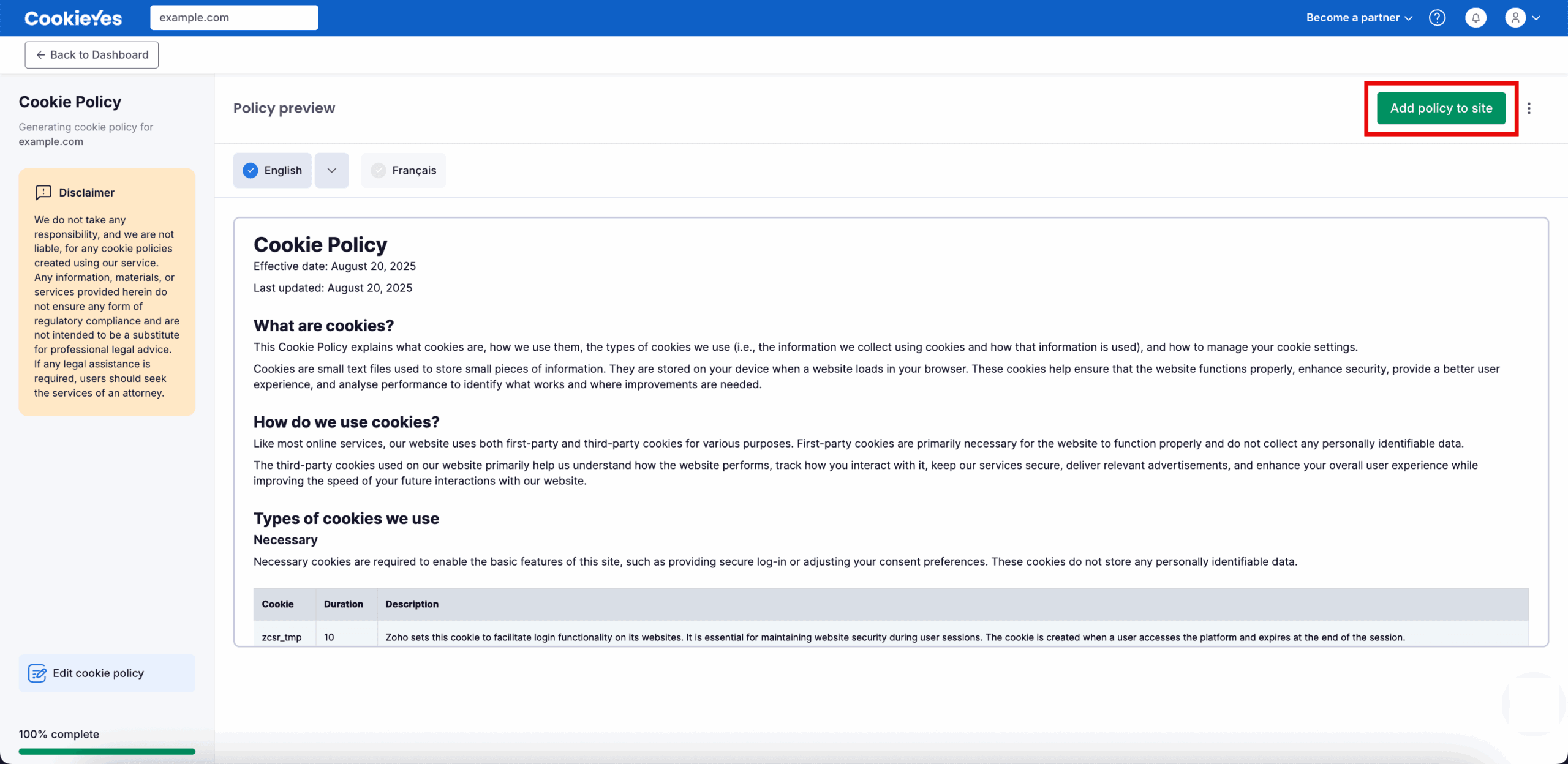
After generating your cookie policy, review the preview in your selected language(s). When ready, click Add policy to site in the top-right corner.
A modal window will appear. Follow the steps below to add your policy:
Step 1: Choose your policy installation method
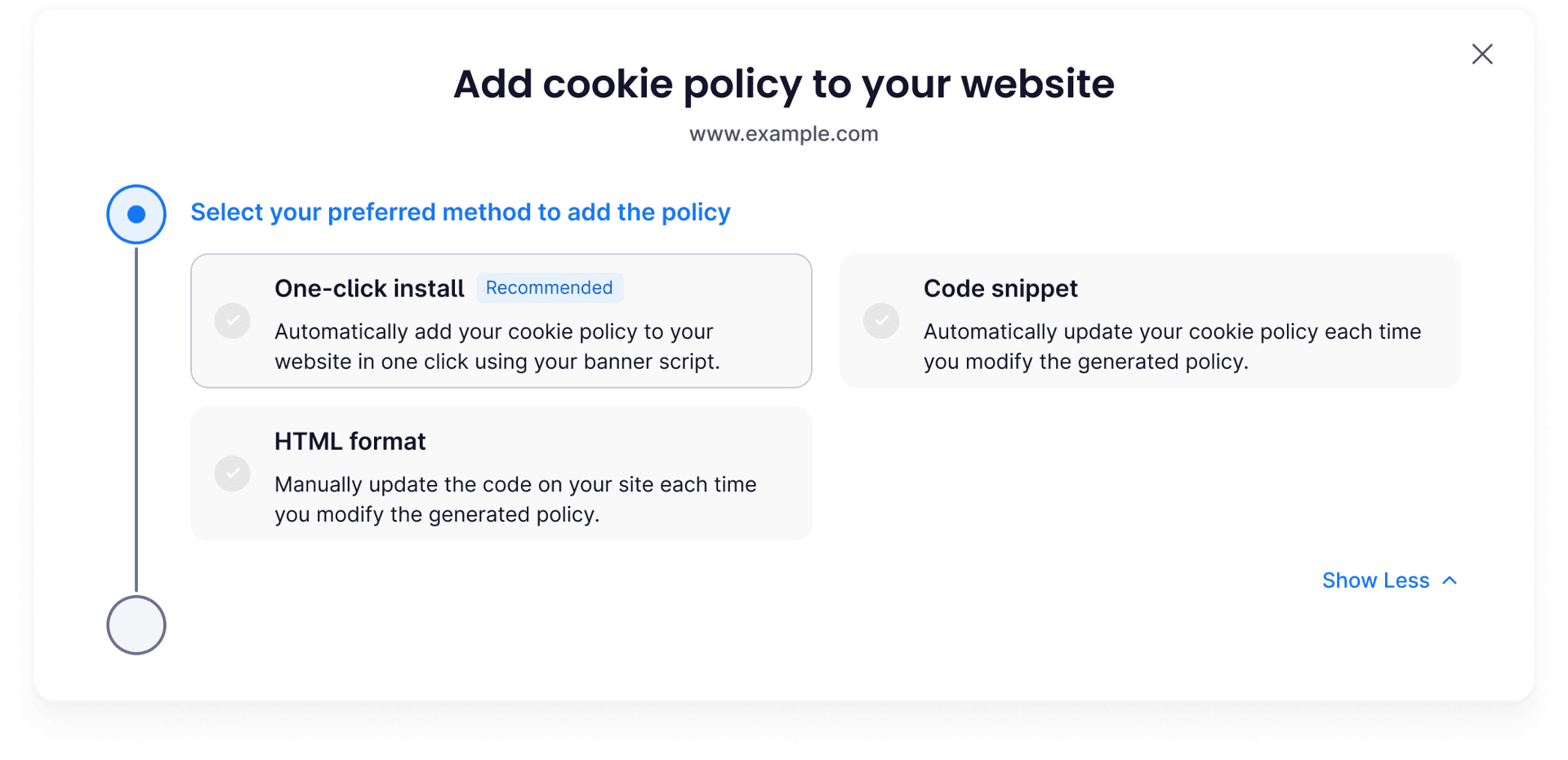
Choose your preferred method for adding the cookie policy to your HubSpot website:
- Option A: One-click install (Recommended): Add your cookie policy in one click using your cookie banner script. It automatically updates the policy whenever changes are made.
- Option B: Code snippet: Keeps your cookie policy automatically updated.
- Option C: HTML format: Requires manual updates whenever the cookie policy changes.
If you chose Option B or C:
- Select your preferred language.
- Click Copy code.
Use the Send code to a teammate option if someone else manages your website content.
Note
If you chose Option A (One-click install), there's no code to copy here. Continue to Step 2.
Step 2: Create a policy page in HubSpot
2.1 Access the page editor
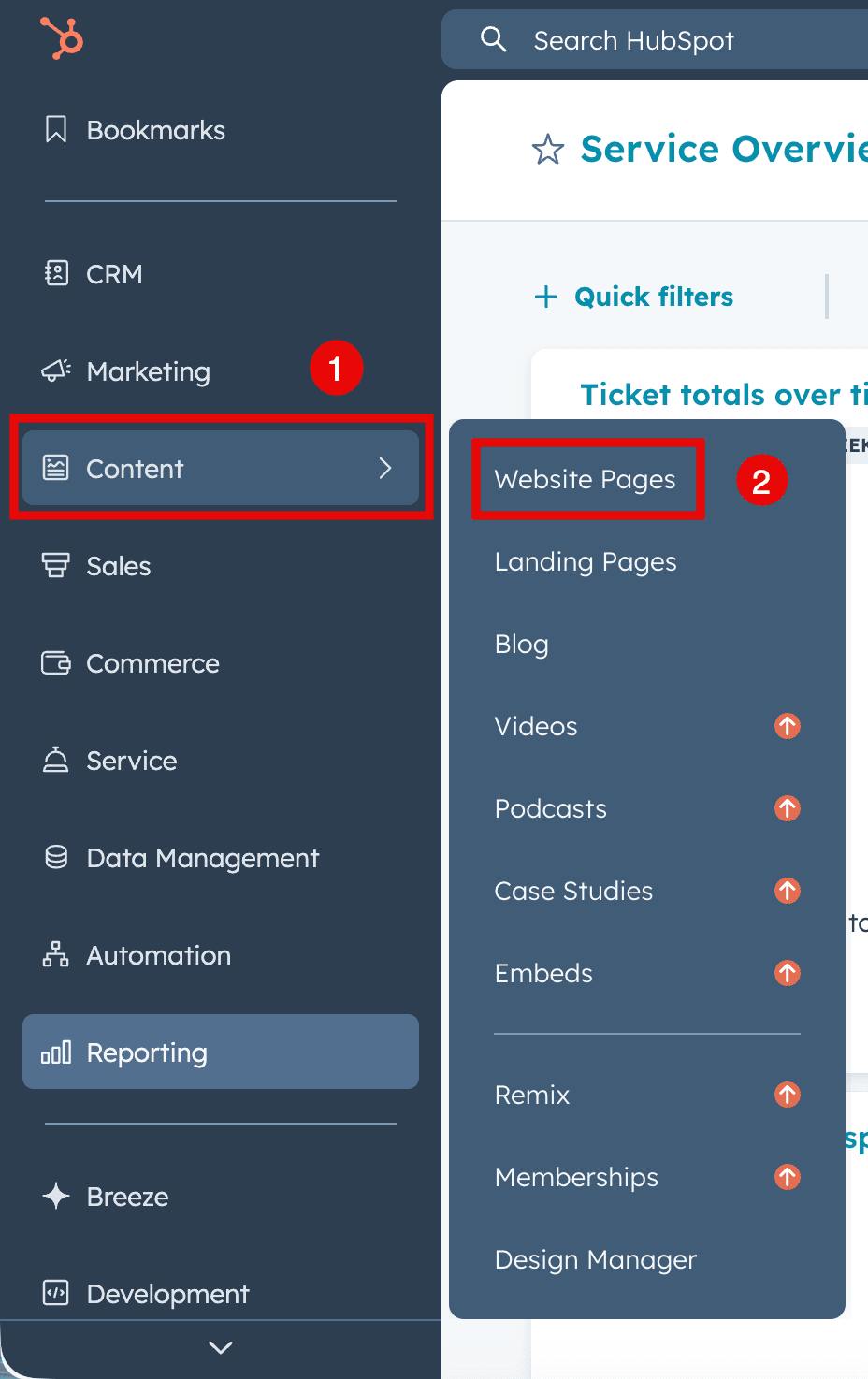
- Log in to your HubSpot account and navigate to your site’s Dashboard.
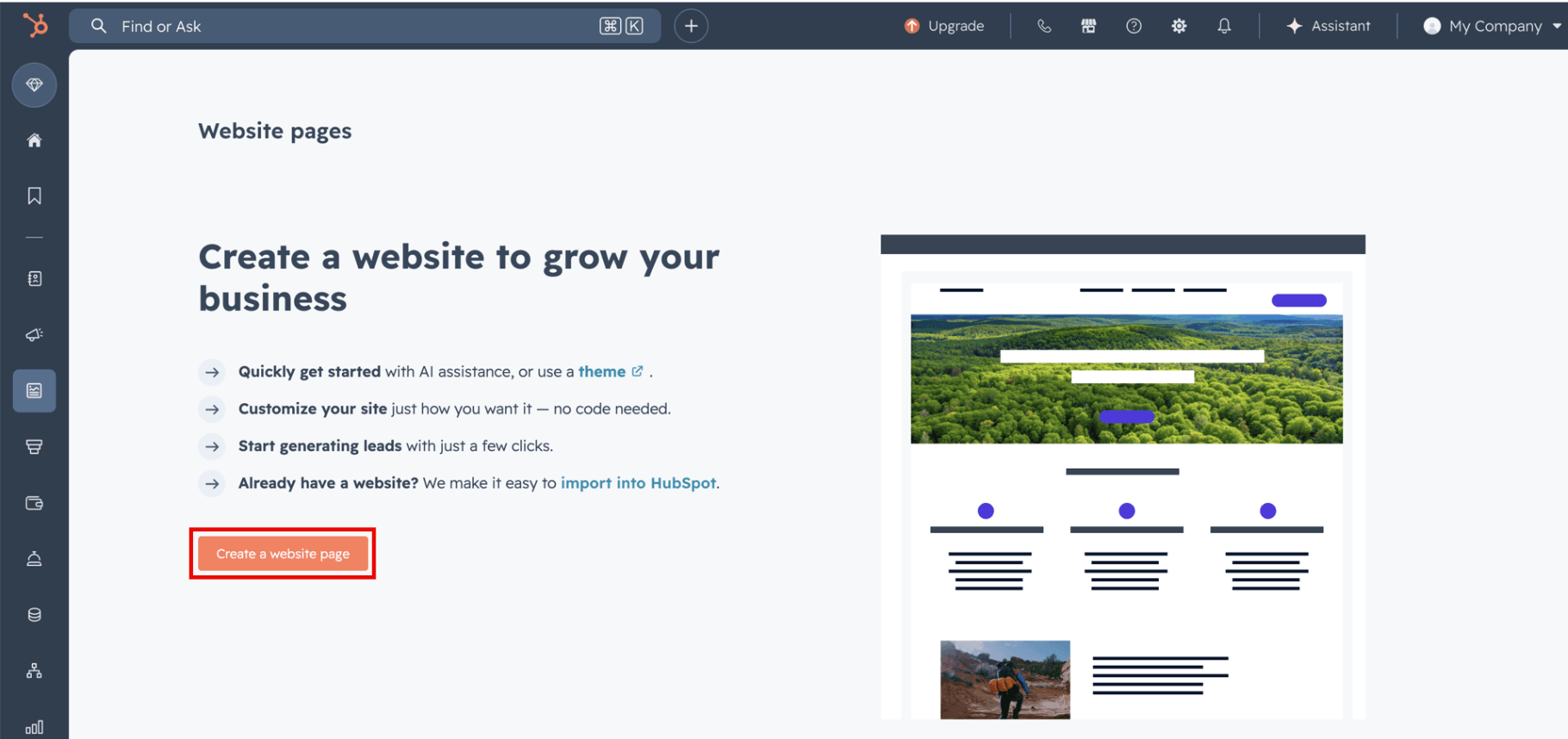
- Navigate to Content > Website Pages.
- Click Create a website page and select the template as Start with blank page.
Tip: Avoid complex templates with multiple modules to keep the policy page clean and readable
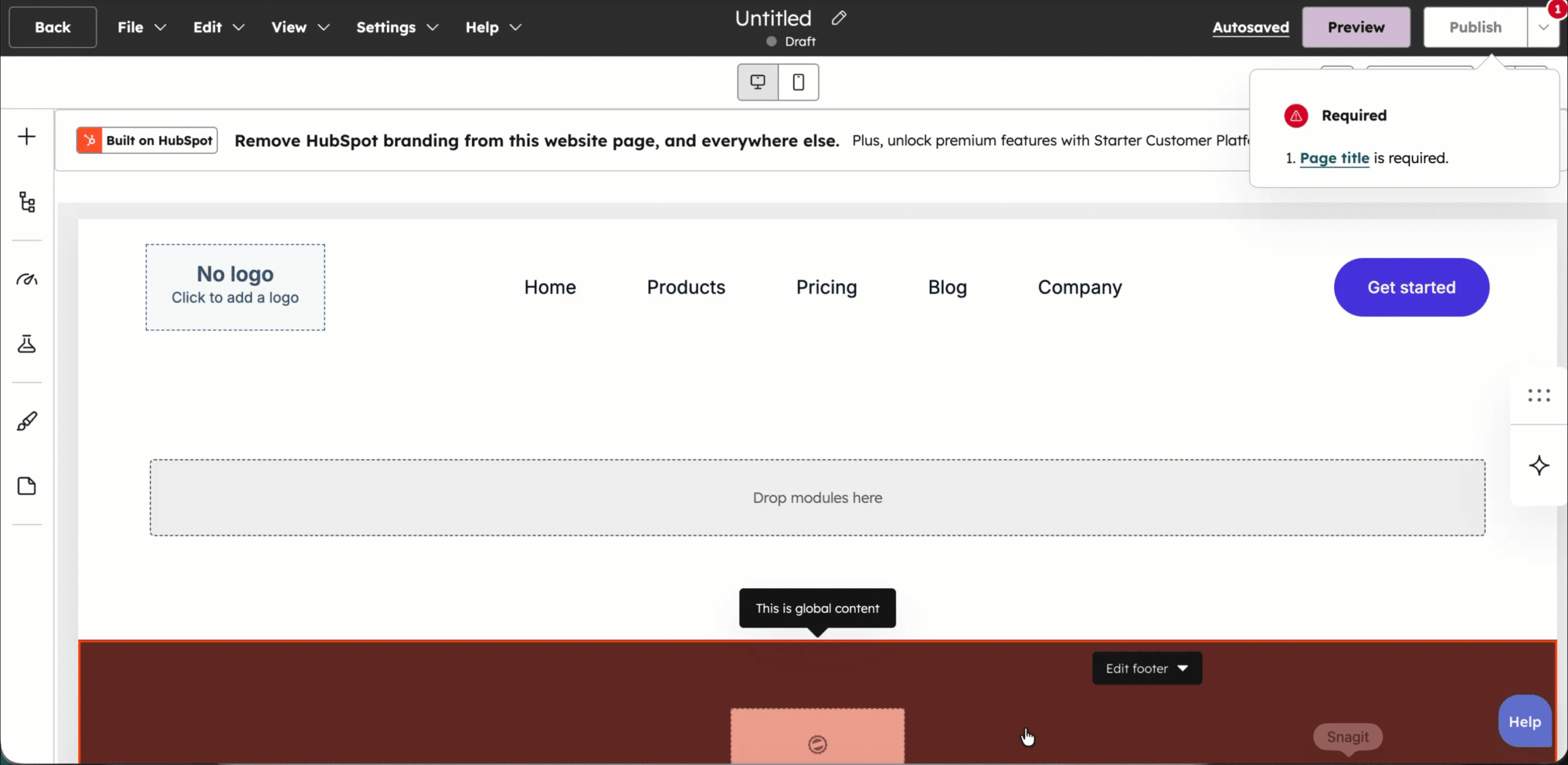
- Click Edit manually.
2.2 Set Page Details
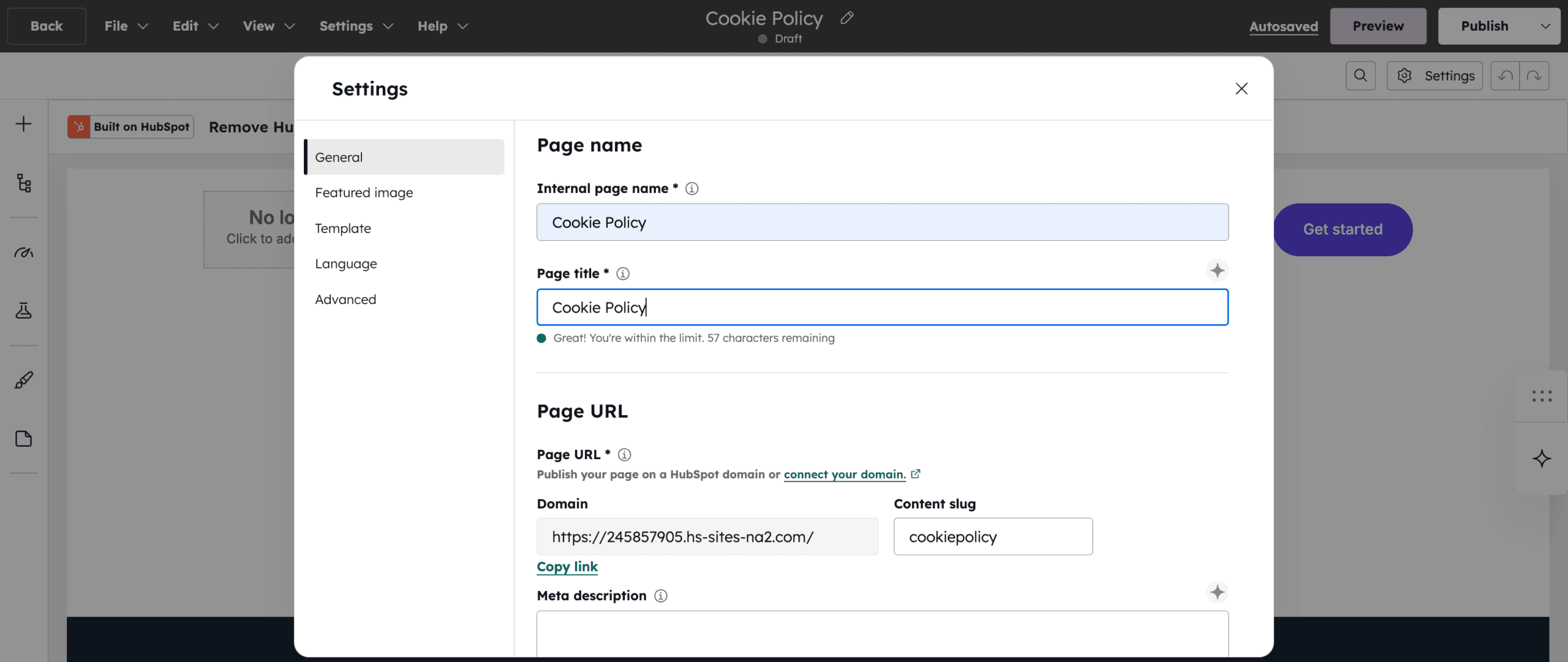
- Click Settings (top right in the page editor)
- Under the General tab:
- Enter the Internal page name (e.g.,
Cookie Policy) - Enter the Page title (e.g.,
Cookie Policy)
- In the Page URL section:
- Set the Content slug to:
cookie-policy
2.3 Add a Content Section
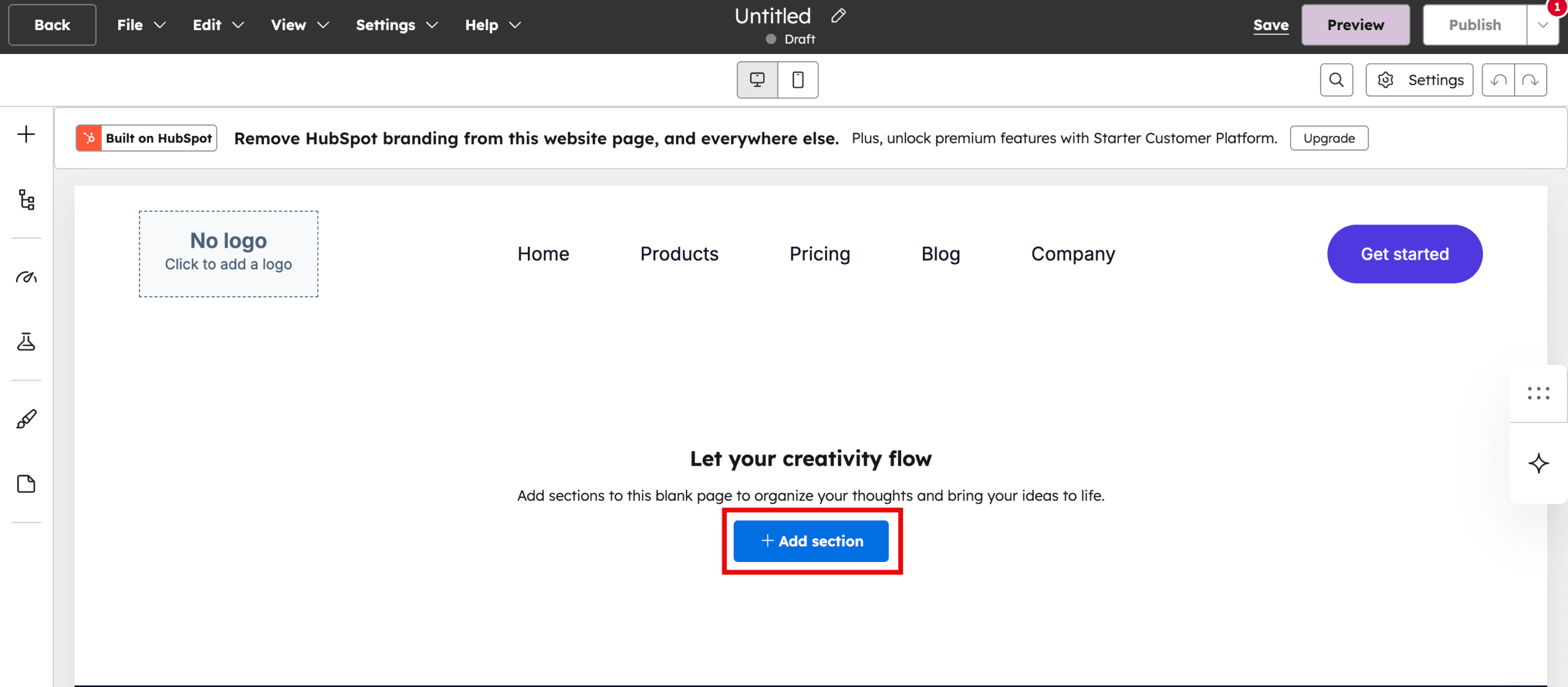
- Click + Add Section.
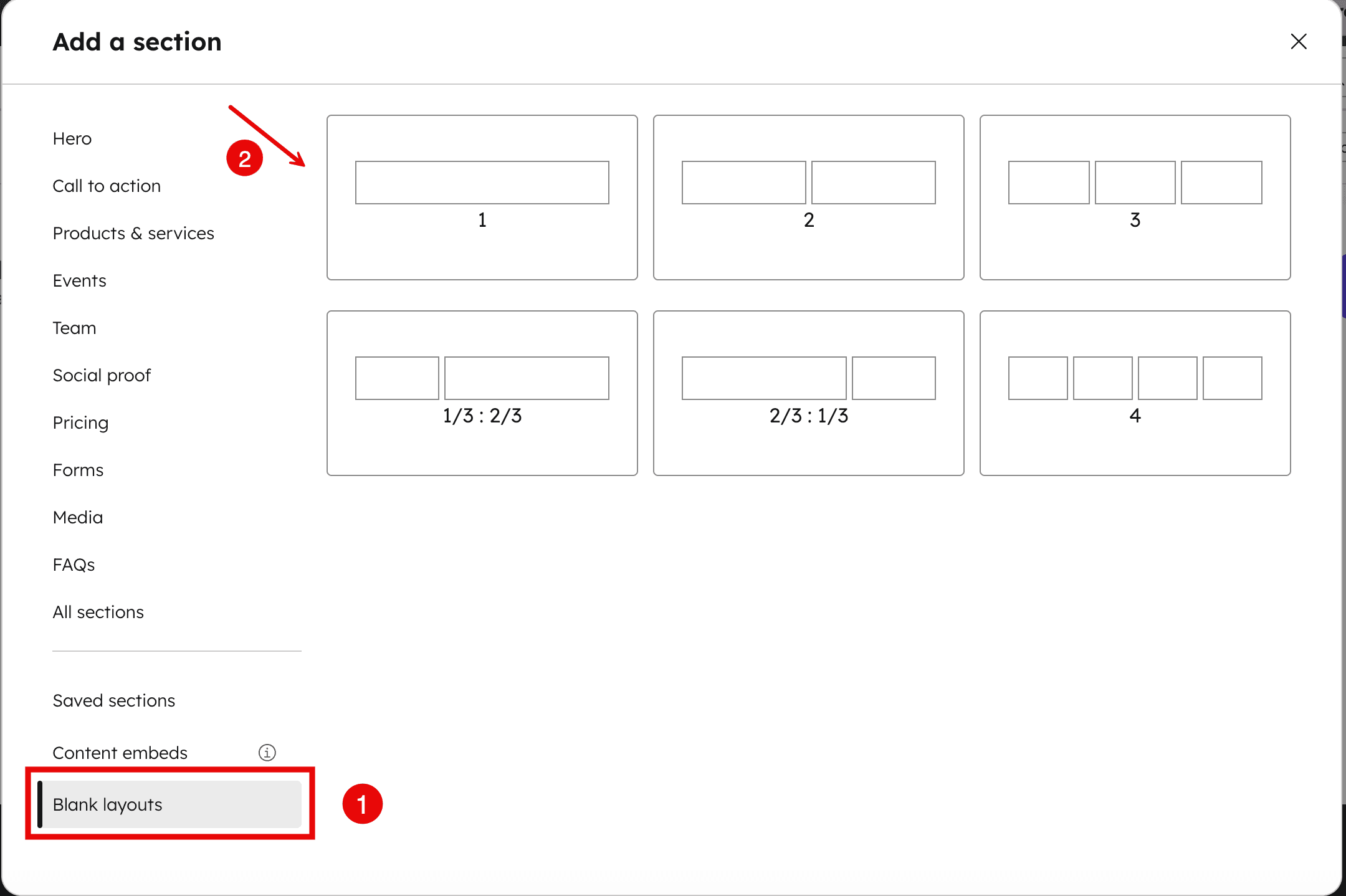
- Select Blank layouts > 1-column layout.
2.4 Insert a Rich Text Module
1. Inside the section, click the + (Add) button
2. Search for Rich Text.
3. Drag and drop it into the section.
If you chose Option A (One-click install):
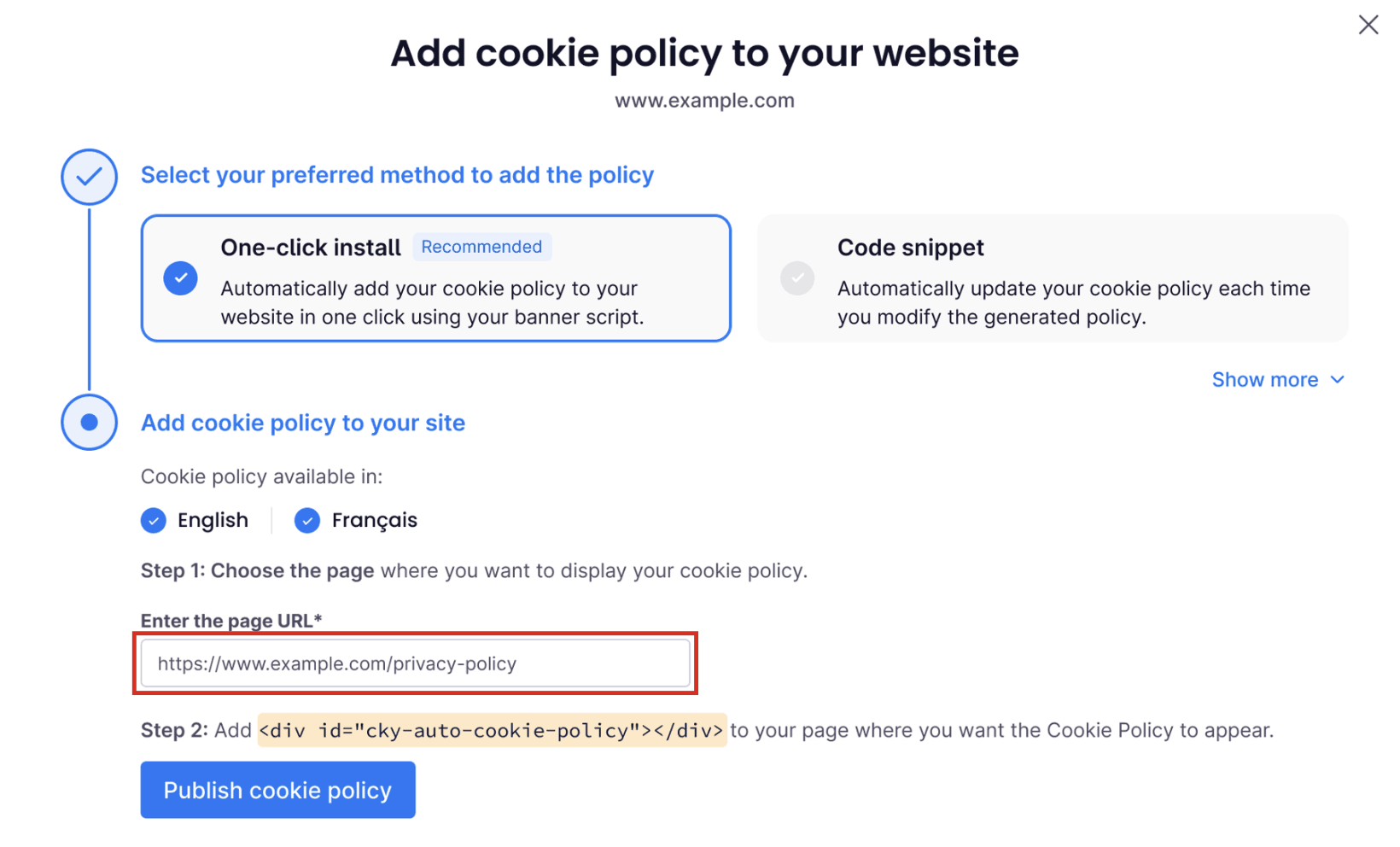
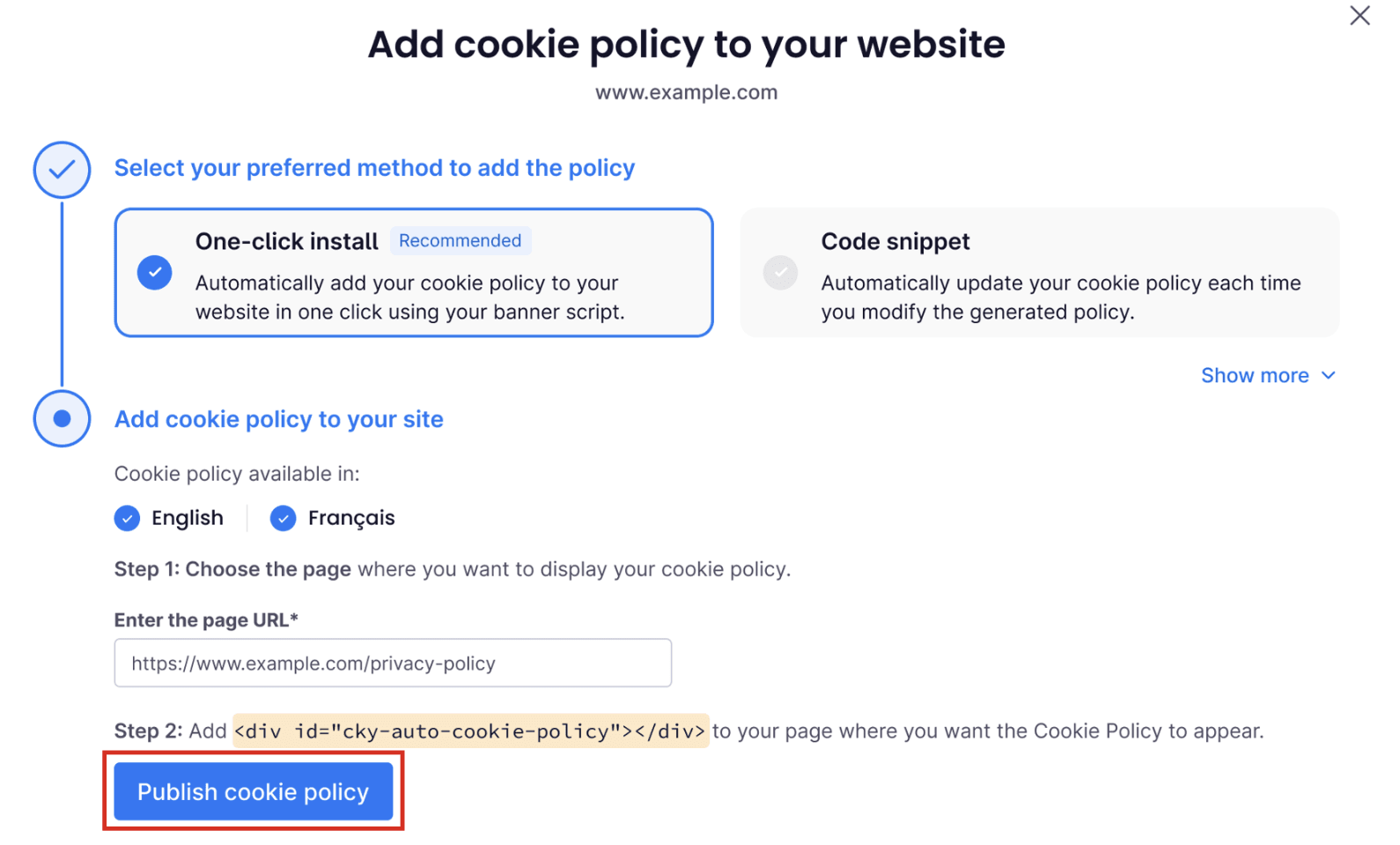
4. Copy the URL of your cookie policy page and paste it into the CookieYes web app.
2.5 Add the Policy Code
- Click inside the Rich Text module.
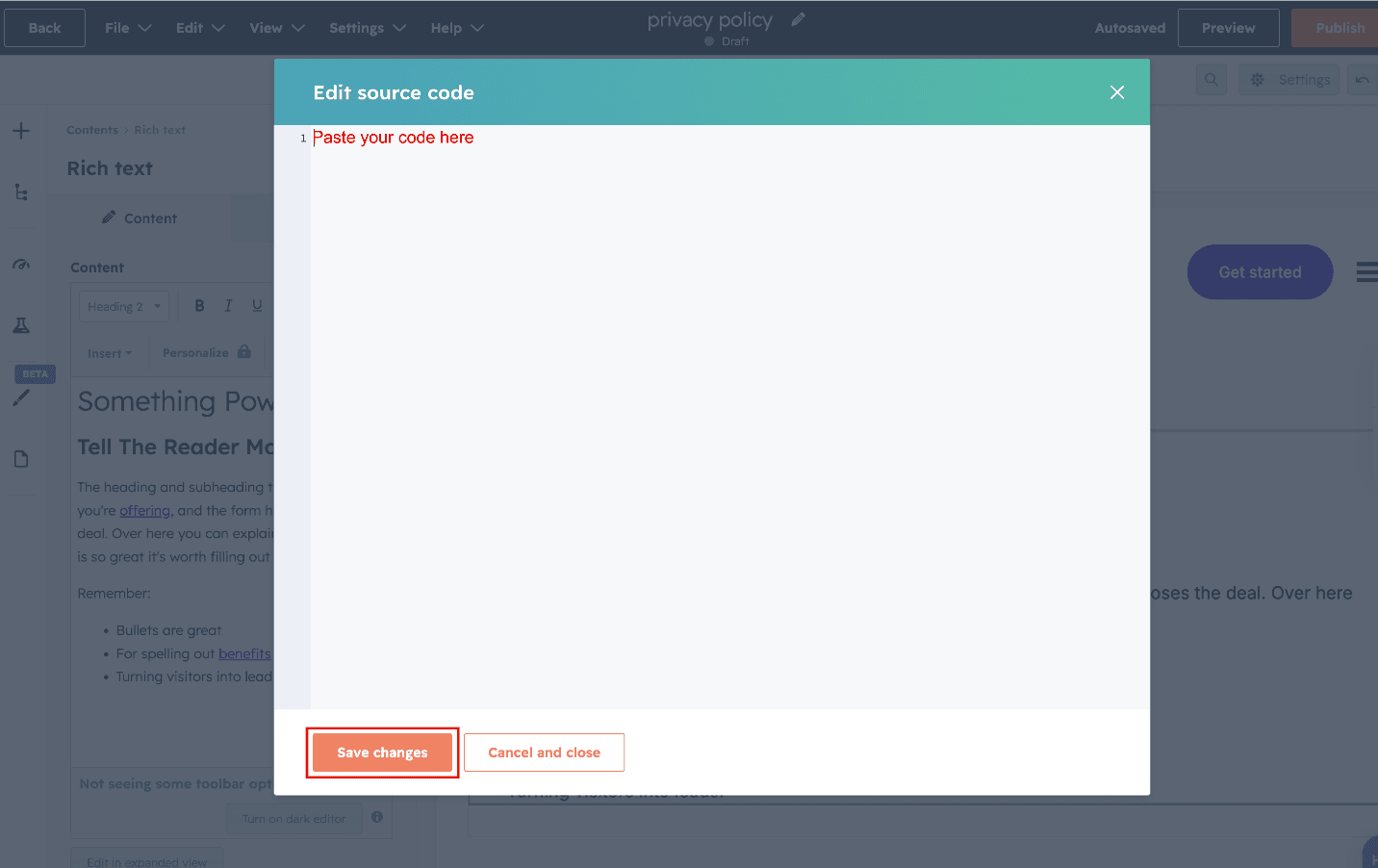
- Click Advanced and select Source code.
- Depending on your selected method, follow the steps below:If you chose Option A — One-click install:
- Into the modal that opens, paste <div id="cky-auto-cookie-policy"></div>.
- Click Save changes.
- Return to the CookieYes web app and click Publish cookie policy to publish it. You can also preview the cookie policy.
 If you chose Option B or C — Code snippet or HTML format:
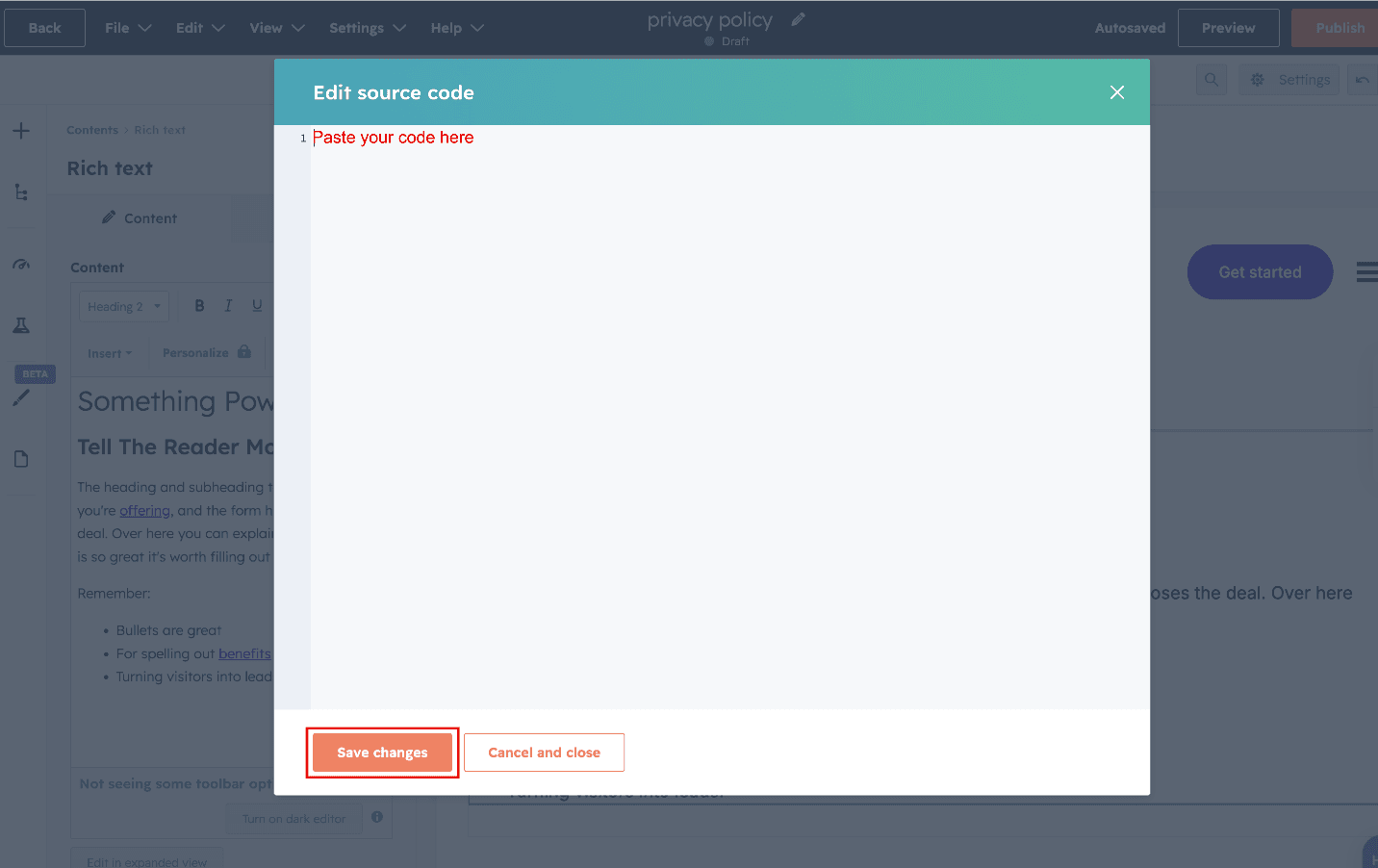
- Into the modal that opens, paste the code copied from CookieYes.
- Click Save changes.
2.6 Publish the Page
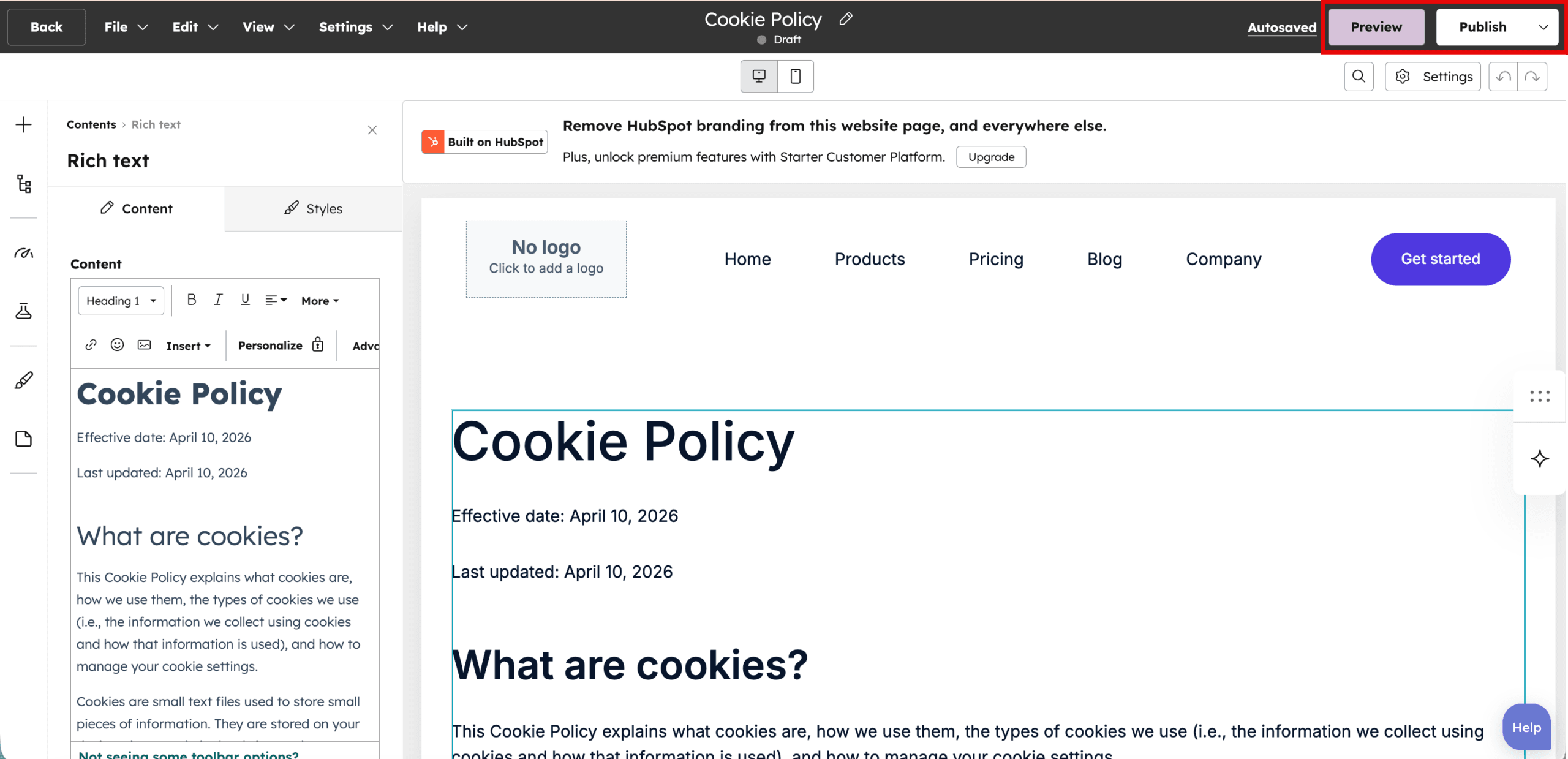
- Click Preview to review the page.
- Click Publish.
Your cookie policy page will be live on your HubSpot site. You can then link your cookie policy to your website footer or link it within your cookie banner.
Conclusion
By following this guide, you can easily generate a cookie policy in CookieYes and publish it on your HubSpot site. A properly configured cookie policy not only builds trust with your customers but also helps your website comply with privacy requirements, such as the GDPR and ePrivacy Directive.
With CookieYes, you have a flexible, compliant and up-to-date solution to manage cookies and privacy transparency on your HubSpot site.