
Customising the AccessiYes Accessibility Widget via JavaScript
Last updated on May 11, 2026
On this page
Overview
The AccessiYes Accessibility Widget is a no-code accessibility solution designed to work across various platforms and CMSs, offering user-facing accessibility controls to help meet global compliance standards. It enables organisations to provide user-facing accessibility controls such as keyboard navigation, contrast modes and text resizing, supporting compliance with global accessibility standards like WCAG 2.1, the Americans with Disabilities Act (ADA) and the European Accessibility Act (EAA). This guide explains how to customise the AccessiYes Accessibility Widget using its JavaScript embed. You can configure its position, accessibility statement link and enable or disable modules directly within the configuration object before the widget loads.
This document assumes you're embedding the widget via JavaScript using the standard snippet provided by AccessiYes.
If you’re a WordPress user, you can install the AccessiYes Accessibility Plugin for WordPress to enable the widget, no coding required.
Core Configuration Structure
The AccessiYes Accessibility Widget can be customised using a JavaScript configuration object called _cyA11yConfig. The configuration object controls the widget's behaviour, placement and enabled features. Below is the core structure with commonly used options:
window._cyA11yConfig = { iconId: "default", position: { mobile: "bottom-right", desktop: "bottom-right" }, modules: { statement: { enabled: true, url: "https://yoursite.com" } }};
Configuration Parameters
This section provides an in-depth breakdown of each configuration property available in the _cyA11yConfig object. These settings give you granular control over the widget’s interface, positioning and feature modules.
Widget Icon
Defines the style or theme of the Accessibility Widget icon, allowing you to align its appearance with your brand or accessibility focus.
iconId: "default"
Accepted Values:
"default": Standard default icon style."accessibility": Universal accessibility icon."wheel": Wheelchair symbol, representing mobility accessibility."assist": Assistive tech-themed icon.
Use Case: Choose an icon that complements your site’s accessibility messaging. For example, use "wheel" to highlight mobility support or "assist" for general assistive functionality.
Position
Specifies where the Accessibility Widget appears on both mobile and desktop views to ensure optimal visibility and avoid UI conflicts.
position: { mobile: "bottom-right", desktop: "bottom-right"}
Accepted Values:
"bottom-right""bottom-left""top-right""top-left"
Use Case: Adjust the widget’s position to prevent overlap with other interactive elements (like chat widgets) or to support layout direction (e.g., use "bottom-left" for RTL languages).
Accessibility Statement
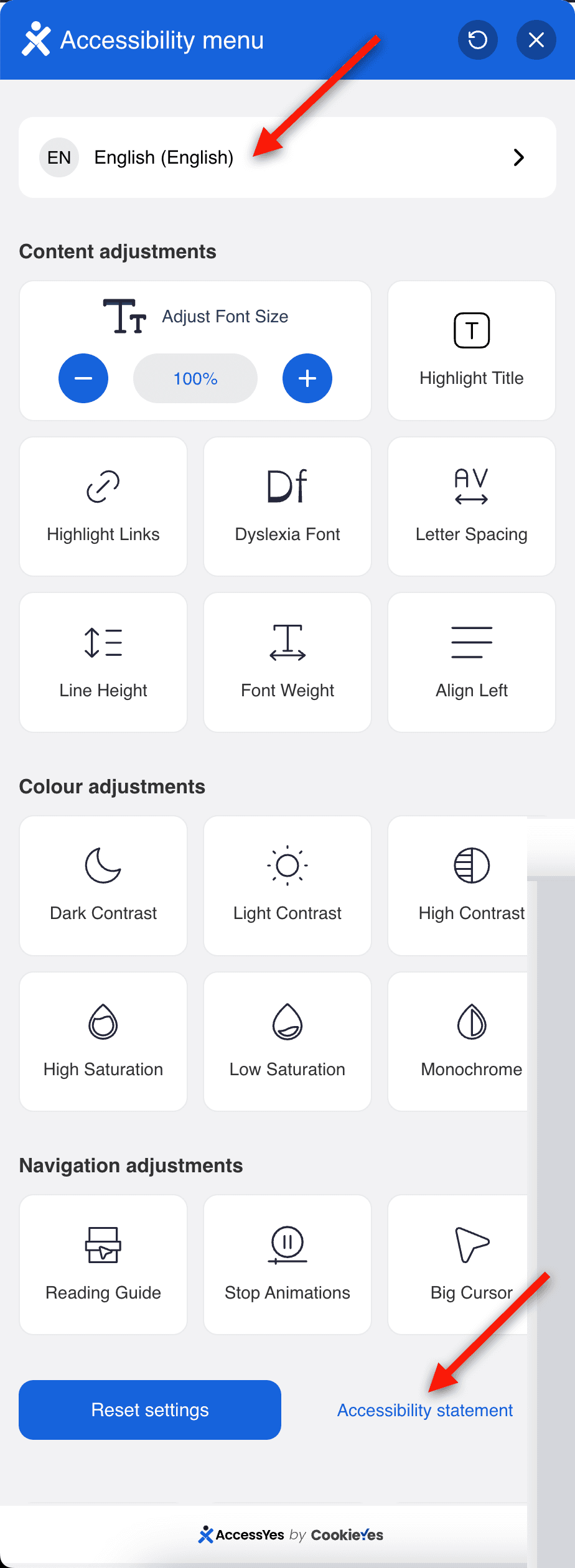
This module displays a link to your website’s Accessibility Statement inside the widget menu, helping demonstrate transparency and support for accessibility compliance.
statement
modules: { statement: { enabled: true, url: "https://example.com/accessibility-statement" }}
Parameters:
enabled: Enables or disables the Accessibility Statement link in the widget.url: Full URL to your published Accessibility Statement page.
Accepted Values:
enabled:trueorfalseurl: A valid, publicly accessible URL (required only if enabled is true)
Use Case:
Use this module to provide users with direct access to your Accessibility Statement. This builds trust and aligns with accessibility standards such as WCAG and the EAA.
If you do not want to display the Accessibility Statement link, set 'enabled' to false. You may also leave the url field empty or remove it entirely.
Here’s what the configuration should look like:
modules: { statement: { enabled: false, url: "" // Optional when disabled }}
Keyboard Shortcut
This module provides keyboard accessibility support for the widget, enabling users to open the accessibility panel with a predefined keyboard shortcut, without clicking the widget icon.
keyboard: { enabled: true, shortcut: "alt+a"}
Parameters:
- enabled: Enables or disables the keyboard shortcut for the widget.
- shortcut: Defines the key combination used to open the widget. Keys are joined with
+. Supported modifier keys are alt, shift, ctrl, and space.
Accepted Values:
- enabled:
trueorfalse - shortcut: A string combining one or more of the following keys using
+:
| Key Token | Windows | Mac |
|---|---|---|
| alt | Alt | Option (⌥) |
| shift | Shift | Shift (⇧) |
| ctrl | Ctrl | Control (⌃) |
| space | Space | Space |
Use Case:
Use this module to allow keyboard-reliant users and assistive technology users to activate the accessibility widget without a mouse. This is particularly useful for users who navigate entirely via keyboard.
If you do not want to enable the keyboard shortcut, set enabled to false. You may also leave the shortcut field empty or remove it entirely.
Here's what the configuration should look like:
keyboard: { enabled: false, shortcut: "" // Optional when disabled}
Configuration Example
Below is an example of how to define the _cyA11yConfig object to customise the AccessiYes Accessibility Widget. This configuration controls the icon type, widget placement across devices and accessibility statement linking:
window._cyA11yConfig = { iconId: "assist", position: { mobile: "bottom-left", desktop: "bottom-right" }, modules: { statement: { enabled: true, url: "https://example.com/accessibility-statement" } }};
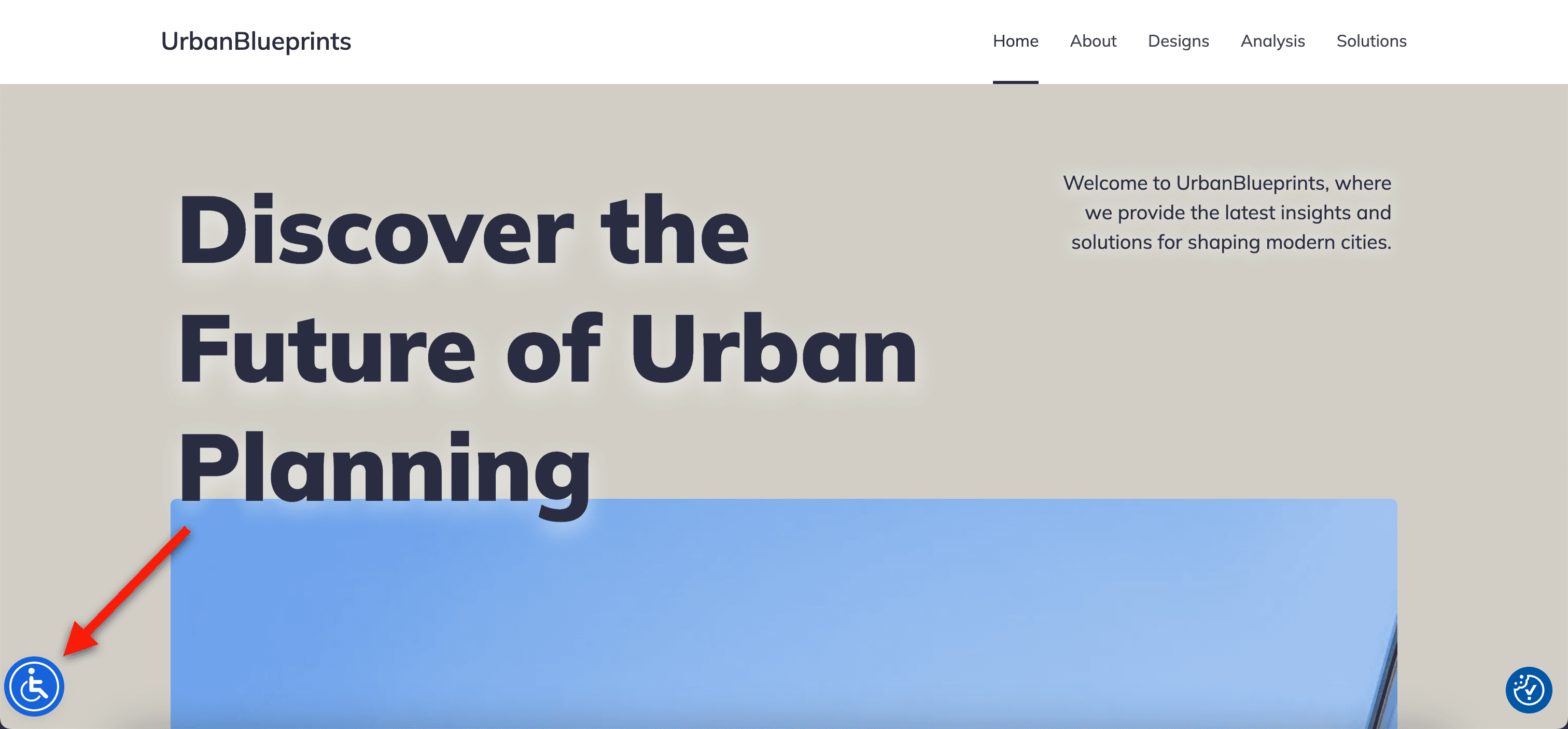
The image below illustrates a website with a fully configured accessibility setup. The AccessiYes widget is displayed at the bottom-right corner, using the assist icon style, while an additional blue accessibility icon appears at the bottom-left, demonstrating the mobile-specific layout. This configuration highlights the flexibility in widget positioning across various devices and demonstrates how multiple icons can coexist for improved accessibility.
Best Practices
- Always declare the
_cyA11yConfigobject before loading the widget script. - Validate that all URLs are correct and publicly accessible.
- Keep your Accessibility Statement up to date and ensure the link (url) points to the latest version.
Conclusion
The AccessiYes Accessibility Widget offers flexible configuration options that let you tailor its behaviour and appearance to your website's accessibility goals and user experience needs. By customising the _cyA11yConfig object before the script loads, you can:
- Align the widget's icon with your brand or accessibility message
- Position it strategically across devices to prevent UI overlap
- Link to your Accessibility Statement to reinforce transparency and compliance
For best results, always declare the configuration before loading the widget script, and keep your settings updated to reflect any changes in your site’s structure and accessibility policies.
This documentation provides a reference foundation for getting started, but the widget may evolve over time, so check for new options or modules as they become available in future updates.